If you use Gmail for free, you’ve probably noticed the ads. They show up at the top of your inbox, blend in with real emails, and sometimes feel impossible to get rid of — especially on mobile. Truth is, you can’t fully turn off ads in Gmail’s free version. But that doesn’t mean you’re stuck with them either.
Depending on how you use Gmail, there are several ways to block, hide, or drastically reduce ads — from simple tweaks inside Gmail to more powerful workarounds like ad blockers, filters, or using Gmail through another email client. You can also limit ad personalization if privacy is your main concern.
In this guide, we’ll show you what you can realistically do to remove or reduce ads in Gmail, and which solution works best for your situation — without hacks, fake promises, or risky tricks.
Here’s what we’ll cover:
- Why Gmail Shows Ads in the First Place
- Can You Completely Remove Ads from Gmail?
- How to Block or Reduce Ads in Gmail
- How to Disable Ad Personalization in Gmail
- How to Report or Hide Specific Gmail Ads
Sounds good? Then let’s dive in.
Why Gmail Shows Ads in the First Place
Gmail ads are not spam. They’re paid placements approved by Google. And they’re the reason Gmail is free. Instead of charging users, Google offsets the cost of running Gmail by displaying sponsored ads inside the inbox.
These ads usually appear at the top of certain inbox tabs — most often Promotions — and are labeled Sponsored. But because they’re formatted like real emails, they can easily slip into your line of sight as you scan your inbox.
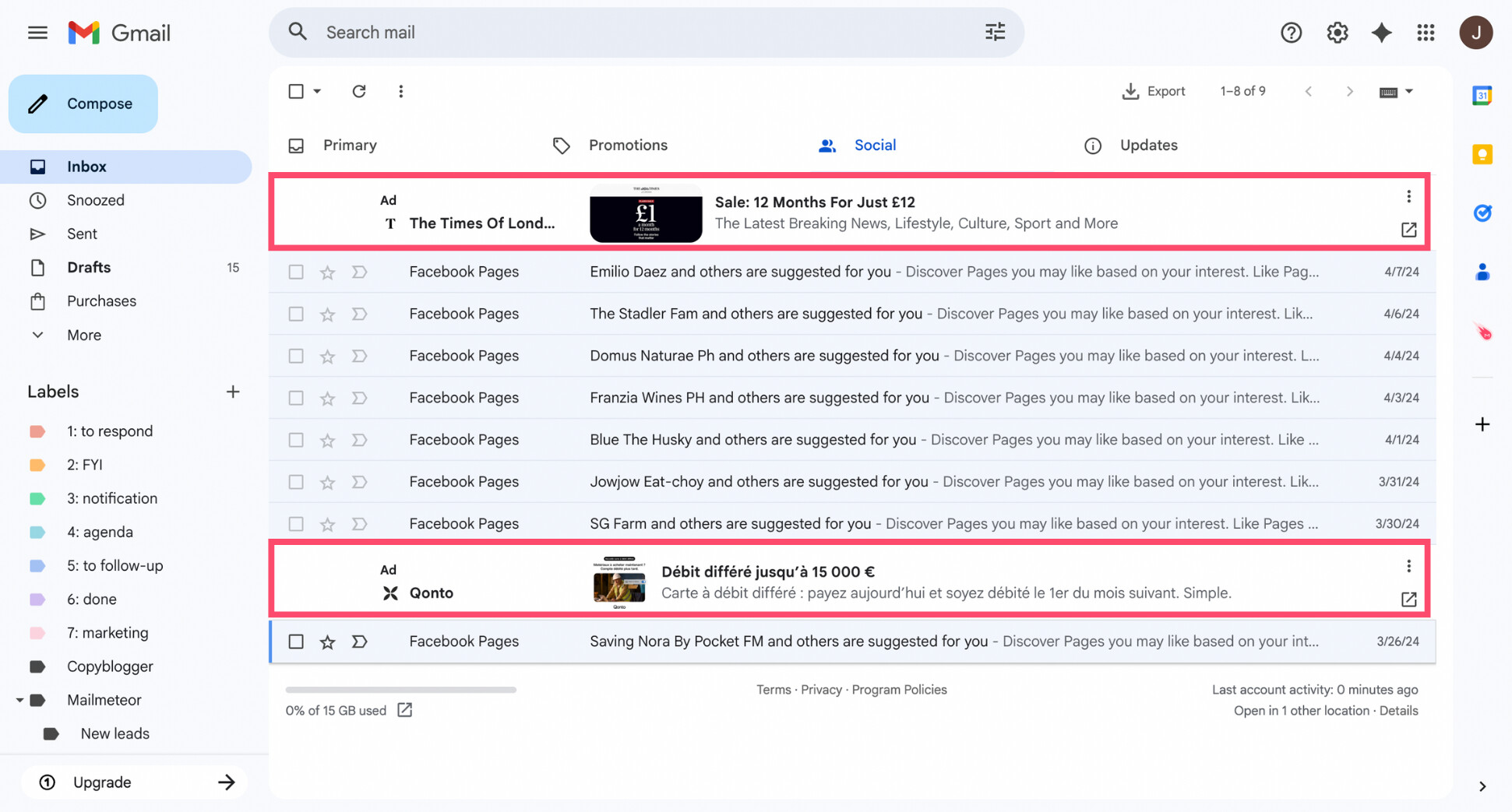
Over time, that friction adds up. Ads take up inbox space, push real messages down, and make Gmail feel messier than it needs to be — especially if you rely on it throughout the day.
Can You Completely Remove Ads from Gmail?
Short answer: not if you’re using Gmail for free. There’s no setting that lets you turn ads off entirely. Sponsored messages are built into the free version of Gmail, and Google doesn’t offer a native no ads toggle.
If you hover over a sponsored ad in Gmail, you’ll see a trash icon. Clicking it removes that ad from your inbox. The catch? This only hides that single ad, and similar sponsored messages will keep coming back.
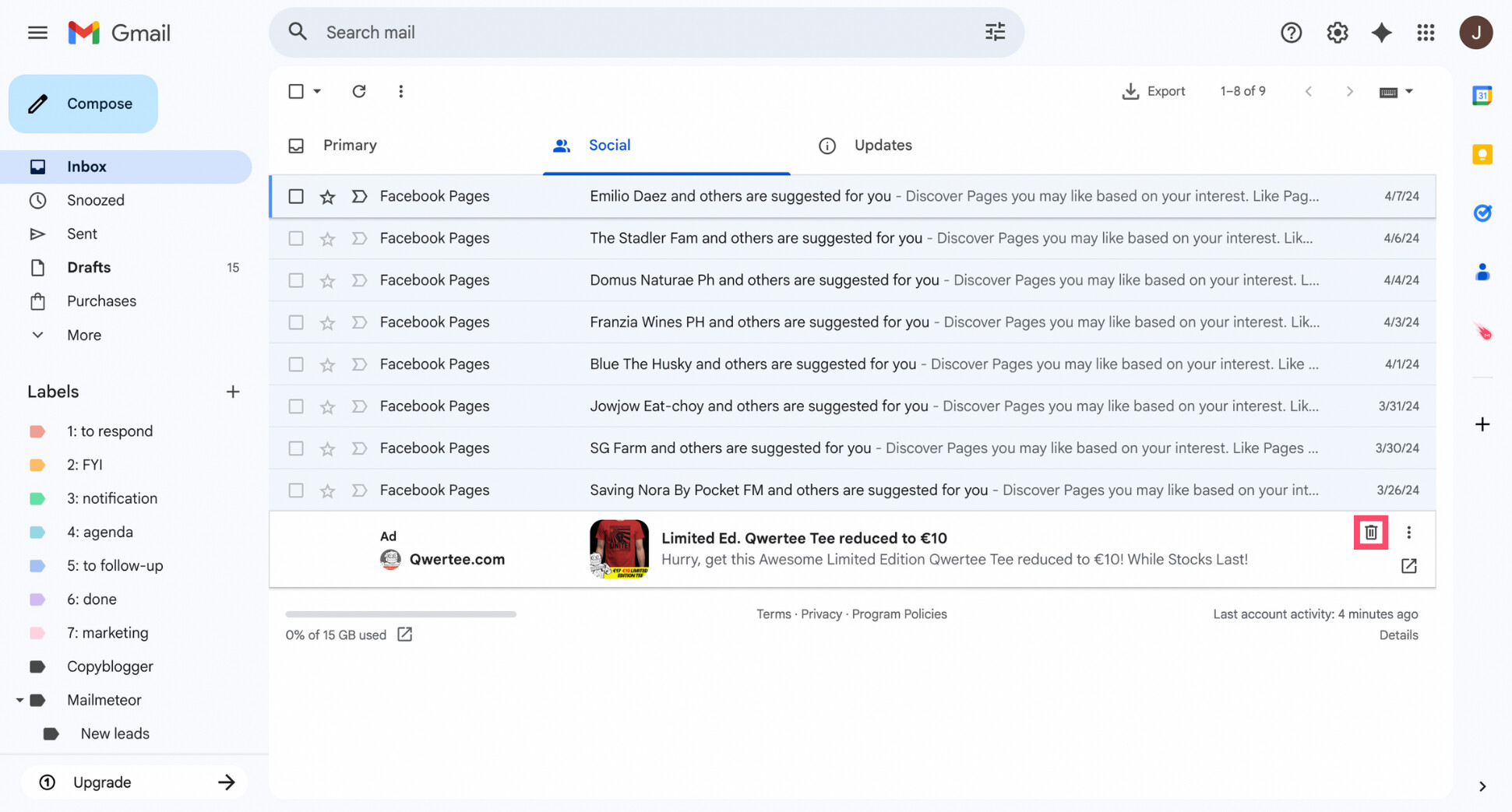
That said, can’t remove doesn’t mean can’t improve. While there’s no magic switch to make ads disappear in free Gmail, there are ways to make them less noticeable — or eliminate them entirely if you’re willing to switch plans or tools.
How to Block or Reduce Ads in Gmail
The methods below range from quick Gmail tweaks to more advanced workarounds. You don’t need to use all of them. They each have their pros and cons. Pick the ones that match how you use Gmail.
| Method | Removes ads completely | Works on mobile | Complies with Google’s rules |
|---|---|---|---|
| Delete a single ad | ❌ | ✅ | ✅ |
| Disable the Promotions tab | ❌ | ✅ | ✅ |
| Install an ad blocker | ✅ (desktop only) | ❌ | ❌ |
| Use another email client | ✅ | ✅ | ✅ |
| Upgrade to Google Workspace | ✅ | ✅ | ✅ |
Disable the Promotions Tab
Most Gmail ads appear inside the Promotions tab. Disabling it won’t remove ads entirely, but it can dramatically reduce how often you see them.
Here’s how to disable the Promotions tab in Gmail:
- Open Gmail.
- Click the gear icon in the top-right corner.
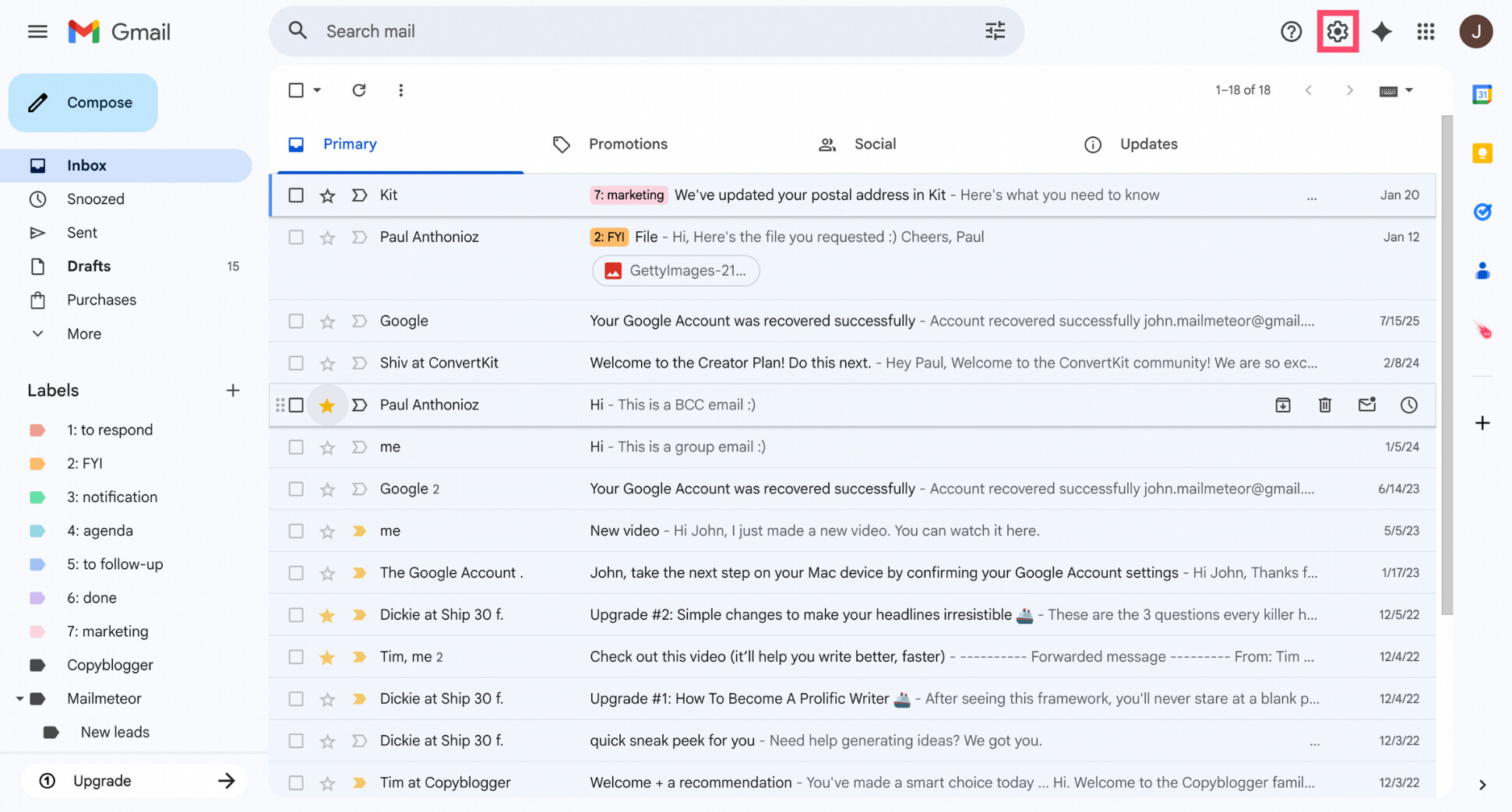
- Select See all settings.
- Navigate to the Inbox tab.
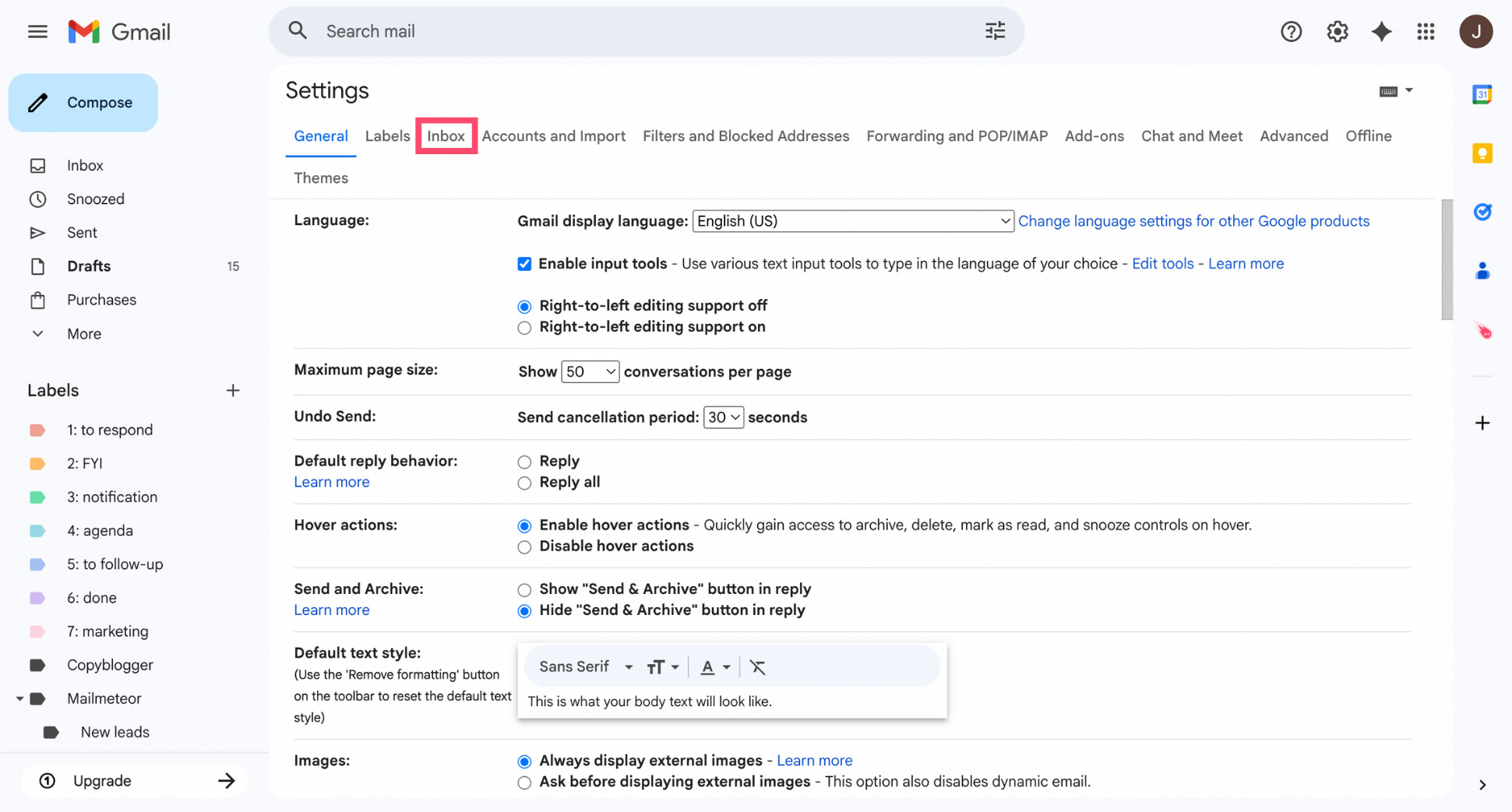
- Under Inbox type, uncheck Promotions.
- Click Save changes.
And voilà. Your inbox will reload without the Promotions tab. It’s not a perfect fix — ads can still appear at the top of your inbox or in other tabs like Updates — but for many users, this change reduces ad clutter with almost no downside.
Install an Ad Blocker
If you mainly use Gmail on a desktop browser, an ad blocker is one of the most effective ways to hide Gmail ads entirely. These tools remove sponsored placements from the page — including the ads that appear at the top of the Promotions tab.
We tested several ad blockers, and these reliably removed Gmail ads:
- Adblock Plus – Easy to use, widely trusted, and effective at hiding Gmail ads with default settings.
- uBlock Origin – Lightweight, fast, and very powerful. A favorite among privacy-focused users.
- AdGuard – Works across browsers and offers more advanced filtering options if you want finer control.
Once installed, these extensions automatically hide Gmail’s sponsored ads without changing your inbox layout or settings. In most cases, there’s nothing to configure — ads simply disappear.
That said, there are a few caveats to keep in mind. Ad blockers only work on desktop browsers. They don’t work inside the Gmail mobile app. And because Gmail is always evolving, ad blockers can occasionally break or require updates to stay effective.
What’s more, using an ad blocker to remove Gmail ads goes against Google’s terms of service. While Google doesn’t actively block accounts for this, it’s not an officially supported solution and may stop working at any time.
Filter or Auto-Archive Ad-Like Emails
Even when ads don’t appear as Sponsored, many promotional messages still behave like ads (repetitive offers, marketing blasts, automated notifications…). While these aren’t Gmail ads technically, they create the same clutter.
Gmail filters are a great way to keep those pesky messages out of your main inbox. Instead of deleting anything, you can automatically label, archive, or skip the inbox for emails that match specific rules.
Here’s how to filter ad-like emails in Gmail:
- Open Gmail.
- In the search bar, click the Show search options icon.
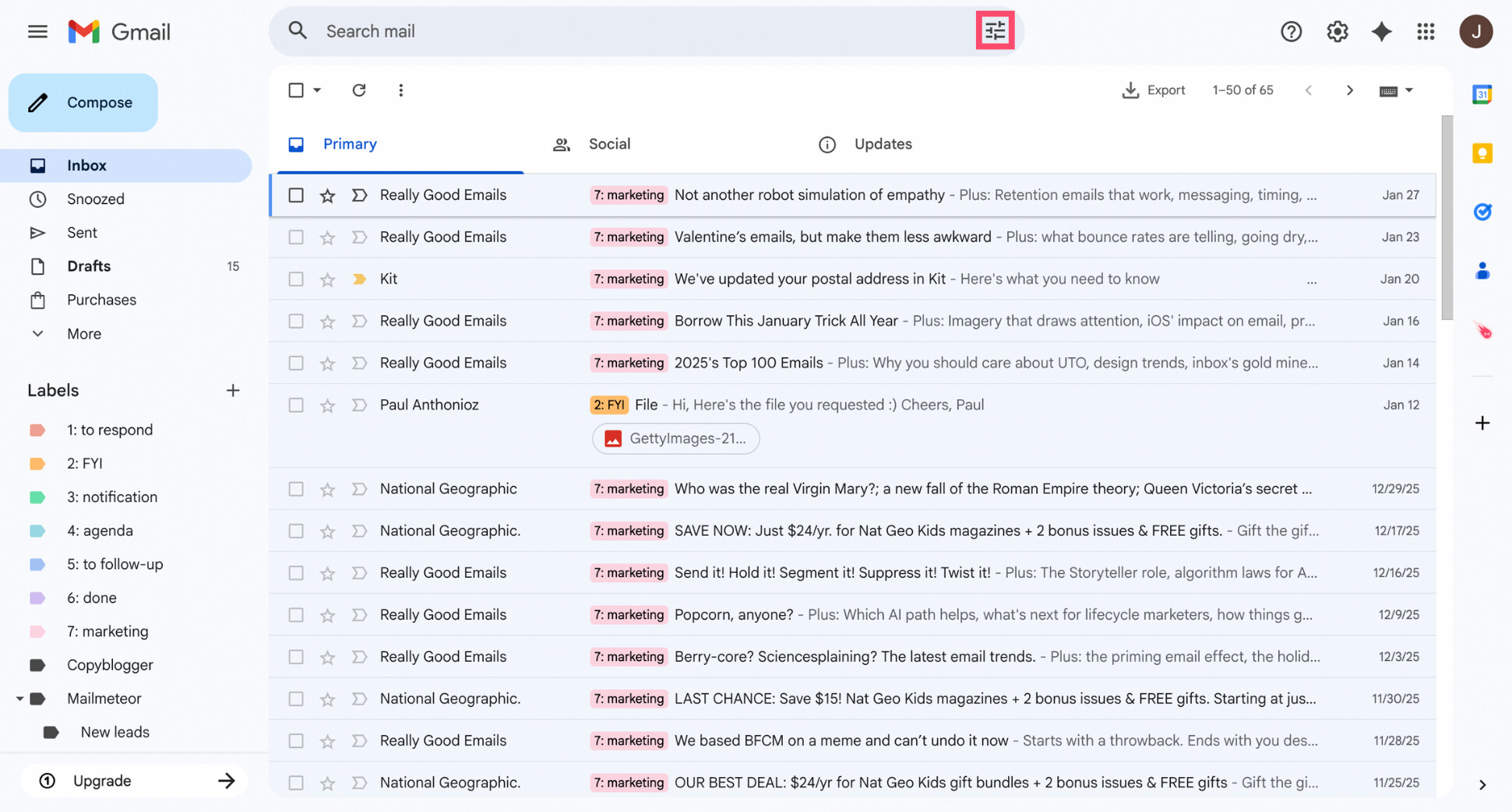
- Add criteria like:
- Common keywords (e.g. sale, deal, offer)
- A specific sender or domain (e.g. @example.com)
- Messages sent to a “+” alias (e.g. [email protected])
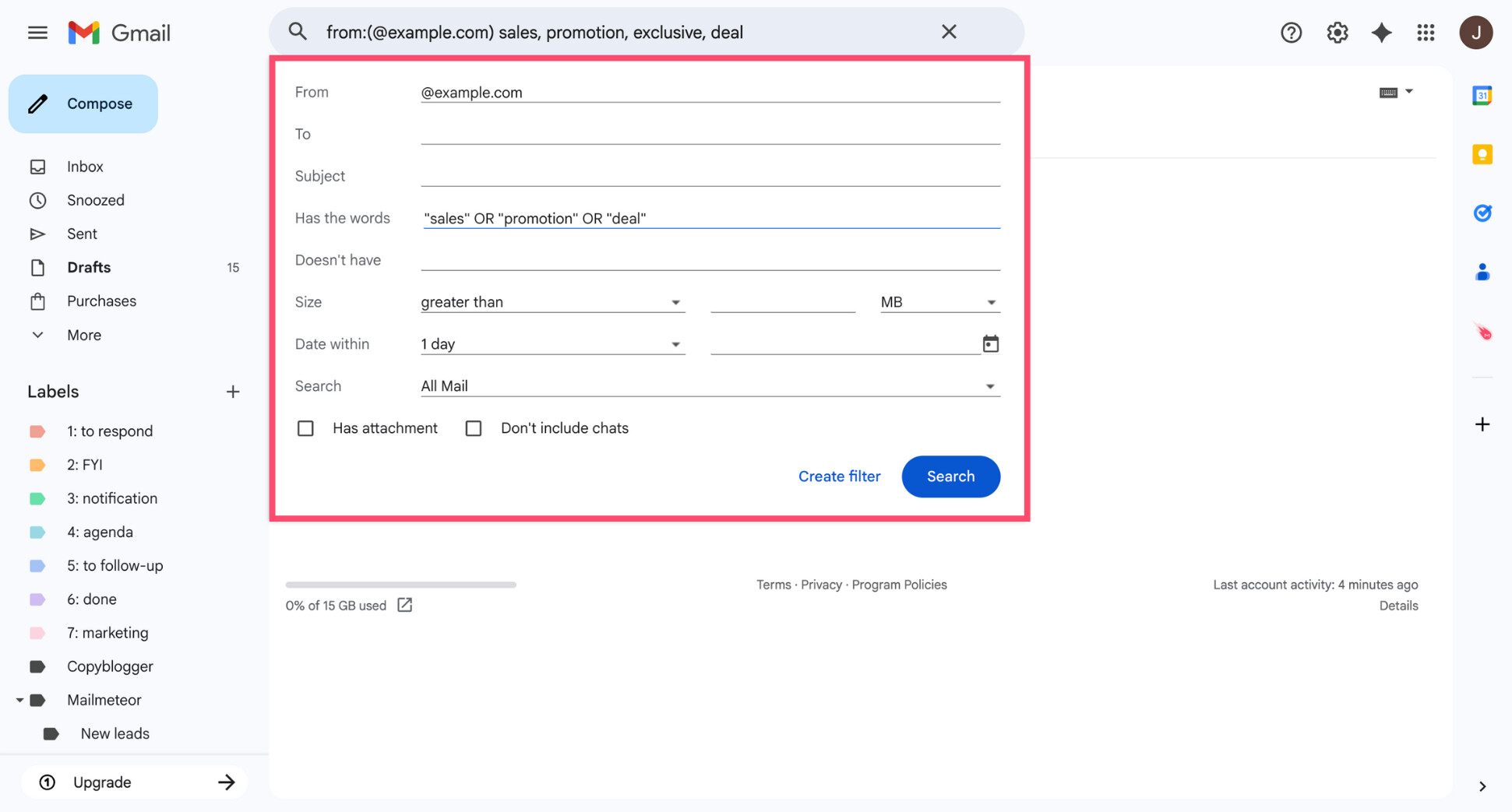
- Click Create filter.
- Choose Skip the Inbox, and optionally apply a label.
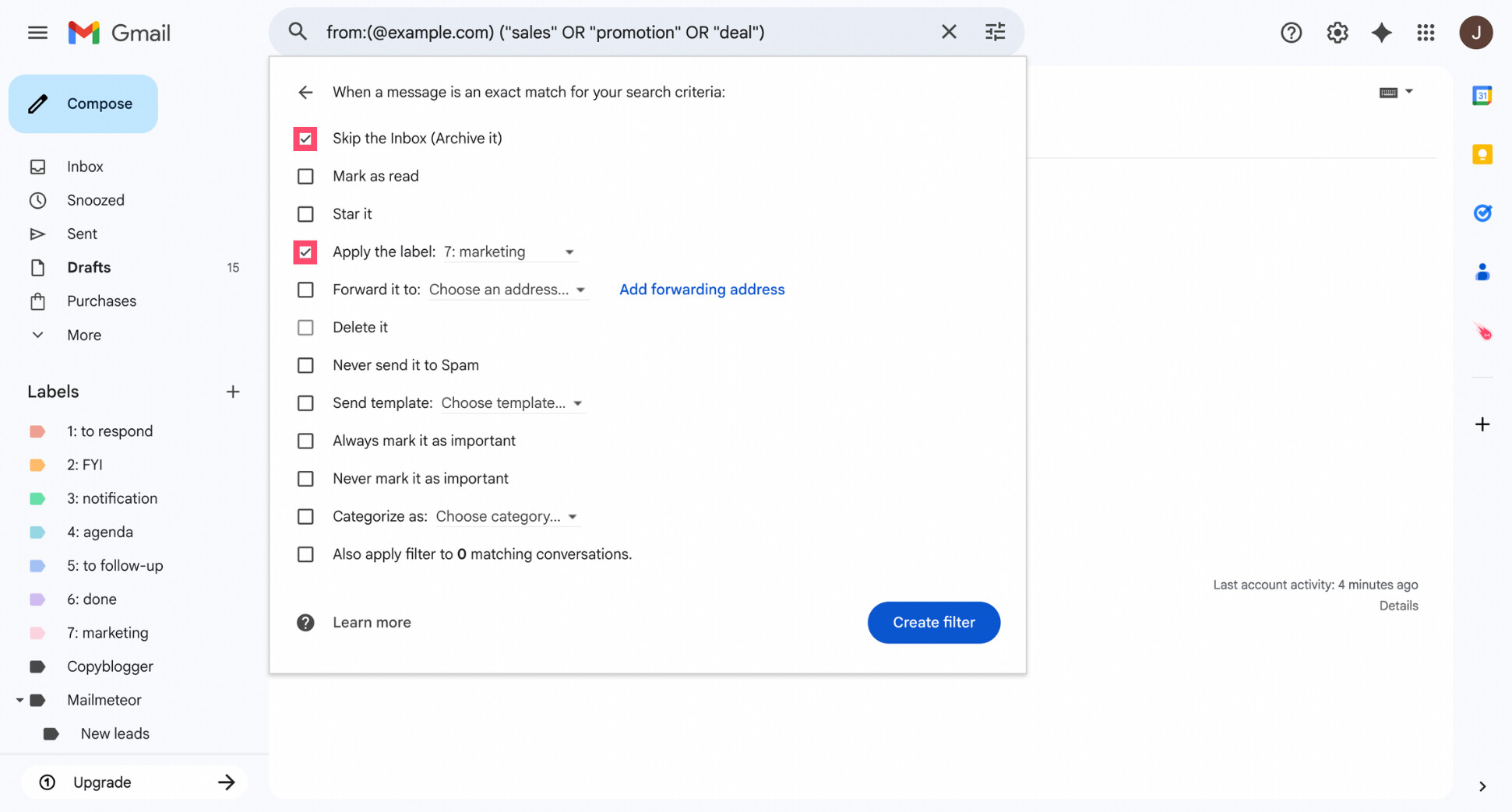
- Click Create filter again.
And that’s it. From now on, matching emails will bypass your inbox automatically. This approach is ideal if you still want to keep receipts or promo emails just in case, but don’t want to see them every time you open Gmail.
Use Gmail Through Another Email Client
Another way to avoid ads is to access your Gmail account through a different email app. Third-party email clients don’t display Gmail’s sponsored ads. They simply sync your emails via IMAP and show messages in a traditional inbox layout.
Popular options include:
- Apple Mail
- Microsoft Outlook
- Mozilla Thunderbird
How does it work? In the email app, choose Add account, select Google, and sign in with your Gmail address. Once connected, the app automatically syncs your inbox. You’ll receive and send emails as usual — without Gmail’s sponsored ads.
That said, there are trade-offs. You won’t get Gmail-only features like Smart Compose, label, or Undo Send. And switching to a new interface takes some adjustment — especially if you’re used to Gmail’s workflow.
Upgrade to Google Workspace
If you want a 100% ad-free Gmail experience, upgrading to Google Workspace is the only official and permanent solution. This replaces the free version of Gmail with a paid plan that removes all sponsored ads — on desktop and mobile.
Your inbox looks the same, works the same, but without any ads at the top of tabs or inbox lists. Beyond removing ads, Google Workspace also includes additional features that might come in handy, such as:
- A professional email address (e.g. [email protected])
- More storage across Gmail, Drive, and Photos
- Business-grade security and admin controls
- Priority support from Google
Setup is straightforward. You sign up for Google Workspace, connect (or migrate) your existing Gmail account, and keep using Gmail as usual — just without ads.
The trade-off is cost. Google Workspace plans start at a monthly fee per user, which may not make sense if ads are your only pain point. But if you use Gmail for work, or want a cleaner inbox across all devices, this is the most reliable option.
How to Disable Ad Personalization in Gmail
If your main concern isn’t just clutter — but privacy — you can limit how Google personalizes ads shown in Gmail. This won’t remove ads, but it can make them less targeted and less tied to your activity across Google services.
Gmail ads are personalized using your Google account activity — like searches, YouTube views, and ad preferences. If that makes you uncomfortable, you can limit much of this targeting from your Google Ad Settings.
Here’s how to disable ad personalization for Gmail:
- Go to Google’s Ad Settings.
- Sign in to your Google account if prompted.
- Turn Ad Personalization off.
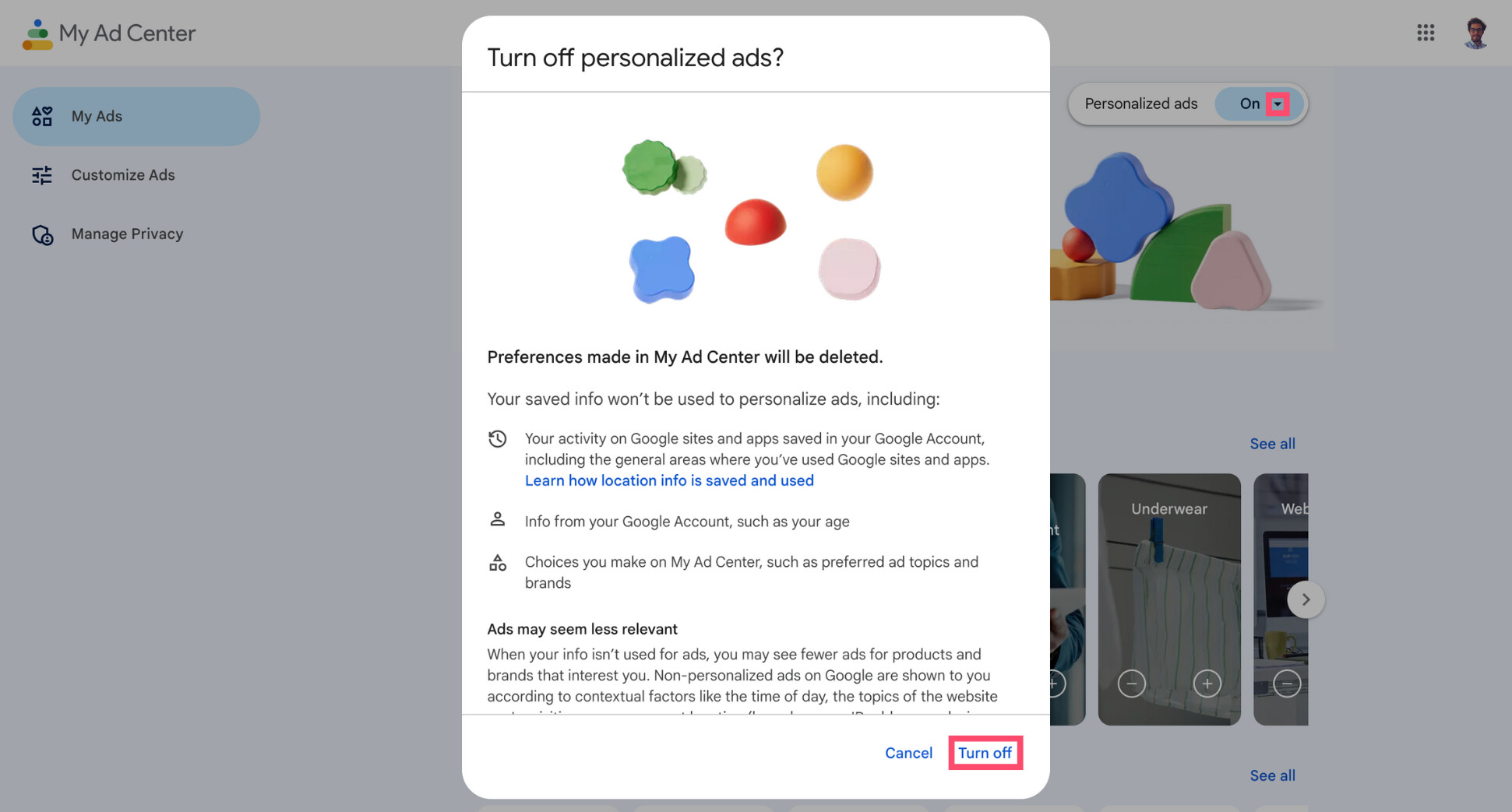
And done. Once disabled, Google will still show ads in Gmail — but they’ll be generic, not tailored to your interests or browsing behavior.
How to Report or Hide Specific Gmail Ads
If a particular Gmail ad is annoying, misleading, or irrelevant, you don’t have to just live with it. Gmail lets you hide individual ads. This won’t remove ads from Gmail entirely, but it can reduce how often similar ads appear in your inbox.
To block or report a Gmail ad:
- Open Gmail.
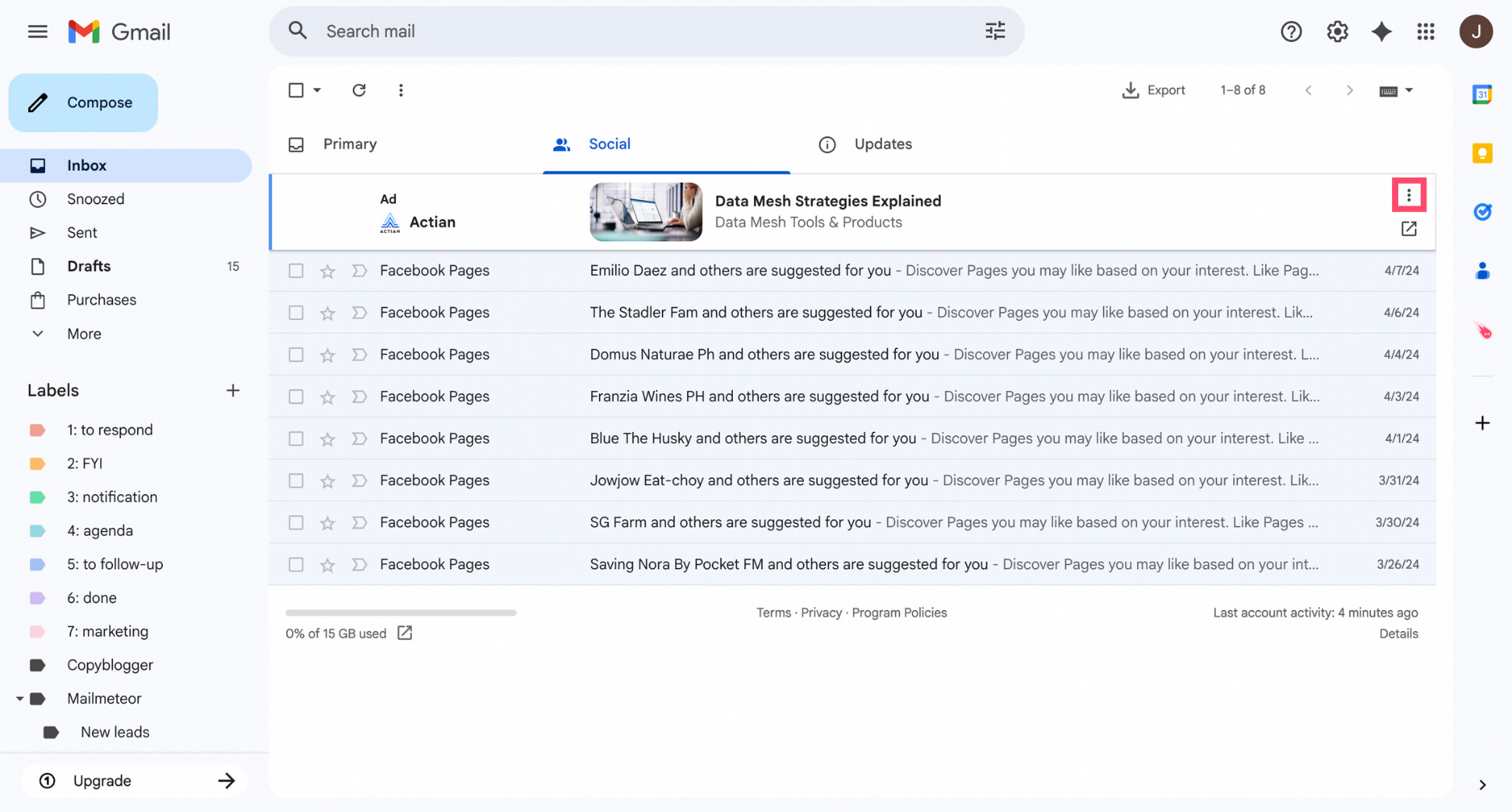
- Locate the Sponsored message you want to remove.
- Click the three-dot menu on the right side of the ad.
- Select Block (or Report if you think this ad is abusive).
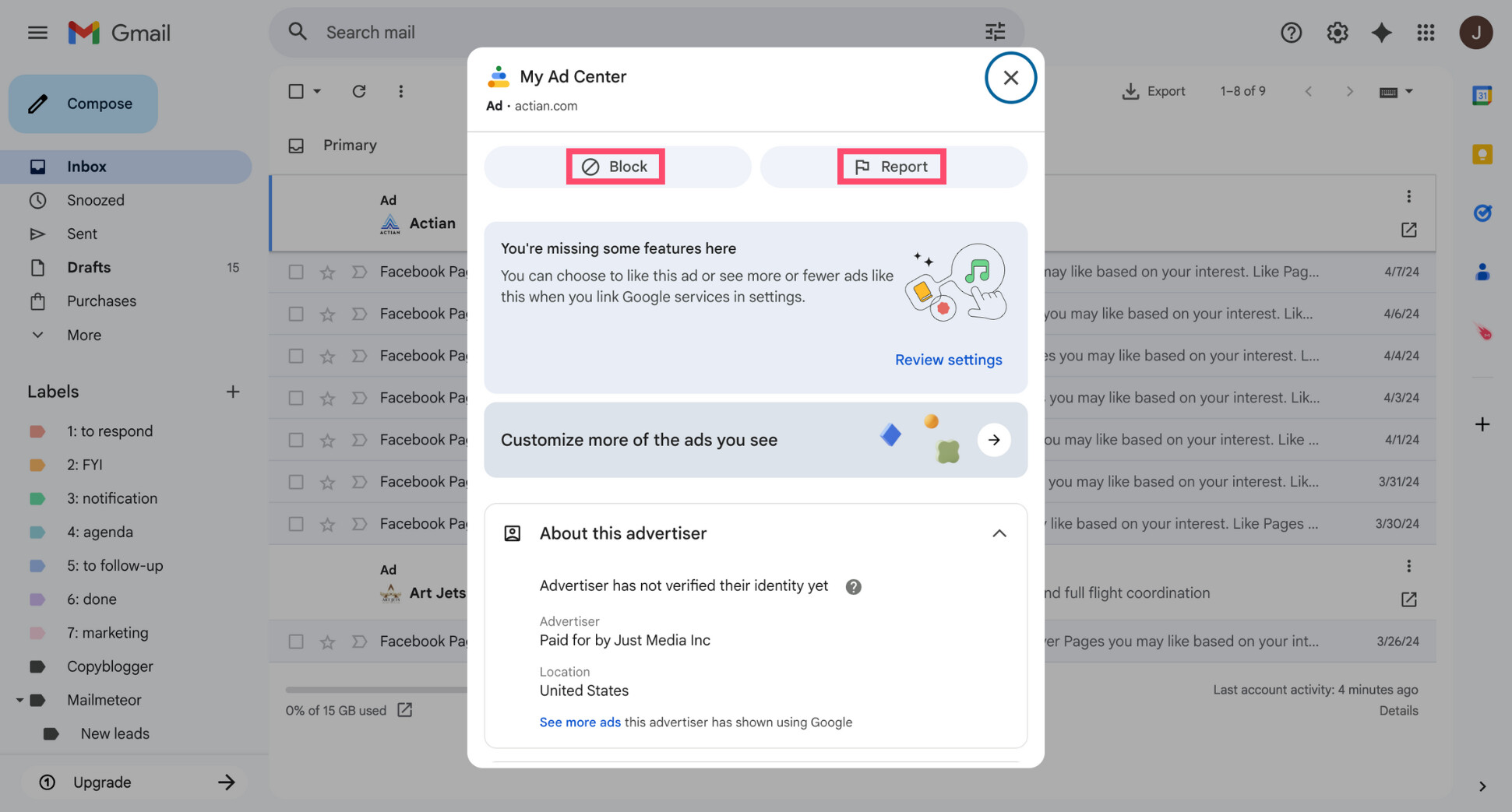
- Click Continue.
And voilà. Once you do this, Gmail removes that ad from your inbox and uses your feedback to adjust future ads you see. This option is most useful when an ad feels misleading or poorly targeted.
Conclusion
You can’t completely remove ads from Gmail’s free version — but you’re not stuck with a cluttered inbox either.
If ads are just a mild annoyance, simple tweaks like disabling the Promotions tab or filtering promo-heavy senders can already clean things up. If you want fewer distractions on desktop, ad blockers can help. And if you want a truly ad-free Gmail experience, Google Workspace is the only official solution.
That said, ads aren’t always the real problem. Inbox overload is. If your goal is a calmer, more efficient Gmail, the Mailmeteor AI email assistant can help.
It works directly inside Gmail to:
🤖 Auto-categorize emails so important messages stand out
✉️ Send personalized emails at scale with mail merge
🔁 Automate follow-ups so nothing slips through the cracks
📊 Track opens and replies in real time
📤 Export conversations for reporting or follow-up
👉 Try the Mailmeteor AI email assistant today (it’s free!) and turn Gmail into a focused workspace — ads or not.
FAQs
Can I turn off ads in Gmail settings?
No. Ads are part of how Gmail is funded, and there’s no native toggle to disable them entirely. You can, however, reduce or hide ads using workarounds like disabling the Promotions tab, using filters, or blocking ads with an ad blocker.
Why do I still see ads after disabling Promotions?
Disabling the Promotions tab reduces the number of ads you see, since many Gmail ads appear there. However, it doesn’t remove them entirely. Sponsored emails can still show up at the top of your inbox or in other tabs like Updates.
Are Gmail ads reading my emails?
No. Google states that Gmail ads are not based on the content of your emails. Ads are targeted using general account information, activity across Google services, and ad personalization settings — not by scanning your private messages.
Are Gmail ads the same as spam?
No. Gmail ads are paid placements from advertisers. They follow Google’s ad policies. Spam emails, on the other hand, come from unsolicited or malicious senders and are filtered into your Spam folder.
Can I remove ads from Gmail on mobile?
Not completely. On the Gmail mobile app, ads are more limited, but you can’t fully remove them unless you use a paid Google Workspace account. Ad blockers don’t work inside the Gmail mobile app the same way they do on desktop browsers.
What’s the best way to remove Gmail ads permanently?
The only guaranteed way to permanently remove Gmail ads is to upgrade to Google Workspace, which provides an ad-free Gmail experience. All other methods — like ad blockers or filters — reduce or hide ads but don’t officially remove them.
Is there a version of Gmail without ads?
Yes. Gmail with Google Workspace is completely ad-free. It removes all sponsored messages and doesn’t use your data for advertising. While it’s designed for businesses, anyone can subscribe.
Is there an ad blocker for Gmail?
Yes. Popular ad blockers like uBlock Origin, AdGuard, or Adblock Plus can hide Gmail ads on desktop browsers. However, results may vary, and these tools don’t work inside the Gmail mobile app.


