You’ve used the same @icloud.com address for years, and your clients, club members, and friends all have it saved. Now you want to send them all an update, with each email opening with that person’s name and a line just for them. Apple Mail and iCloud.com can’t do that. They have no mail merge feature.
The good news? You can keep your address and still send personalized mass emails from iCloud Mail. Mailmeteor, a mail merge tool used by 7 million people, now connects to your account over SMTP, the protocol email apps use to send messages.
In this guide, you’ll learn how to create the app-specific password Apple requires, enter the iCloud SMTP settings, check iCloud’s sending limits, and launch your first email campaign.
- Turn on two-factor authentication – Apple requires it before you can create an app-specific password.
- Generate an app-specific password – Mailmeteor signs in with it, never with your Apple Account password.
- Connect iCloud to Mailmeteor – Use
smtp.mail.me.comfor sending andimap.mail.me.comfor replies. - Stay well below 1,000 emails a day – That's Apple's daily cap, and Autopilot can spread your campaign under it.
- Email people who know you – Apple prohibits unsolicited bulk email from iCloud addresses.
Here’s what we’ll cover:
- Can you mail merge in iCloud Mail?
- Why send mass emails from iCloud Mail?
- What you need to send mass emails from iCloud Mail
- How to generate an iCloud app-specific password
- How to send mass emails from iCloud Mail with Mailmeteor
- iCloud Mail SMTP and IMAP settings
- iCloud Mail sending limits
- How to keep your iCloud emails out of spam
- How to fix iCloud SMTP connection errors
Sounds good? Then let’s dive in.
Can You Mail Merge in iCloud Mail?
Not with Apple’s own apps. Mail on your Mac, iPhone, or iPad and iCloud.com all work the same way. Whoever you add to To, Cc, or Bcc receives the identical message. There’s no way to insert a first name or a personal line for each recipient.
To mail merge from an iCloud address, you need a tool that sends one separate email per contact through iCloud’s servers, filling in each person’s details from a spreadsheet or a contact list. And that’s exactly what Mailmeteor does.
Why Send Mass Emails From iCloud Mail?
A new address, a new domain, or a newsletter platform all mean asking your contacts to trust an unfamiliar sender. Sending from iCloud avoids that. Here’s what it brings you once paired with a tool like Mailmeteor ⤵️
Stay With the Address Everyone Has Saved
Your emails come from the address already in your contacts’ phones, like [email protected]. Because they go through Apple’s own servers, your recipients see your real address, and their replies arrive in the Mail app on your iPhone and Mac, as usual.
Get the Features Apple Mail Doesn’t Have
Apple Mail is a simple mailbox designed for everyday conversations. But with Mailmeteor connected, your iCloud address can also:
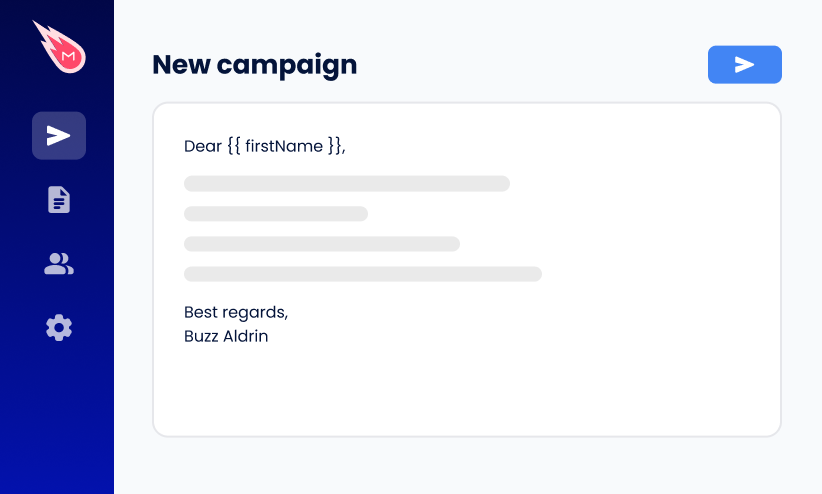
- Send each contact an email with their name and any detail you choose.
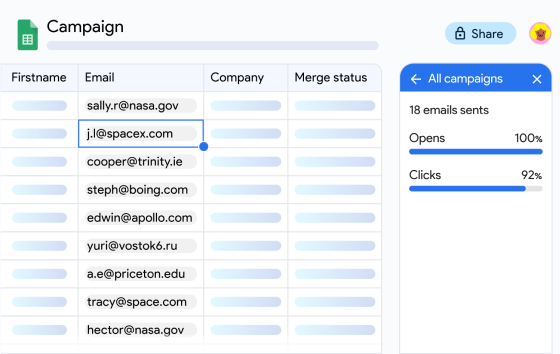
- Pull your contact list from a Google Sheet or a CSV file.
- Spot invalid addresses before they bounce.
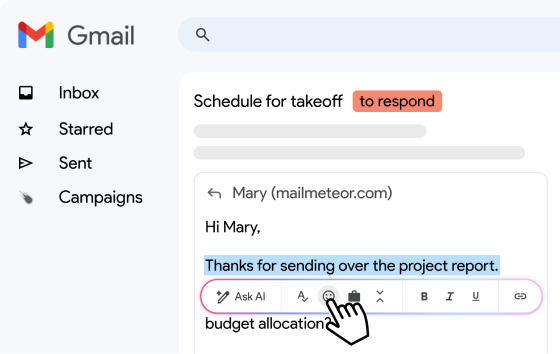
- Show you who opened your email, clicked a link, or replied.
- Send follow-ups on a schedule to contacts who haven’t answered.
Respect What iCloud Is Built For
Apple states that iCloud Mail is built primarily for personal use, and it prohibits sending unsolicited bulk email through its servers. That rules out cold prospecting lists and newsletters to thousands of subscribers. However, it leaves plenty of room for personalized emails to people who know you. Like clients, suppliers, or members who gave you their address.
| Option | What each recipient gets | Tracking | Best for |
|---|---|---|---|
| Apple Mail or iCloud.com | One shared message, with up to 500 addresses per send | None | A quick note to a small group |
| Mailmeteor + iCloud Mail | A personal email from your iCloud address, with their details merged in | Opens and clicks, plus replies and bounces through IMAP | Emails to people who know you, up to a few hundred a day |
| Newsletter platform | A designed email sent from the platform’s servers | Opens, clicks, and bounces | Newsletters and promotions to large opt-in lists |
What You Need to Send Mass Emails From iCloud Mail
To send bulk emails from iCloud Mail with Mailmeteor, here’s what you need:
- An iCloud Mail address ending in @icloud.com, @me.com, or @mac.com, or a custom domain set up with iCloud+.
- Two-factor authentication on your Apple Account. Apple only issues app-specific passwords to accounts protected this way.
- A Mailmeteor plan at Premium level or higher, which unlocks custom senders and SMTP.
- Some free iCloud storage. When your storage is full, iCloud Mail stops sending and receiving emails.
How to Generate an iCloud App-Specific Password
Apple lets outside apps sign in with an app-specific password, so they never see your Apple Account password. It’s a code meant for one app, which you can revoke whenever you like.
- Go to account.apple.com and sign in with your Apple Account.
- In Sign-In and Security, choose App-Specific Passwords.
- Click Generate an app-specific password.
- Name it “Mailmeteor” so you’ll recognize it later, then click Create. Apple may ask for your Apple Account password again.
- Copy the password Apple displays.
You won’t be able to see it again, so keep it close at hand. You’ll need it in the next steps.
A few things to know:
- Changing your Apple Account password cancels it. Apple revokes every app-specific password when you change or reset your main password, so you’ll need to create a new one for Mailmeteor.
- You can have up to 25 app-specific passwords at a time. Remove the ones you no longer use from the same page.
How to Send Mass Emails From iCloud Mail With Mailmeteor
App-specific password copied? Setting up Mailmeteor to send campaigns from iCloud takes around 5 minutes, and you only have to do it once.
Step 1: Create Your iCloud Sender
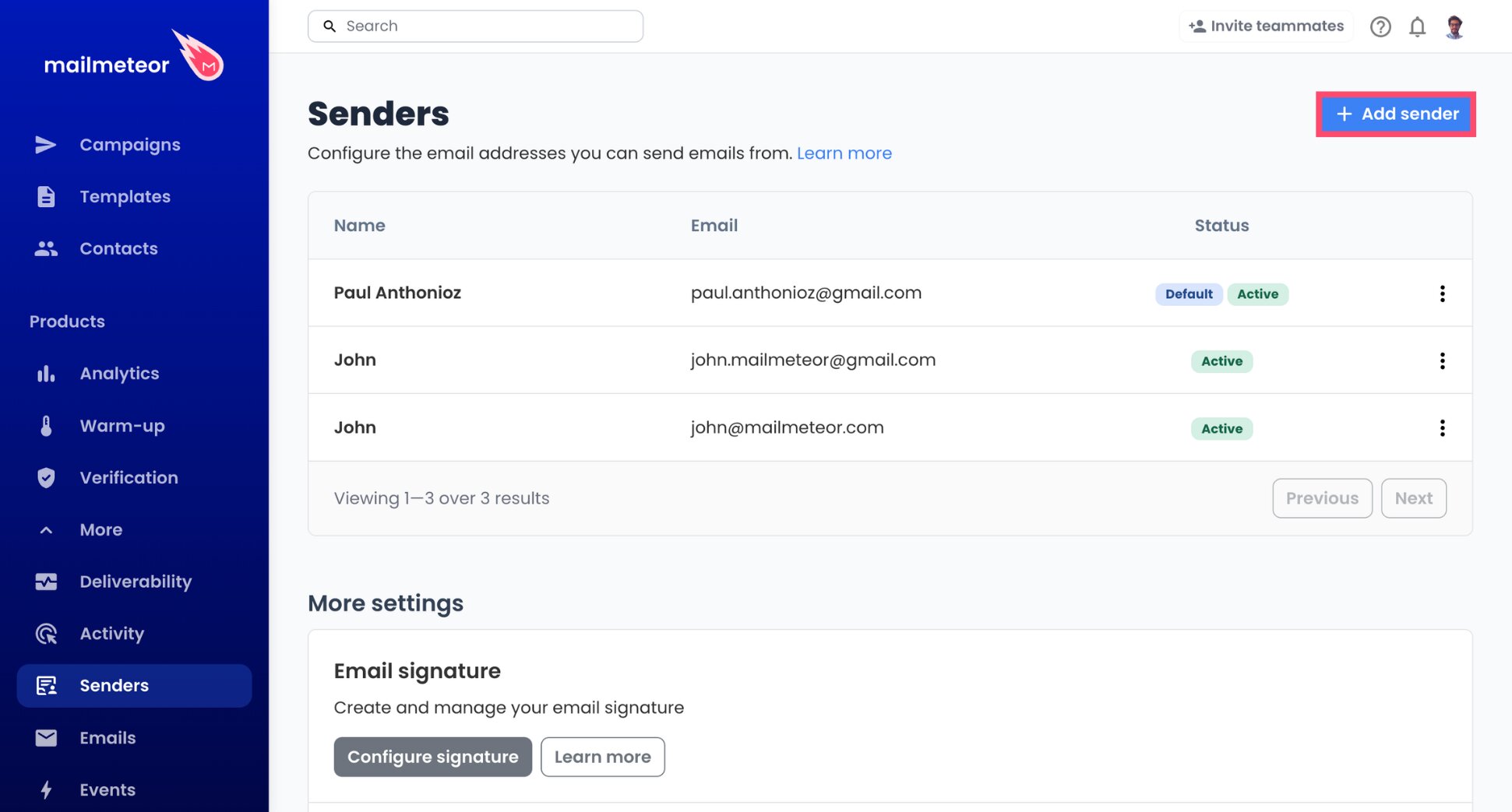
- Go to your Mailmeteor Dashboard.
- Click Products, then More, and pick Senders.
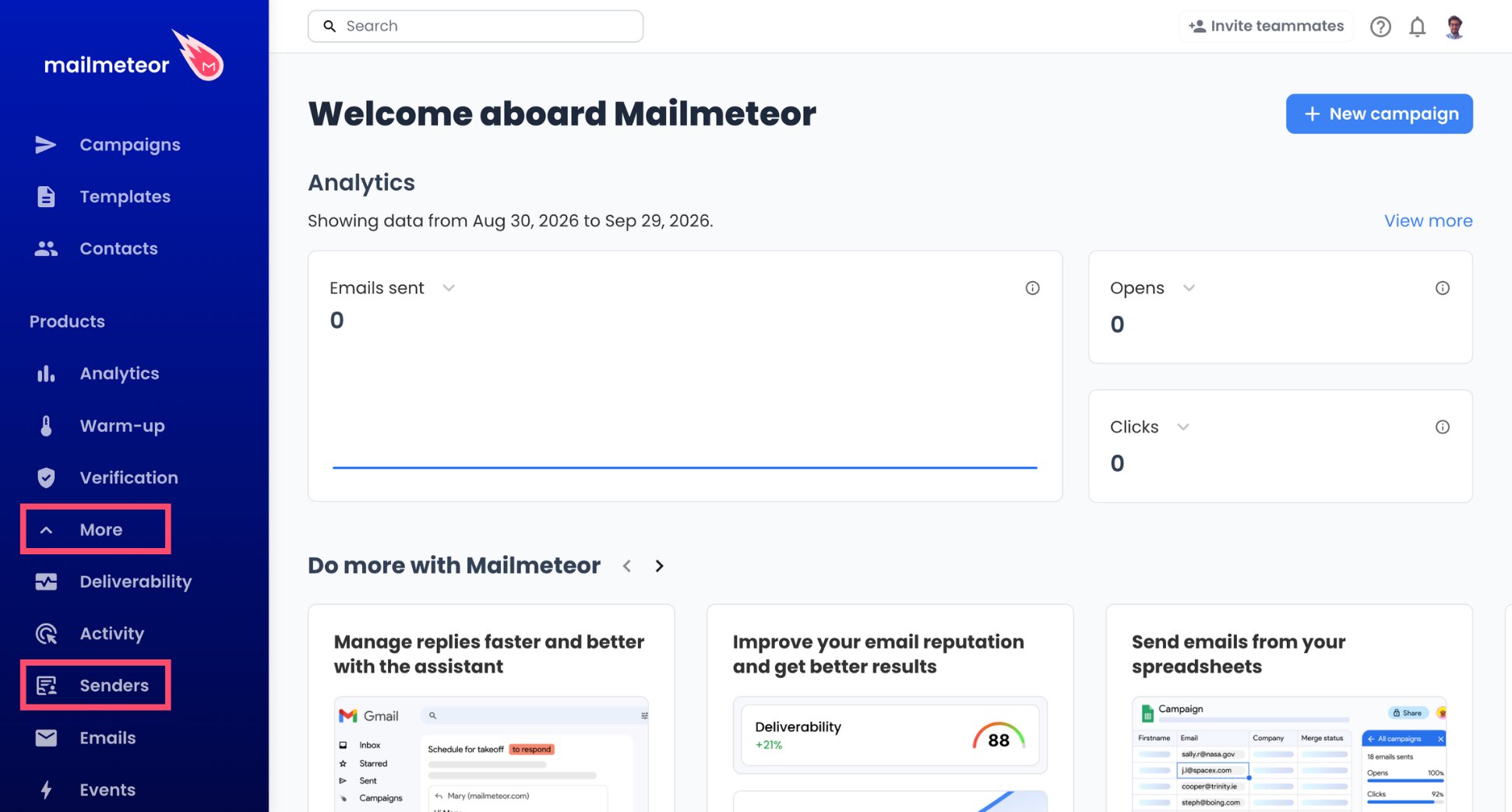
- Choose Add sender.
- Enter the name recipients will see, then the iCloud address you’ll send from.
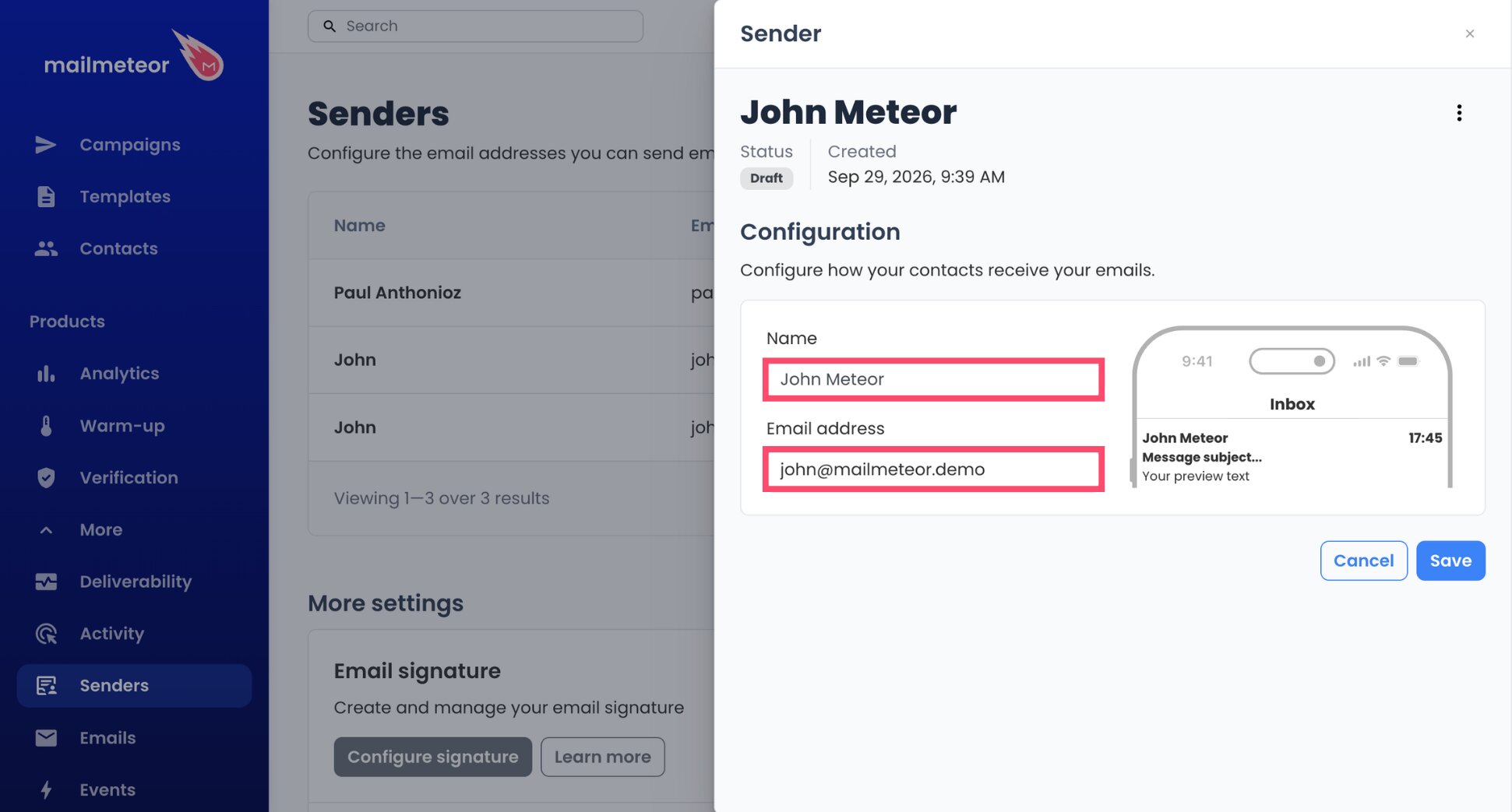
- Confirm with Save.
Step 2: Add iCloud’s Sending Server
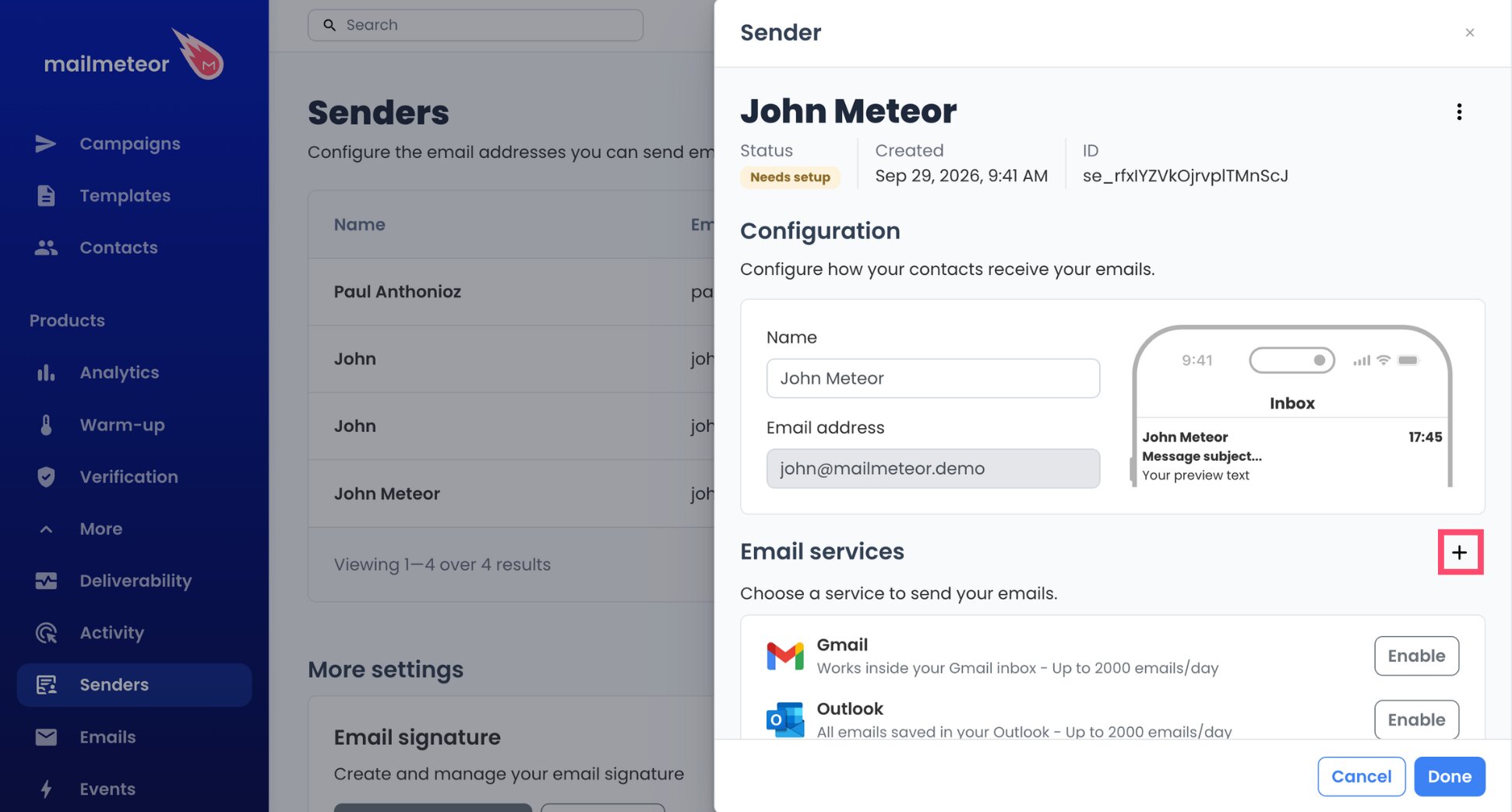
- Select + in the Email services section.
- In the menu that opens, select Configure mail server.
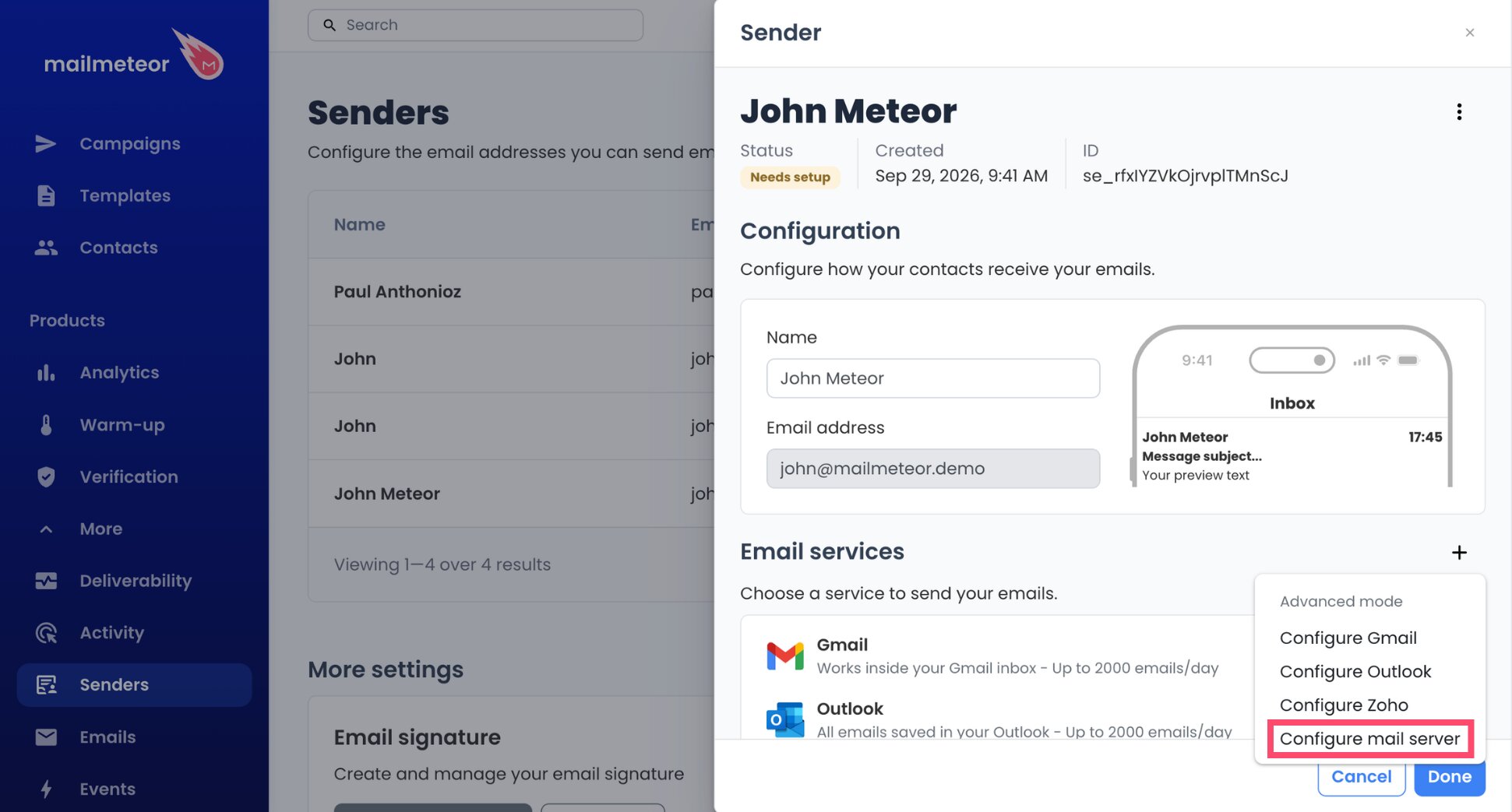
- Under Sending server, fill in Server name with
smtp.mail.me.com.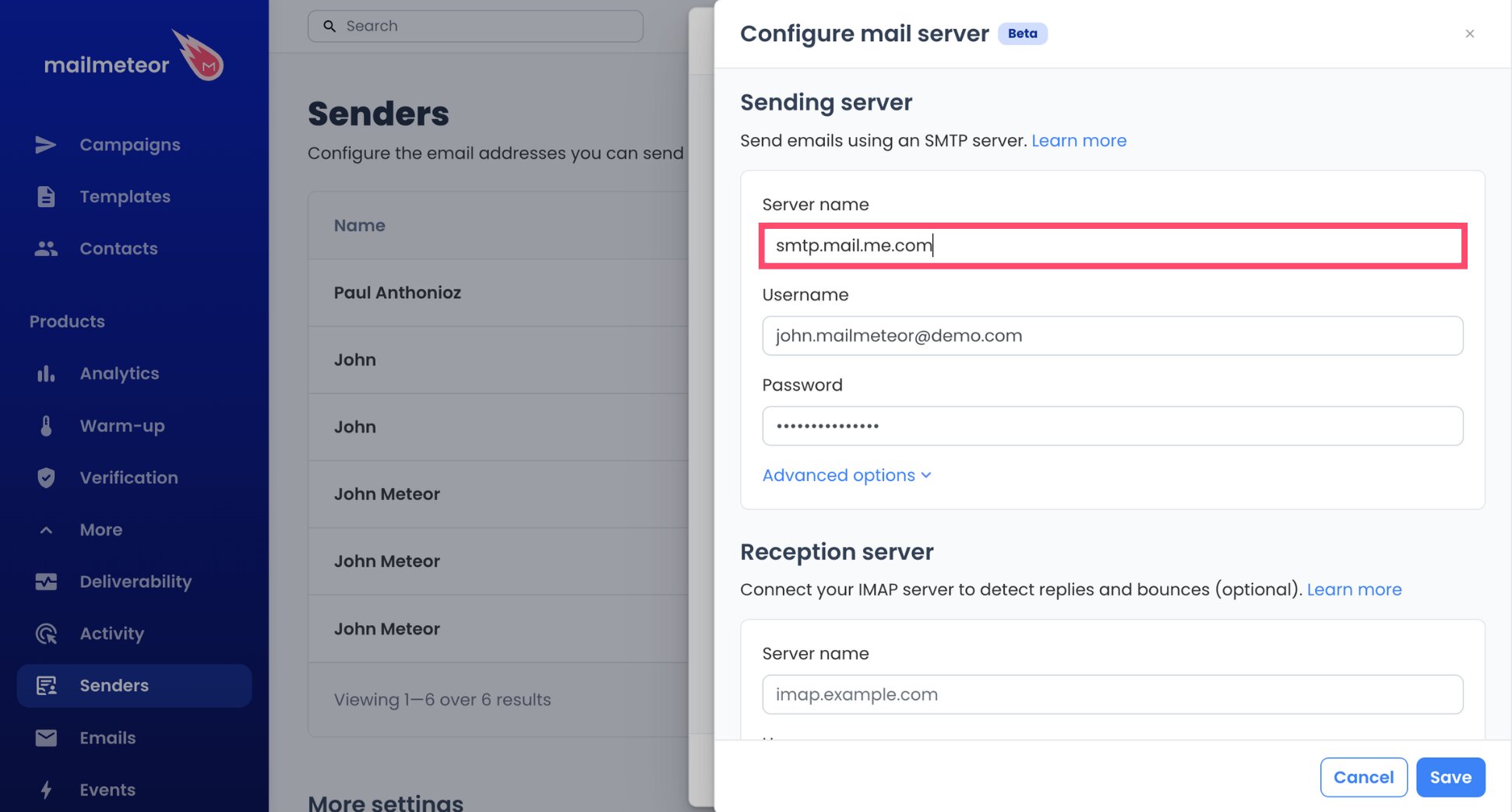
- Enter your complete iCloud address, like
[email protected], as the Username.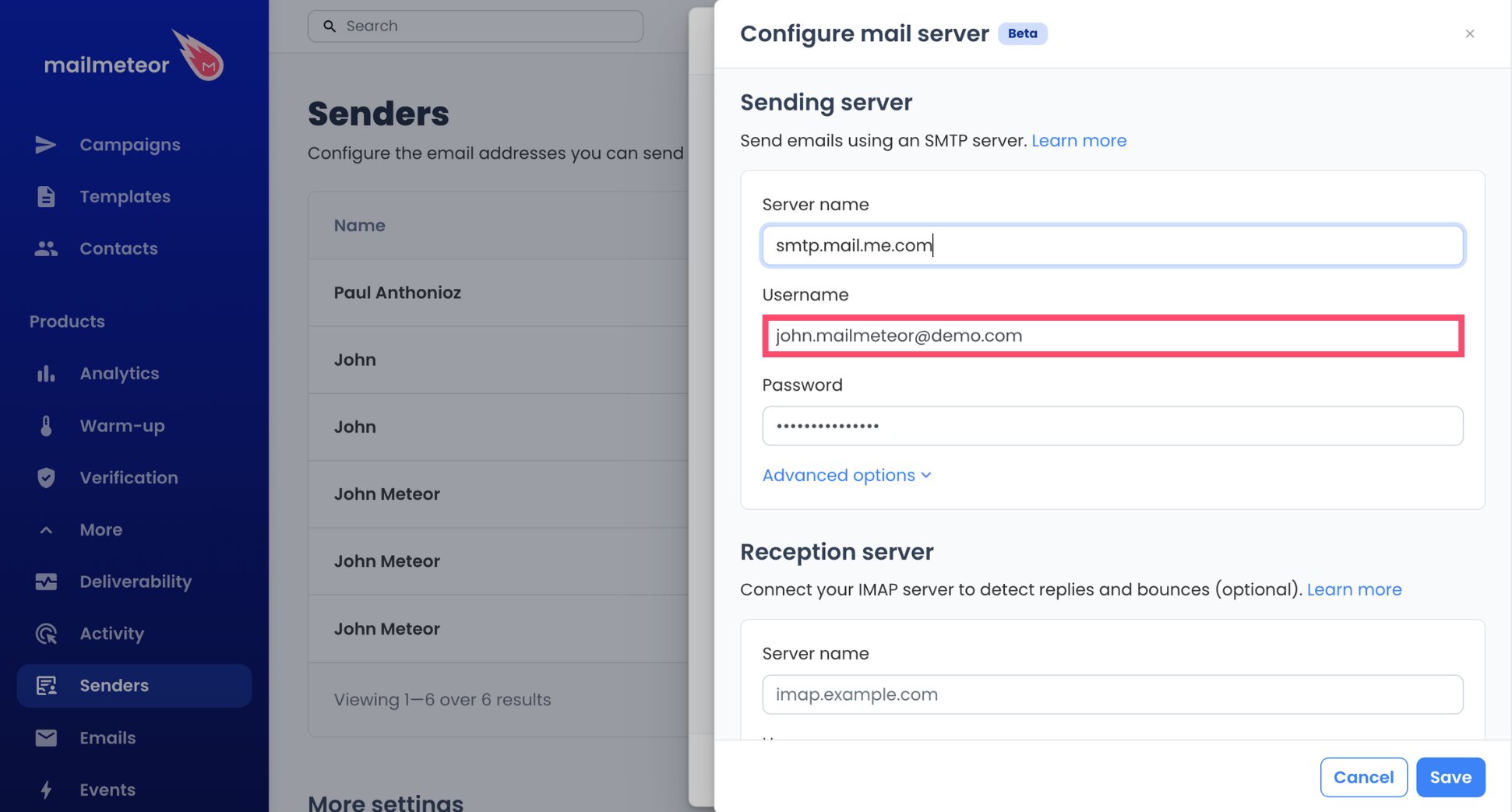
- Paste the app-specific password in Password. Your Apple Account password won’t work here.
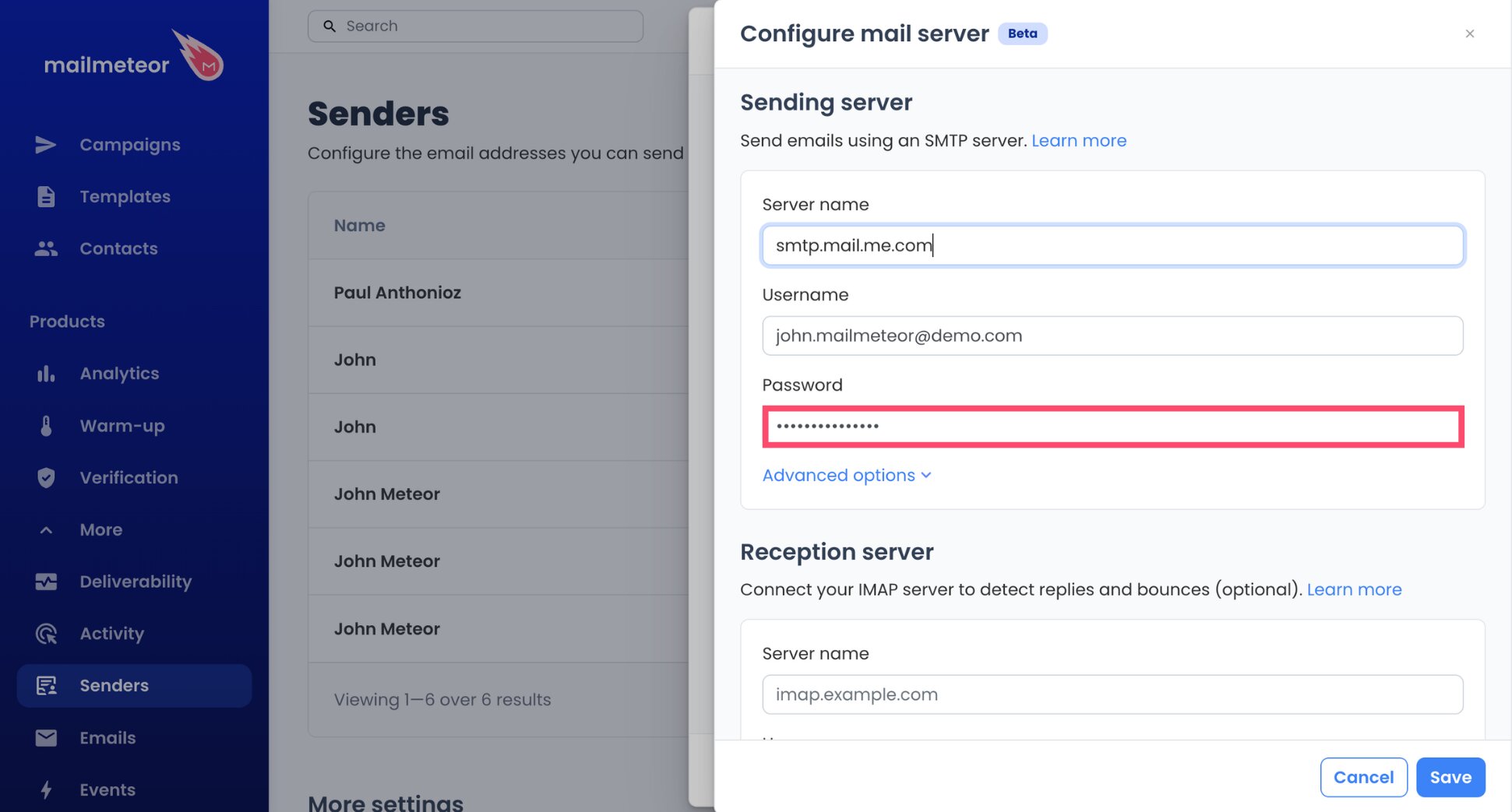
Mailmeteor automatically sets the port to 587 for you, which is the one Apple uses for SMTP. If the connection fails, open Advanced options to check it, and keep Security on Auto.
Step 3: Add iCloud’s Reception Server
You can skip this, and your campaign will still go out. But without it, Mailmeteor won’t see who replied, and follow-ups could reach people who already answered.
- Under Reception server, fill in Server name with
imap.mail.me.com.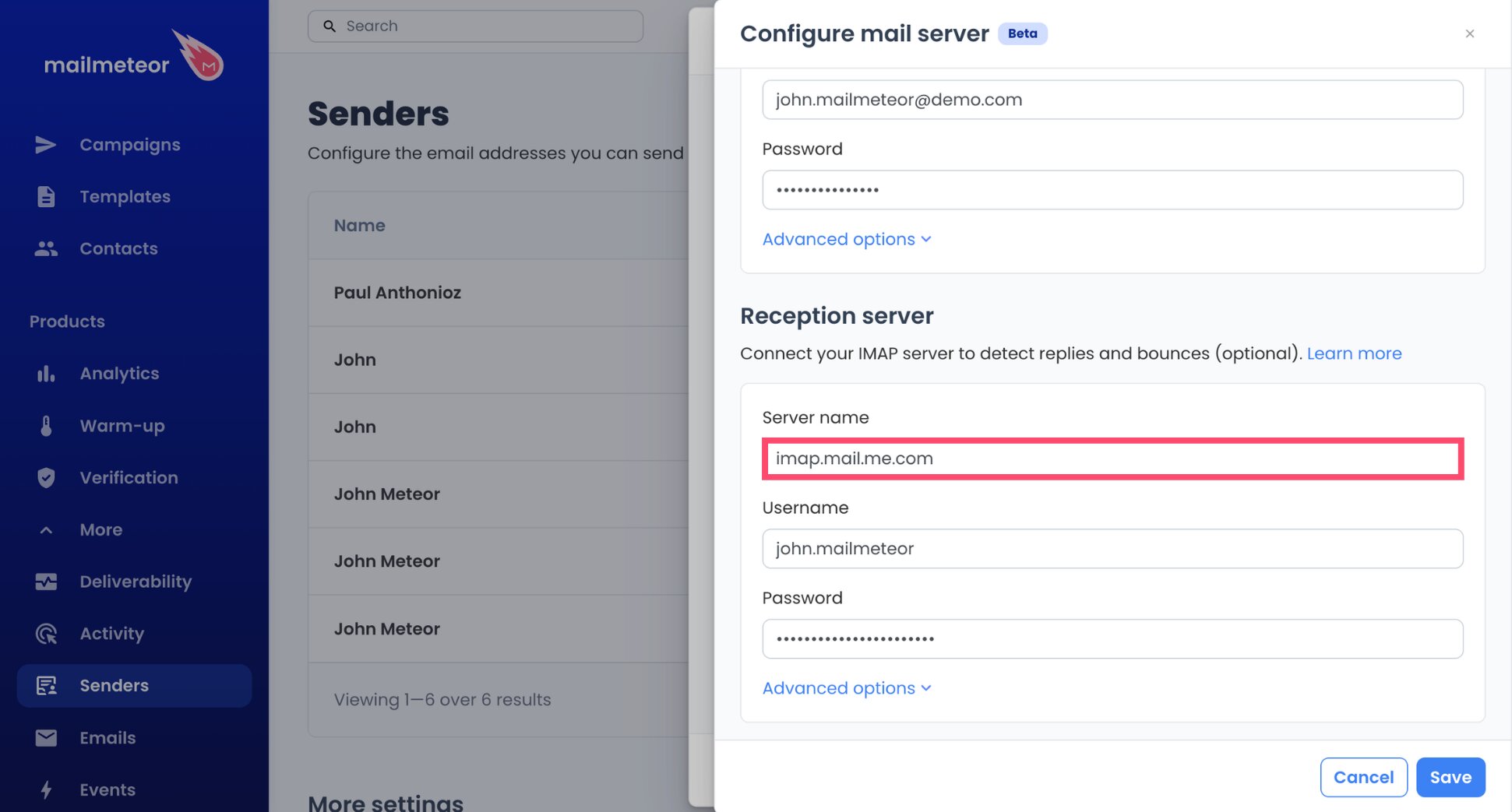
- For Username, Apple recommends only the name part of your address. For example:
johnappleseed, without@icloud.com. If the connection fails, use the full address instead.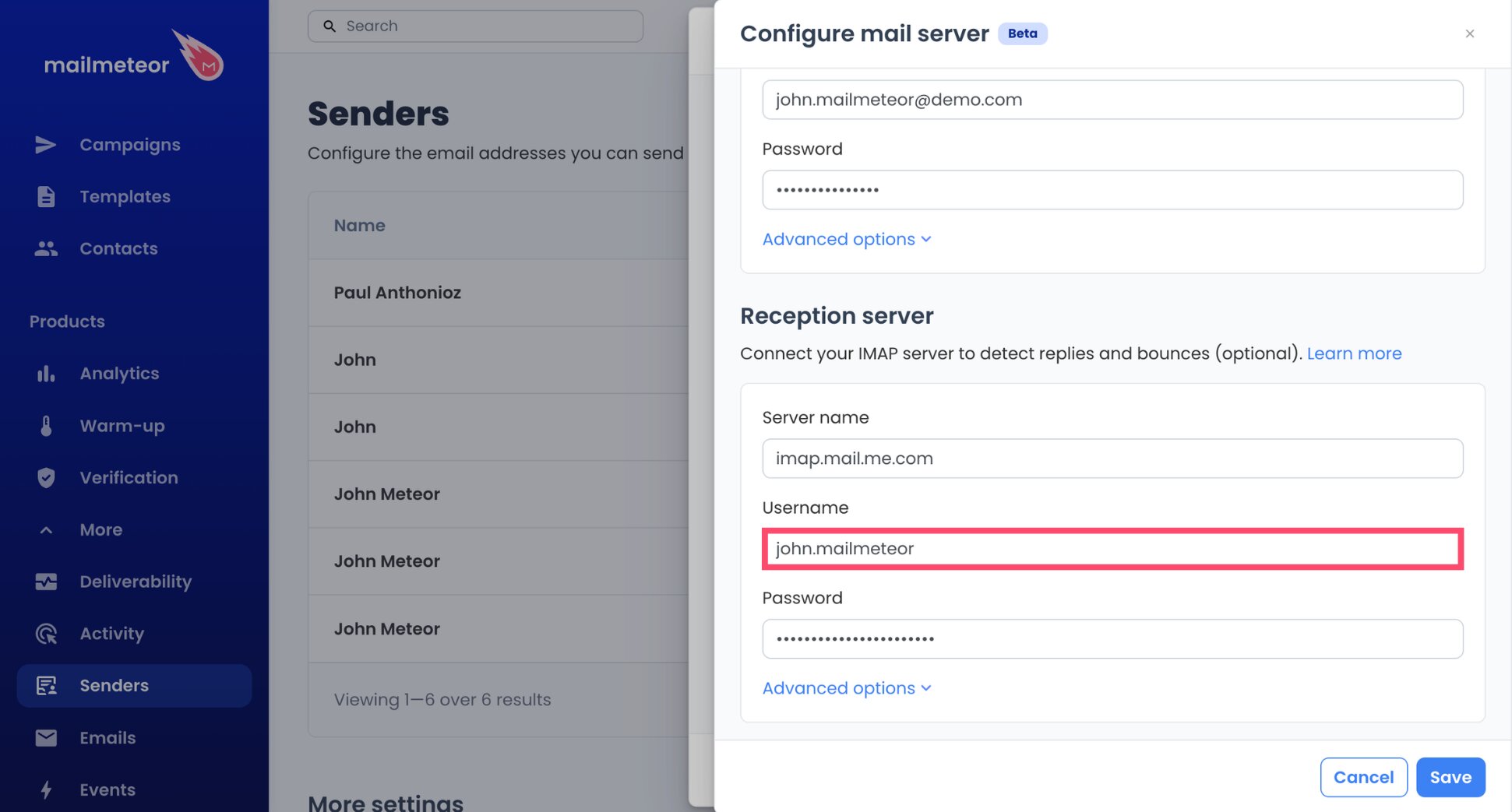
- Paste the same app-specific password. One password covers both servers.
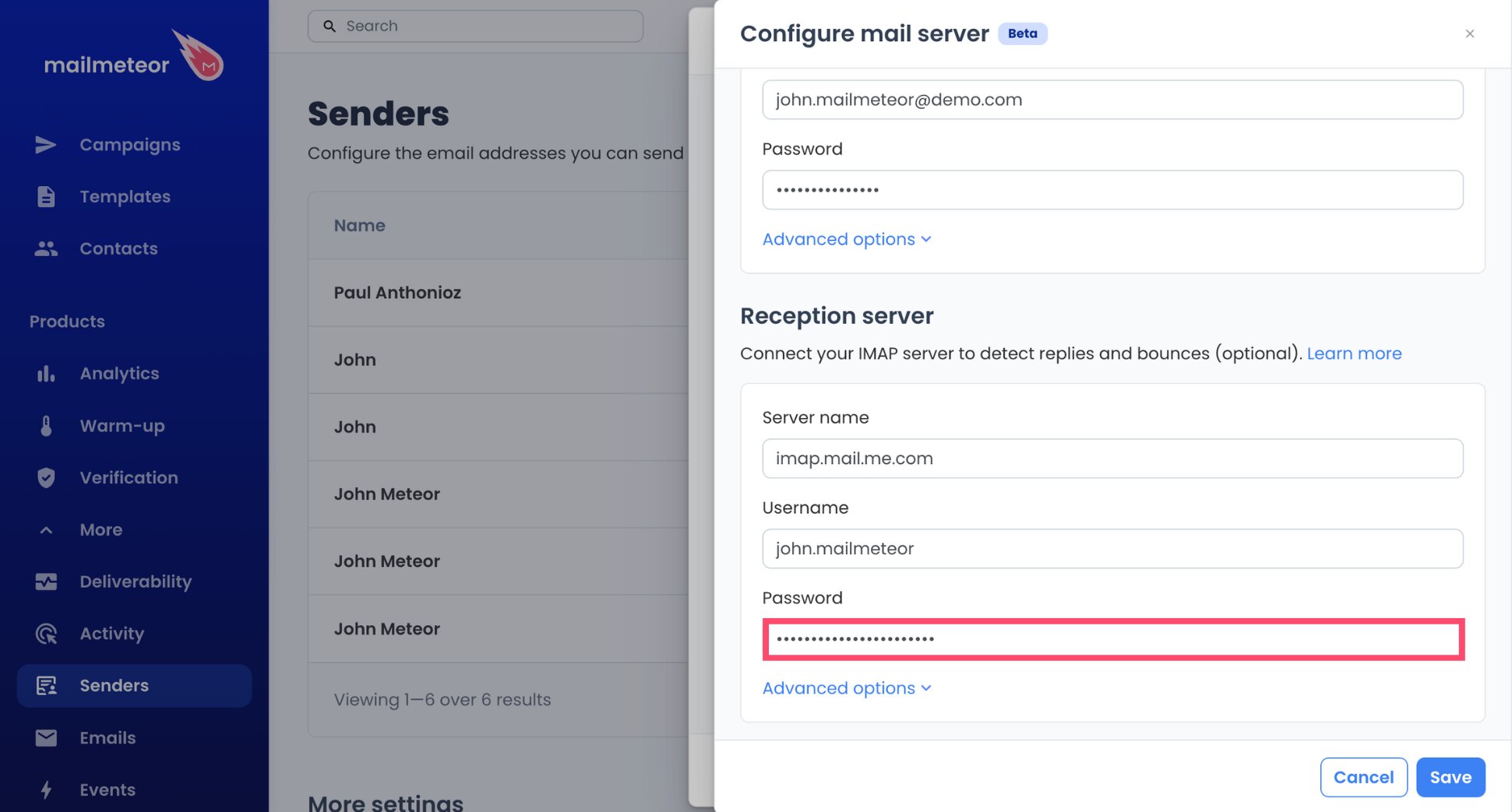
- Finish with Save, then Done.
And voilà. Your iCloud Mail is connected, with IMAP running on port 993.
Step 4: Write and Personalize Your Campaign
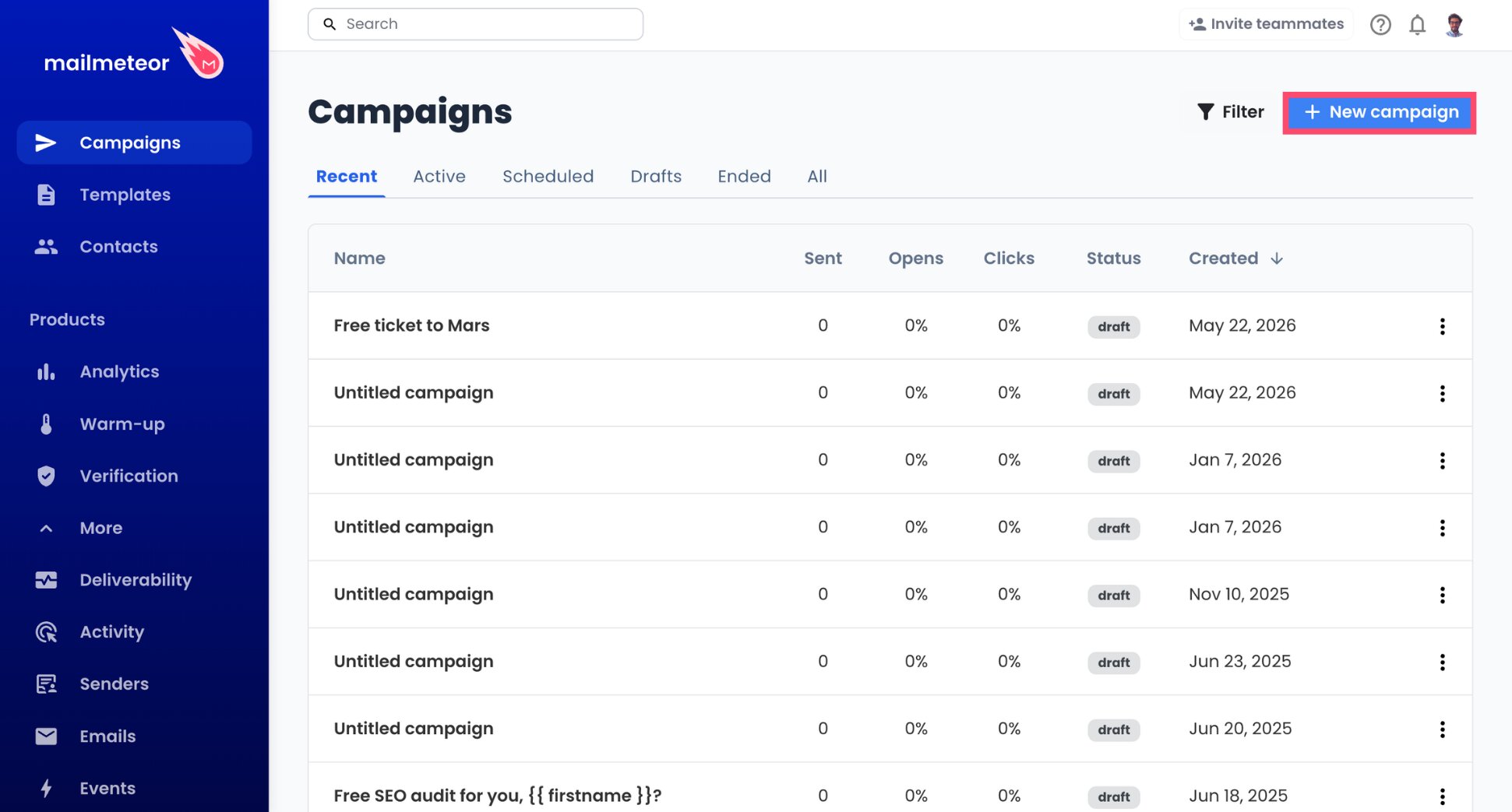
- Start a campaign from the Dashboard by clicking New campaign.
- In From, open the menu (▼) and select your iCloud sender.
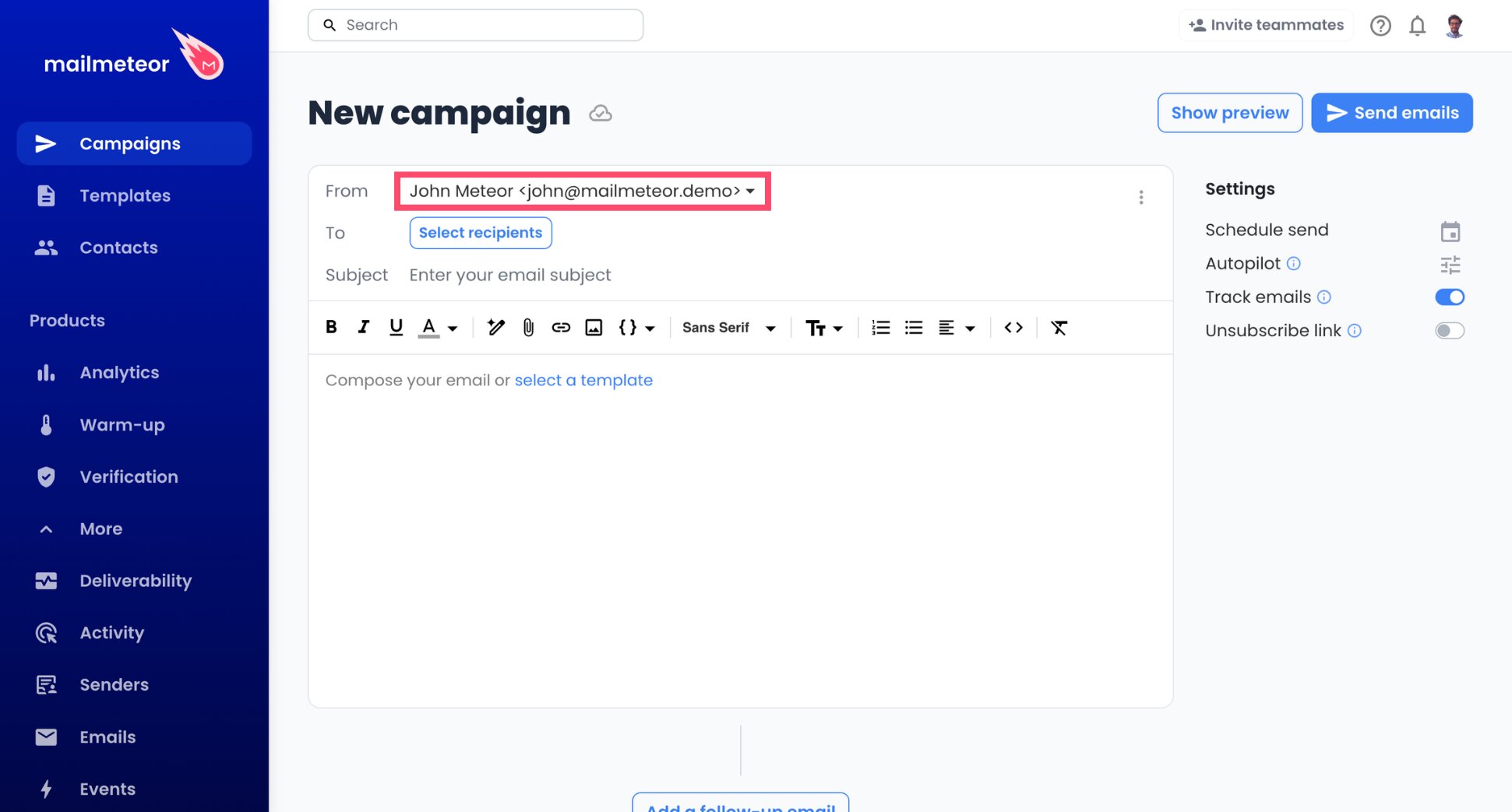
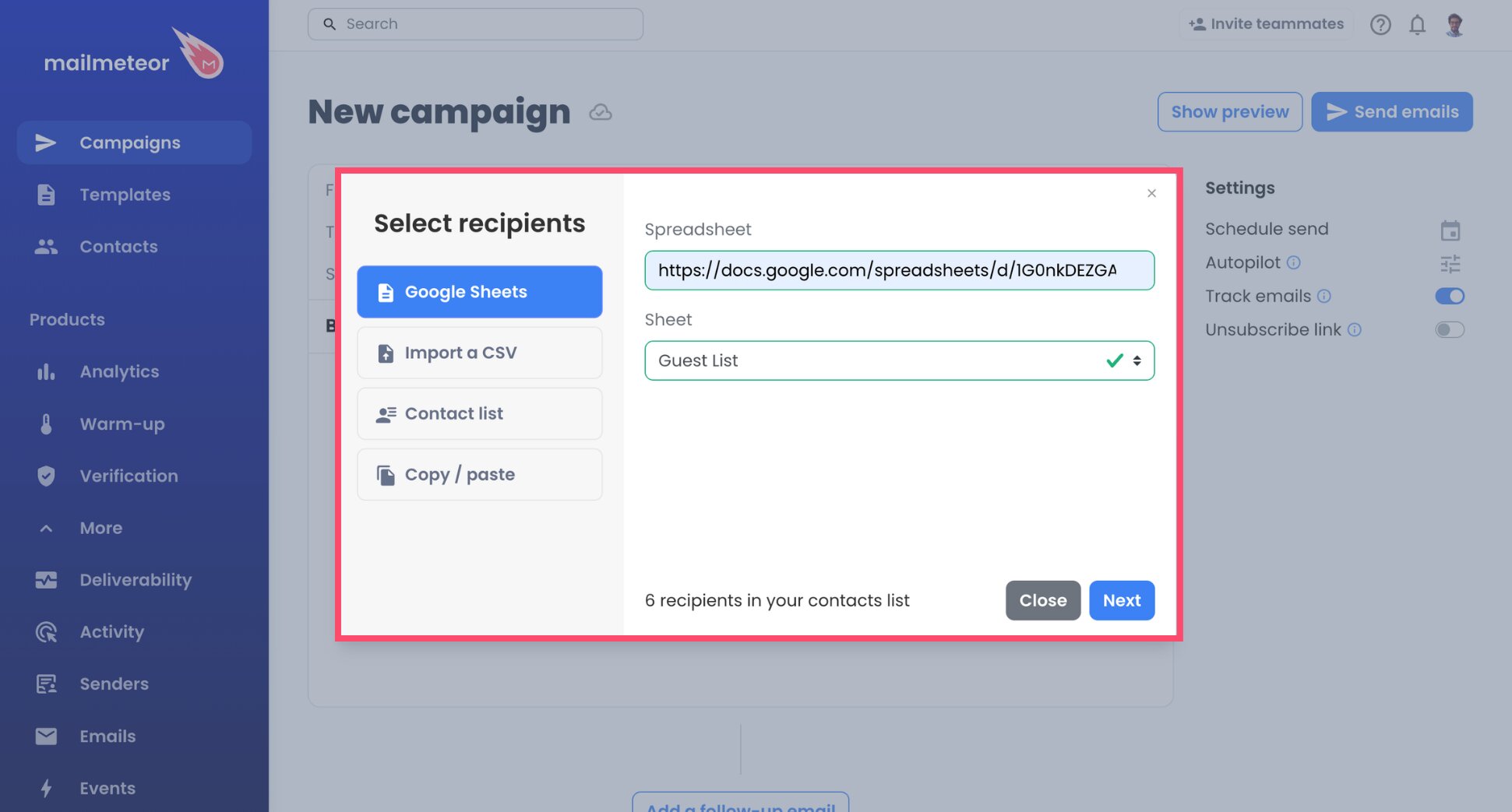
- Choose Select recipients and add your list from a Google Sheet, a CSV file, one of your contact lists, or addresses pasted in.
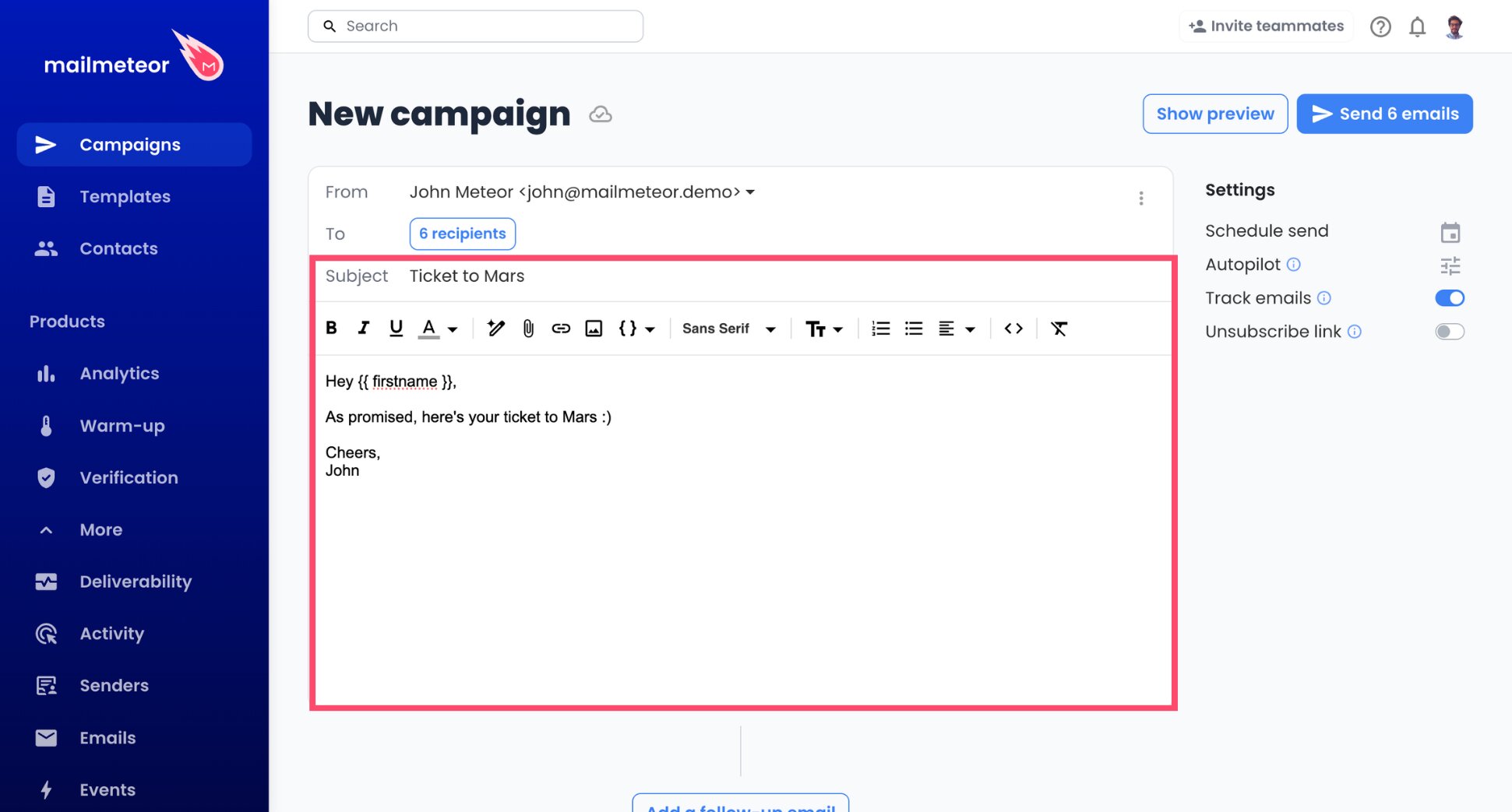
- Write your subject line and your message.
- Personalize with variables such as
{{ firstname }}. Each variable pulls from a column of your contact list.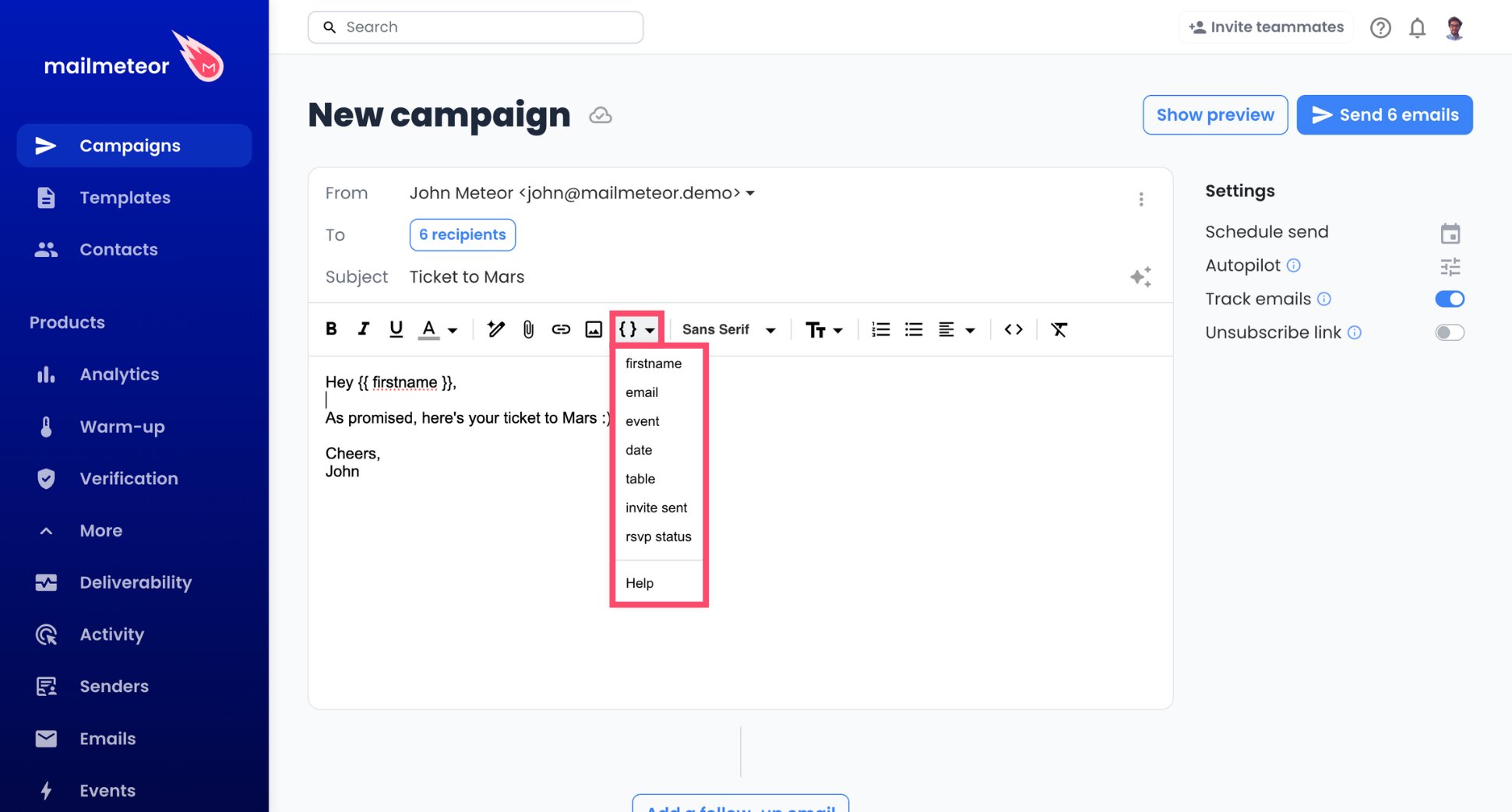
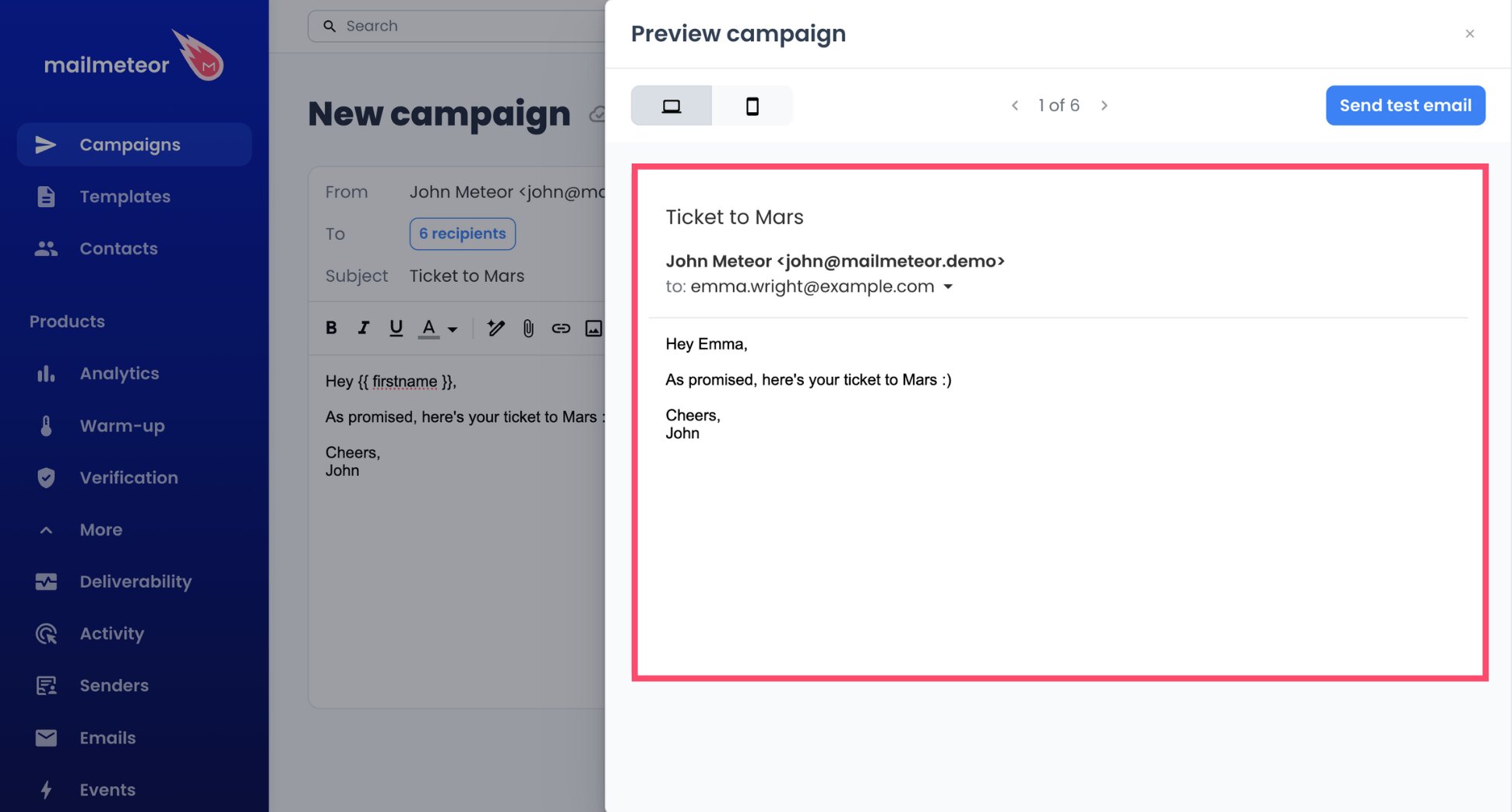
- Open Preview and scroll through a few contacts to check the result.
Since each contact gets a separate email, iCloud’s cap of 500 recipients per message never applies. Apple also limits you to 1,000 recipients a day, though, and with a mail merge that means 1,000 emails per day at most.
Would you rather send your email campaign from Google Sheets? Mailmeteor for Google Sheets lets you pick the same iCloud sender and run your campaign right from your spreadsheet.
Step 5: Pace Your iCloud Campaign
iCloud Mail is built for personal use, and a campaign sent all at once looks nothing like that. Autopilot releases your emails gradually, within the hours and daily volume you choose.
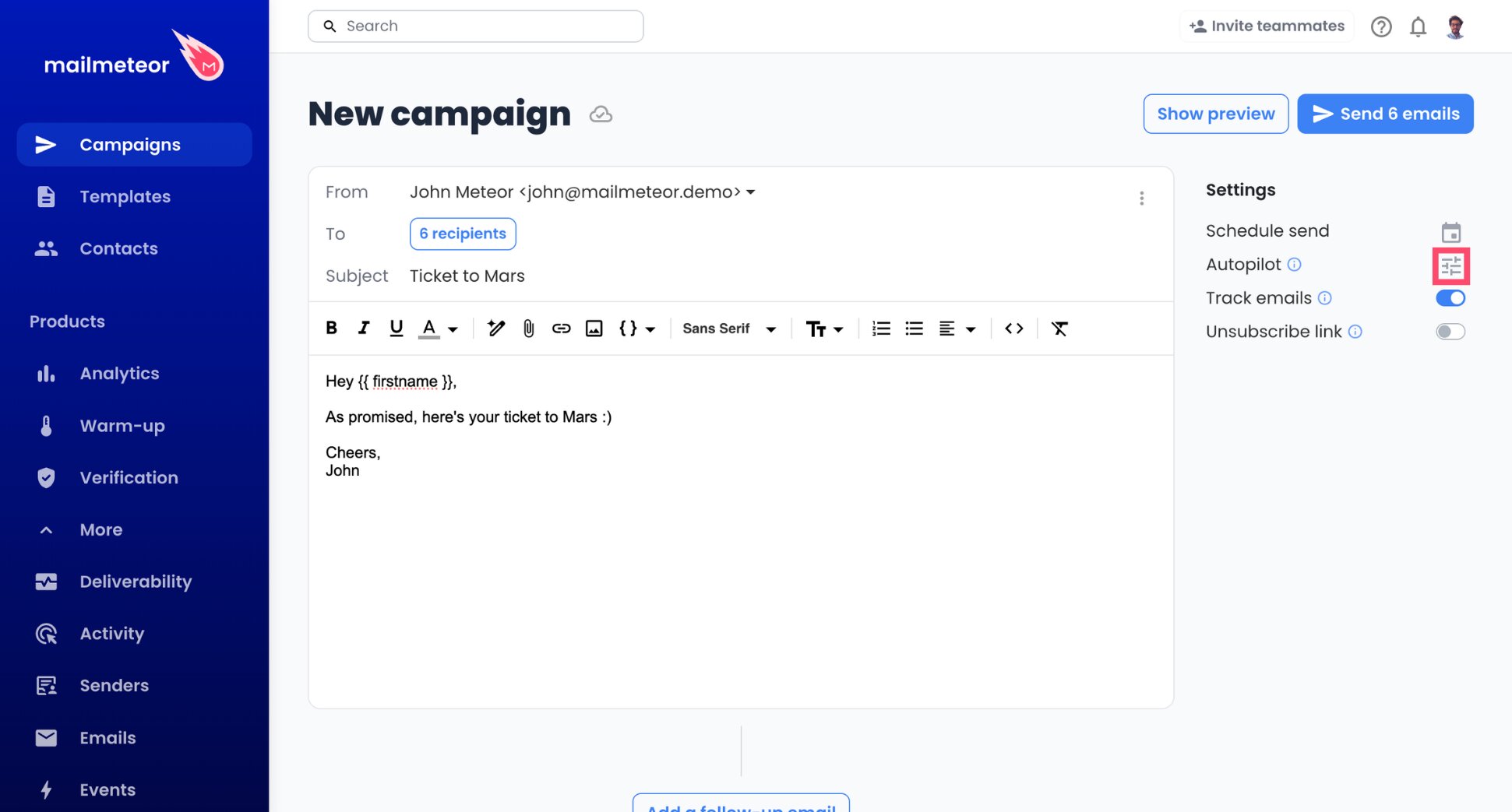
- Open Autopilot in your campaign.
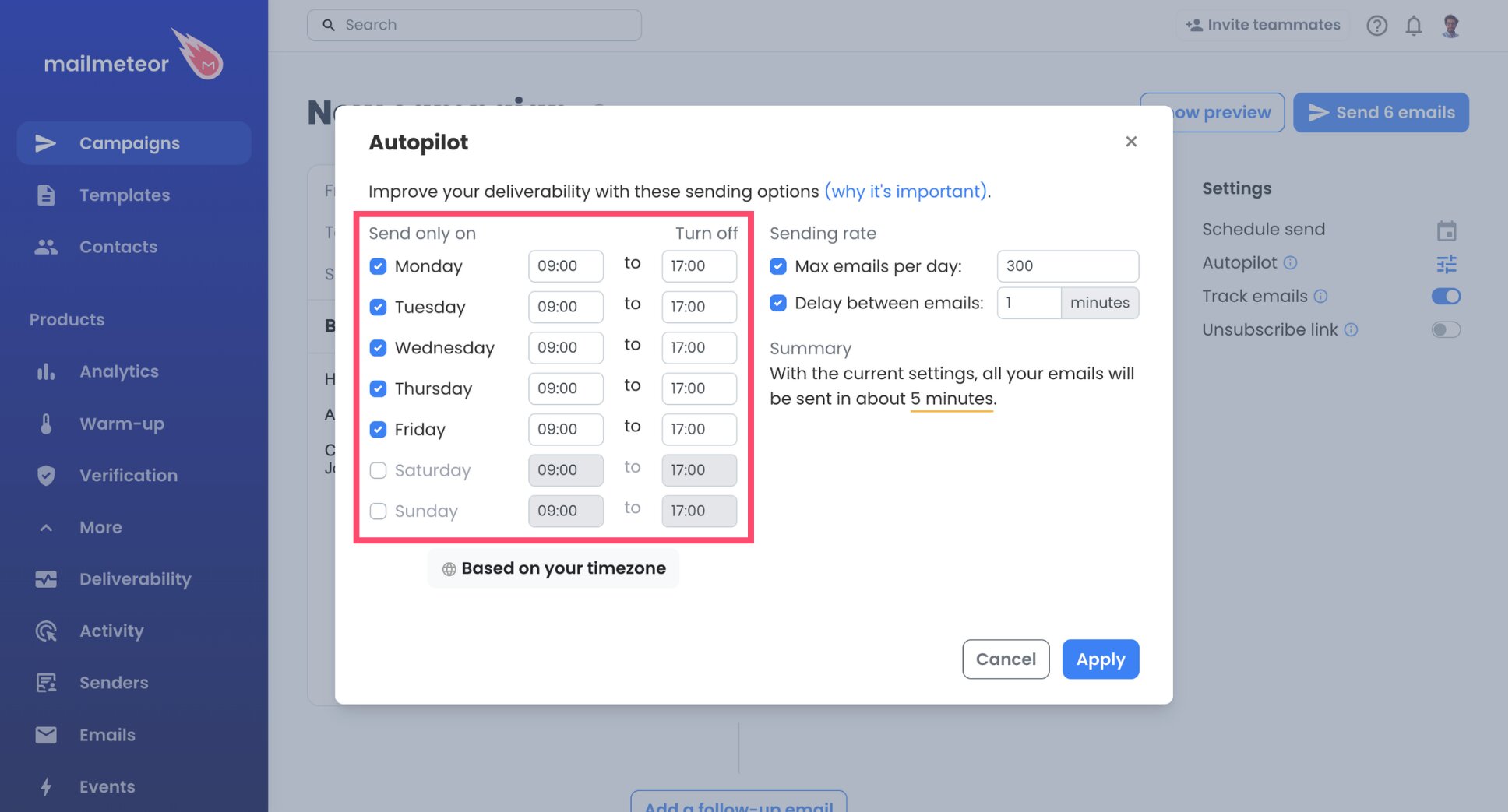
- Pick your sending window, for instance weekdays from 9 AM to 6 PM.
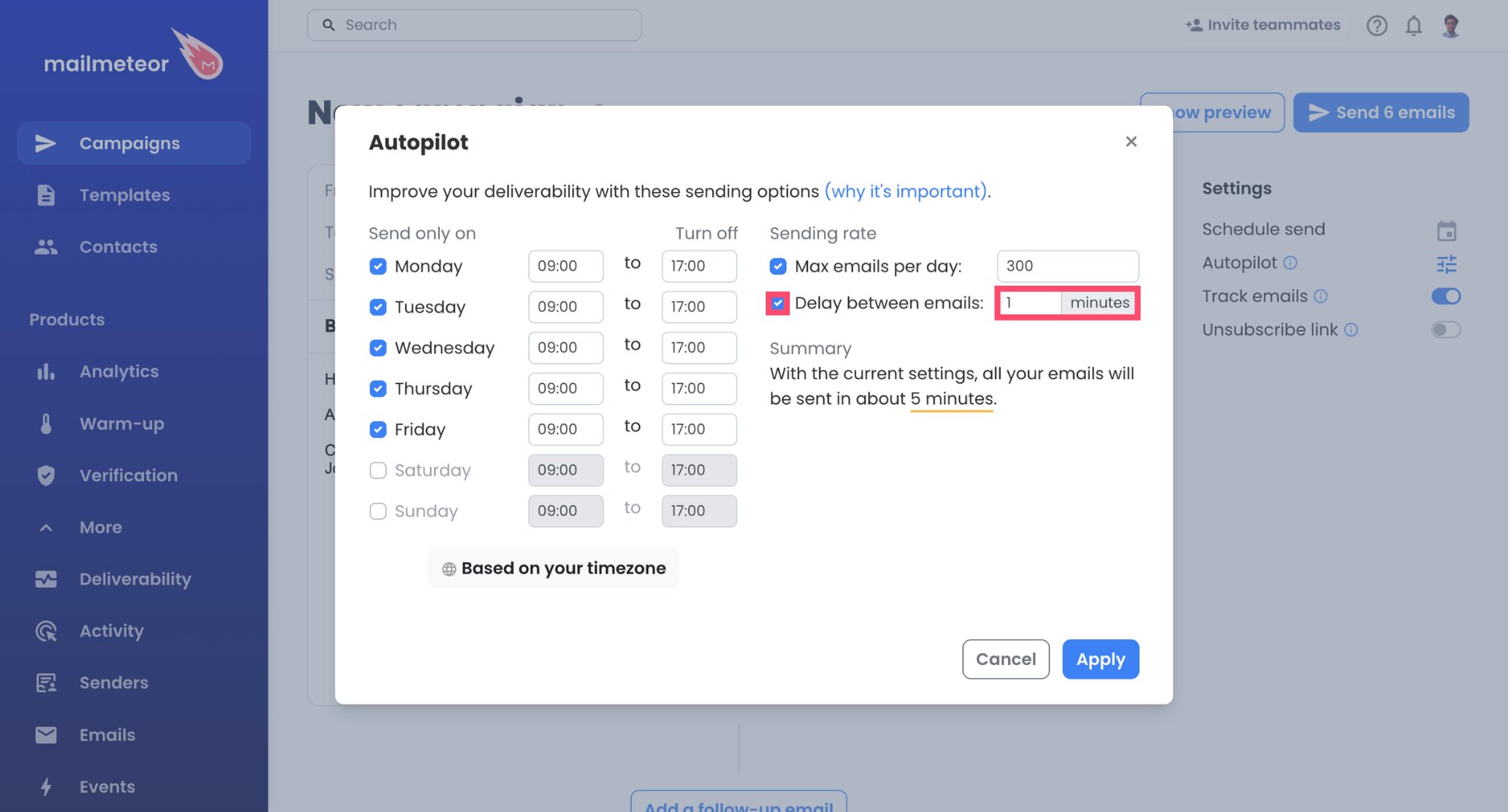
- Set the delay between emails. One minute is the shortest option, and the longer the delay, the better for deliverability.
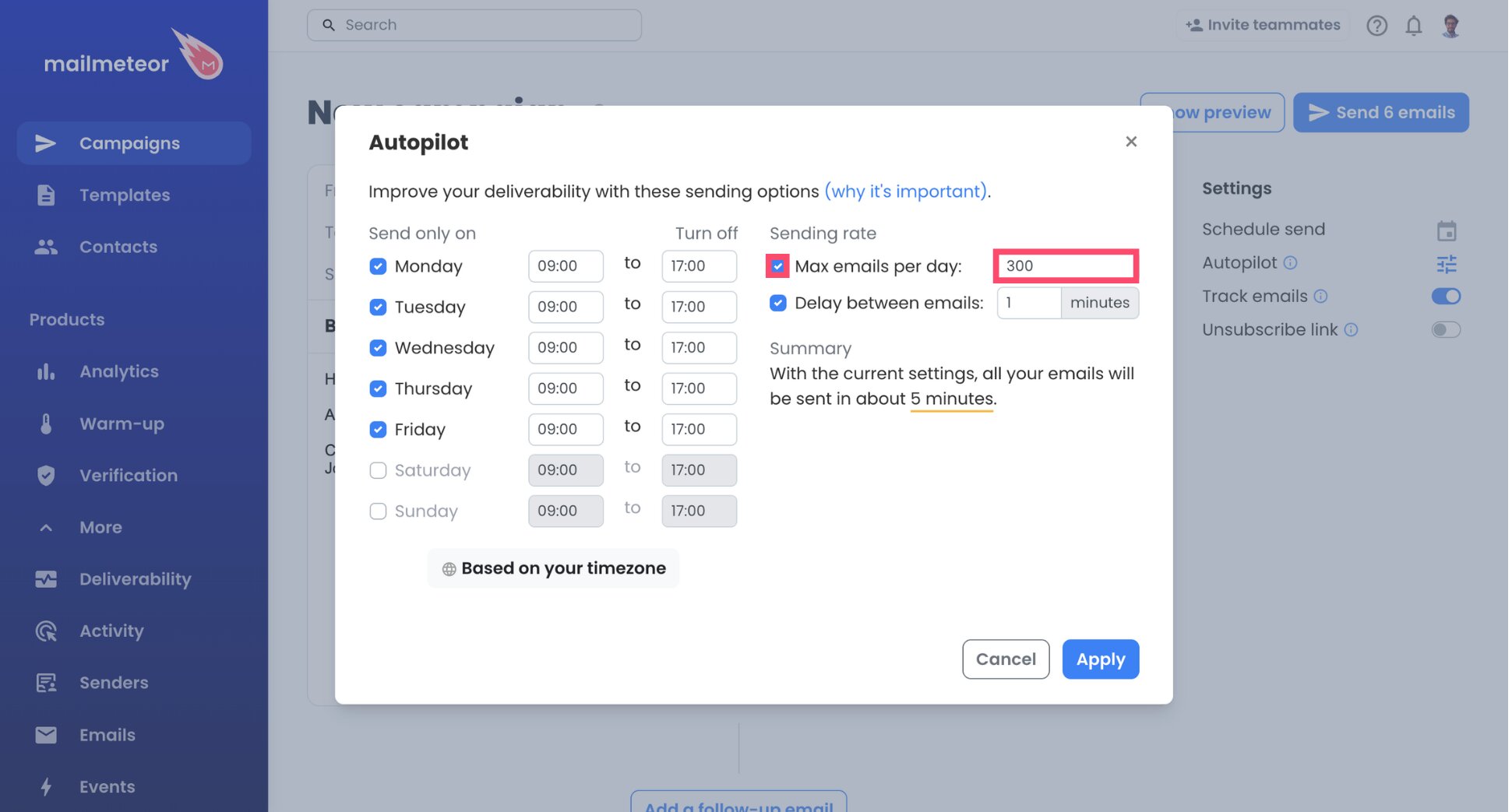
- Set a daily limit. Starting around 50 is wise, and staying well under Apple’s 1,000 leaves room for your personal emails.
- Confirm with Apply.
Apple’s daily limit covers every email your iCloud address sends, including the ones from your iPhone, iPad, or Mac. Before you apply your settings, Autopilot displays how long the campaign will run.
Step 6: Send a Test Email First
- Email a test to yourself.
- Open it on your iPhone or Mac, and check the layout, the links, and the merged fields.
- Press Send emails to start your campaign.
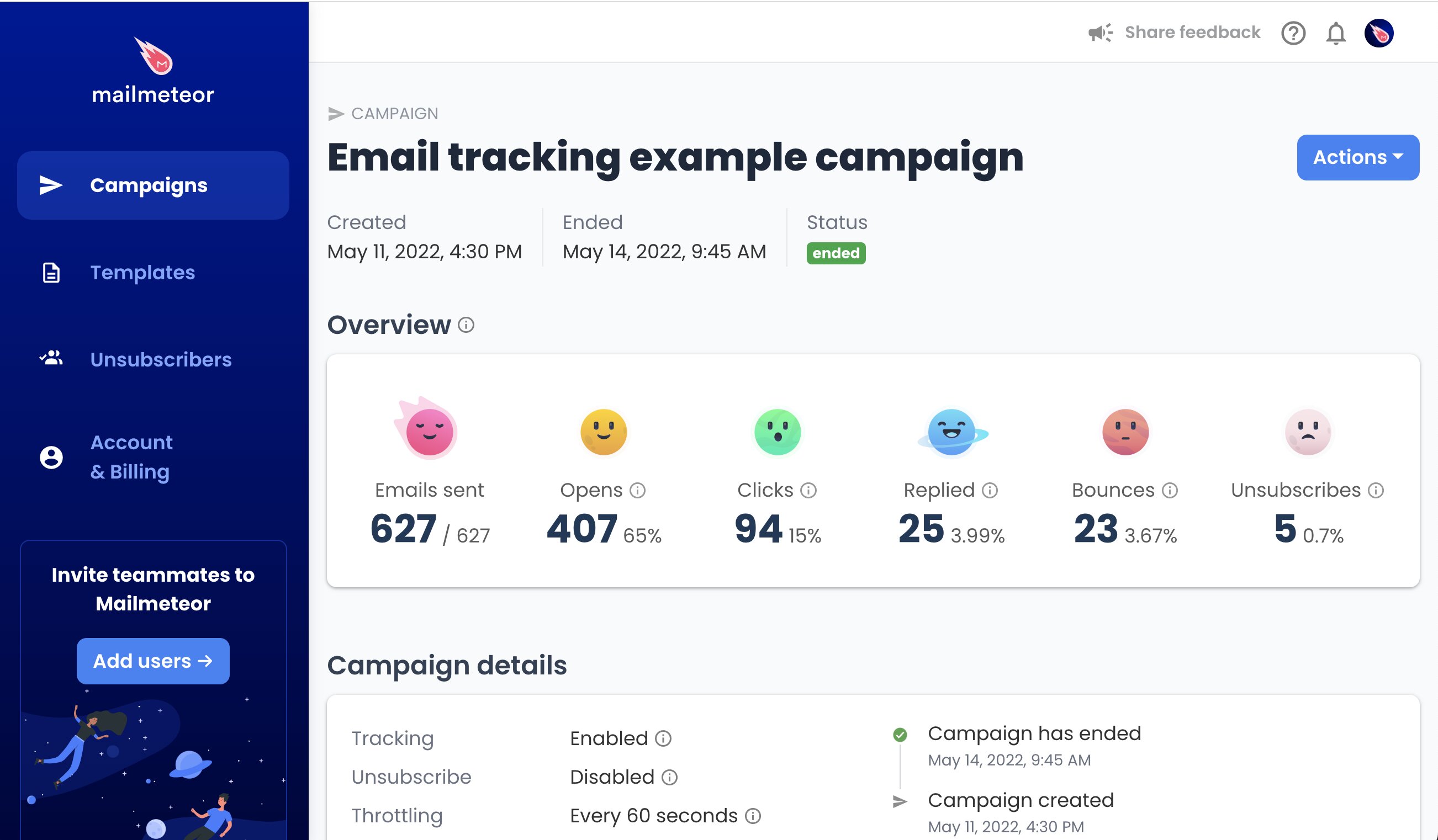
And that’s it. The campaign is running from your iCloud address, one personal email at a time. Open your Mailmeteor Dashboard whenever you like to see who opened, clicked, or replied. You can also schedule automated follow-ups.
iCloud Mail SMTP and IMAP Settings
Here are the values Mailmeteor uses to reach iCloud Mail. They’re the same for @icloud.com, @me.com, and @mac.com addresses:
| Setting | Sending server (SMTP) | Reception server (IMAP) |
|---|---|---|
| Server name | smtp.mail.me.com |
imap.mail.me.com |
| Port | 587 | 993 |
| Username | Your full iCloud address | The name part of your address, or the full address if that fails |
| Password | Your app-specific password | Your app-specific password |
The two usernames differ, and that’s the most common iCloud setup mistake. Apple asks for your full address to send, but usually just the name to receive. Mailmeteor detects the security type for you, so keep Security on Auto.
iCloud Mail Sending Limits
Apple publishes iCloud Mail’s sending limits, and they apply to your whole account each day:
| Limit | Value |
|---|---|
| Messages sent per day | 1,000 |
| Recipients per day | 1,000 |
| Recipients per message | 500 |
| Message size, including attachments | 20 MB |
With a mail merge, each email has one recipient, so you can send 1,000 emails a day at most. Treat that as a ceiling, not a goal. Apple designs iCloud Mail for personal use. Go over the limit, and iCloud refuses further emails.
Your Mailmeteor plan limits apply too, and the lower of the two limits is the one that counts. For example, our Starter plan lets you send up to 250 emails per day.
How to Keep Your iCloud Emails Out of Spam
Apple watches iCloud accounts for bulk-sending behavior, and inbox providers judge every email you send. These habits keep both on your side ⤵️
Only Email People Who Expect to Hear From You
The simplest rule on iCloud is also the one Apple enforces: no unsolicited bulk email. Write to clients, members, parents, or customers who gave you their address, and never to a purchased or scraped list. Emails people expect get opened and answered, which is what keeps your account in good standing.
Check Your List for Dead Addresses
Bounces are a telltale sign of an outdated or borrowed list. Before each campaign, run your contacts through our free Email Checker, or let Mailmeteor’s email verification drop invalid addresses automatically.
Keep It Personal and Simple
Emails that read like a message from a friend or a colleague tend to perform better than the ones that look like a newsletter:
- Write a plain subject line that says what the email is about, without all caps or exclamation marks.
- Say in the first line why you’re writing, such as “You’re a member of the book club” or “You booked a fitting with me in June”. People who recognize the reason are less likely to reach for the spam button.
- Personalize beyond the first name, with a detail that only makes sense for that contact.
- Keep formatting light, and only include the links your contacts actually need. Use full links, not shortened ones, which spam filters often flag.
- Sign with your real name and a way to reach you, such as a phone number or your website.
- Add an unsubscribe link to promotional emails and announcements, so people can opt out without flagging you as spam.
Our free Spam Checker highlights spam words in your draft. Alternatively, Mail-Tester hands you a throwaway address. You can email your test there, and it tells you what could send your message to spam.
Ramp Up Slowly
An iCloud account that sends a few emails a day shouldn’t suddenly send several hundred. Start with a small daily limit, look at bounces and replies after each send, and raise it gradually over the following weeks. Mailmeteor’s email warm-up can help build your reputation before sending a larger campaign.
How to Fix iCloud SMTP Connection Errors
With iCloud, most connection failures trace back to the app-specific password or the username. Here’s how to solve each one ⤵️
| Problem | Likely cause | Fix |
|---|---|---|
| Authentication failed | You entered your Apple Account password | Generate an app-specific password and use it instead |
| Sending worked before, now authentication fails | You changed your Apple Account password, which revoked all app-specific passwords | Generate a new one, and update it for both servers in Mailmeteor |
| No App-Specific Passwords option | Two-factor authentication is off | Turn on two-factor authentication for your Apple Account |
| IMAP connection fails | The username format doesn’t match | Try just the name part of your address, or the full address if you used the name |
| Connection timeout when sending | The port was changed | In Advanced options, set the SMTP port to 587 and keep Security on Auto |
| “Exceeded the total number of messages you can send each day” | Apple’s daily limit is reached | Lower your Autopilot daily limit, and resume the next day |
| Nothing sends or arrives | Your iCloud storage is full | Free up space, or upgrade your iCloud+ storage |
Still no luck? Run your settings through our SMTP Test Tool, or browse Mailmeteor’s mail server documentation for more help.
Make Your iCloud Address Work Harder
Your iCloud address already has your contacts’ trust. With an app-specific password and the right servers, it can handle personalized campaigns too. iCloud keeps your mail, and Mailmeteor adds the campaign tools Apple Mail was never built with:
📬 Write your email once, and let every contact receive a version with their own name and details
⏰ Keep each day far from Apple’s cap, with Autopilot spacing out your emails
🔁 Schedule follow-ups that skip anyone who has already replied
📊 See in one place who opened, clicked, or wrote back
✅ Check addresses before sending, so bounces don’t hurt your iCloud account
Try Mailmeteor for iCloud Mail today (it’s free!) and send personal emails to everyone on your list, from the address they already know.
Frequently asked questions
Can you do a mail merge in iCloud Mail?
Not with Apple Mail or iCloud.com, which send the same message to every recipient. To mail merge from an iCloud address, connect it to a tool like Mailmeteor through SMTP with an app-specific password. Each contact then receives a separate email from your iCloud address, personalized with their own details.
What is the iCloud SMTP server?
The iCloud SMTP server is smtp.mail.me.com, on port 587, with your full iCloud address as the username. The IMAP server is imap.mail.me.com on port 993, where the username is usually just the name part of your address. Both require an app-specific password.
How many emails can I send per day from iCloud?
Apple allows 1,000 messages and 1,000 recipients per day, with up to 500 recipients in a single message. With a mail merge, each email goes to one person, so 1,000 emails a day is the maximum. Emails you send from your iPhone, iPad, or Mac count toward the same limit.
Does iCloud allow bulk email?
Apple prohibits sending unsolicited bulk email through iCloud servers, and describes iCloud Mail as designed primarily for personal use. Personalized emails to people who know you and expect to hear from you, at modest volumes, are a different use. Apple doesn’t publish an exact threshold, so keep your daily volumes low.
Why do I need an app-specific password for iCloud Mail?
Apple lets apps made by other developers sign in with an app-specific password. It’s a code meant for one app, and it gives that app access to your iCloud data without exposing your main password. You can only create one once two-factor authentication is turned on for your Apple Account.
Why did my iCloud app-specific password stop working?
Apple automatically revokes all your app-specific passwords when you change or reset your Apple Account password. Generate a new one at account.apple.com, under Sign-In and Security > App-Specific Passwords, then update it in Mailmeteor for both the sending and reception servers.