Your website runs on Hostinger, your professional email address does too, and now you want to write to 200 customers about a new offer, with each email mentioning their name. The issue? Hostinger Mail, Hostinger’s webmail, has no mail merge, so everyone would get the exact same message. And BCC won’t take you far, since Hostinger caps every email at 100 recipients.
The fix is to connect your Hostinger mailbox to Mailmeteor, a mail merge tool with 7 million users and a 4.9/5 rating from 10,000+ reviews, through SMTP, the standard protocol for sending email. Each contact then receives their own personalized email, sent from your Hostinger address.
In this guide, you’ll find the Hostinger SMTP settings, the sending limits for each Hostinger email plan, and a step-by-step setup to send your first email campaign.
- Check your email plan – Depending on the plan, a Hostinger mailbox can send 100 to 3,000 emails per day.
- Get the right password – Use your mailbox password or an app password, not your Hostinger account password.
- Register your Hostinger address in Mailmeteor – It's a one-time setup in the Dashboard.
- Enter the server details –
smtp.hostinger.comfor sending,imap.hostinger.comfor replies. - Stay within your plan's limit – Autopilot spreads your emails over hours or days, so you don't go over your daily quota.
Here’s what we’ll cover:
- Why send bulk emails from Hostinger?
- What you need to send bulk emails from Hostinger
- How to get your Hostinger mailbox credentials
- How to send bulk emails from Hostinger with Mailmeteor
- Hostinger SMTP and IMAP settings
- Hostinger email sending limits by plan
- How to keep your Hostinger emails out of spam
- How to fix Hostinger SMTP connection errors
Sounds good? Then let’s dive in.
Why Send Bulk Emails From Hostinger?
If your website and domain live at Hostinger, your business address is probably the one your customers already recognize. What Hostinger Mail doesn’t give you is a way to reach all of them at once, personally.
Here’s what connecting it to Mailmeteor changes ⤵️
Send From Your Business Domain
Your emails go out from an address like [email protected], not from a generic one. They’re sent through Hostinger’s servers, so they carry the SPF and DKIM records configured for your domain. Replies come back to the mailbox you already read in Hostinger Mail or your usual email app.
Get What Hostinger Mail Can’t Do
Hostinger Mail is a solid inbox, but it sends one message at a time, identical for everyone. Once connected to Mailmeteor, your mailbox can:
- Address every customer by name, and mention their plan, city, or last purchase.
- Load recipients from a Google Sheet or a CSV export of your customer list.
- Verify addresses before sending, so you don’t spend your daily quota on addresses that don’t exist.
- Include an unsubscribe link, and automatically stop emailing people who opt out.
- Track who opens, clicks, and replies.
- Schedule follow-ups automatically to people who haven’t answered.
Know Where the Limits Are
Hostinger caps each mailbox at a set number of emails per day, from 100 on free and trial mailboxes to 3,000 on Business Standard and Premium. That’s plenty for customer updates, event invitations, or prospecting, but not for a weekly newsletter to your whole customer base. For that, Hostinger sells a separate email marketing product, and dedicated newsletter platforms are built for the job too.
| Option | What each recipient gets | Tracking | Best for |
|---|---|---|---|
| Hostinger Mail (BCC) | The same message as everyone else, with 100 recipients at most per email | None | Quick notes to a small group |
| Mailmeteor + Hostinger | An individual email from your business address, personalized with their details | Opens and clicks, plus replies and bounces with IMAP | Customer and prospect outreach |
| Email marketing platform | A designed newsletter sent from the platform’s servers, once your domain is authenticated there | Opens, clicks, and bounces | Newsletters to thousands of subscribers |
What You Need to Send Bulk Emails From Hostinger
To send bulk emails from Hostinger with Mailmeteor, you need:
- An email address hosted by Hostinger, like
[email protected]. Any Hostinger Email plan works, including the free trial that comes with some hosting plans. - The mailbox password, or an app password created for Mailmeteor. This isn’t the password you use to log in to Hostinger.
- A Mailmeteor Premium plan or higher, which you need to connect a custom sender like your business address.
smtp.titan.email and imap.titan.email. If your domain's email runs on Google Workspace instead, connect it with Mailmeteor's Sign in with Google option. You won't need any SMTP settings.
How to Get Your Hostinger Mailbox Credentials
Mailmeteor signs in to your mailbox with your full address and either the mailbox password or an app password. Hostinger keeps these separate from your account login, and mixing them up is the most common reason a connection fails.
Option 1: Create an App Password (Recommended)
An app password is a separate code that gives one app access to your mailbox. You can revoke it without touching your main password. Hostinger notes that not every email plan supports app passwords, so if you don’t see the option, use Option 2.
- In the Hostinger dashboard, go to Emails.
- Select the domain of your mailbox, then click Mailboxes.
- Open the options menu (⋮) next to your mailbox and select App passwords.
- Click Generate, name the password “Mailmeteor”, then click Generate again.
- Click Copy. Hostinger only shows the password once, so paste it somewhere safe until you’ve finished the setup.
Option 2: Use Your Mailbox Password
If you’d rather use the mailbox password and don’t remember it, reset it from the same menu:
- In Emails, click Mailboxes next to your domain.
- Open the options menu (⋮) next to your mailbox and select Change Password.
- Enter a new password and click Update.
Remember to update the password in any other email app that uses this mailbox, such as your phone.
How to Send Bulk Emails From Hostinger With Mailmeteor
With your credentials ready, the rest happens in Mailmeteor and takes about 5 minutes. You’ll register your Hostinger address once, then reuse it for every campaign.
Step 1: Register Your Hostinger Address in Mailmeteor
- Log in to your Mailmeteor Dashboard.
- From Products, open More and select Senders.
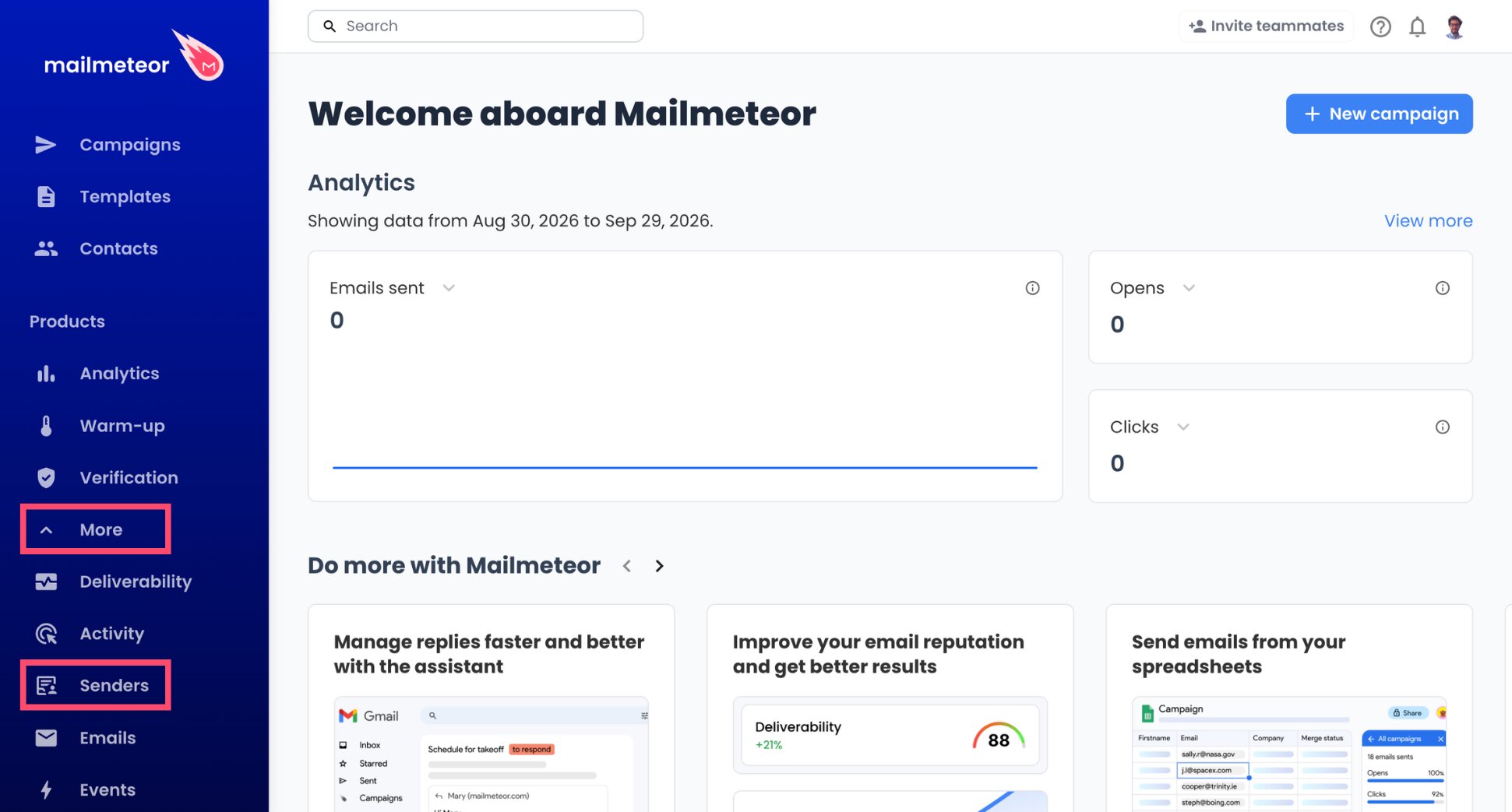
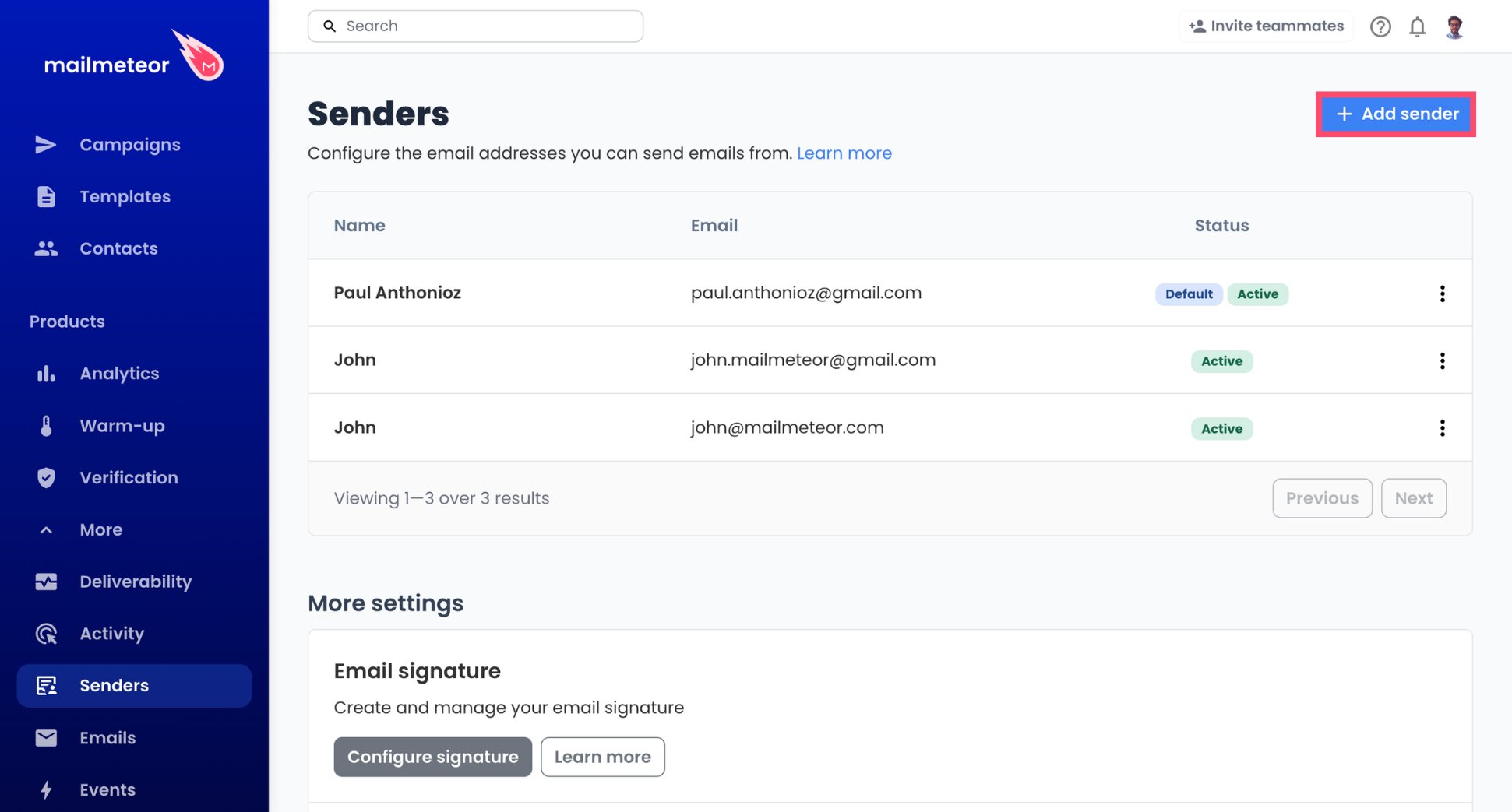
- Select Add sender.
- Fill in the display name recipients should see, then your Hostinger email address.
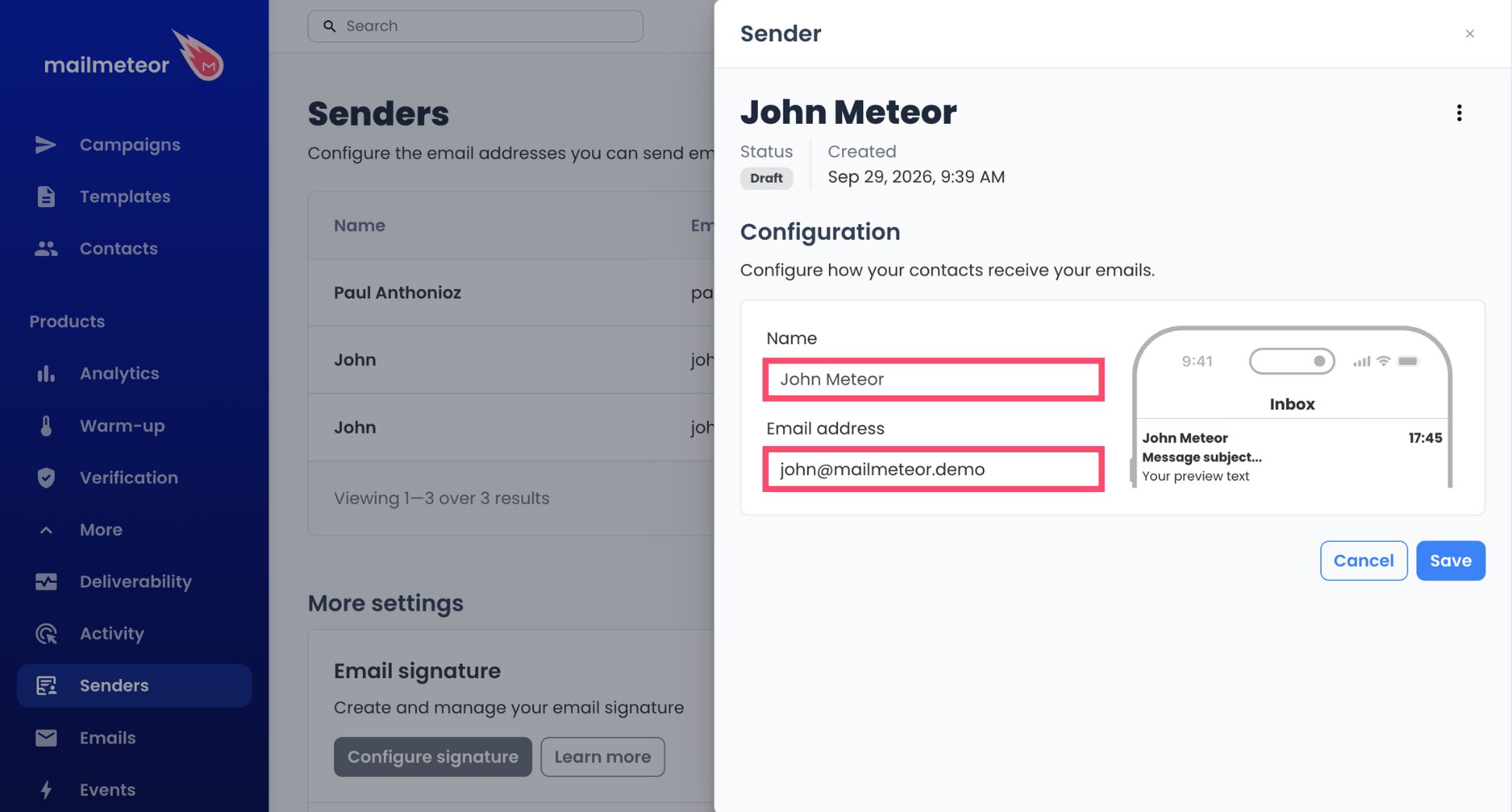
- Hit Save.
Step 2: Enter Hostinger’s SMTP Server
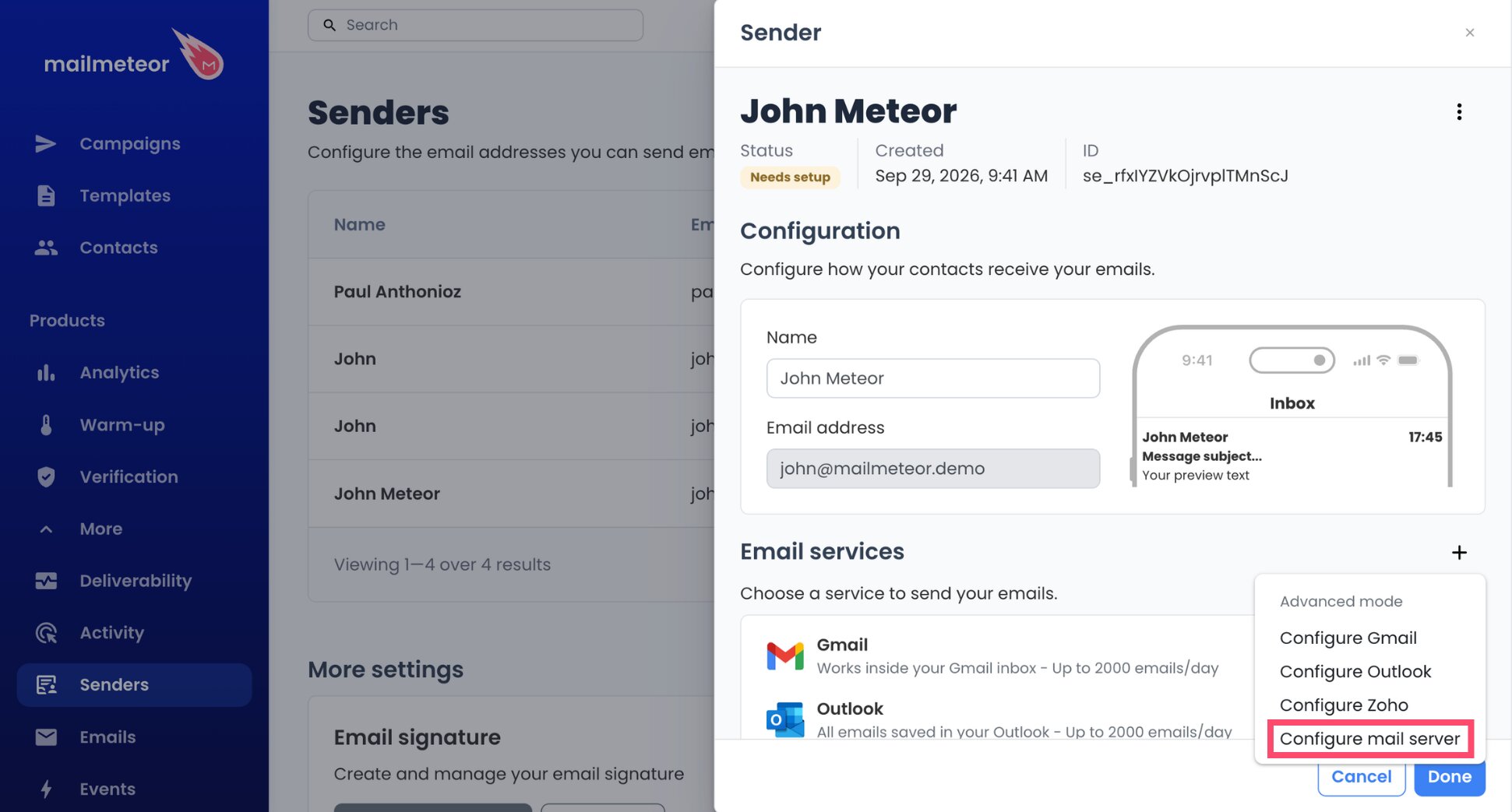
- Under Email services, press the + button.
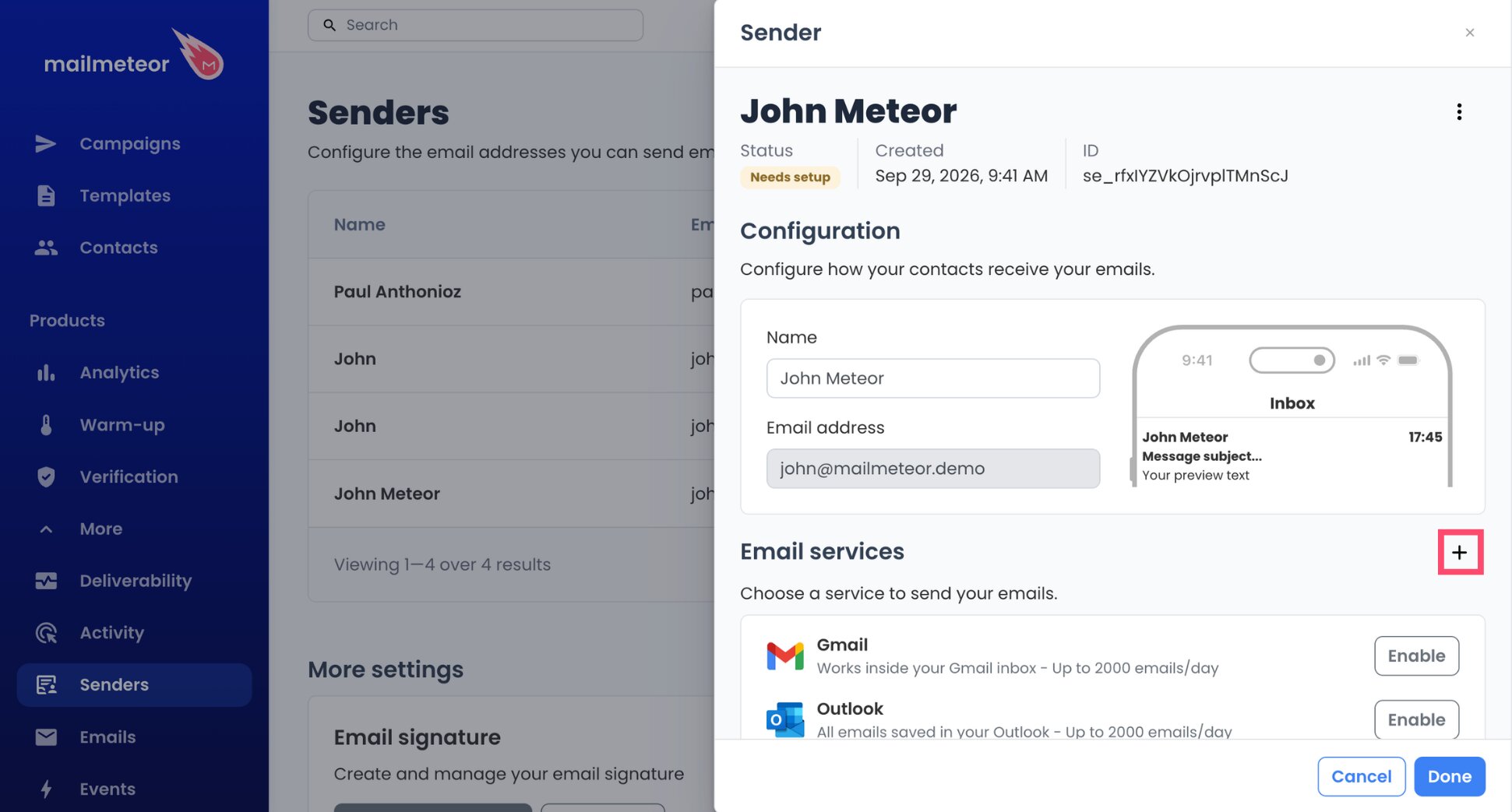
- Pick Configure mail server.
- In the Sending server block, enter
smtp.hostinger.comin the Server name field.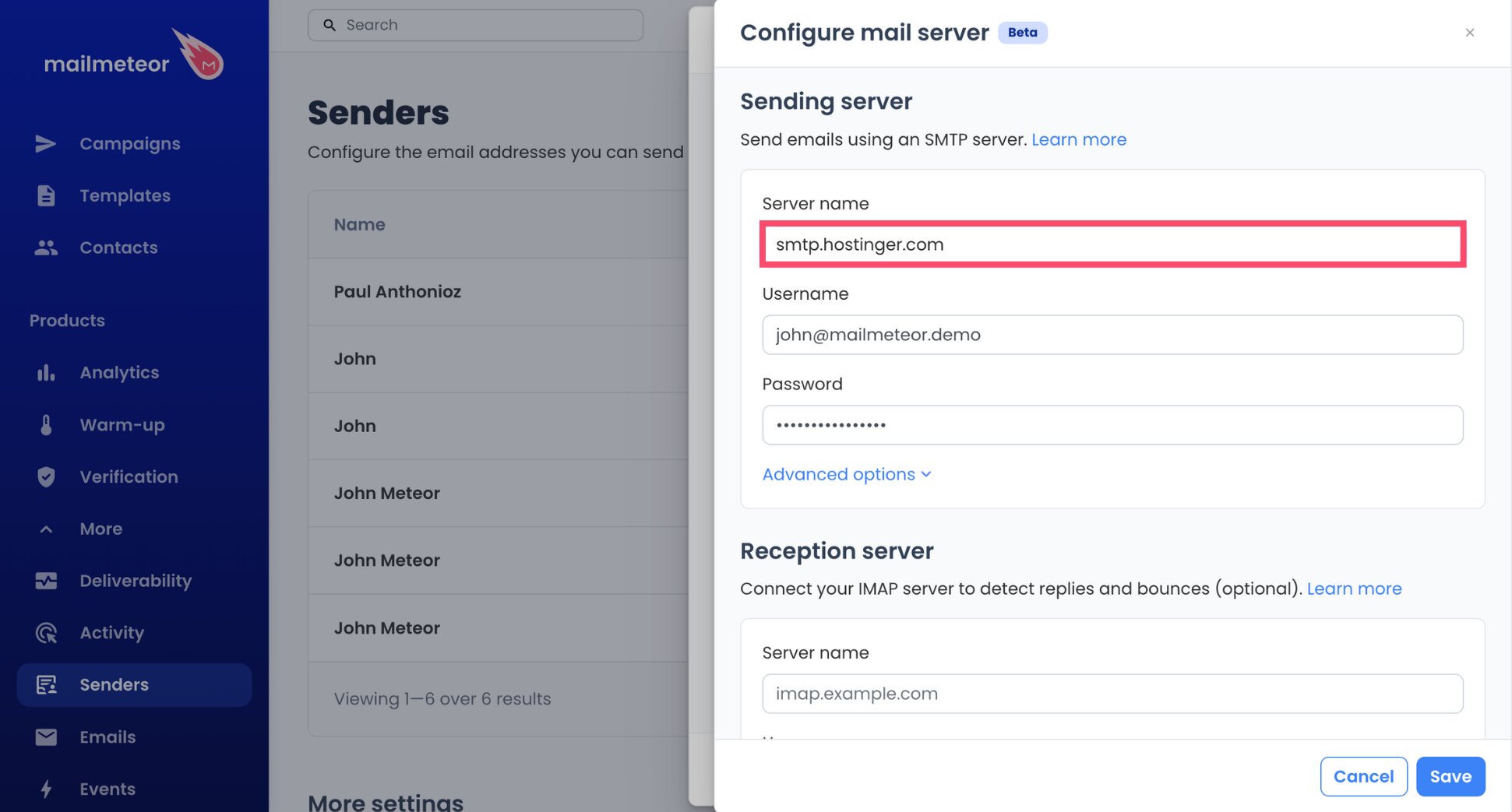
- Fill in Username with your full Hostinger address, such as
[email protected].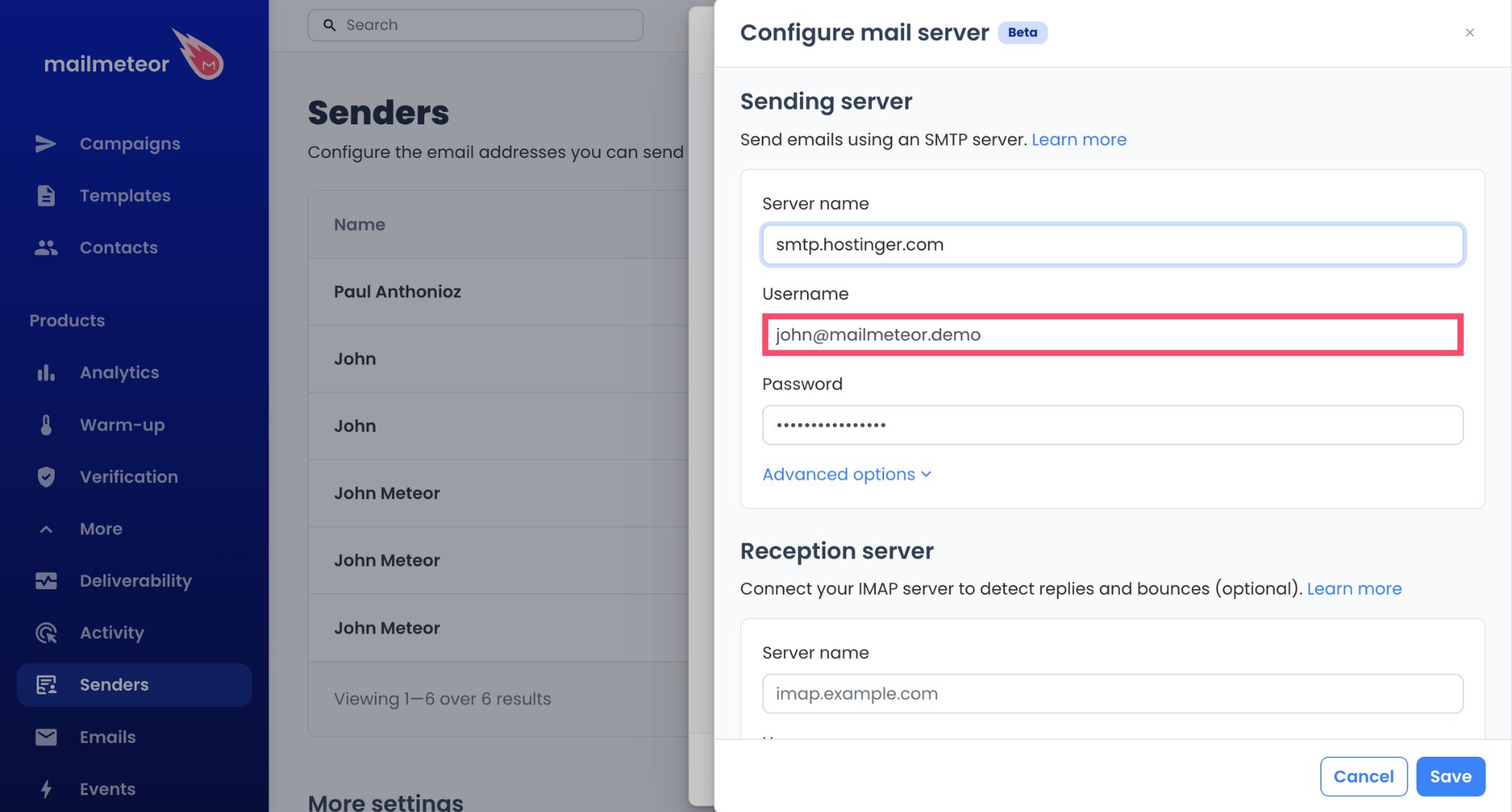
- In Password, enter your app password or your mailbox password.
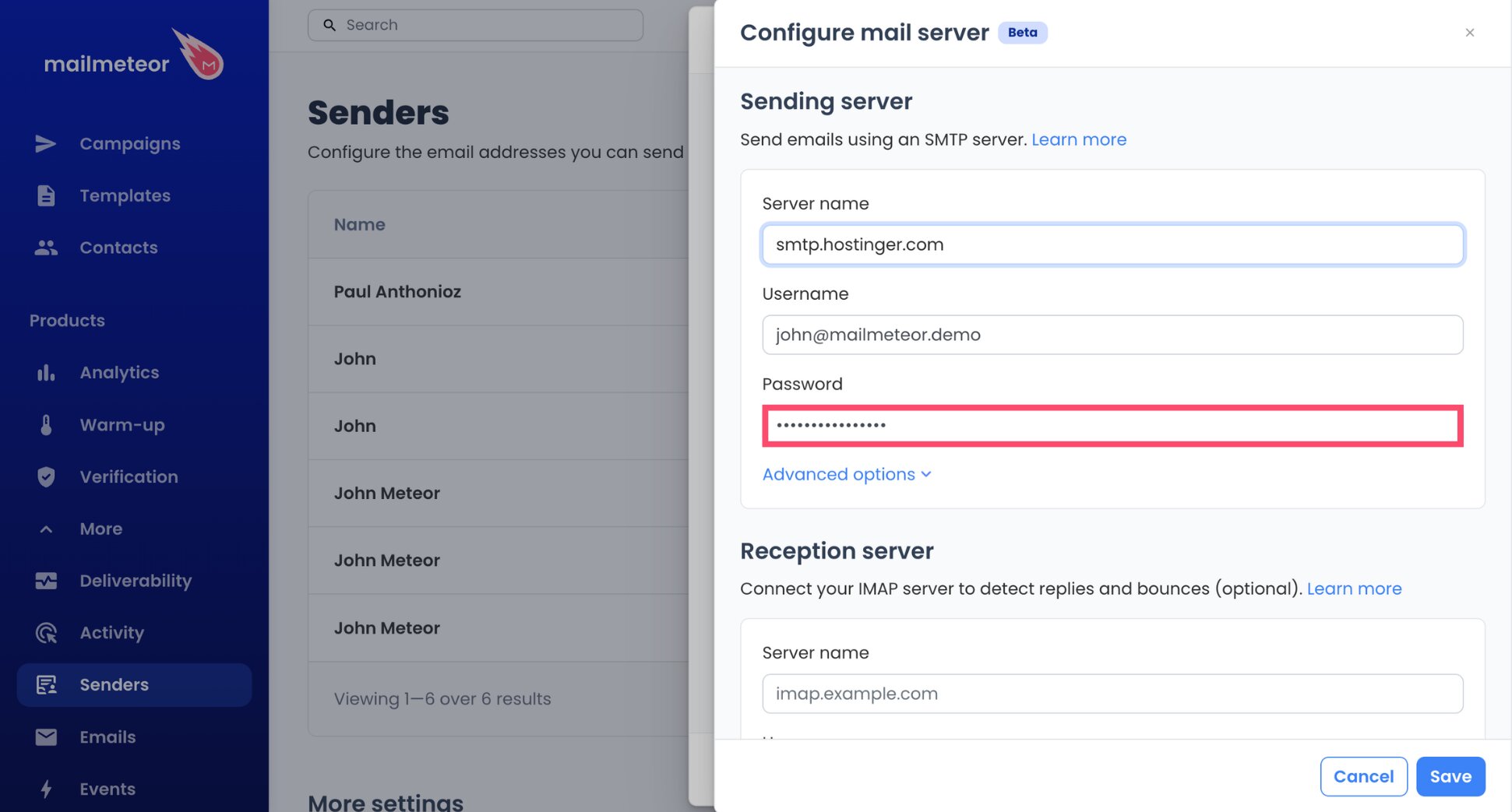
Mailmeteor fills in the port and encryption for you automatically, so there’s nothing else to adjust on the sending side.
Step 3: Enter Hostinger’s IMAP Server
IMAP is optional for sending, but without it Mailmeteor can’t see replies arriving in your Hostinger inbox, and follow-ups could reach customers who already responded. Here’s how to configure it ⤵️
- In the Reception server block, enter
imap.hostinger.comas the Server name.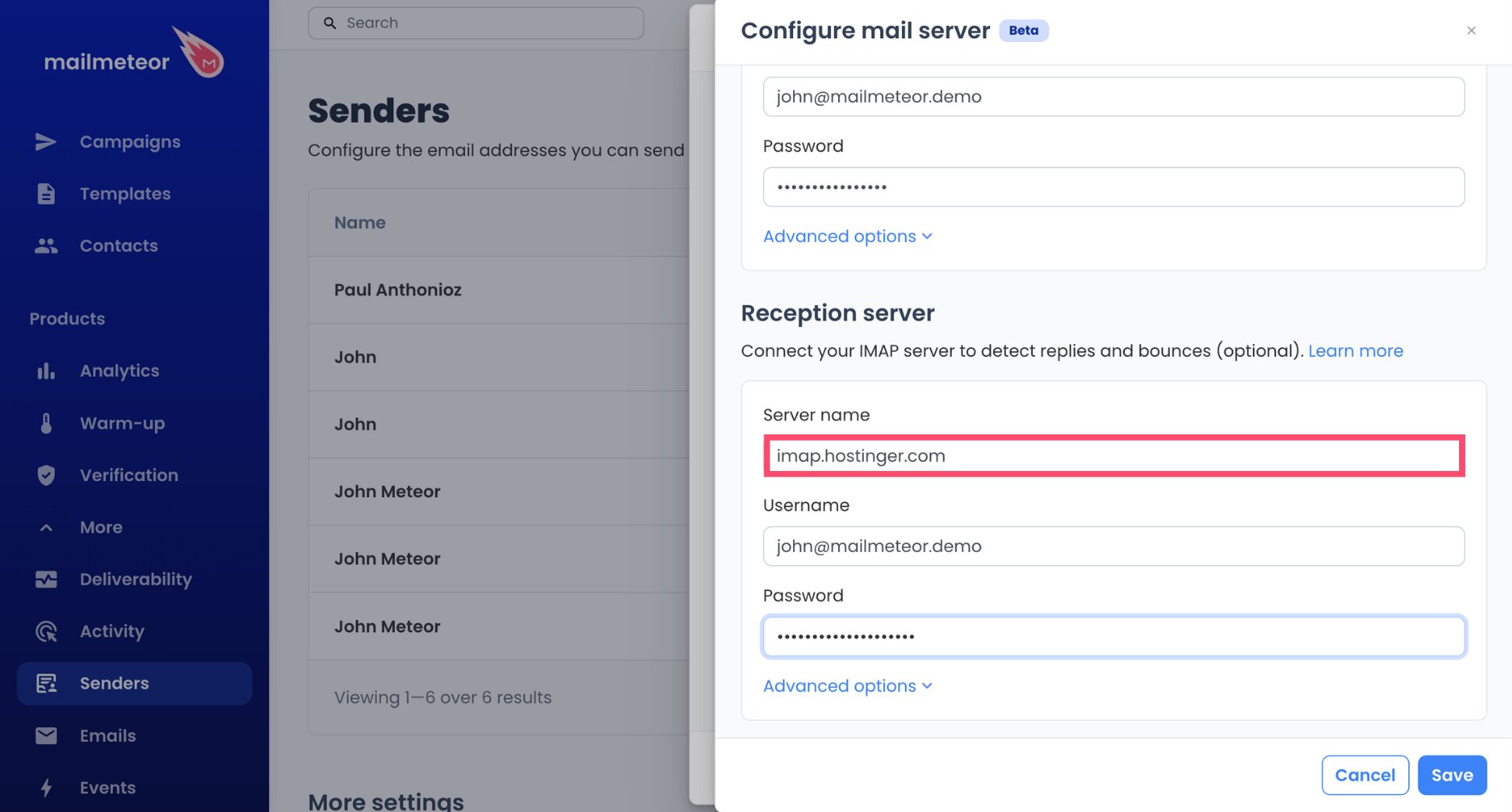
- Reuse your full Hostinger address as the Username.
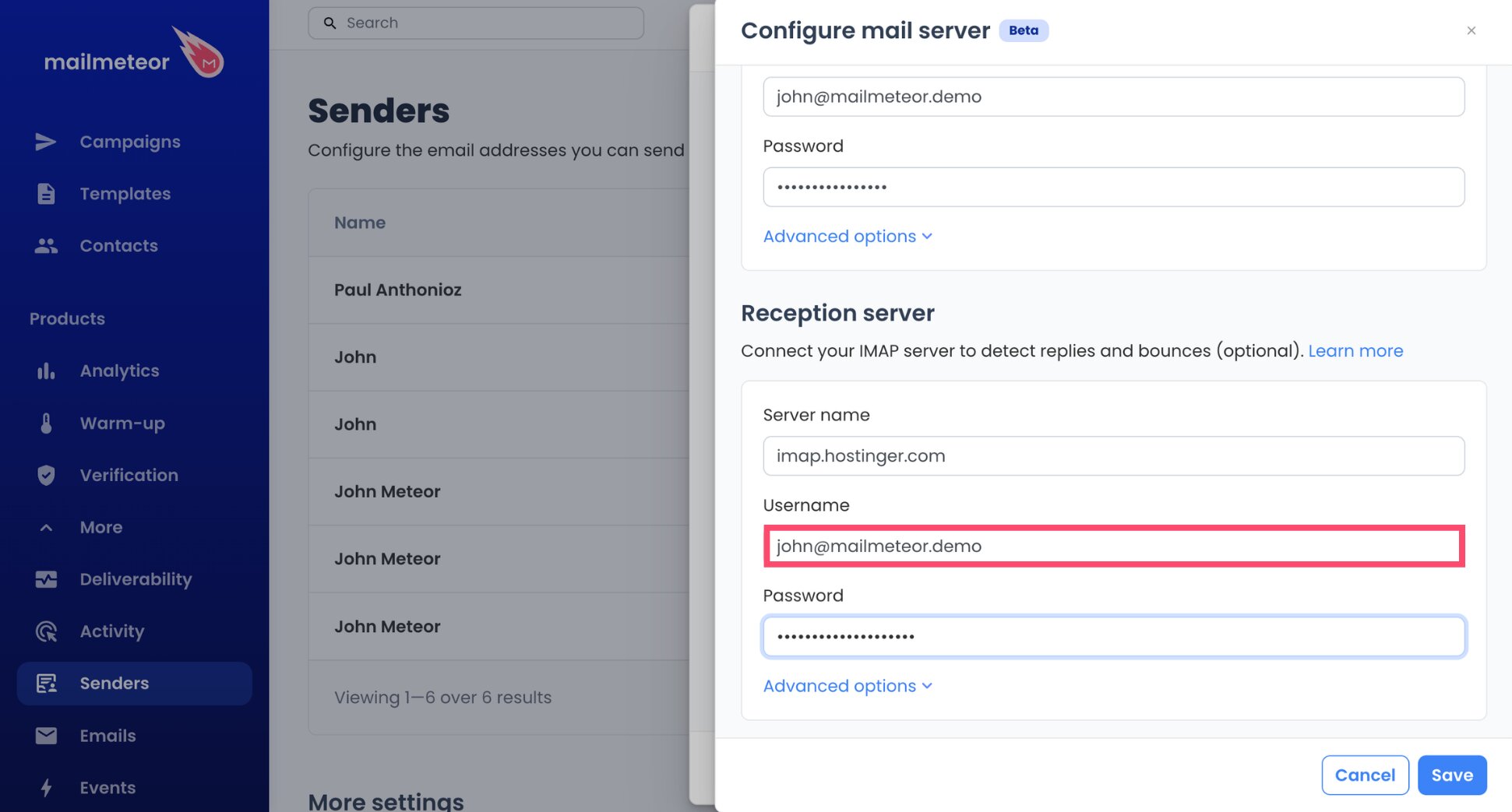
- Enter the same password.
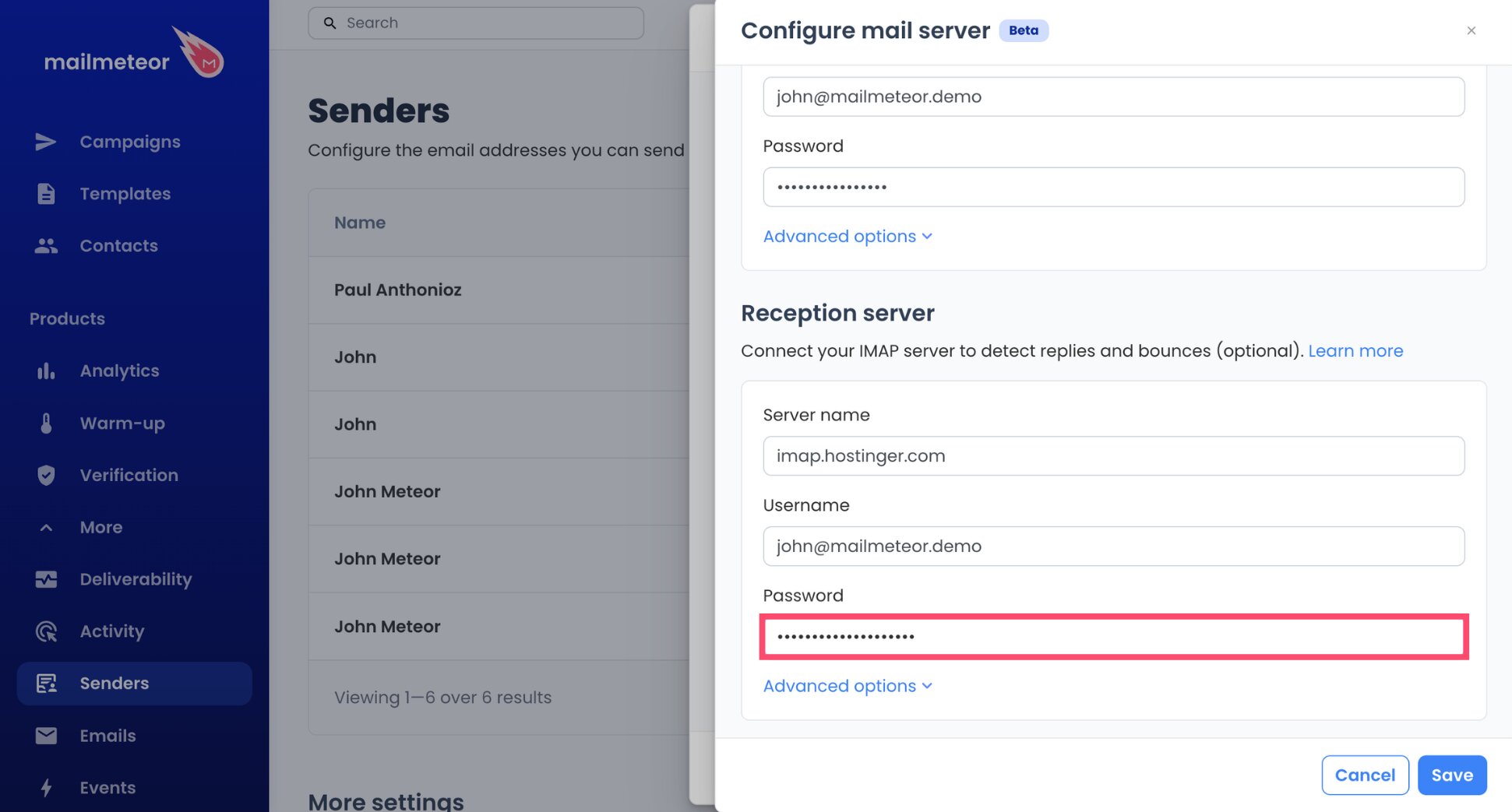
- Select Save, then Done.
And voilà. Mailmeteor automatically fills in 993, the port Hostinger uses for IMAP. Your Hostinger mailbox is now connected to Mailmeteor.
- Open your Hostinger sender from the Senders page of your Mailmeteor Dashboard.
- In Email services, click the three-dot menu (⋮) next to the Hostinger mail server.
- Select Set as default.
Step 4: Create Your Hostinger Campaign
- Click New campaign in the Dashboard.
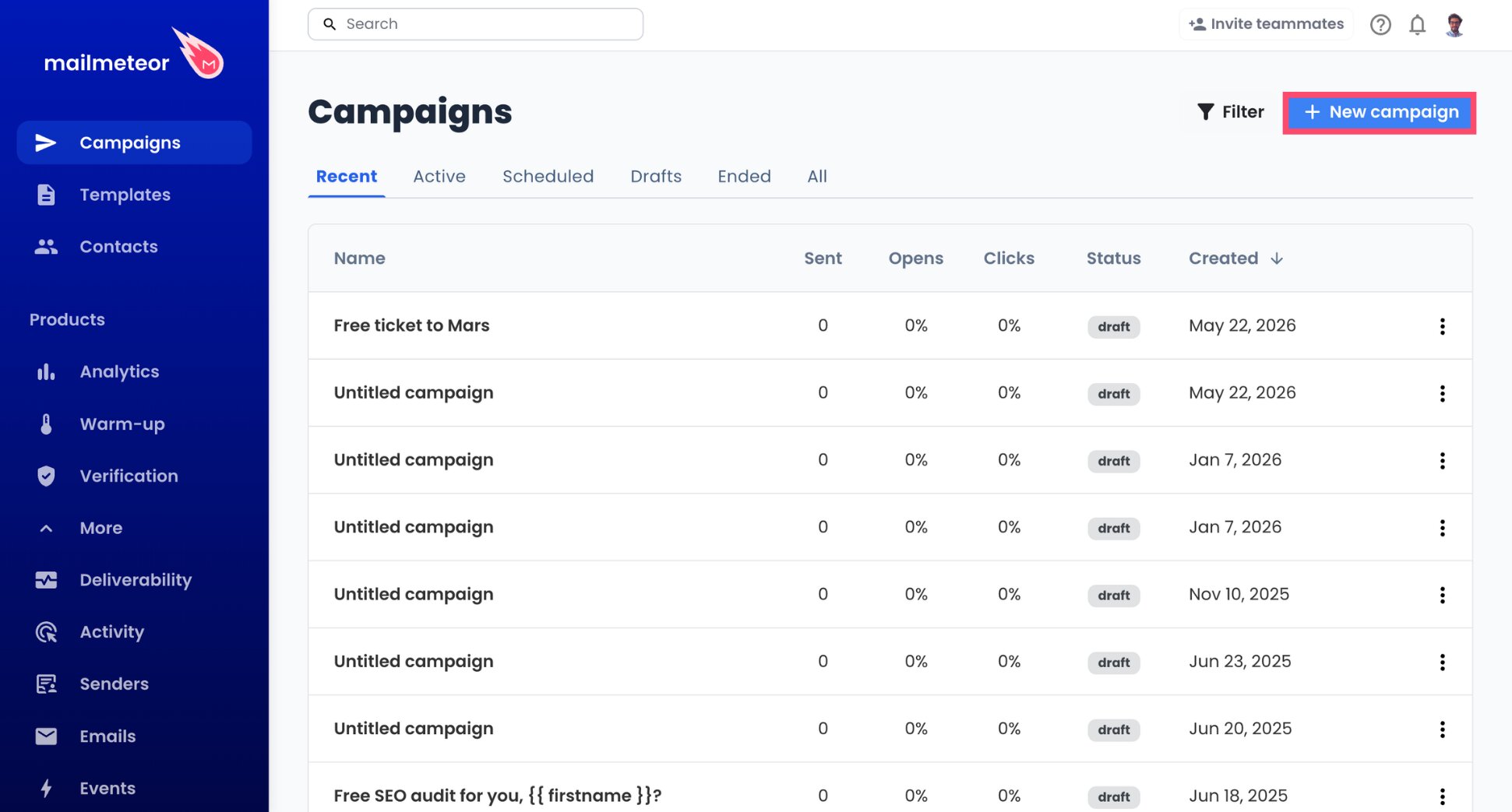
- In the From field, open the dropdown (▼) and select your Hostinger address.
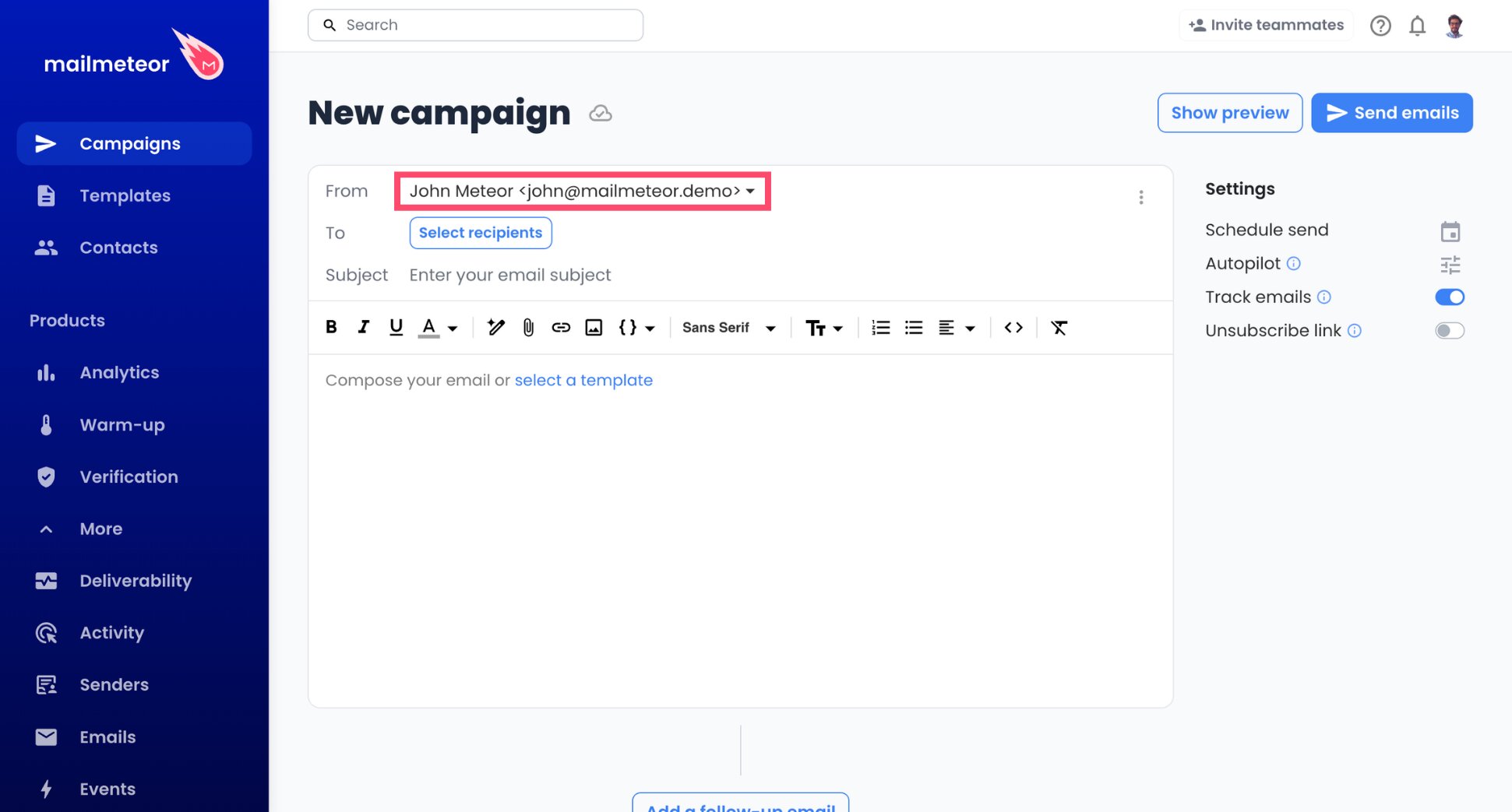
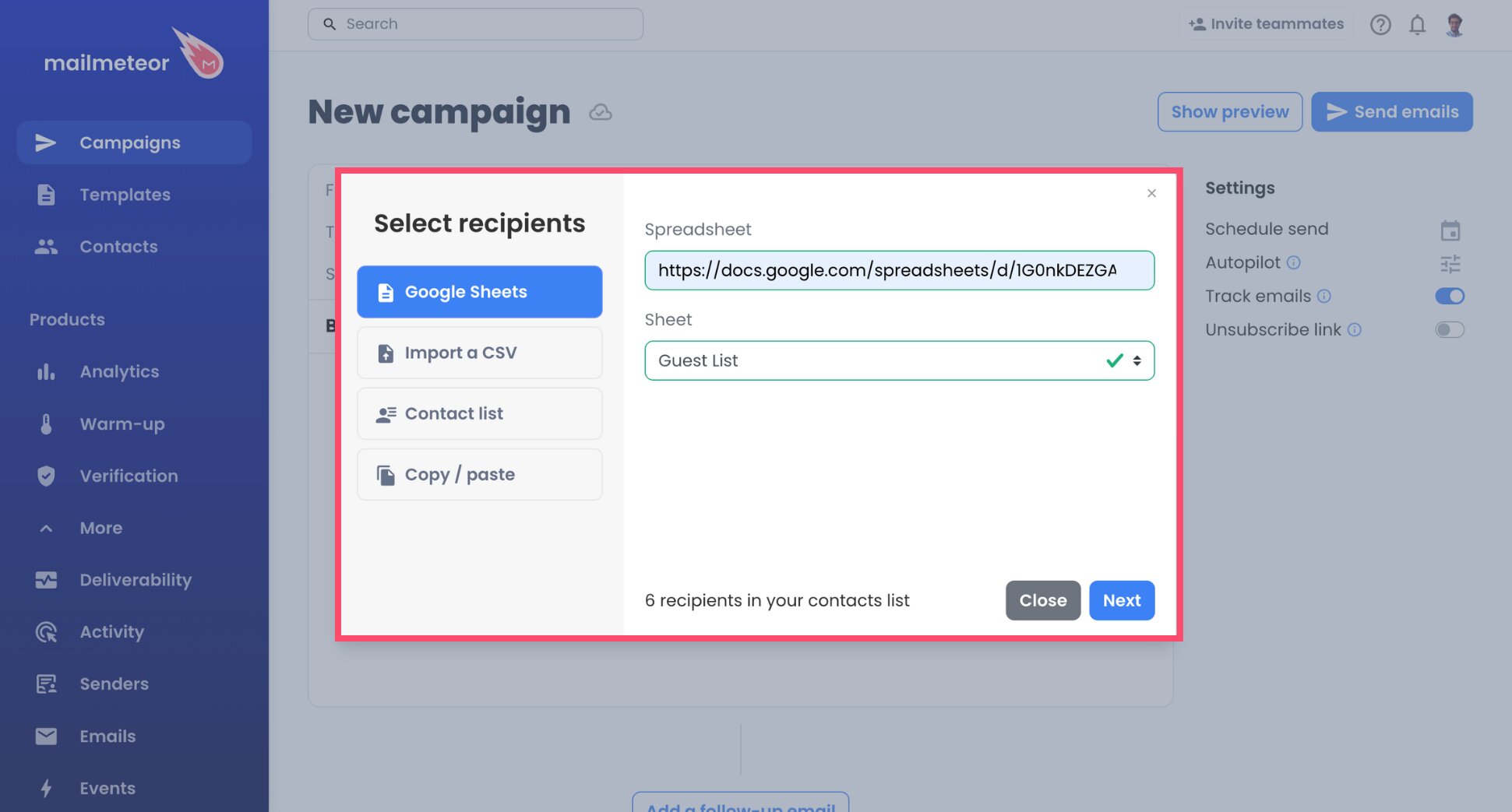
- Click Select recipientss. Then connect a Google Sheet, upload a CSV file, choose a saved list, or paste emails to add recipients.
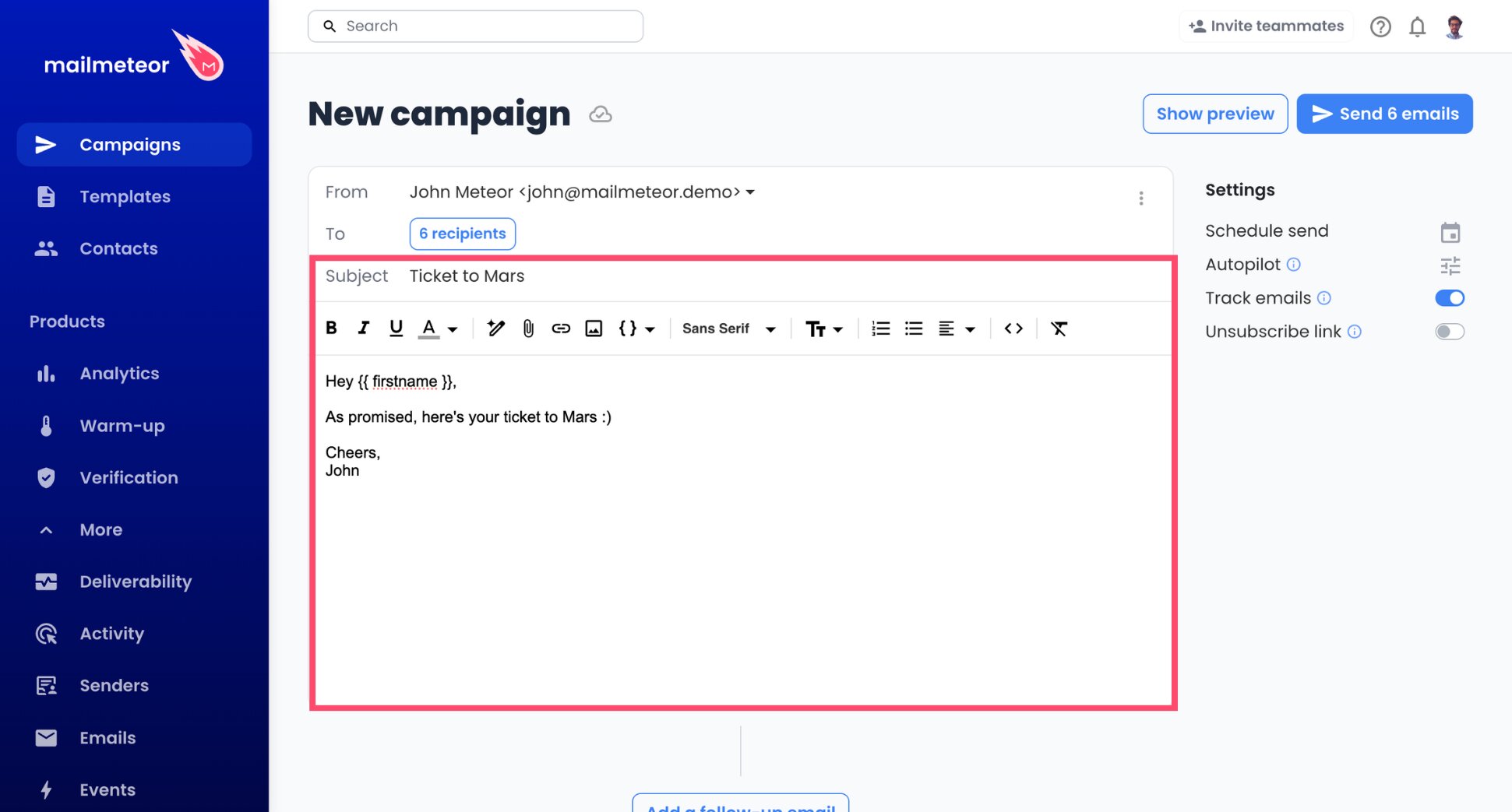
- Write the subject line and body of your email.
- Personalize with variables like
{{ firstname }}or{{ company }}, matching the column names in your list.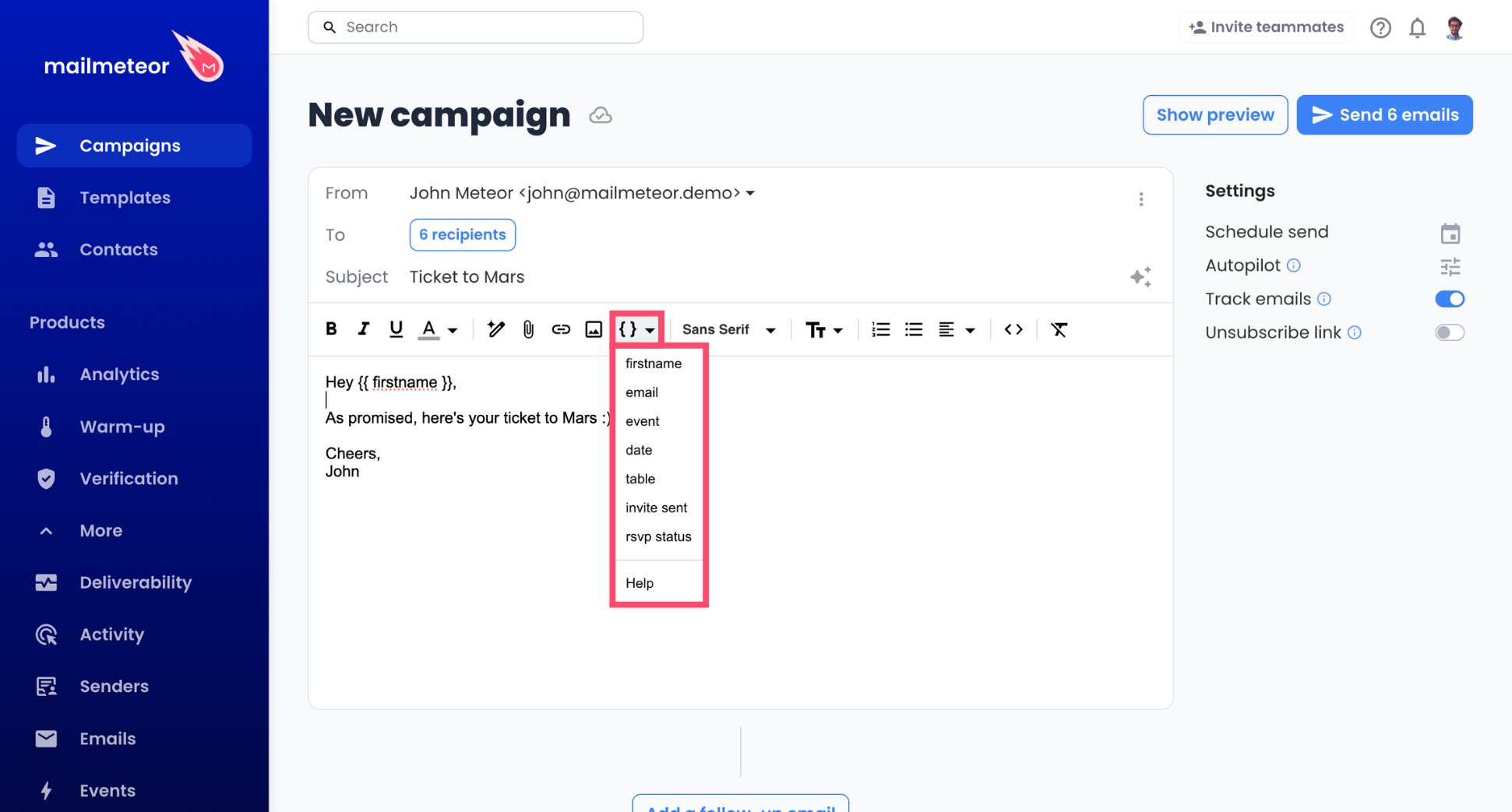
- Open Preview to review a few emails as your recipients will see them.
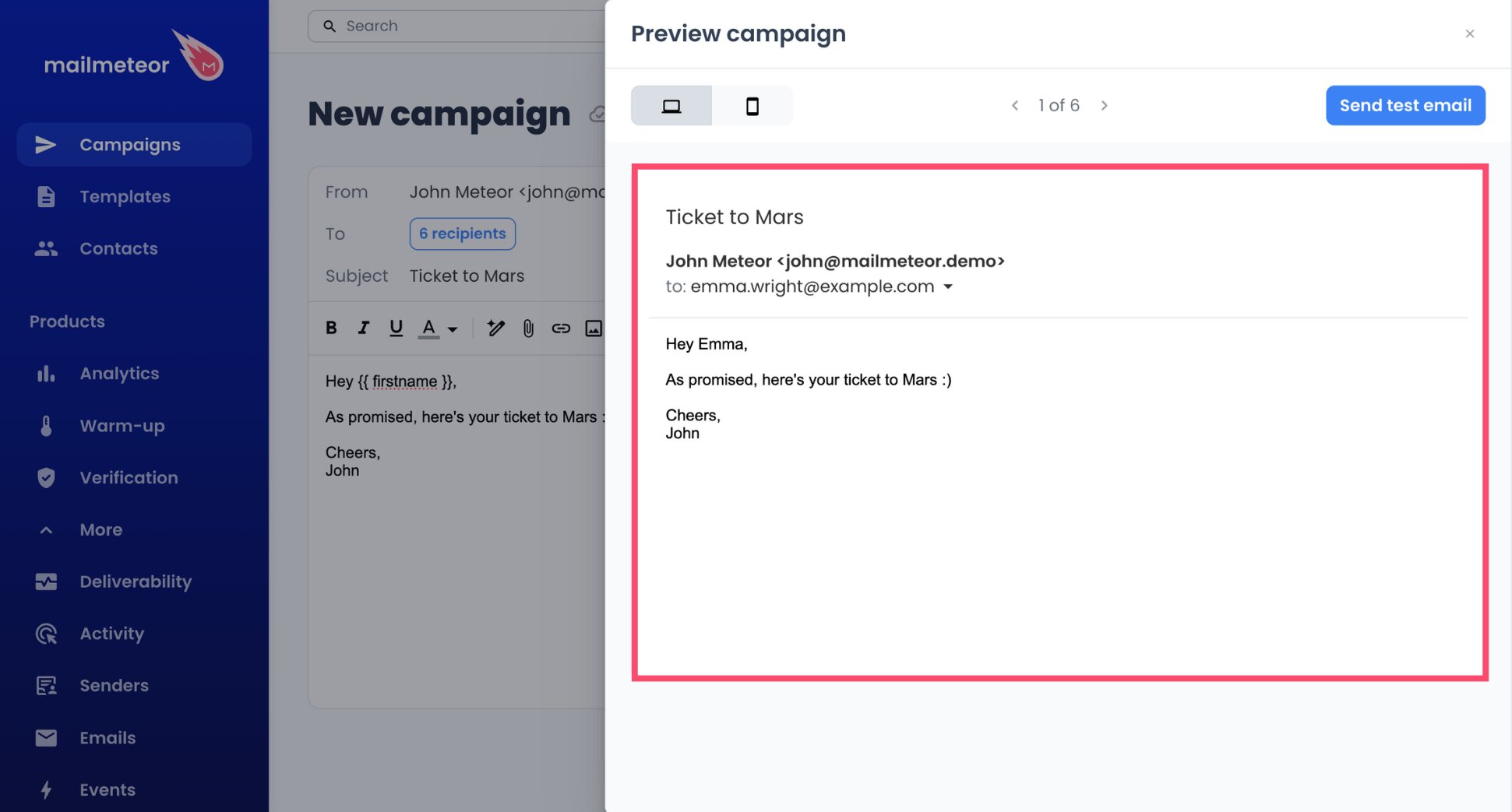
The best part? Each contact receives a separate email, so Hostinger’s cap of 100 recipients per message doesn’t apply. Every email still counts toward your mailbox’s daily limit, though.
Prefer to stay in your spreadsheet? Mailmeteor for Google Sheets can send the same campaign from your Hostinger address, straight from the sheet that holds your customer list.
Step 5: Match Autopilot to Your Daily Limit
Every email your campaign sends counts toward your mailbox’s daily limit. Autopilot helps you stay under it by releasing your emails gradually, over as many hours or days as you need.
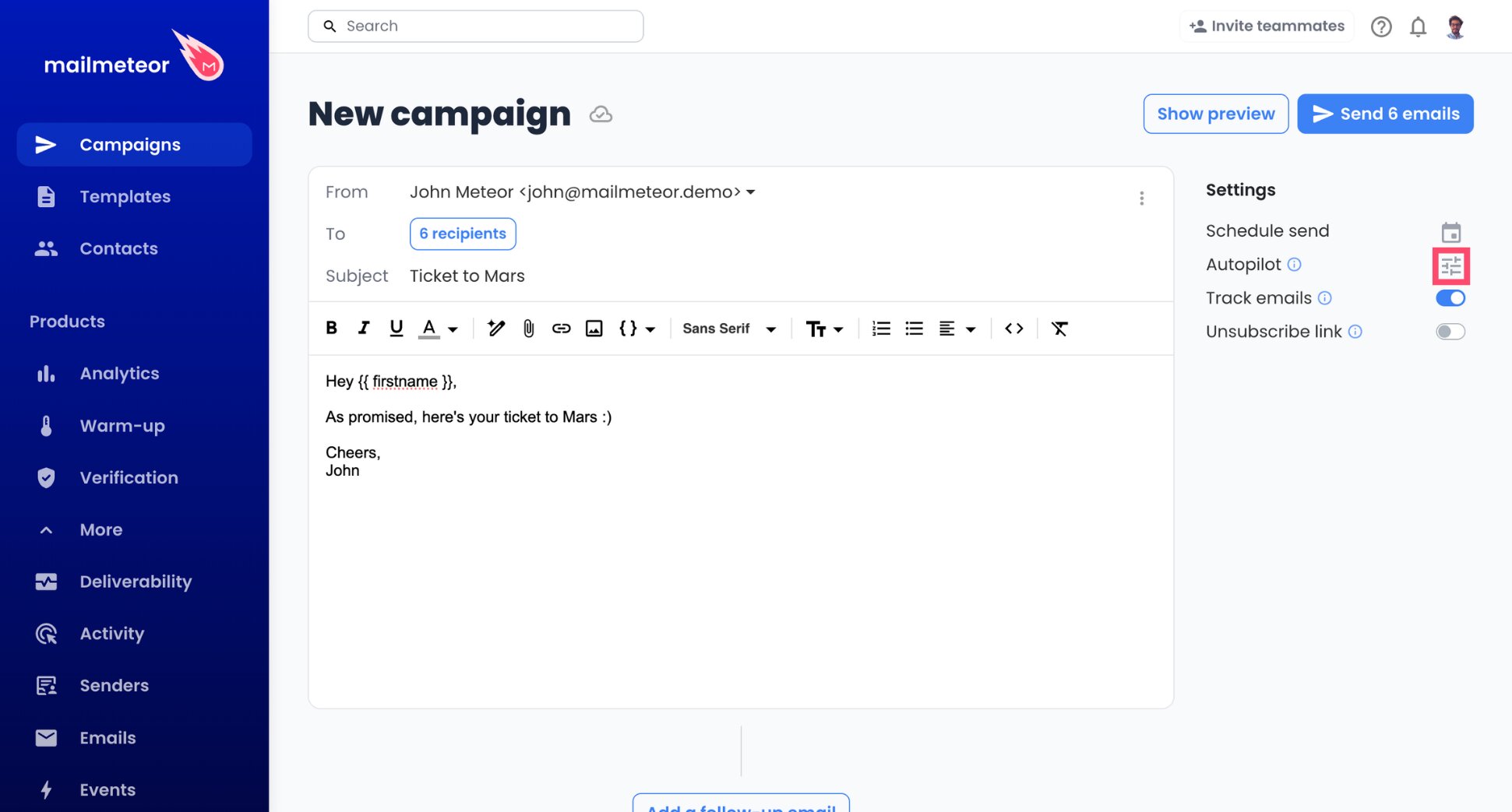
- Click Autopilot in your campaign.
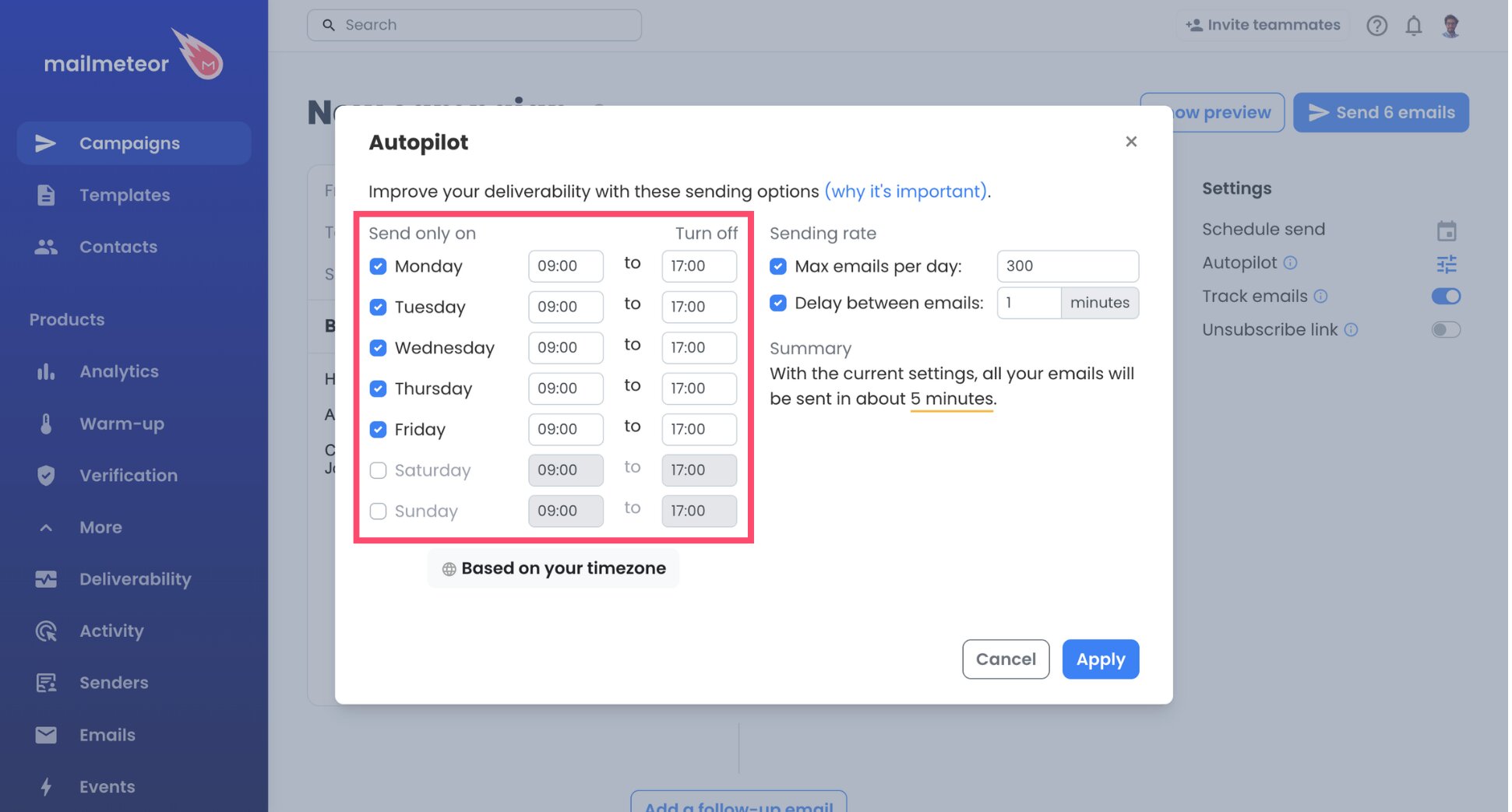
- Set the days and hours when emails can go out.
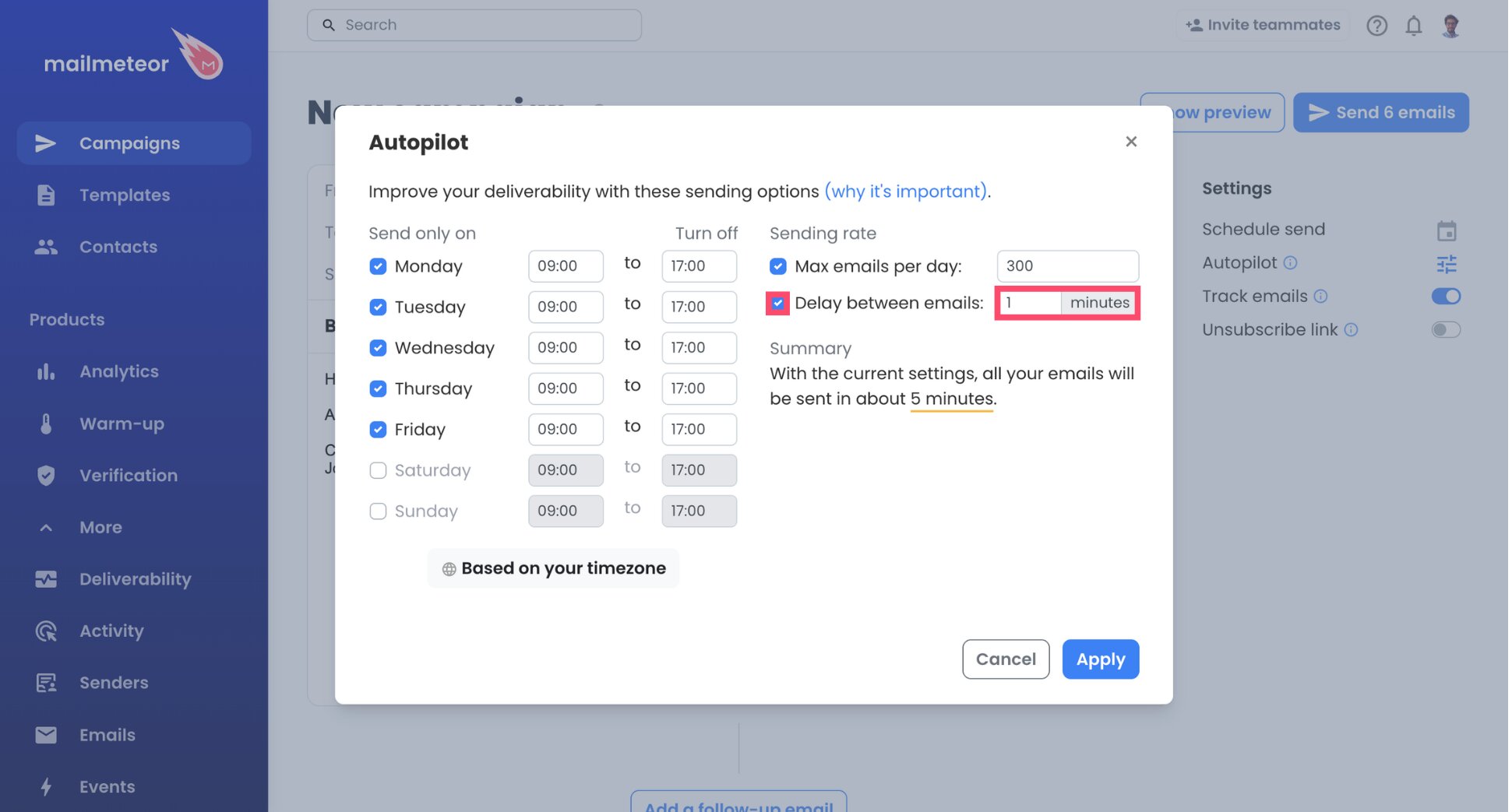
- Pick the delay between emails. One minute is the minimum.
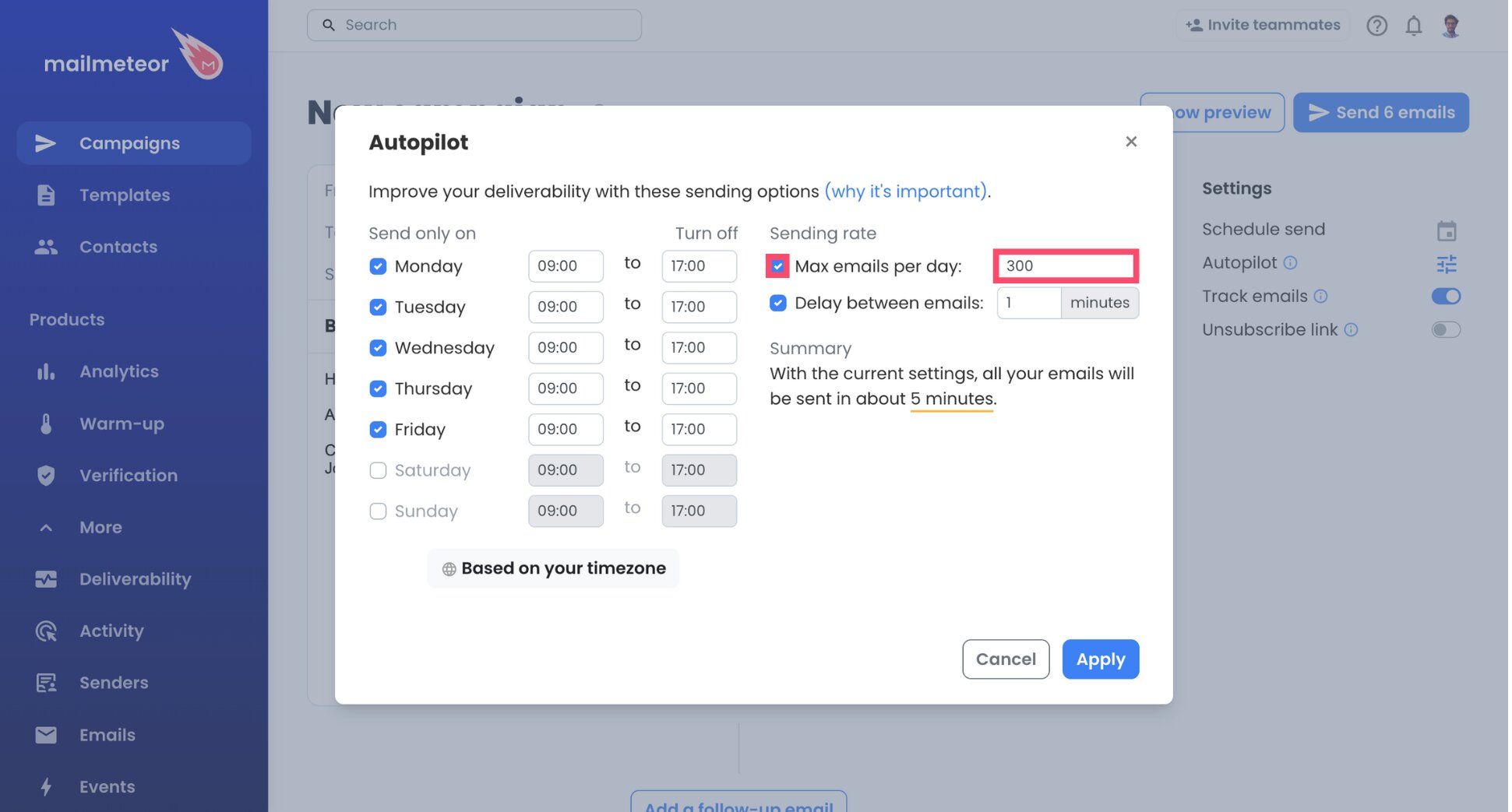
- Set a daily cap below your plan’s limit. Under 100 on a free or trial mailbox, and a few hundred at most on Business Starter until your mailbox has a sending history.
- Click Apply.
The interval sets the speed, and your daily cap is what keeps you inside Hostinger’s limit. Set the cap below your plan’s allowance. For example, 80 a day on a mailbox limited to 100. Leave some room for emails you send by hand from the same mailbox, since they count too. Autopilot always tells you how long the campaign will take.
Step 6: Send a Test, Then Go
- Send yourself a test email.
- Look it over in your inbox and check the layout, links, and variables.
- Hit Send emails to start the campaign.
All done. Your campaign now goes out from your Hostinger address at the pace you set, and the Dashboard tracks opens, clicks, and replies as they arrive.
Hostinger SMTP and IMAP Settings
Mailmeteor talks to two Hostinger servers. One to send your emails (SMTP) and one to read replies and bounces (IMAP).
Here’s the full configuration for Hostinger Email ⤵️
| Setting | Sending server (SMTP) | Reception server (IMAP) |
|---|---|---|
| Server name | smtp.hostinger.com |
imap.hostinger.com |
| Port | 465 (or 587) | 993 |
| Username | Your full email address | Your full email address |
| Password | Your mailbox password, or an app password if your plan supports it | Your mailbox password, or an app password if your plan supports it |
Mailmeteor handles the encryption automatically. For reference, Hostinger uses SSL on port 465 and STARTTLS on port 587. These settings are also in your Hostinger dashboard. Go to Emails > Mailboxes > Connect apps & devices, then open Advanced settings. Hostinger only shows port 465 there, but 587 works too.
Keep three points in mind:
- Your mailbox password isn’t your Hostinger account password. The account password logs you in to the Hostinger dashboard and won’t work here.
- Titan Email uses different servers:
smtp.titan.email(port 465) andimap.titan.email(port 993). - Change the port only if you need to. If the connection fails on 465, open Advanced options in Mailmeteor, switch to 587, and leave Security on Auto.
Hostinger Email Sending Limits by Plan
Hostinger publishes its email limits, and they apply to each mailbox over a rolling 24-hour period. Sending and receiving are counted separately, so incoming emails don’t eat into your sending quota.
| Hostinger Email plan | Emails sent per day (per mailbox) | Recipients per email |
|---|---|---|
| Business Starter | 1,000 | 100 |
| Business Standard | 3,000 | 100 |
| Business Premium | 3,000 | 100 |
| Business Email free trial | 100 | 100 |
Each mailbox gets its own allowance, so a second address on the same domain doesn’t share the first one’s quota. Because the window is rolling, capacity comes back gradually as your oldest sends pass the 24-hour mark.
To see the limits for your mailbox, open Emails in the Hostinger dashboard, click Mailboxes next to your domain, then click View limits. Mailmeteor’s own plan limits apply too, and whichever is lower sets your pace.
How to Keep Your Hostinger Emails Out of Spam
Staying under your quota keeps your mailbox working. Reaching the inbox also depends on your domain’s authentication, your list, and your content ⤵️
Check Your Domain’s SPF, DKIM, and DMARC Records
SPF, DKIM, and DMARC are DNS records that help email providers check that your emails really come from your domain. Without them, your emails are more likely to land in spam. Where you add them depends on where your domain’s DNS is managed:
- At Hostinger: go to Emails > Mailboxes > Domain settings and click Connect automatically. Hostinger adds the records for you. No button? Your DNS is managed elsewhere.
- Somewhere else (Cloudflare, GoDaddy, Namecheap, etc.): add the records below at that provider.
| Record | Type | Host | Value |
|---|---|---|---|
| SPF | TXT | @ |
v=spf1 include:_spf.mail.hostinger.com ~all |
| DKIM | CNAME | hostingermail-a._domainkey |
hostingermail-a.dkim.mail.hostinger.com |
| DKIM | CNAME | hostingermail-b._domainkey |
hostingermail-b.dkim.mail.hostinger.com |
| DKIM | CNAME | hostingermail-c._domainkey |
hostingermail-c.dkim.mail.hostinger.com |
| DMARC | TXT | _dmarc |
v=DMARC1; p=none; rua=mailto:[email protected] |
Verify Your Contact List
Invalid addresses bounce, which hurts your sender reputation. And on Hostinger every bounced email still uses part of your daily quota. To avoid bounces, run your list through our free Email Checker, or turn on Mailmeteor’s email verification to skip invalid addresses automatically.
Write Emails That Get Past Spam Filters
Spam filters are more suspicious of emails that look mass-produced. To keep your campaign looking personal:
- Personalize more than the greeting. A detail about the customer’s plan or last order makes each email genuinely different.
- Steer clear of spam words like “free”, “guaranteed”, or “act now”, especially in your subject line.
- Keep the layout simple. A few short paragraphs, one or two links, and little or no images.
- Add an unsubscribe link to promotional and prospecting emails, so uninterested contacts can leave without flagging you as spam.
Before sending, test your copy with our free Spam Checker. For a deeper check, Mail-Tester gives you a one-time email address. Send your test email there, and it reports any authentication or content problems it finds.
Build Volume Over Time
A mailbox that has only ever sent a few emails a day, or a brand-new domain, needs time to earn trust with inbox providers. Start well below your daily limit, check bounces and replies after each send, and increase volume gradually. To build that reputation before a big campaign, you can also use Mailmeteor’s email warm-up.
How to Fix Hostinger SMTP Connection Errors
Most Hostinger connection problems come from a password mix-up or a used-up daily quota. Here’s how to sort them out ⤵️
| Problem | Likely cause | Fix |
|---|---|---|
| Authentication failed | You entered your Hostinger account password | Use the mailbox password, or generate an app password |
| Authentication failed after a password change | Mailmeteor still has the old password | Open your sender’s mail server settings and enter the new password |
| Lost the app password | Hostinger only shows it once | Delete it in Hostinger and generate a new one |
| Connection timeout | The port is blocked or wrong | In Advanced options, try 587 instead of 465, with Security on Auto |
| Emails stop partway through a campaign | Your mailbox hit its daily limit | Check View limits in Hostinger, lower your Autopilot daily cap, and let the 24-hour window free up |
| Emails land in spam | SPF or DKIM records are missing | Check Domain settings in Hostinger and add the missing records |
| Replies don’t appear in Mailmeteor | No reception server is configured | Add imap.hostinger.com under Reception server |
| A Titan mailbox won’t connect | You entered Hostinger Email’s servers | Use smtp.titan.email and imap.titan.email instead |
Still can’t connect Mailmeteor to your Hostinger mailbox? Test your settings in our SMTP Test Tool, or see Mailmeteor’s mail server documentation.
Send Bulk Emails From Your Hostinger Address
Your website, your domain, and your mailbox already live at Hostinger. With the right credentials and a pace that fits your daily limit, that mailbox can handle your outreach too. Hostinger delivers the emails, and Mailmeteor turns them into campaigns. Here’s what you get:
📬 Send every customer an email that feels written for them, from your business address
⏰ Stay inside your Hostinger quota, with Autopilot spreading campaigns over days
🔁 Follow up automatically, and stop the moment someone replies
📊 Track opens, clicks, and replies to see which customers are interested
✅ Save your daily quota for real inboxes by filtering out invalid addresses
Try Mailmeteor for Hostinger today (it’s free!) and turn your business mailbox into your outreach tool.
FAQs
Can I send bulk emails with Hostinger?
Yes, within your plan’s daily limit. Hostinger has no mail merge feature, but you can connect your mailbox to a tool like Mailmeteor through SMTP to send personalized emails in bulk. Depending on the plan, each mailbox can send 100 to 3,000 emails per day. For newsletters to large lists, an email marketing platform is a better fit.
What is the Hostinger SMTP server?
The Hostinger SMTP server is smtp.hostinger.com, on port 465 with SSL or port 587 with STARTTLS. The IMAP server is imap.hostinger.com on port 993. Use your full email address as the username, and your mailbox password or an app password. Titan Email mailboxes use smtp.titan.email instead.
How many emails can I send per day with Hostinger?
You get to send up to 1,000 emails per day on Business Starter, 3,000 on Business Standard and Business Premium, and 100 on free and trial mailboxes. Limits apply to each mailbox over a rolling 24-hour period. To see the limits for your own mailbox, go to Emails > Mailboxes > View limits.
Is my Hostinger email password the same as my Hostinger account password?
No. Your account password logs you in to the Hostinger dashboard, while your mailbox password gives access to a specific email address. To connect a mailbox to Mailmeteor, use the mailbox password or an app password. You can reset the mailbox password under Emails > Mailboxes > Change Password.
Should I use an app password to connect Hostinger to Mailmeteor?
If your email plan supports app passwords, yes. An app password gives Mailmeteor access to your mailbox without sharing your main password, and you can revoke it at any time. Hostinger shows it only once, so copy it as soon as you generate it.
How many recipients can I add to one Hostinger email?
Hostinger allows up to 100 recipients per email, counting the To, Cc, and Bcc fields together, on every Hostinger Email plan. A mail merge sends a separate email to each person, so this cap doesn’t apply. Each email still counts toward your daily limit.
My domain is at Hostinger, but my email runs on Google Workspace. What should I do?
Connect your address to Mailmeteor with the Sign in with Google option instead of SMTP. The settings in this guide only apply to mailboxes hosted by Hostinger Email. What matters is where your mailbox is hosted, not where you bought your domain.