You set up a professional email address with GoDaddy, and now you need to reach 150 clients at once, without sending each of them a copy-pasted message. GoDaddy’s webmail can’t help you. It has no mail merge feature, and a single email can’t include more than 100 addresses.
Mailmeteor solves that. It’s a mail merge tool used by 7 million people and rated 4.9/5 across 10,000+ reviews, and it now connects to GoDaddy Professional Email through SMTP, the protocol email apps use to send messages. The result? Every client gets an individual email with their own details, sent straight from your GoDaddy address.
Below, you’ll find the GoDaddy SMTP settings, sending limits, and a full setup guide to send your first email campaign from your GoDaddy mailbox.
- Check which GoDaddy email you have – Professional Email connects through SMTP. Microsoft 365 from GoDaddy connects with Microsoft sign-in instead.
- Have your email password ready – It's the password of your mailbox, not of your GoDaddy account.
- Add your GoDaddy address to Mailmeteor – Create a sender once, and reuse it for every campaign.
- Use GoDaddy's servers –
smtpout.secureserver.netfor sending andimap.secureserver.netfor replies. - Stay under 500 emails a day – That's GoDaddy's SMTP limit per mailbox, and Autopilot helps you respect it.
Here’s what we’ll cover:
- Why send bulk emails from GoDaddy?
- Which GoDaddy email do you have?
- What you need to send bulk emails from GoDaddy
- How to send bulk emails from GoDaddy with Mailmeteor
- GoDaddy SMTP and IMAP settings
- GoDaddy email sending limits
- How to keep your GoDaddy emails out of spam
- How to fix GoDaddy SMTP connection errors
Sounds good? Then let’s dive in.
Why Send Bulk Emails From GoDaddy?
GoDaddy is where many small businesses registered their first domain and created their first professional address. That address has a history with your clients, and it’s worth using for your campaigns. Here’s why ⤵️
Reach Clients From Your Own Business Address
With this simple setup, clients see a name and an address they know, like [email protected], instead of a marketing platform’s sender. Your emails go through GoDaddy’s own servers, and replies land in the inbox you already check every morning.
Turn a Single Inbox Into a Campaign Tool
GoDaddy’s webmail handles one conversation at a time. Connect your address to Mailmeteor, and you can:
- Write one email and personalize it for each client.
- Import your contacts from a Google Sheet or a CSV file.
- Filter out invalid addresses before they eat into your daily limit.
- Include an unsubscribe link, and automatically stop emailing anyone who uses it.
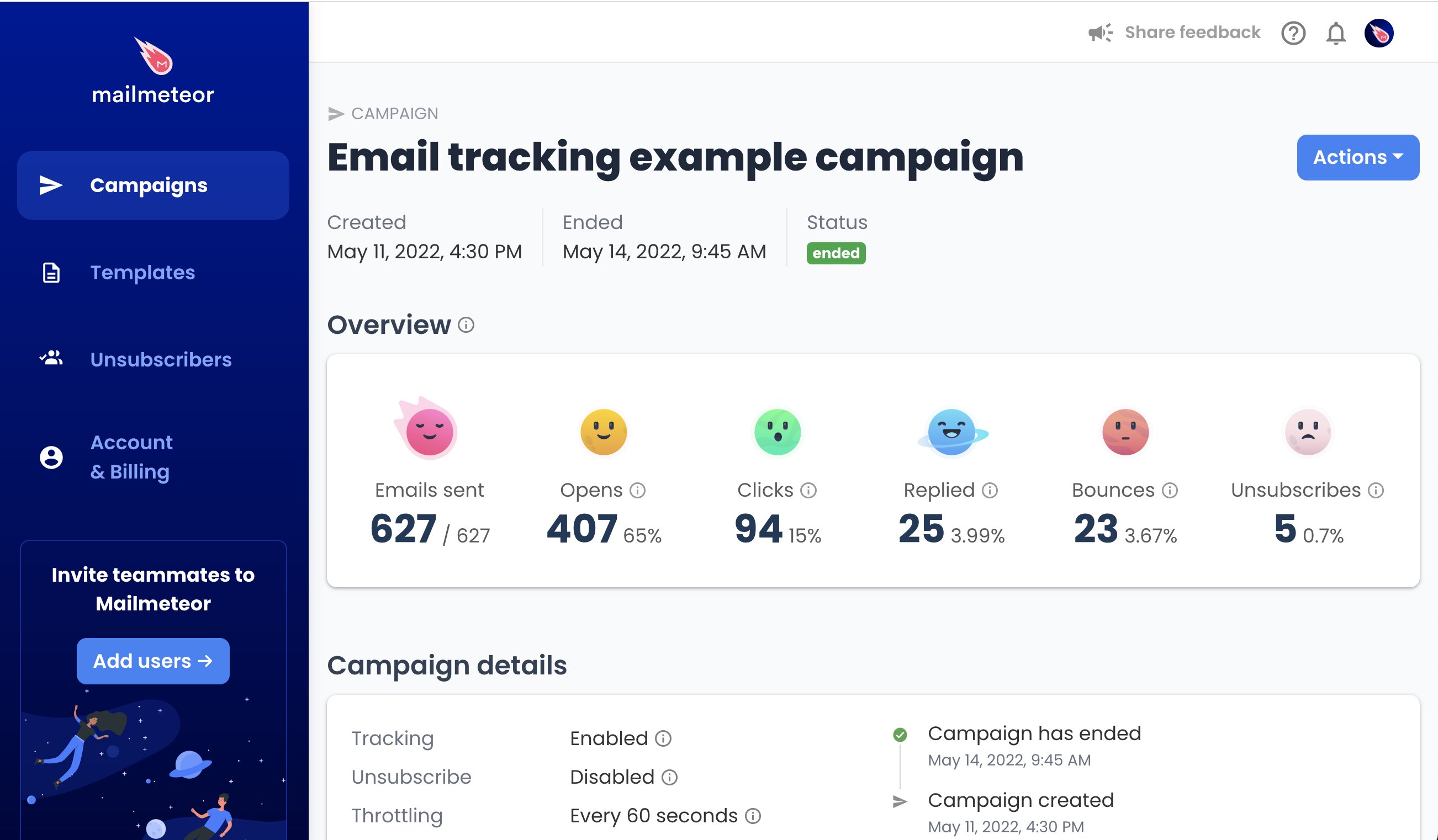
- Track opens, clicks, and replies in real time for every campaign.
- Schedule follow-ups to nudge contacts who haven’t answered.
Mind the 500-Email Ceiling
GoDaddy lets each Professional Email mailbox send 500 emails a day through SMTP. That’s fine for client updates, event invitations, quote follow-ups, or a prospecting campaign. But it won’t cover a newsletter to several thousand subscribers.
| Option | What each recipient gets | Tracking | Best for |
|---|---|---|---|
| GoDaddy webmail | A copy of the same message, sent to up to 100 addresses at a time | None | Short notes to a handful of people |
| Mailmeteor + GoDaddy | A personalized email, sent from your GoDaddy address, with their details filled in | Opens and clicks, plus replies and bounces once IMAP is set up | Personal outreach of up to a few hundred emails a day |
| Email marketing service | A designed newsletter sent from the service’s servers | Opens, clicks, and bounces | Large subscriber lists |
Which GoDaddy Email Do You Have?
GoDaddy sells two different email products, and they don’t connect to Mailmeteor the same way. Before going further, check which one hosts your address:
| GoDaddy product | How to recognize it | How to connect it to Mailmeteor |
|---|---|---|
| Professional Email (including Professional Email powered by Titan) | You read your emails in GoDaddy Webmail | Through SMTP, as explained in this guide |
| Microsoft 365 from GoDaddy | You read your emails in Outlook, signing in through Office 365 | With the Sign in with Microsoft option, no SMTP settings needed |
If you’re on Microsoft 365 from GoDaddy, you can skip the server setup below: connect your address with Microsoft sign-in, then jump to Step 4 to create your campaign.
What You Need to Send Bulk Emails From GoDaddy
To send bulk emails from GoDaddy with Mailmeteor, you need:
- An address on GoDaddy Professional Email, such as
[email protected]. - The password of that email address. Your GoDaddy account password won’t work.
- A Mailmeteor Premium plan or above, which lets you add a custom sender like your GoDaddy address.
How to Send Bulk Emails From GoDaddy With Mailmeteor
You need about 5 minutes to connect your GoDaddy address and launch your first email campaign. The connection is a one-time setup.
Step 1: Set Up a Sender for Your GoDaddy Address
- Head to the Mailmeteor Dashboard and log in.
- In the Products menu, choose More, then Senders.
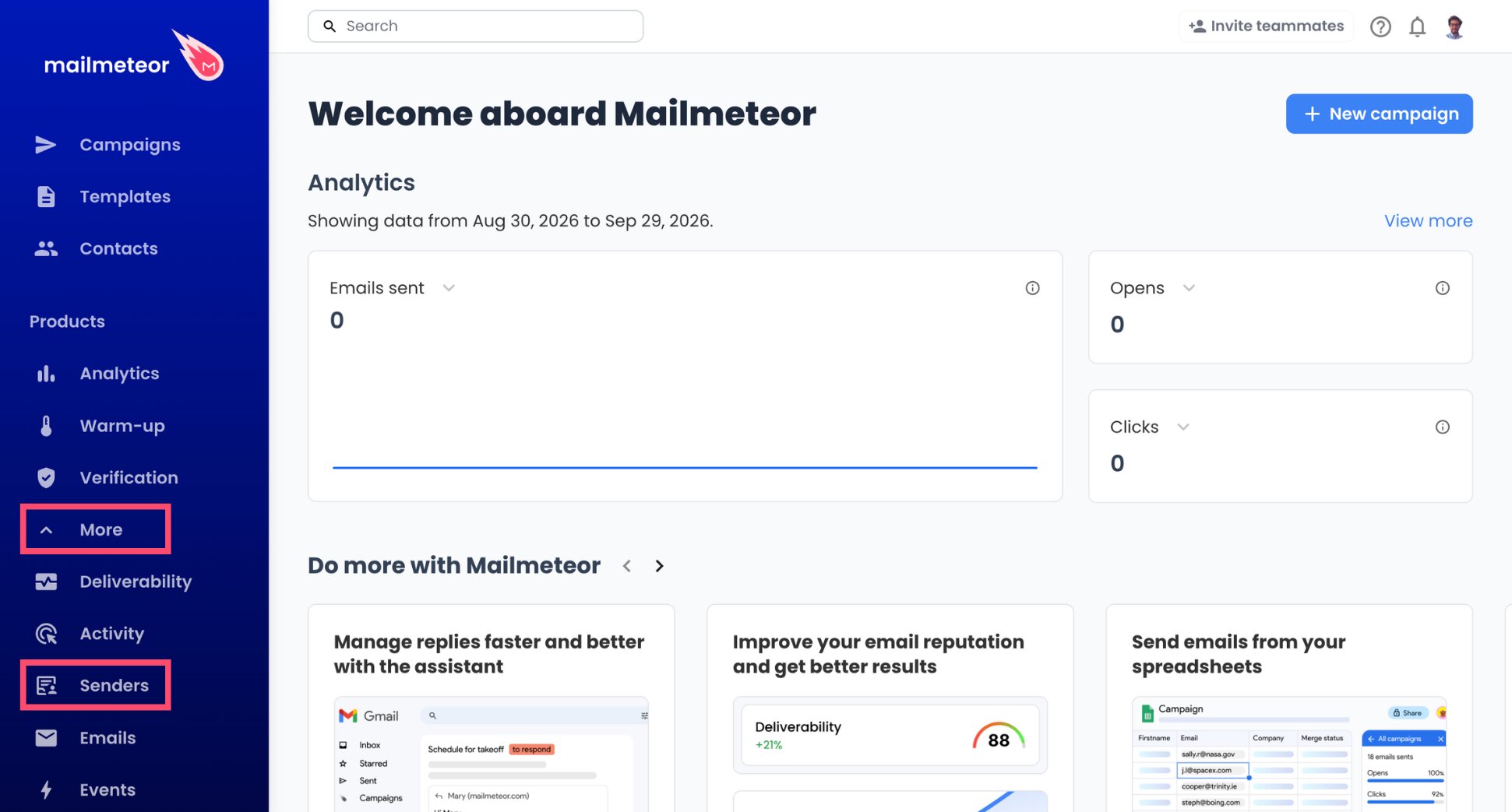
- Create a new sender with Add sender.
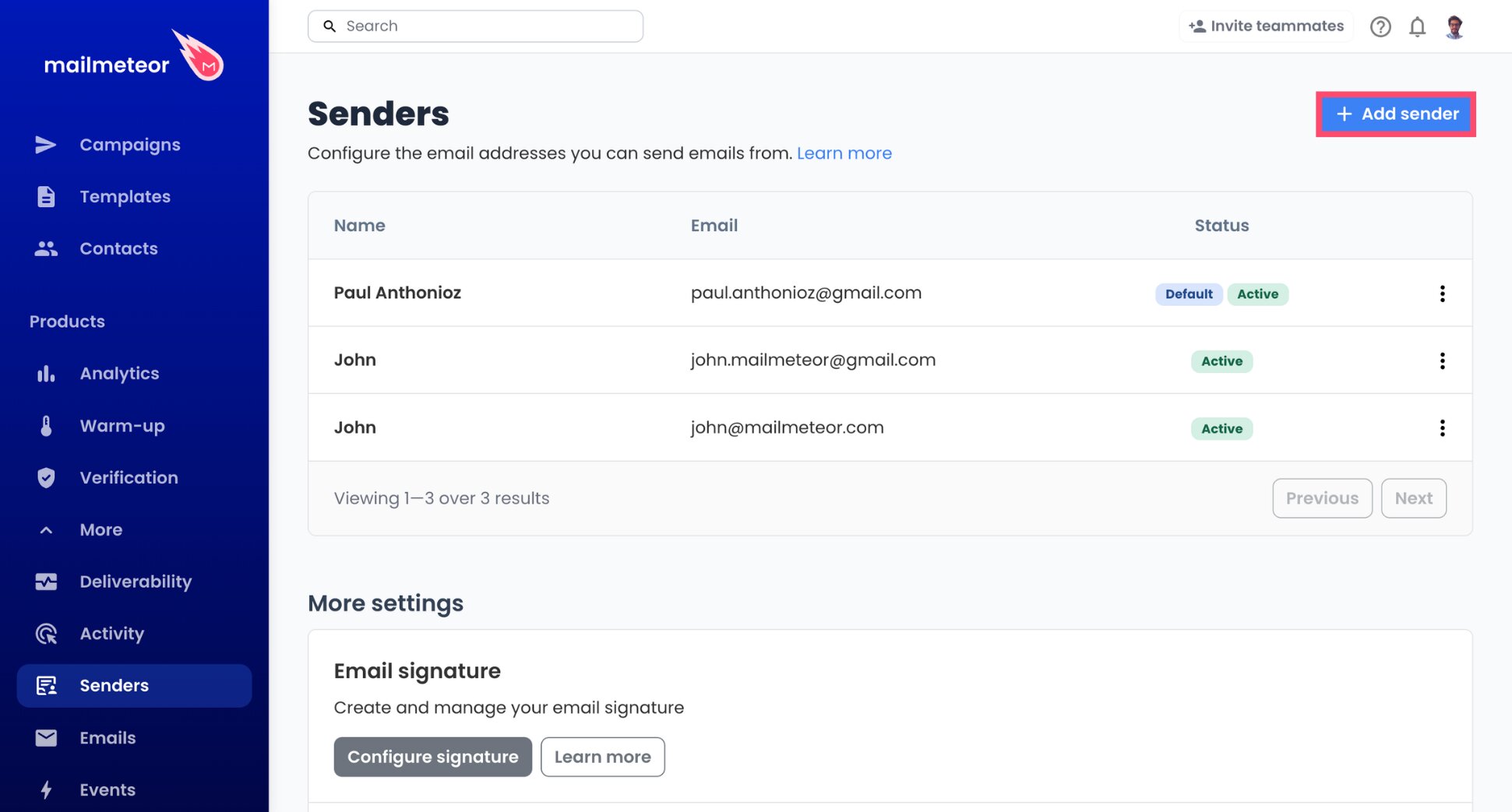
- Type your name as it should appear in inboxes, then your GoDaddy email address.
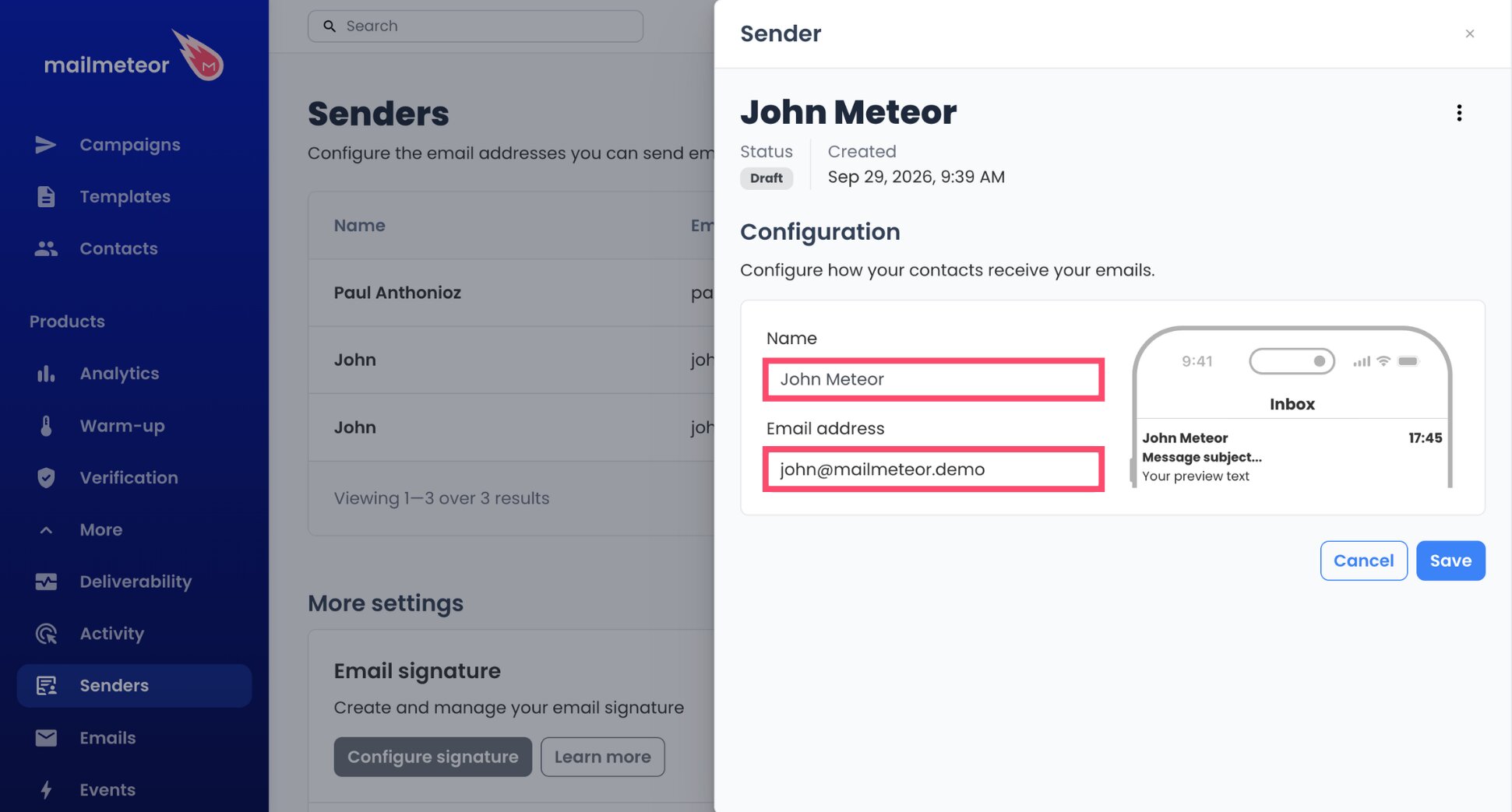
- Click Save once both fields are filled in.
Step 2: Point Mailmeteor to GoDaddy’s Outgoing Server
- Find Email services and click its + button.
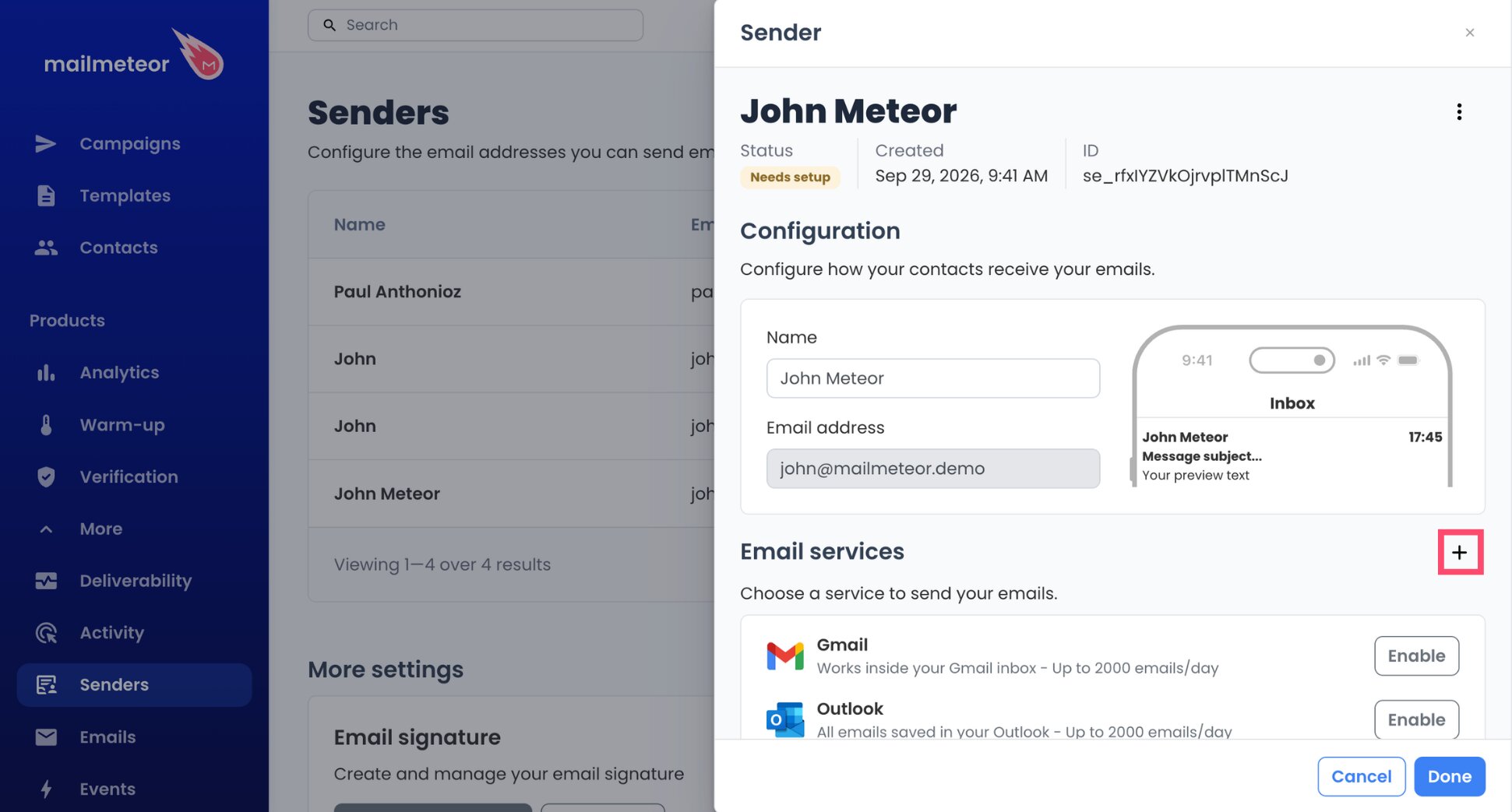
- From the options, choose Configure mail server.
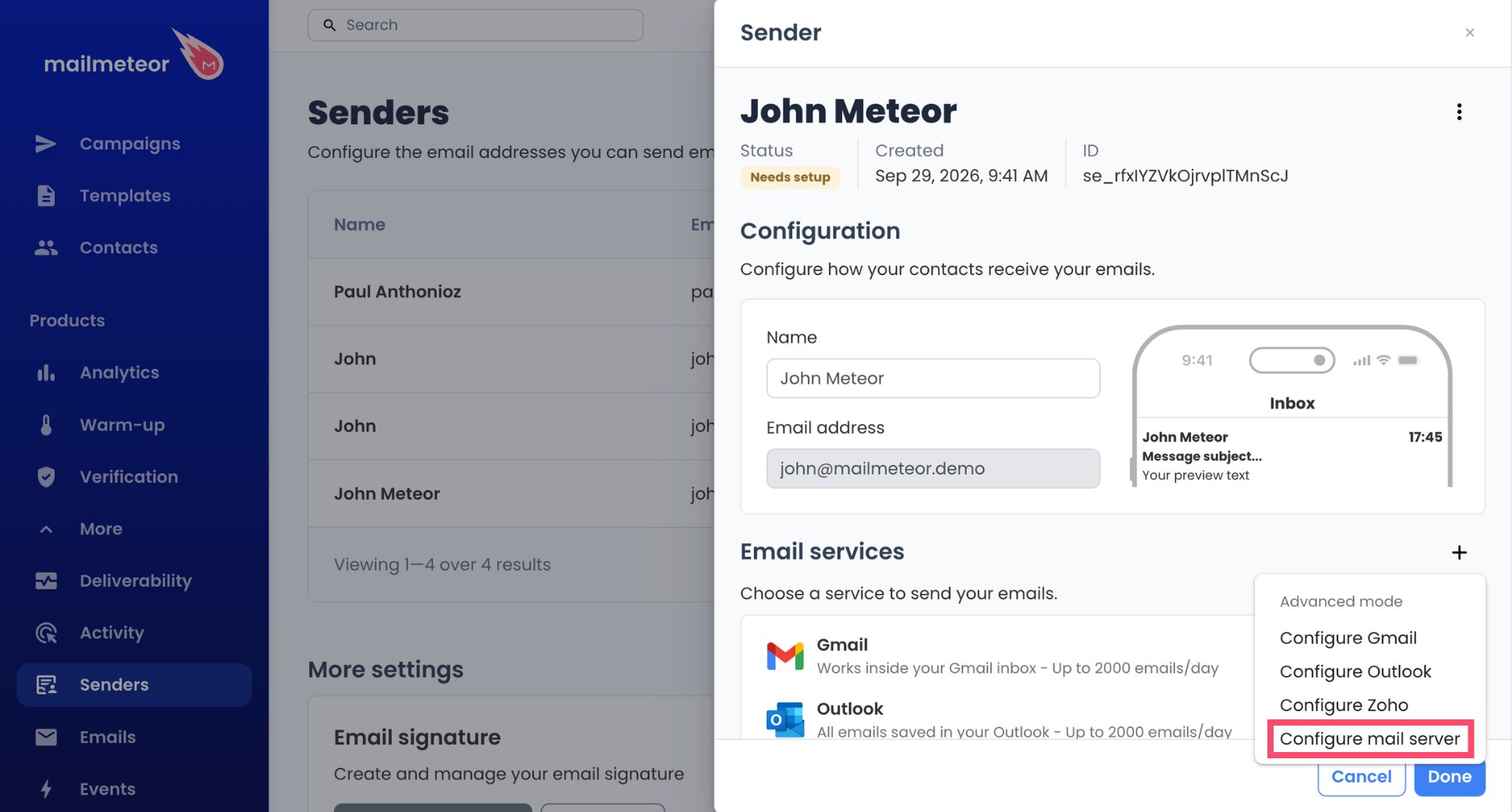
- For the Sending server, type
smtpout.secureserver.netas the Server name.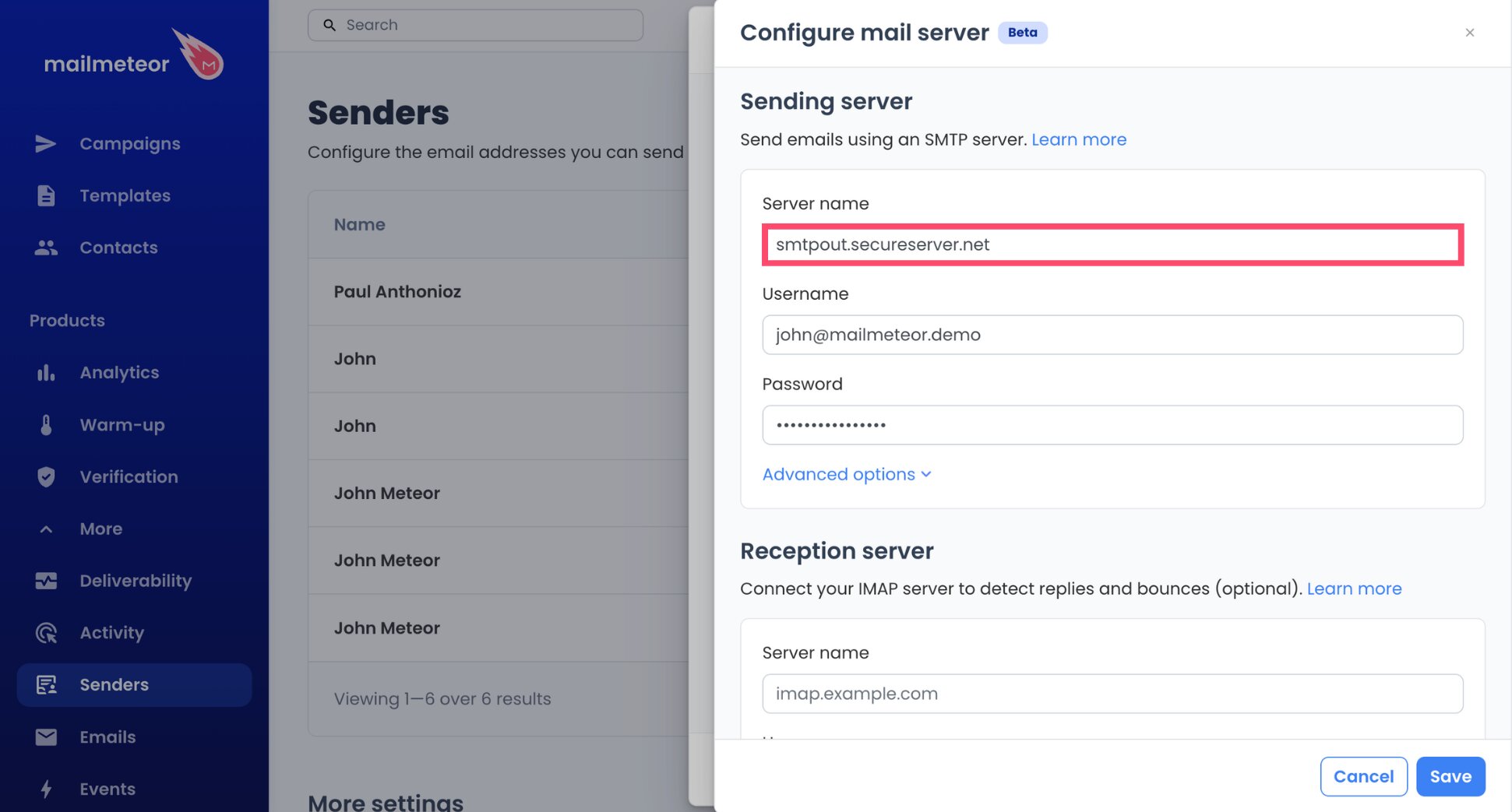
- Put your full GoDaddy address in Username.
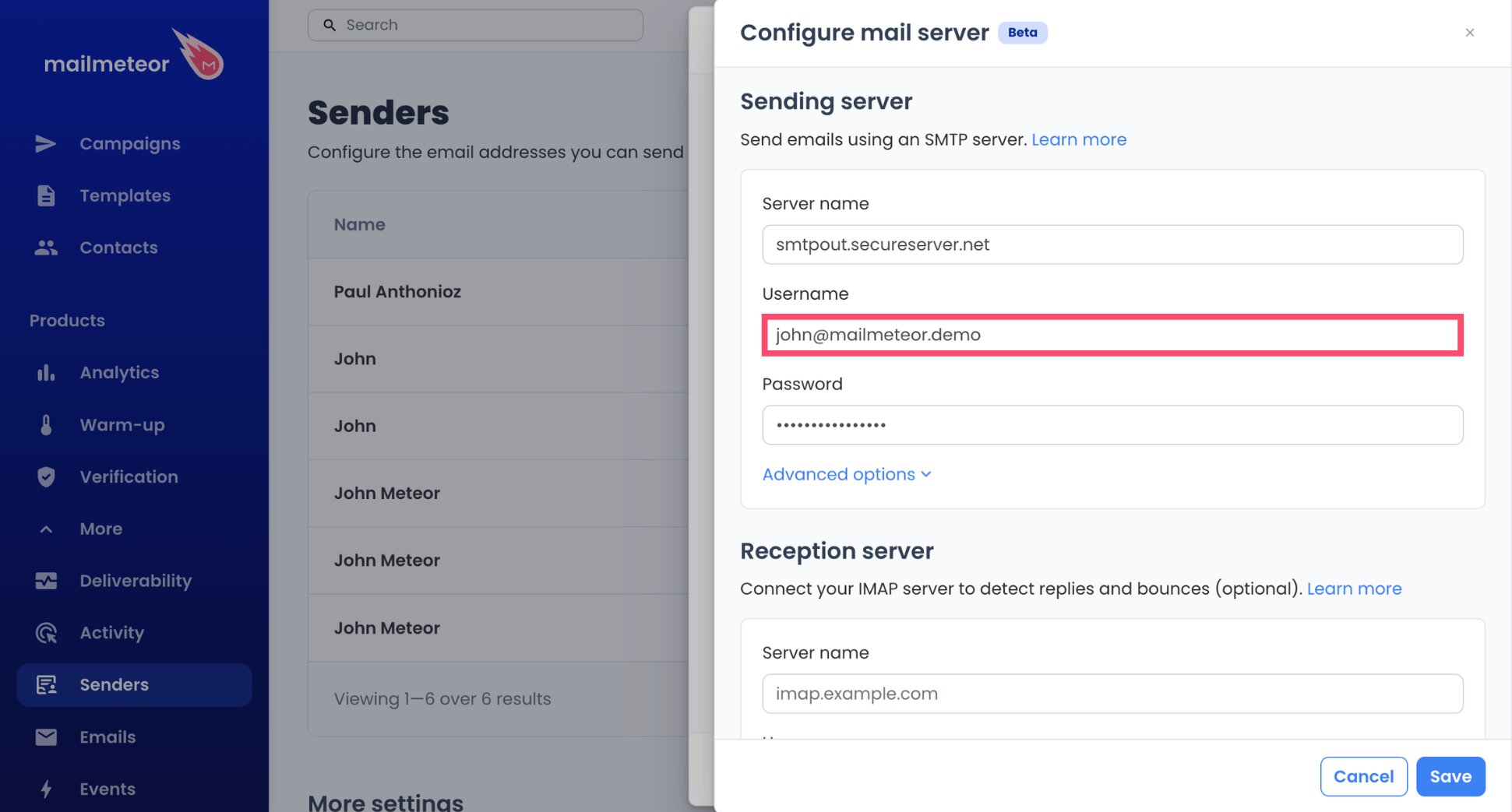
- Put your email password in Password.
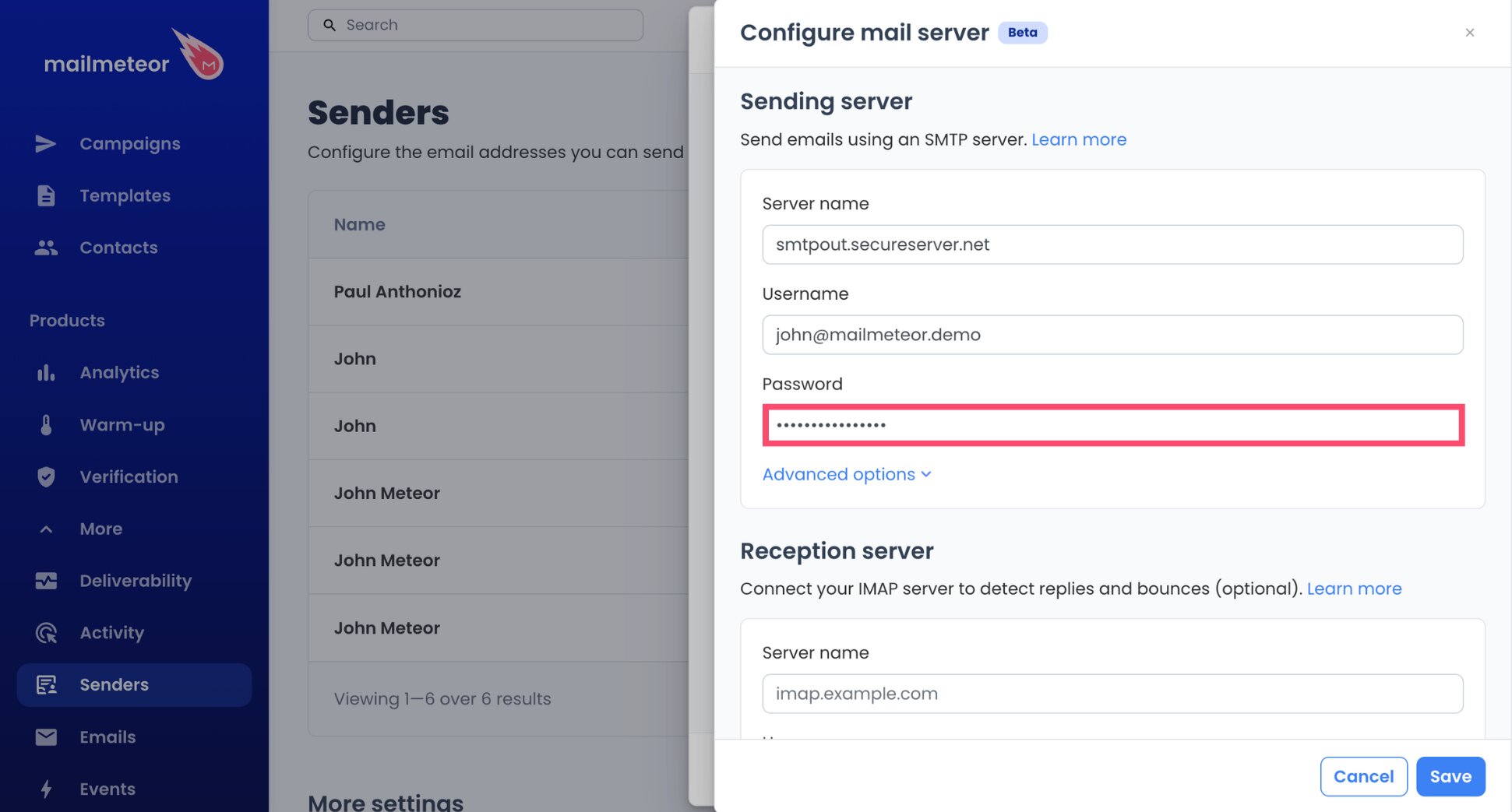
And voilà. Your GoDaddy SMTP settings are done. Mailmeteor fills in the SMTP port (465) and the encryption for you, so you only need to open Advanced options if the connection fails later.
Step 3: Point Mailmeteor to GoDaddy’s Incoming Server
This part is optional, but it’s what lets Mailmeteor track replies landing in your GoDaddy inbox and stop follow-ups for people who’ve already written back.
- For the Reception server, type
imap.secureserver.netas the Server name.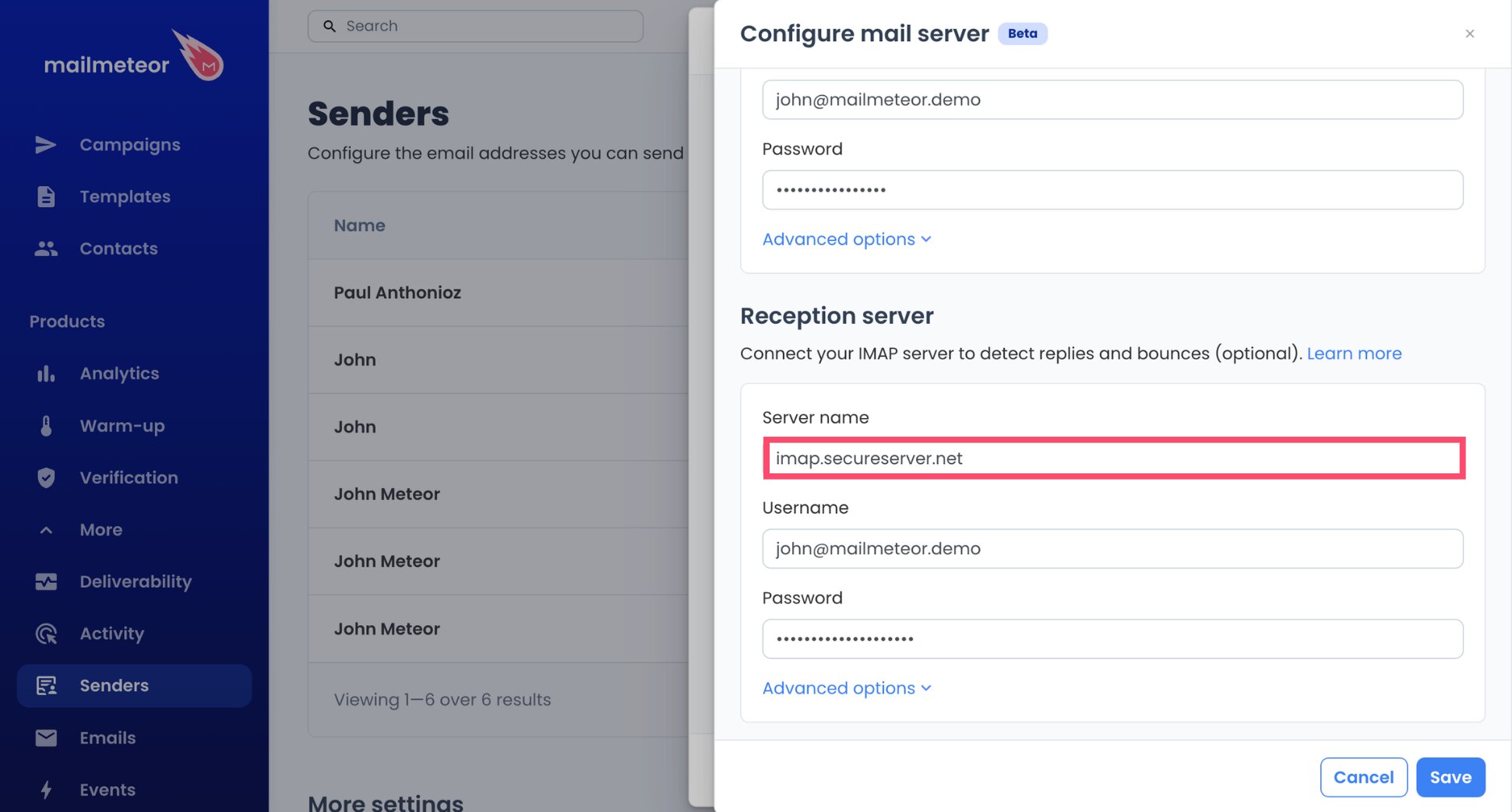
- Enter your full GoDaddy address as the Username once more.
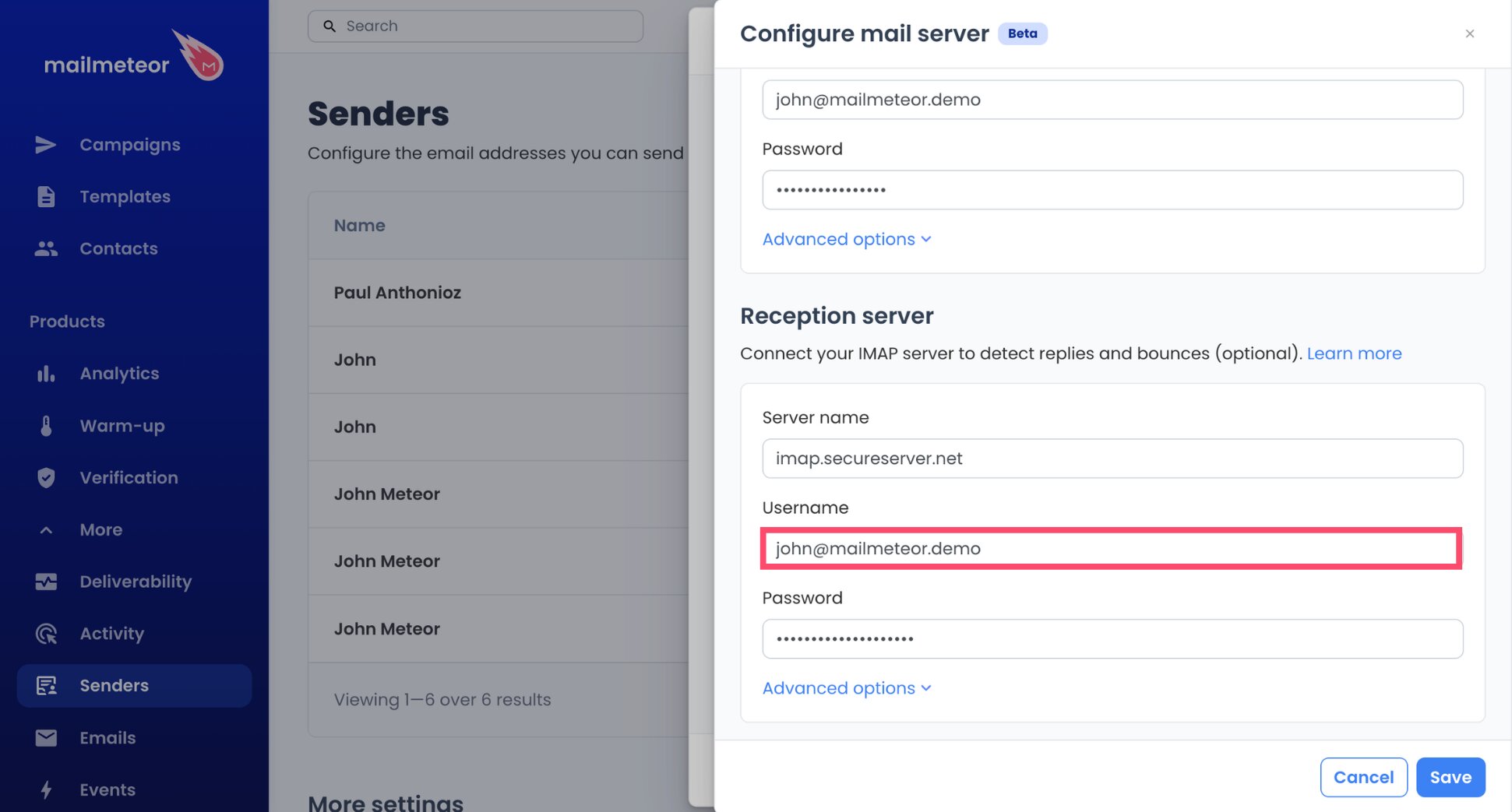
- Enter the same email password.
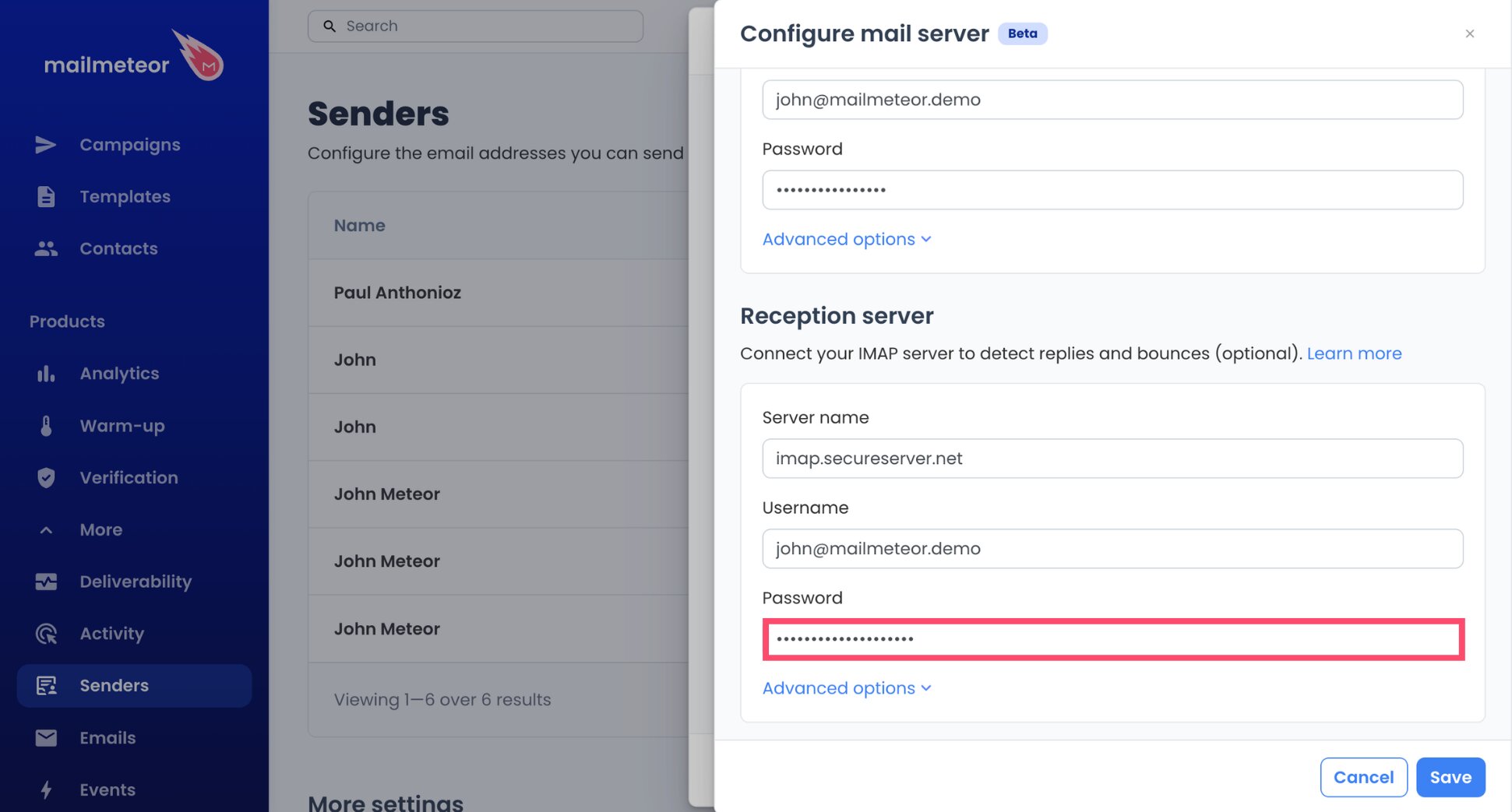
- Click Save, and close with Done.
And that’s it. Mailmeteor sets the IMAP port (993) for you, so your GoDaddy IMAP settings are complete and your mailbox is connected. From now on, Mailmeteor can spot replies to your campaigns.
Step 4: Prepare Your Campaign
- In your Mailmeteor Dashboard, hit New campaign.
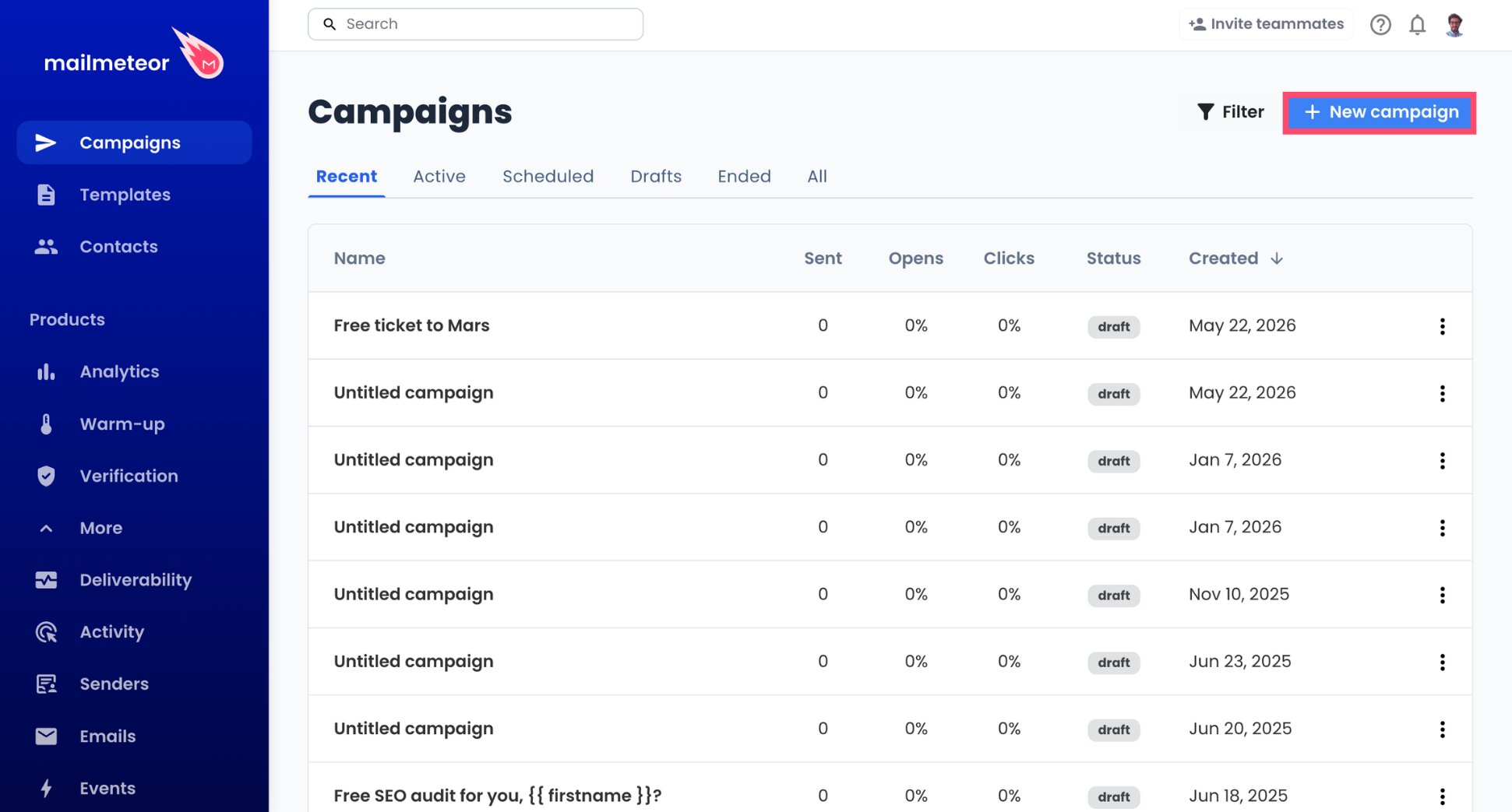
- Use the caret (▼) in the From field to choose your GoDaddy sender.
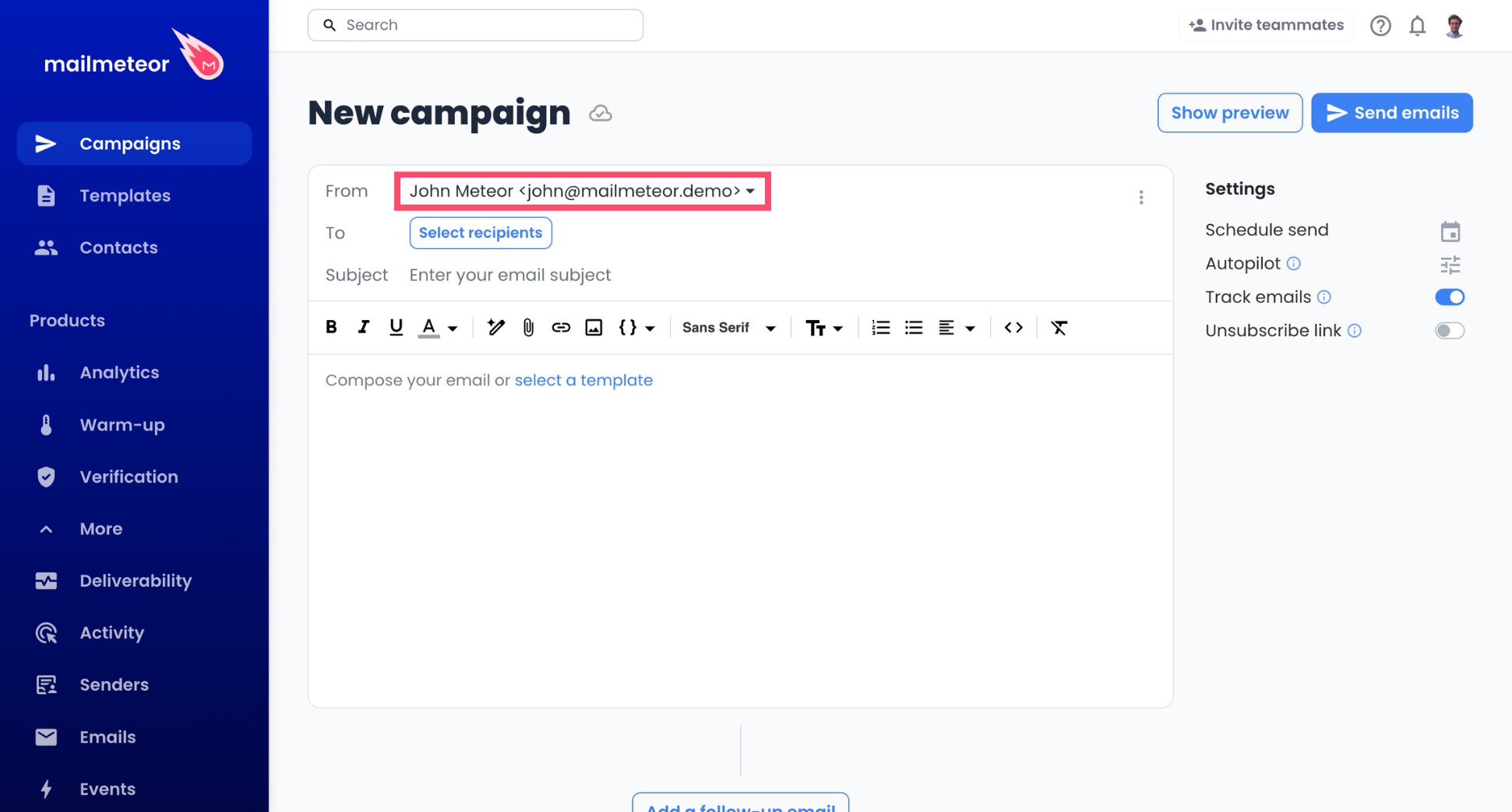
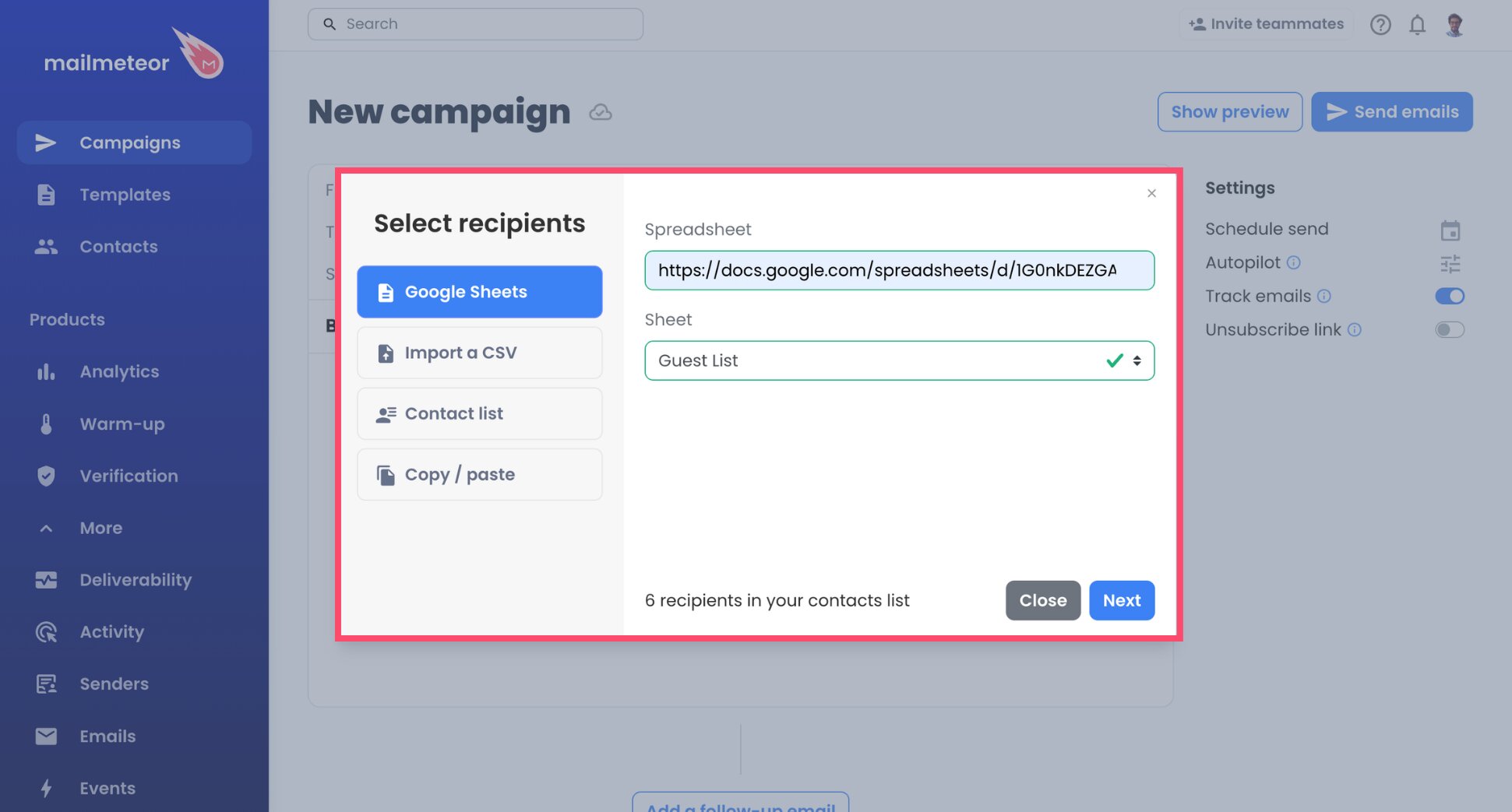
- Click Select recipients to import your contacts. A Google Sheet, a CSV file, a saved list, or pasted addresses all work.
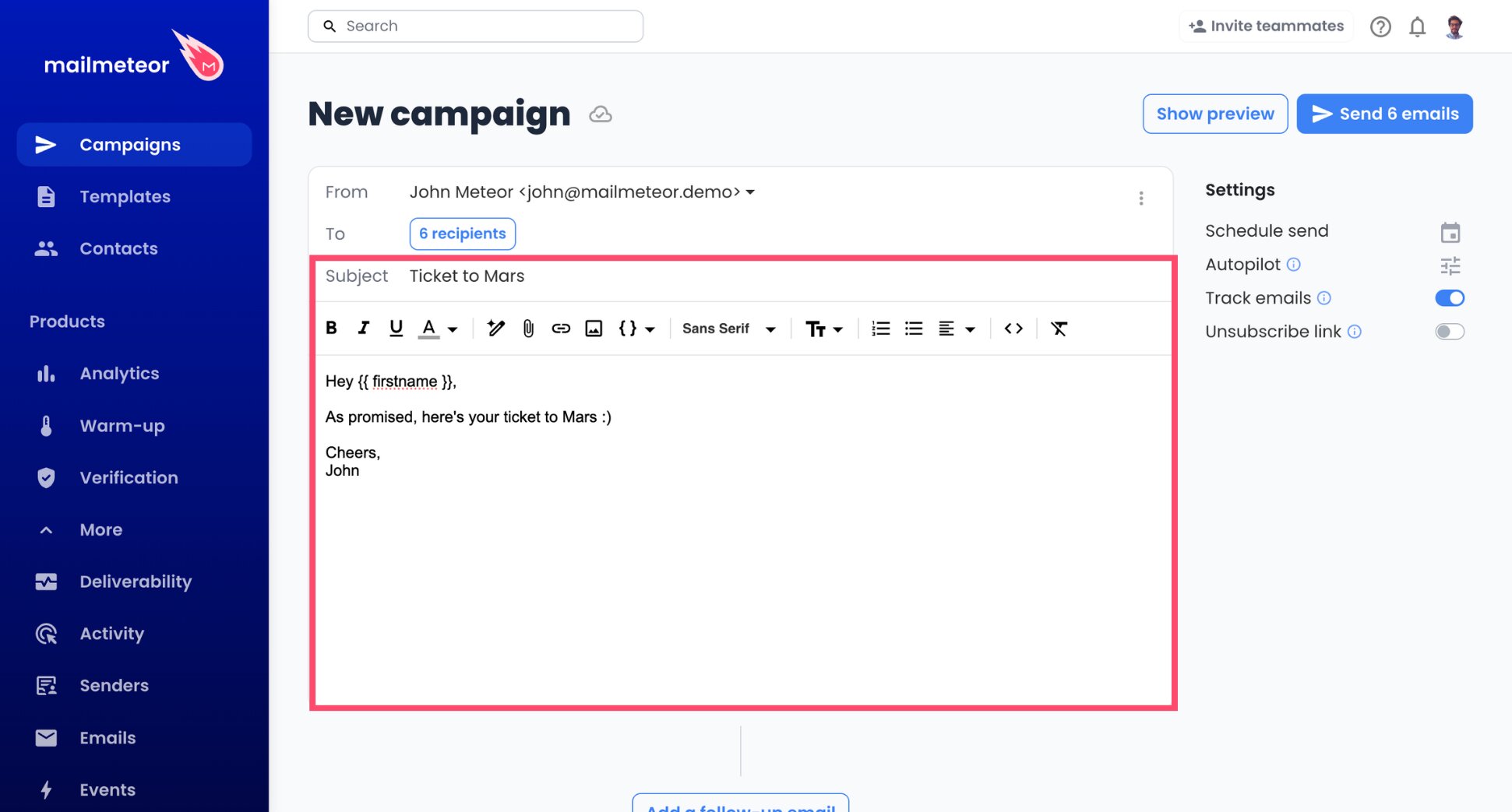
- Draft the subject line and the message.
- Drop in variables like
{{ firstname }}so each email adapts to its recipient. Variable names come from the column headers in your list.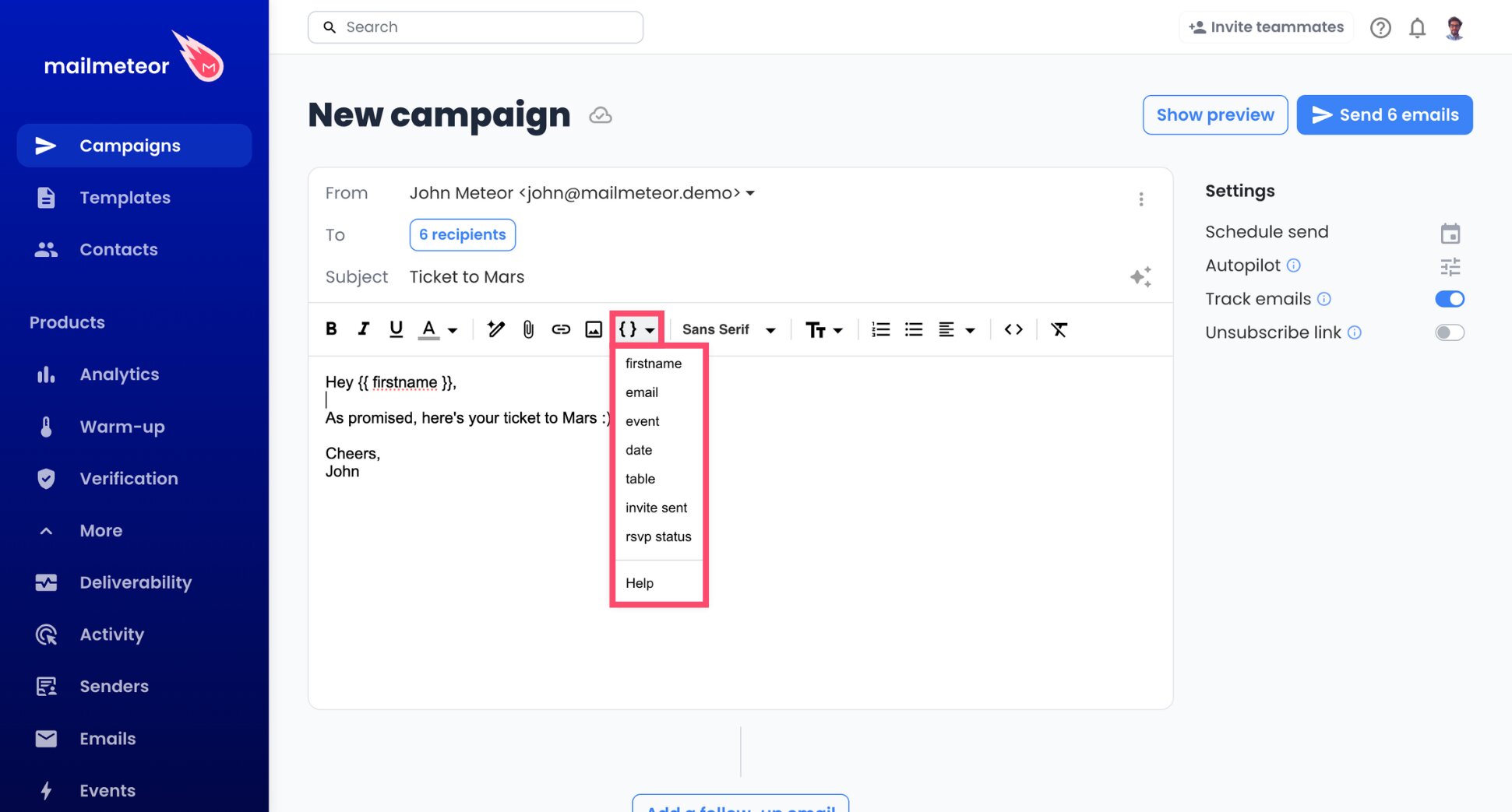
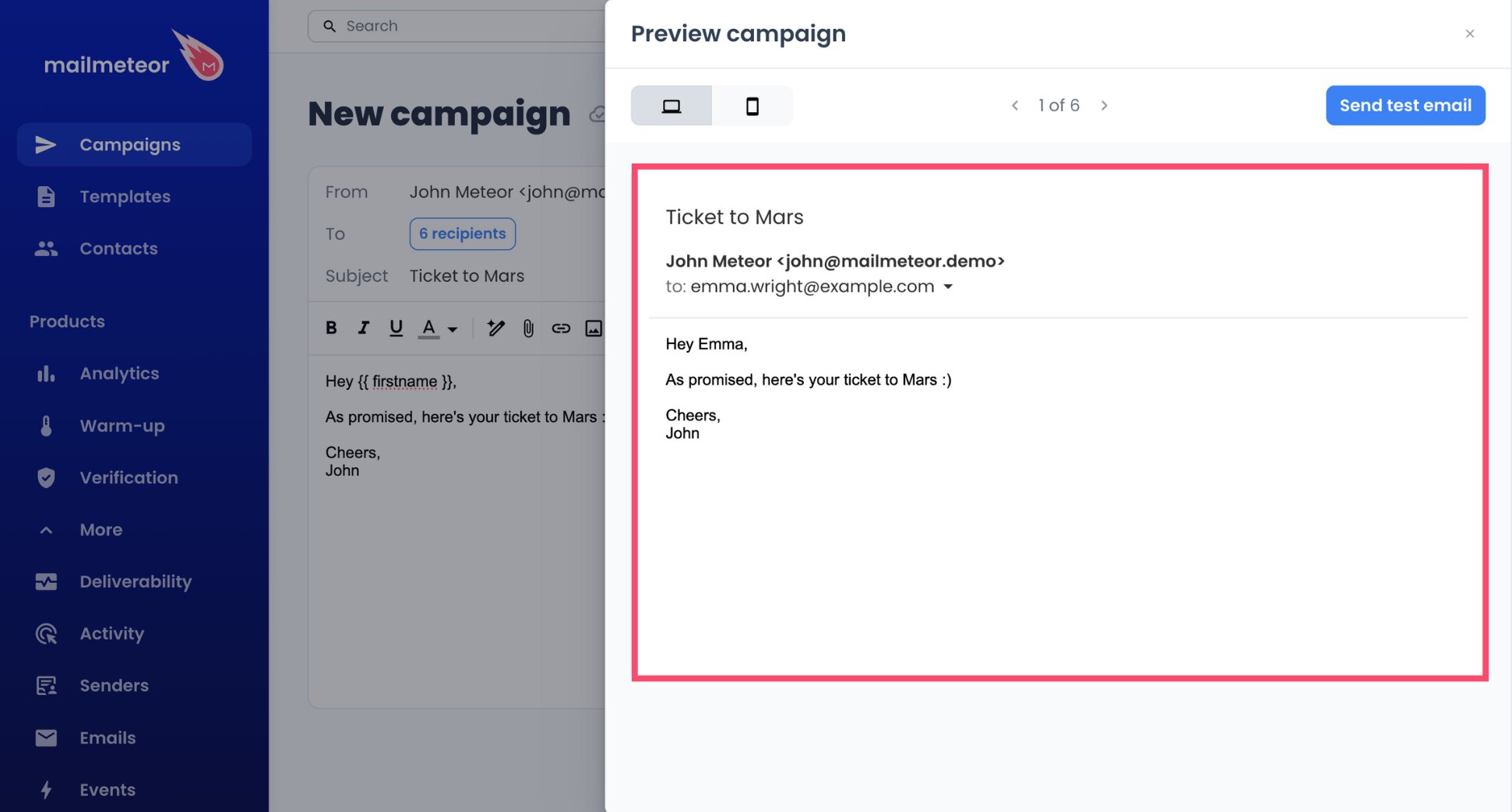
- Click through Preview to check several recipients before sending.
Step 5: Keep Each Day Under 500 Emails
GoDaddy lets each Professional Email mailbox send 500 emails a day through SMTP, which is the route Mailmeteor uses. Autopilot sends your campaign gradually. It stops for the day at the cap you set, then picks up again the next day, so you stay under GoDaddy’s limit.
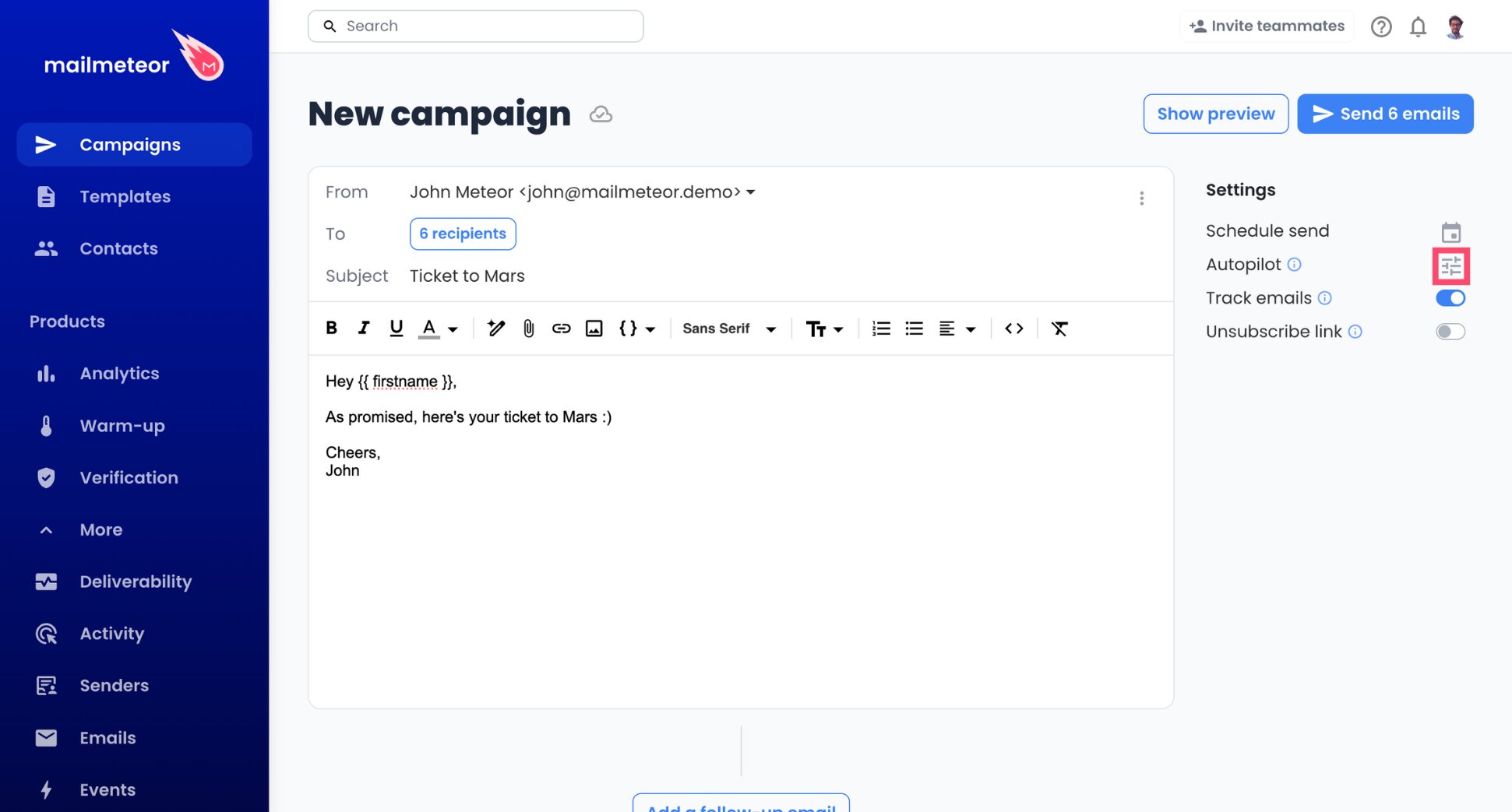
- Turn on Autopilot from your campaign.
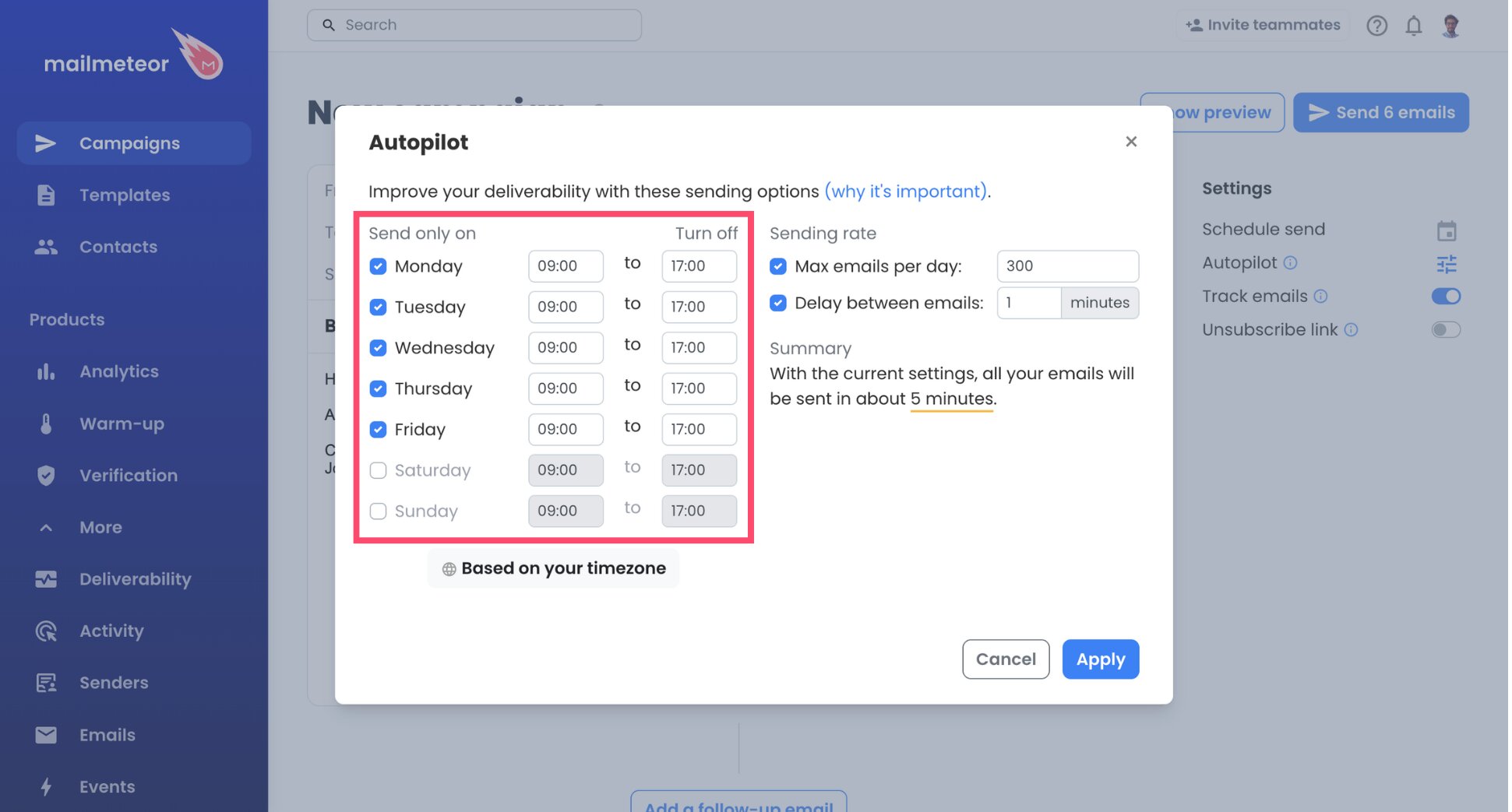
- Decide which days and hours sending is allowed.
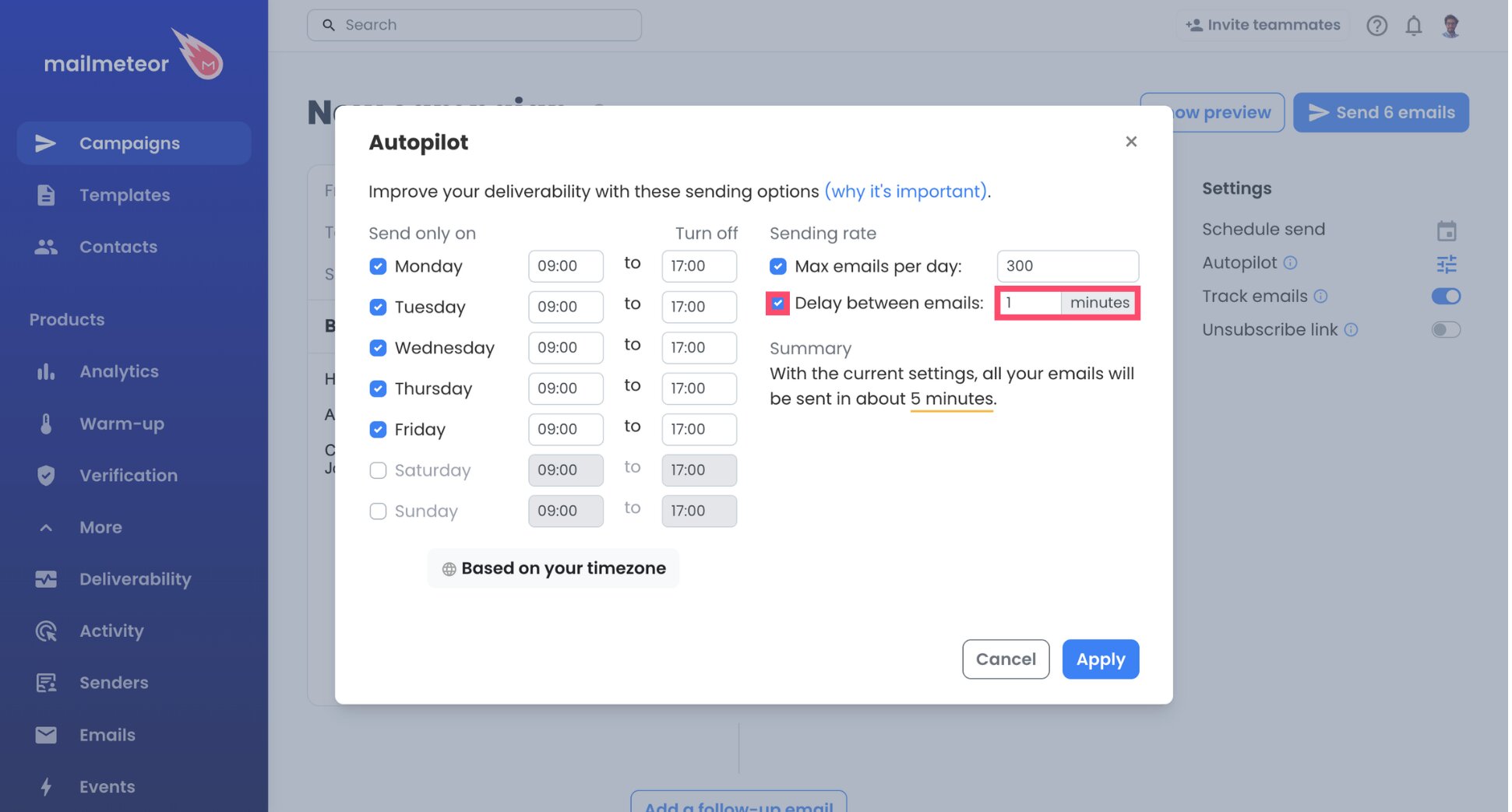
- Choose the interval between two emails. One minute is the shortest, and the longer the gap, the better for deliverability.
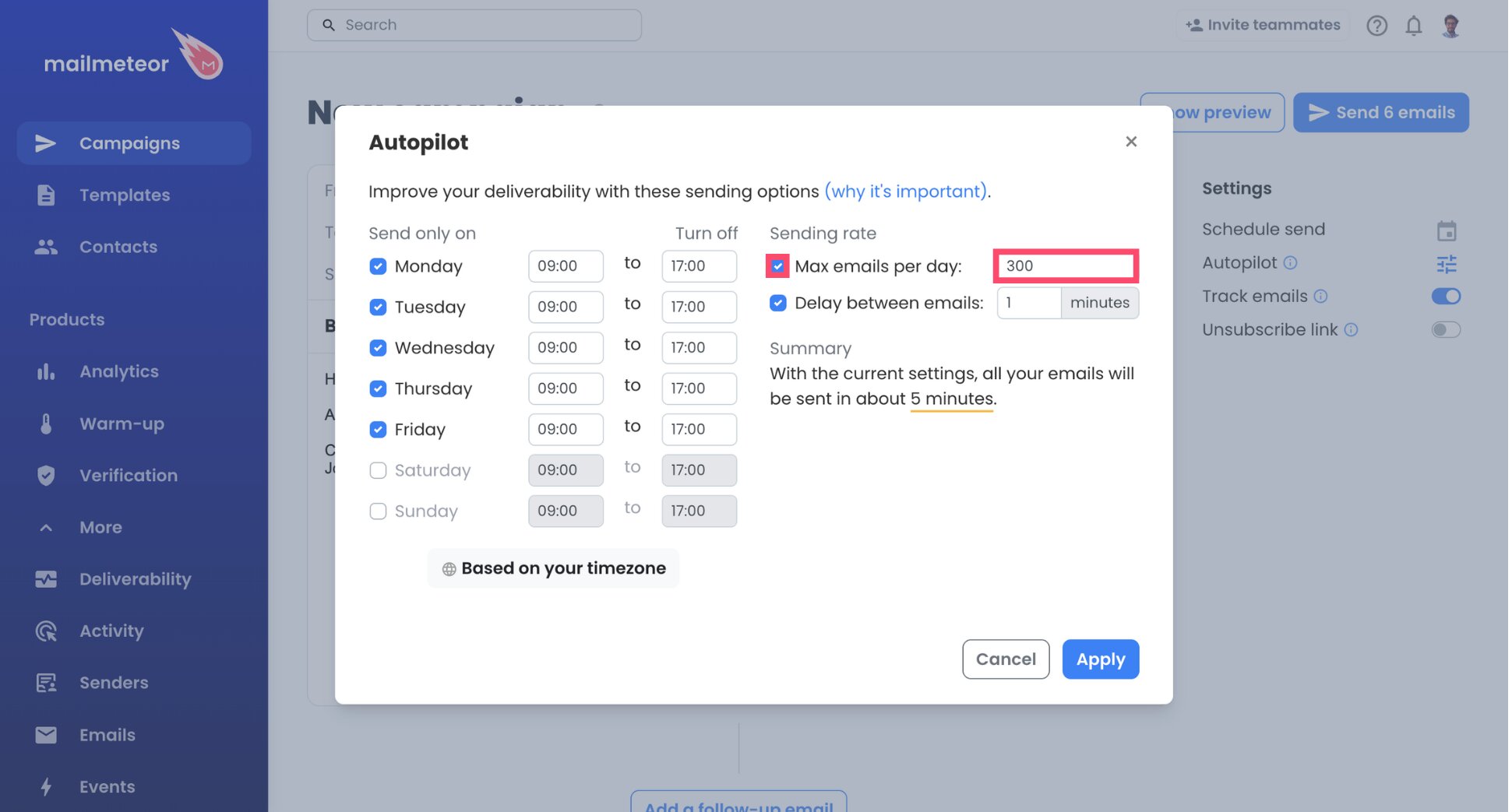
- Enter a daily cap below 500. For a mailbox that has never sent campaigns, 50 emails a day is a sensible start.
- Save with Apply.
The 500 covers everything the mailbox sends through SMTP. Keep your cap a little lower, around 400 at most, to leave room for your everyday emails. Before you confirm, Autopilot shows how long the whole campaign will take.
Step 6: Test, Then Send
- Send a test email to your own address.
- Read it as a recipient would. Check formatting, links, and personalized fields.
- Click Send emails to launch the campaign.
And done. Your emails now leave your GoDaddy mailbox a few at a time, and opens, clicks, and replies show up in the Dashboard as they happen.
GoDaddy SMTP and IMAP Settings
Here’s the reference configuration for GoDaddy Professional Email, including the version powered by Titan:
| Setting | Sending server (SMTP) | Reception server (IMAP) |
|---|---|---|
| Server name | smtpout.secureserver.net |
imap.secureserver.net |
| Port | 465 | 993 |
| Security | SSL | SSL |
| Username | Your full email address | Your full email address |
| Password | Your email password | Your email password |
In Mailmeteor, you only need the server names, username, and password. The ports and security are detected automatically, so leave Security on Auto if you ever open Advanced options.
GoDaddy Email Sending Limits
GoDaddy publishes separate sending limits for each product. For Professional Email, the number that matters is the SMTP limit, since that’s how Mailmeteor sends:
| GoDaddy email | Daily sending limit | Recipients per email |
|---|---|---|
| Professional Email, through SMTP (used by Mailmeteor) | 500 per mailbox | 100 |
| Professional Email, through webmail | 1,500 per mailbox | 100 |
| Microsoft 365 from GoDaddy | 10,000 per 24 hours, and 30 per minute | 500 |
You may come across a figure of 1,500 emails a day for GoDaddy. That number only applies to emails you send from GoDaddy Webmail. Mailmeteor connects through SMTP, so the limit that applies to your campaigns is 500 a day. Mailmeteor’s plan limits apply too, and whichever limit is lower is the one you’ll hit first.
How to Keep Your GoDaddy Emails Out of Spam
GoDaddy’s limit decides how much you can send. Whether those emails reach the inbox comes down to your domain, your list, and your writing ⤵️
Authenticate Your Domain With SPF, DKIM, and DMARC
SPF, DKIM, and DMARC are DNS records that help inbox providers confirm your emails really come from your domain. If you bought your domain from GoDaddy after April 2025, GoDaddy has already set up DKIM and DMARC for you. Otherwise:
- Sign in to the Email & Office Dashboard with your GoDaddy username and password.
- Select Manage next to your address, then Set mail destination.
- Copy the records listed there into your domain’s DNS settings, in this order: SPF, DKIM, then DMARC. With GoDaddy DNS, go to Domain Portfolio > your domain > DNS > Add New Record.
Changes usually apply within an hour, but can take up to 48 hours.
Weed Out Bad Addresses Before Sending
With 500 emails a day, every bounce wastes part of a small budget and damages your sender reputation. Check your contacts with our free Email Checker, or let Mailmeteor’s email verification skip invalid addresses for you.
Make Every Email Read as One-to-One
The closer your campaign looks to a message written for one person, the better it fares with spam filters:
- Reference something specific to each contact, not just their first name.
- Keep the formatting plain, and limit yourself to the links that matter.
- Add an unsubscribe link to sales and promotional emails, so uninterested contacts can opt out instead of reporting you as spam.
Paste your draft into our free Spam Checker to find spam words you can rephrase. For a second opinion, send your test email to the temporary address Mail-Tester gives you. It shows what could send your message to spam.
Grow Your Volume Step by Step
If your GoDaddy address has mostly been used for day-to-day emails, jumping to 400 campaign emails a day can look suspicious. Start with a small daily cap, watch your bounces and replies, and raise it over a few weeks. Mailmeteor’s email warm-up can also help build your sender reputation before a larger campaign.
How to Fix GoDaddy SMTP Connection Errors
Most GoDaddy issues come from the password, the server name, or the 500-email limit. Find your problem in the table below, and use the fix next to it ⤵️
| Problem | Likely cause | Fix |
|---|---|---|
| Mailmeteor says authentication failed | You entered your GoDaddy account password | Use your email password instead. If you don’t know it, reset it |
| Authentication fails right after you changed your password | GoDaddy hasn’t applied the new password yet | Wait up to 30 minutes, then enter the new password in Mailmeteor, for both the sending and the reception server |
| The connection times out | The server name has a typo, or the port was changed | Check that the server name is smtpout.secureserver.net. Then open Advanced options, set the port back to 465, and keep Security on Auto |
| Sending stops partway through the day | Your mailbox reached GoDaddy’s limit of 500 emails a day through SMTP | Lower your Autopilot daily cap. The campaign resumes the next day |
| Your emails land in spam | Your domain’s SPF or DKIM records are missing | In the Email & Office Dashboard, select Manage next to your address, then Set mail destination, and add the records |
| Replies don’t show up in Mailmeteor | The reception server isn’t set up | Under Reception server, enter imap.secureserver.net, your email address, and your email password |
Still stuck with your GoDaddy SMTP and IMAP settings? Our SMTP Test Tool checks your settings in seconds, and the mail server documentation covers the rest.
Turn Your GoDaddy Mailbox Into a Campaign Tool
The address your clients know is already in your GoDaddy account. Connect it through SMTP, keep each day under 500 emails, and it’s ready for real campaigns. GoDaddy handles the delivery, and Mailmeteor supplies everything around it:
📬 Send every recipient an email with their own name and details, directly from your GoDaddy address
⏰ Respect GoDaddy’s 500-a-day limit without counting, with Autopilot pacing each send
🔁 Nudge contacts who haven’t answered with automatic follow-ups
📊 Track every open, click, and reply, and spot your most engaged contacts
✅ Keep your daily 500 emails for real inboxes by verifying your list before sending
Try Mailmeteor for GoDaddy today (it’s free!) and get more out of the email address you already pay for.
Frequently asked questions
Can I send bulk emails from GoDaddy?
GoDaddy’s webmail has no mail merge, but you can connect a Professional Email address to a tool like Mailmeteor through SMTP and send personalized emails to your list. Each mailbox can send up to 500 emails per day. For newsletters to thousands of subscribers, an email marketing service is a better fit.
What is the GoDaddy SMTP server?
For GoDaddy Professional Email, including the version powered by Titan, the SMTP server is smtpout.secureserver.net on port 465 with SSL. The IMAP server is imap.secureserver.net on port 993 with SSL. Use your full email address and your email password to sign in. Microsoft 365 from GoDaddy uses different servers.
How many emails can I send per day with GoDaddy Professional Email?
Through SMTP, each Professional Email mailbox can send 500 emails per day. That’s the limit that applies to Mailmeteor, email apps like Outlook, and any other external tool. Each email can include up to 100 addresses across the To, Cc, and Bcc fields.
Is my GoDaddy email password the same as my GoDaddy account password?
No. Your GoDaddy account password gives you access to your GoDaddy dashboard, while your email password opens your mailbox. To connect Mailmeteor, use the email password. As the account owner, you can reset it in the Email & Office Dashboard under Users > Manage > Password.
I have Microsoft 365 from GoDaddy. Can I use Mailmeteor?
Yes, but not through SMTP. Microsoft 365 from GoDaddy doesn’t use GoDaddy’s secureserver.net servers. Connect your address with the Sign in with Microsoft option in Mailmeteor instead, then create your campaign as usual. Microsoft 365’s own sending limits apply.
How many recipients can I add to one GoDaddy email?
GoDaddy Professional Email allows up to 100 addresses per email, counting the To, Cc, and Bcc fields together. Microsoft 365 from GoDaddy allows up to 500. With a mail merge, each contact receives a separate email, so these limits don’t apply. The daily sending limit still does.