Need to send the same email to 150 clients, prospects, or partners from your OVH address, with each message personalized with their name and a custom line? OVH Webmail doesn’t support mail merge, and sending 150 emails in BCC can quickly trigger sending limits or get your mailbox blocked.
The simplest solution is to connect your OVH mailbox to Mailmeteor, a mail merge tool trusted by 7 million users, through SMTP (the protocol that sends your emails). You can then send email campaigns directly from your own OVH address, with each recipient receiving a separate, personalized email instead of a mass BCC message.
This guide walks you through the SMTP settings for each OVH offer, explains the relevant sending limits, and shows you how to connect your OVH mailbox to Mailmeteor and send your first campaign.
- Find your OVH offer – MX Plan, Email Pro, or Hosted Exchange each use different server settings.
- Create a sender in Mailmeteor – Add your OVH address in the Mailmeteor Dashboard.
- Connect SMTP and IMAP – For MX Plan, enter
ssl0.ovh.netwith port 465 (SMTP) and port 993 (IMAP). - Pace your sending – Keep campaigns under OVH's limit of about 200 emails per hour per account.
- Test, then launch – Send yourself a test email before you hit send.
Here’s what we’ll cover:
- Why send email campaigns from OVH?
- What you need to send email campaigns from OVH
- How to send email campaigns from OVH with Mailmeteor
- OVH SMTP and IMAP settings
- OVH sending limits
- How to keep your OVH emails out of spam
- How to fix OVH SMTP connection errors
Sounds good? Then let’s dive in.
Why Send Email Campaigns From OVH?
Your OVH mailbox is already a good sending address. What it lacks is the campaign layer. Here’s what connecting it to Mailmeteor gives you ⤵️
Keep Your Professional Address
Your recipients see the address they already know, such as [email protected], and replies land in your usual OVH inbox. You don’t need a separate sending domain, a new provider, or a DNS overhaul.
Add What OVH Webmail Lacks
OVH webmail is built for one-to-one email. Connect it to a mail merge tool like Mailmeteor and you can:
- Personalize each email with variables like first name or company.
- Import your contacts from Google Sheets or a CSV file.
- Track opens, clicks, and replies to see who’s interested.
- Schedule your campaign and send follow-ups automatically.
Know the Trade-Off
OVH recommends a dedicated mailing list service for mass mailings, and its anti-spam system can block addresses that send too much, too fast. Your mailbox works well for personal outreach, such as prospecting, client updates, or payment reminders. For newsletters or more than a few hundred emails a day, a newsletter platform is safer for your sender reputation.
| Option | What each recipient gets | Tracking | Best for |
|---|---|---|---|
| OVH webmail (BCC) | The same email as everyone else, with no personalization | None | A handful of contacts |
| Mailmeteor + OVH mailbox | A separate email from your OVH address, personalized with their name and details | Opens, clicks, replies and bounces (with IMAP) | Personal outreach to a few dozen to a few hundred contacts per day |
| Newsletter platform | A personalized email sent from the platform’s servers, not your mailbox | Opens, clicks, replies and bounces | Newsletters to thousands of subscribers |
What You Need to Send Email Campaigns From OVH
Before you start, check that you have:
- An email address hosted by OVHcloud (MX Plan, Email Pro, or Hosted Exchange).
- The password for that mailbox. This is not the password of your OVHcloud customer account.
- A Mailmeteor account. Custom senders are available starting from the Premium plan.
Not sure which OVH offer you have? Log in to the OVHcloud Control Panel and open the Web Cloud tab. Your email service appears under MX Plan, Email Pro, Exchange, or Zimbra Mail. You’ll need this information in the next step, because each offer uses different servers.
How to Send Email Campaigns From OVH With Mailmeteor
The setup takes about 5 minutes. You’ll connect your OVH mailbox once, then pick it as your sender for every campaign.
Step 1: Create a Sender
- Sign in to the Mailmeteor Dashboard.
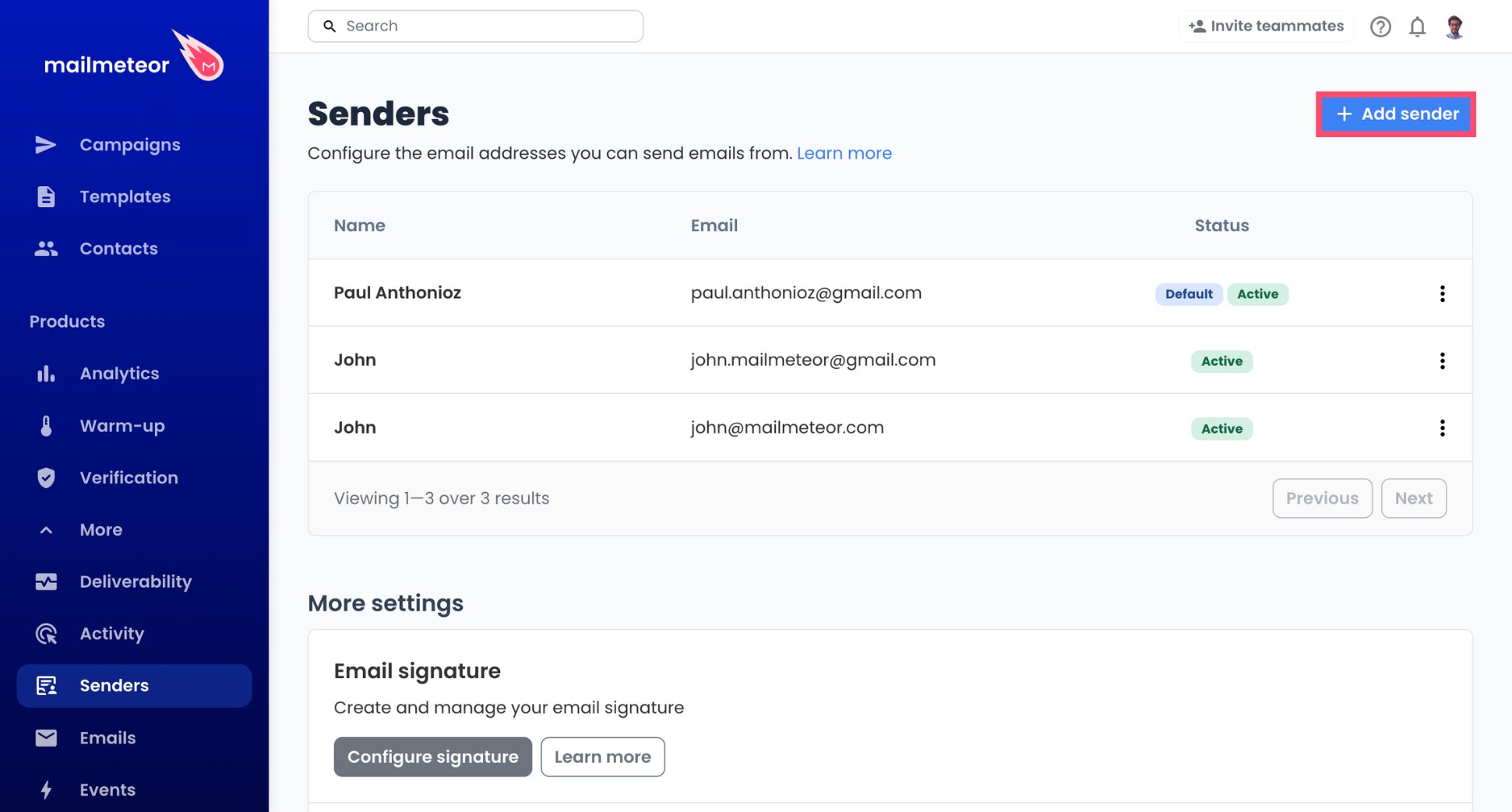
- Under Products, click More > Senders.
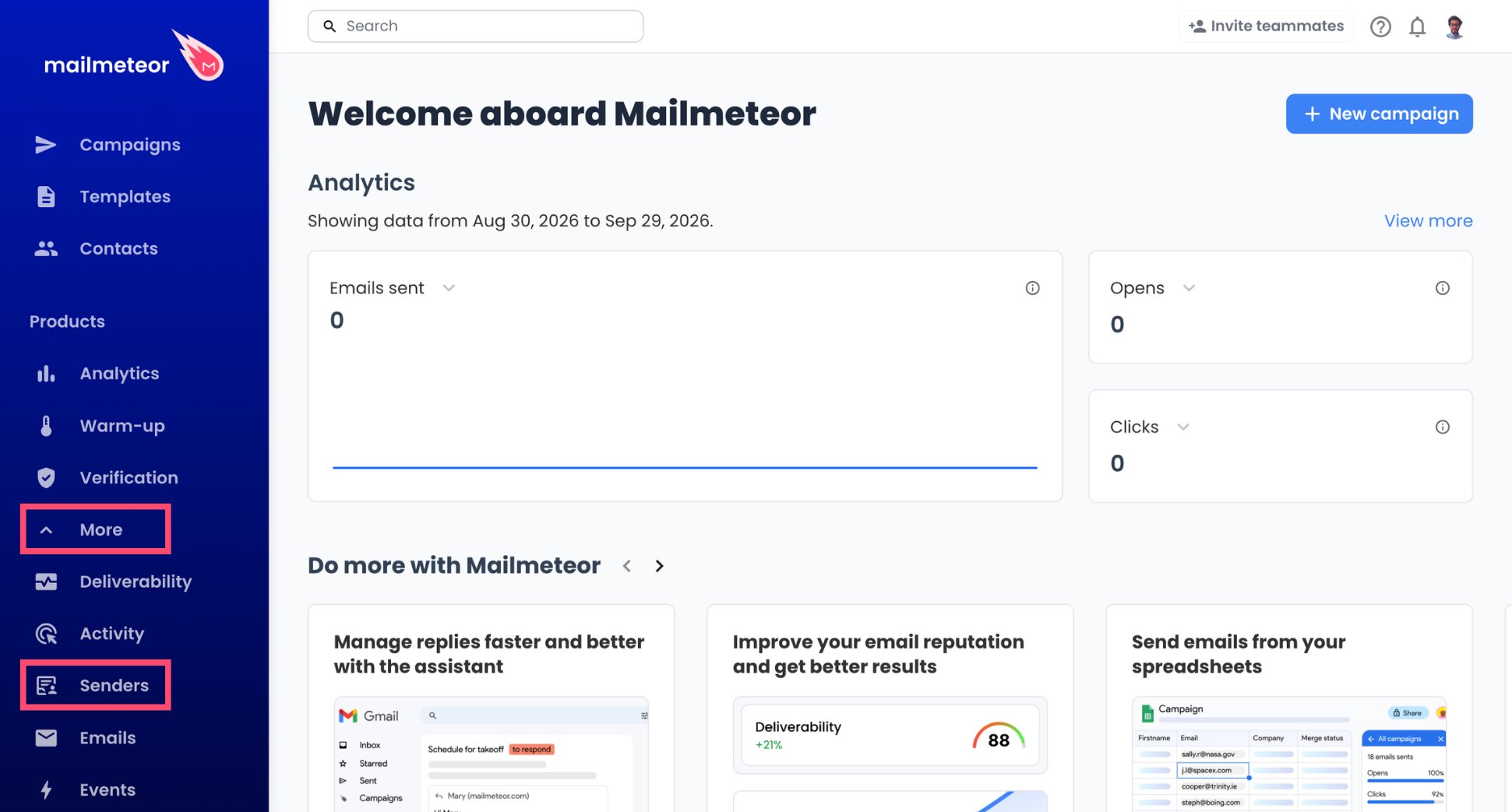
- Click Add sender.
- Enter your name and your OVH email address.
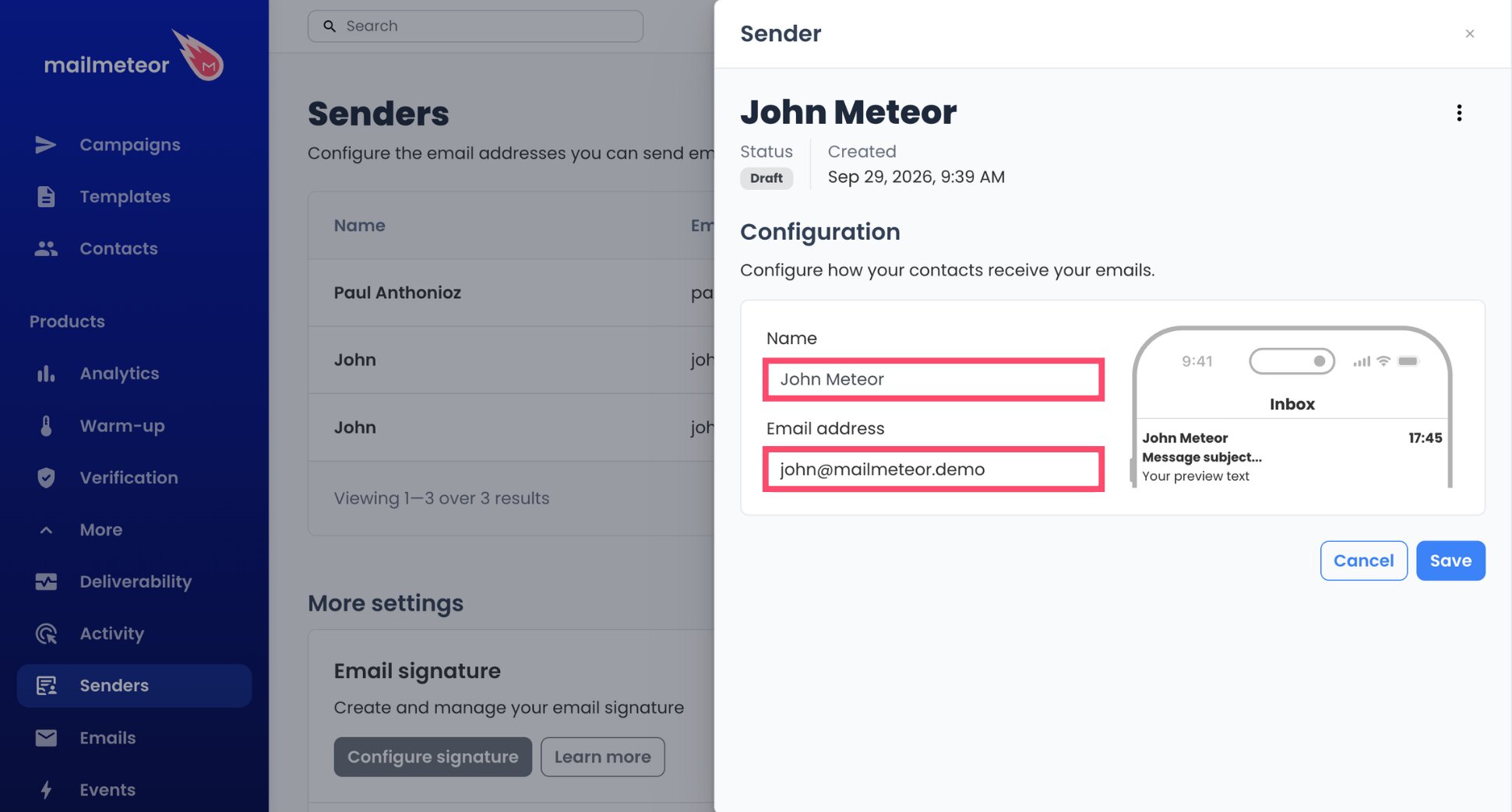
- Click Save.
Step 2: Connect Your OVH Sending Server (SMTP)
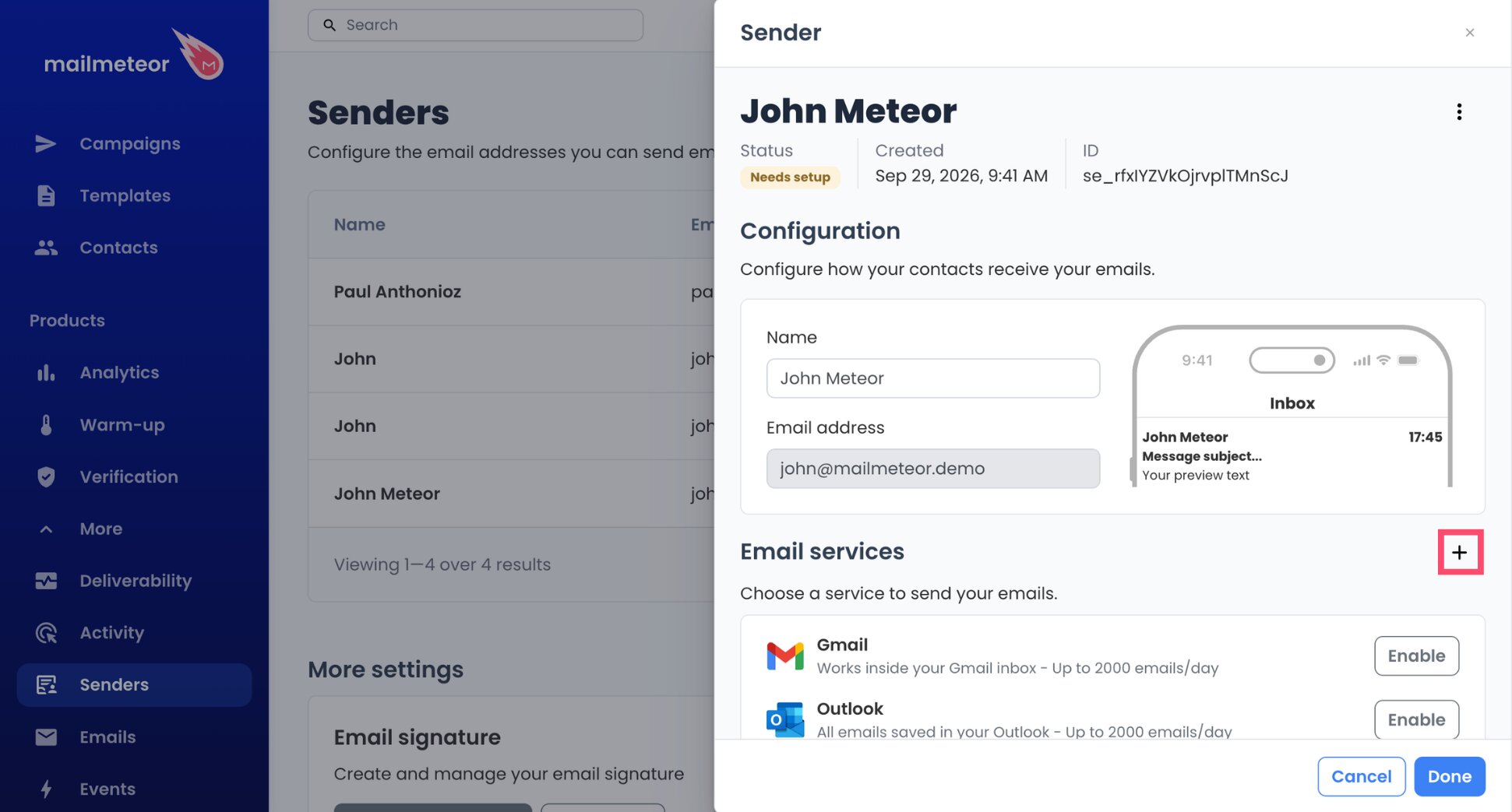
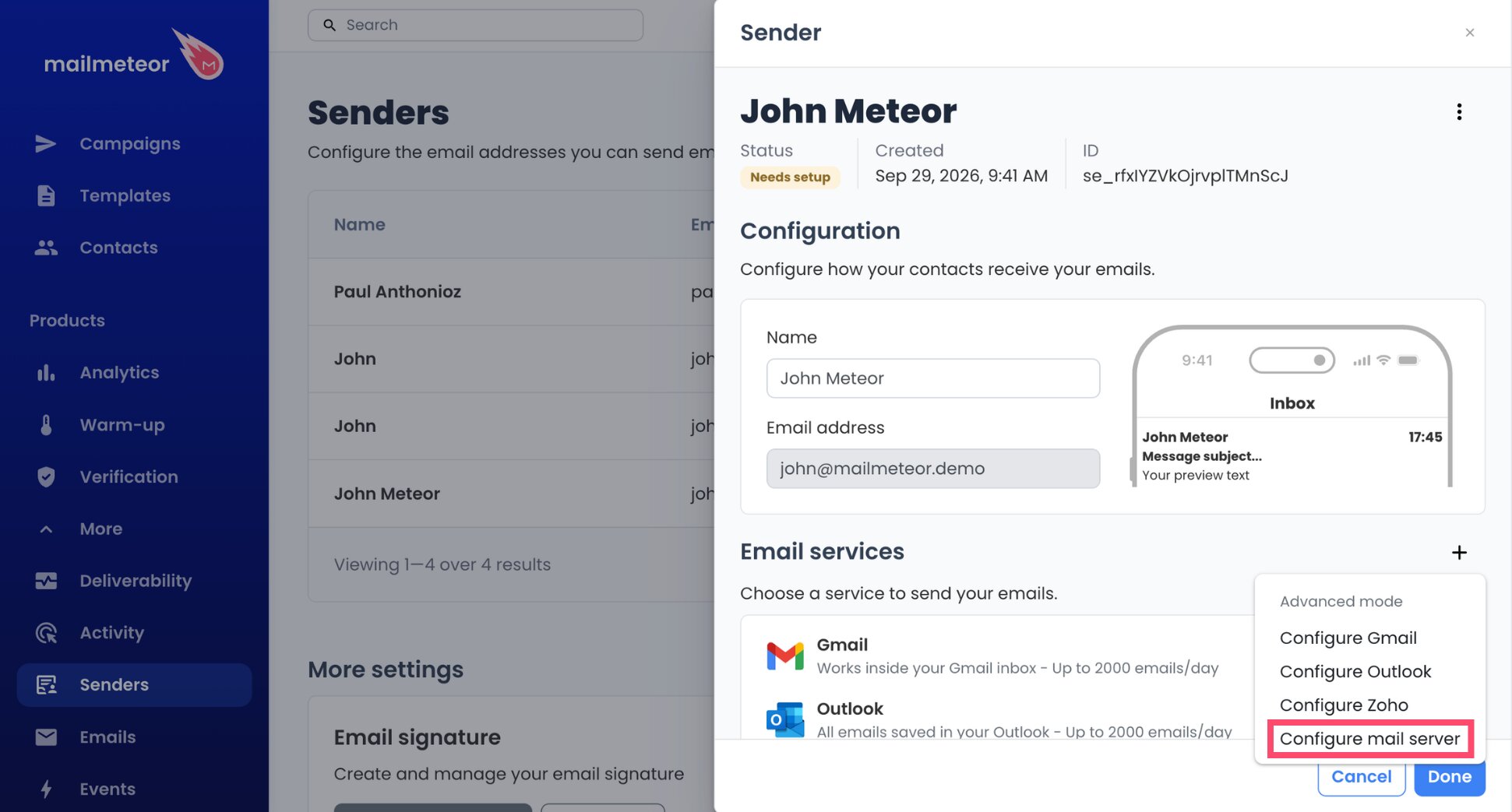
- Next to Email services, click the + button.
- Select Configure mail server.
- Under Sending server, enter
ssl0.ovh.netin the Server name field.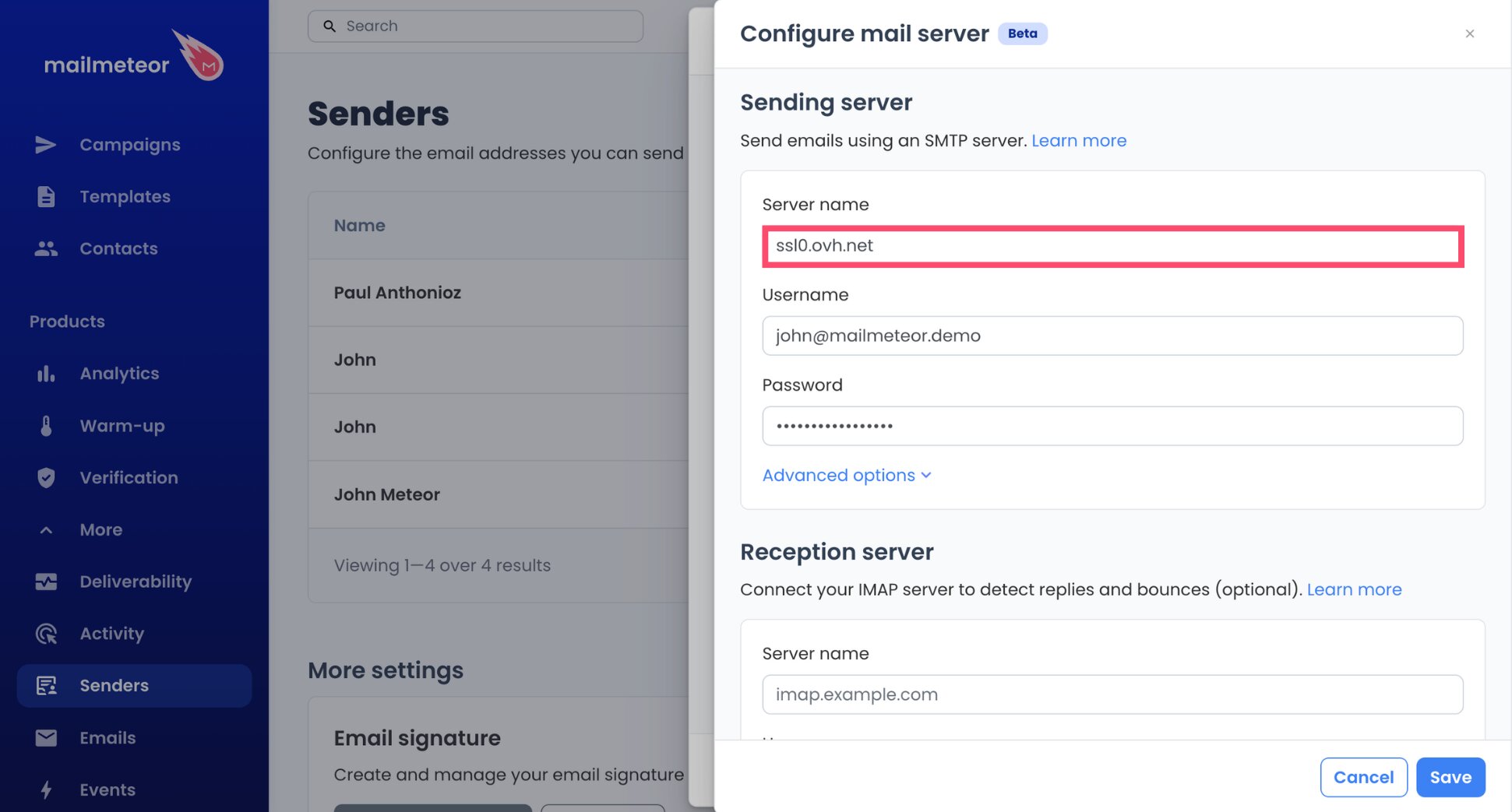
- Enter your full OVH email address in the Username field.
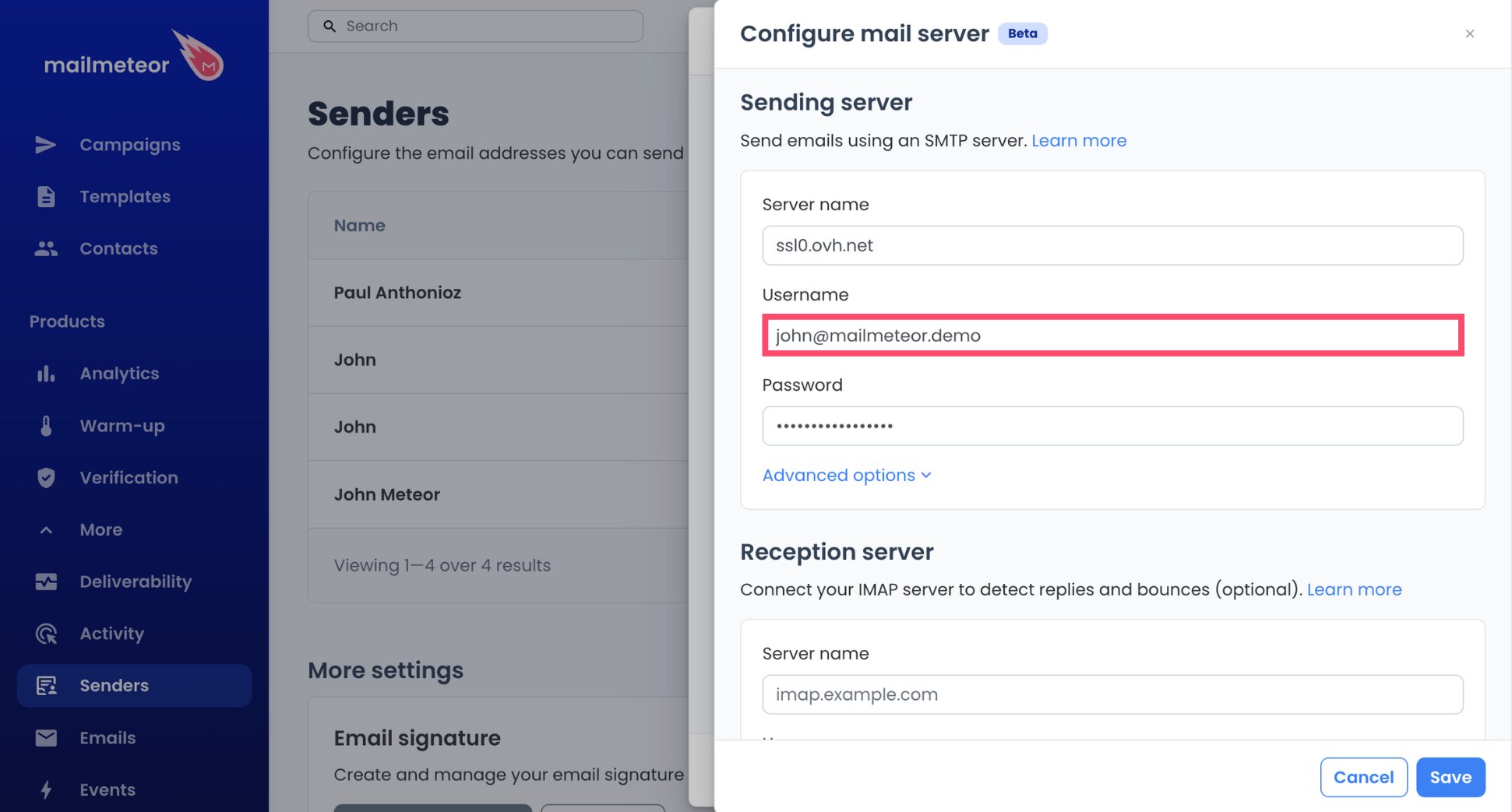
- Enter your mailbox password in the Password field.
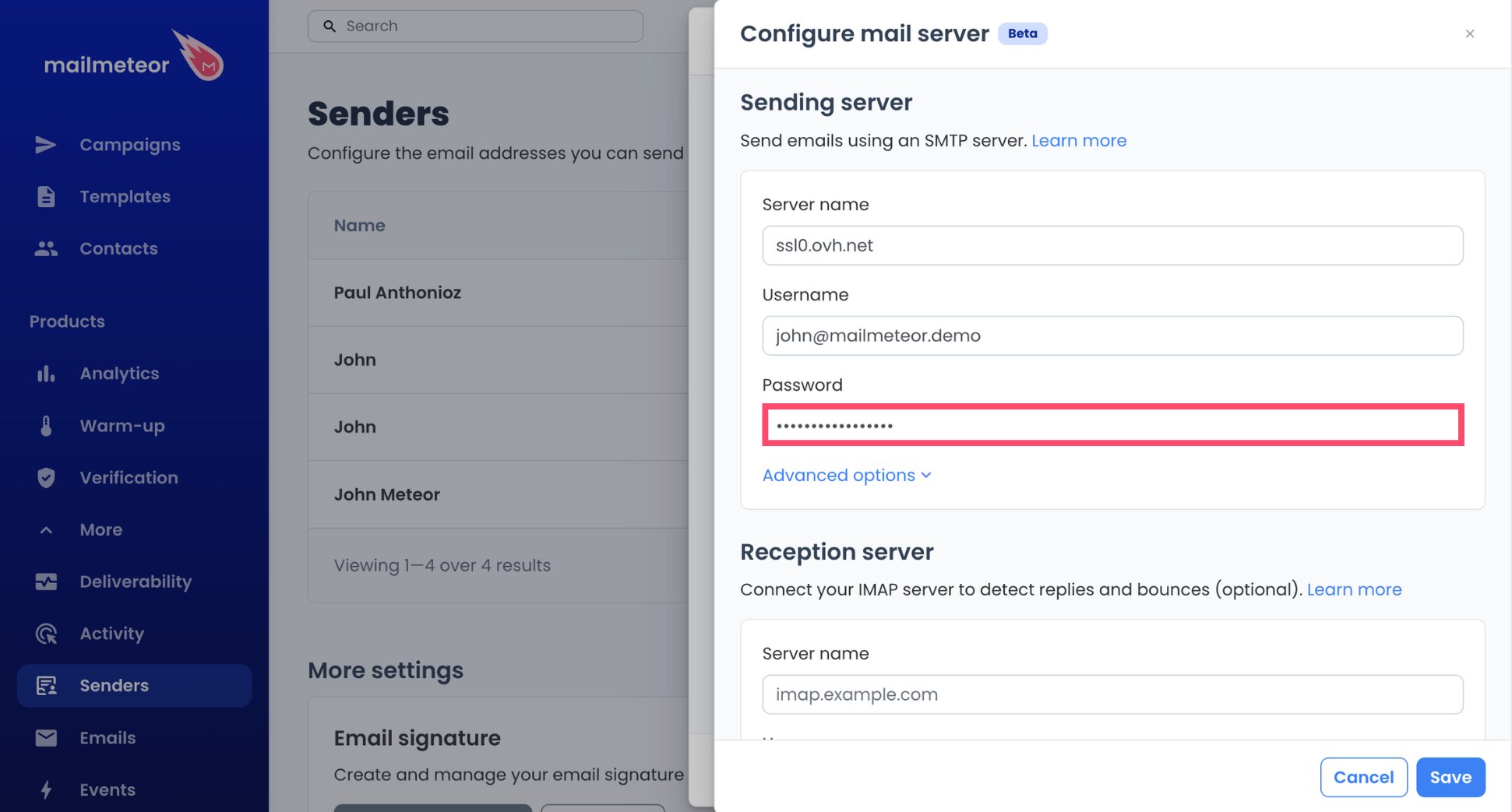
All done. Mailmeteor fills in the port and detects the security type for you.
pro?.mail.ovh.net (Email Pro) or ex?.mail.ovh.net (Hosted Exchange), replacing the ? with your server number, for example pro3.mail.ovh.net. You'll find it in the General information tab of your service in the OVHcloud Control Panel. Then click Advanced options and change the port to 587. Leave Security on Auto.
Step 3: Connect Your OVH Reception Server (IMAP)
This step is optional, but skip it and Mailmeteor can’t detect replies. That means follow-ups could still go out to people who already answered you.
- Under Reception server, enter
ssl0.ovh.netin the Server name field.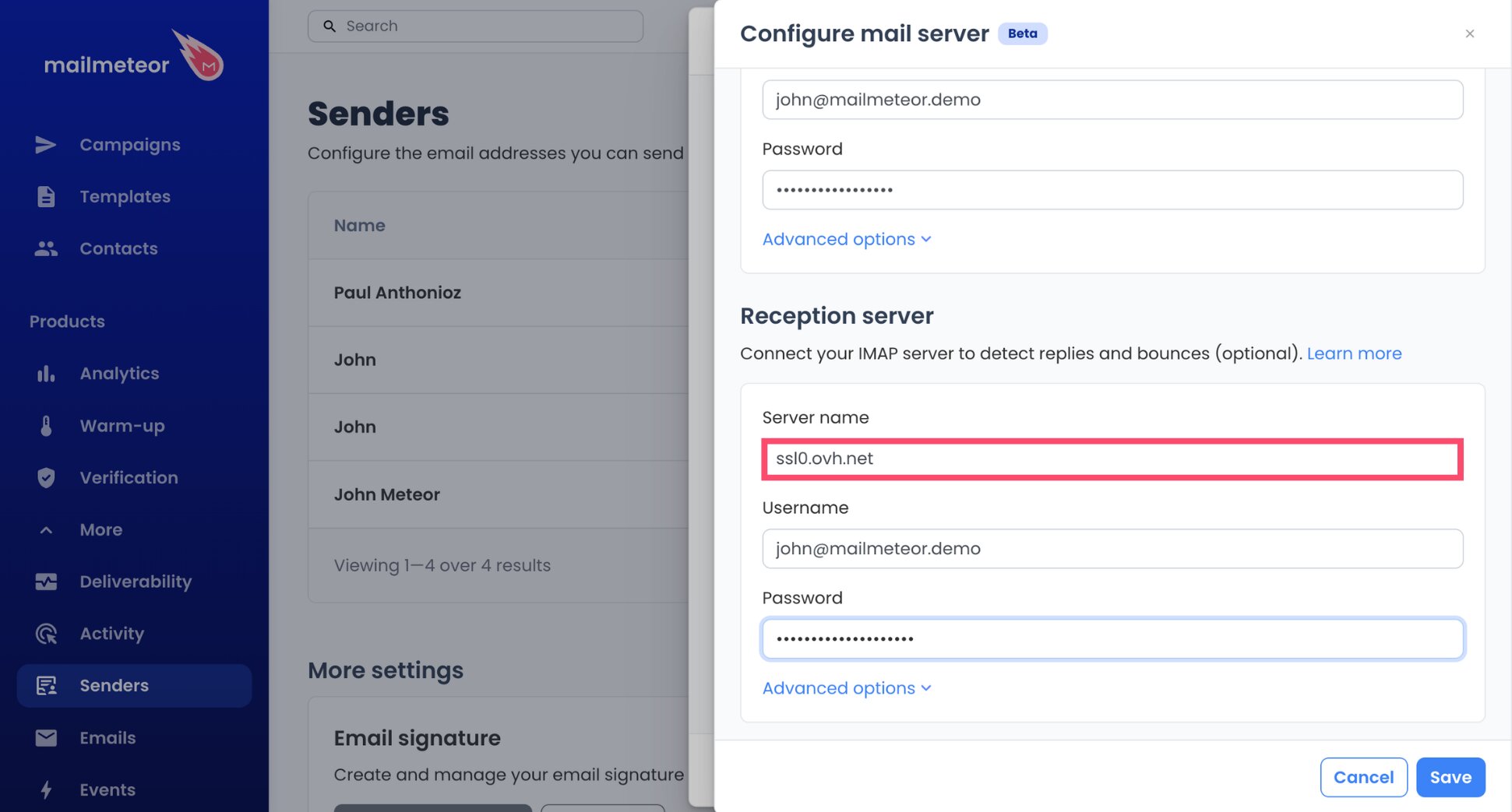
- Enter your full OVH email address in the Username field.
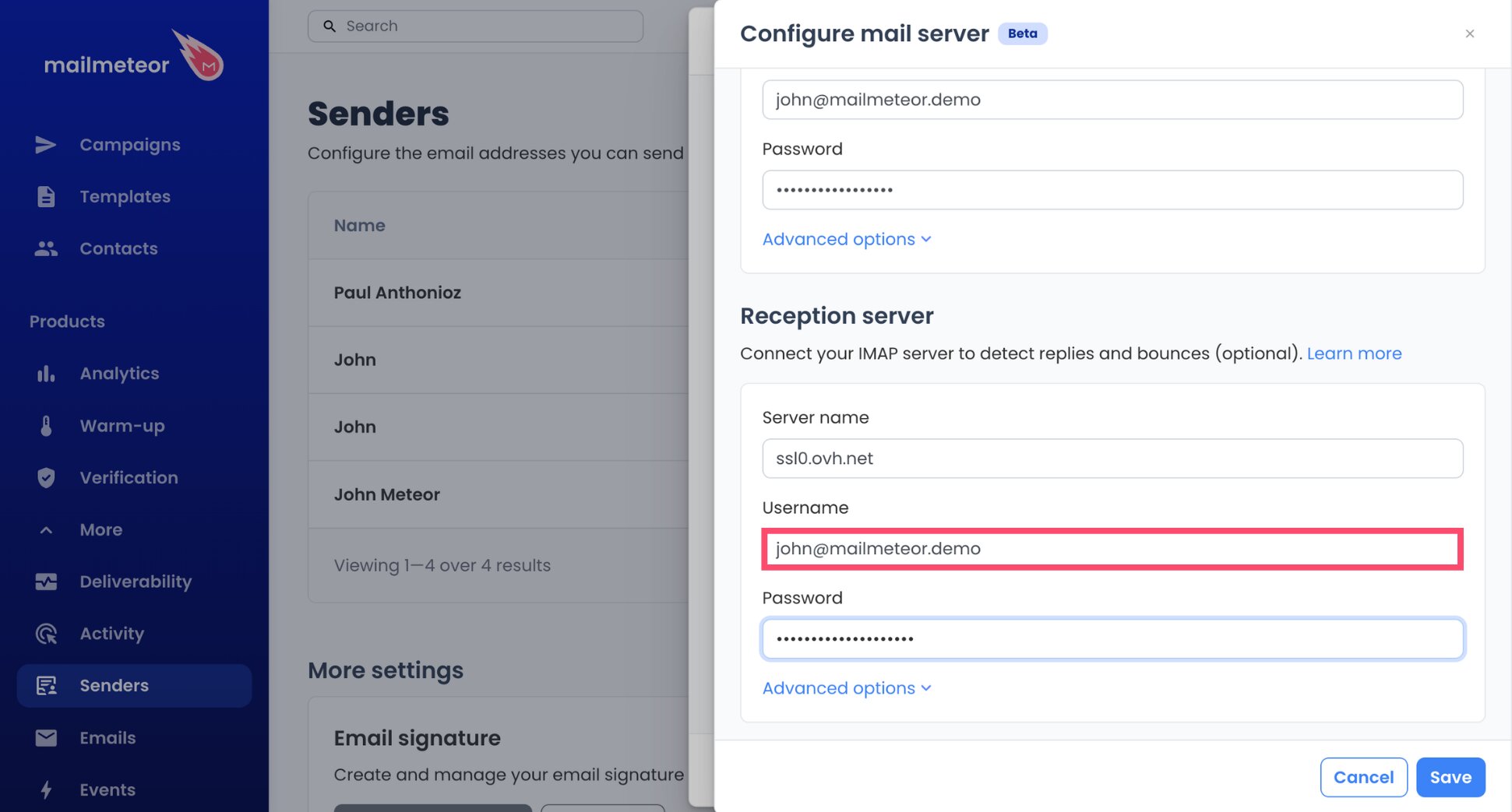
- Enter your mailbox password in the Password field.
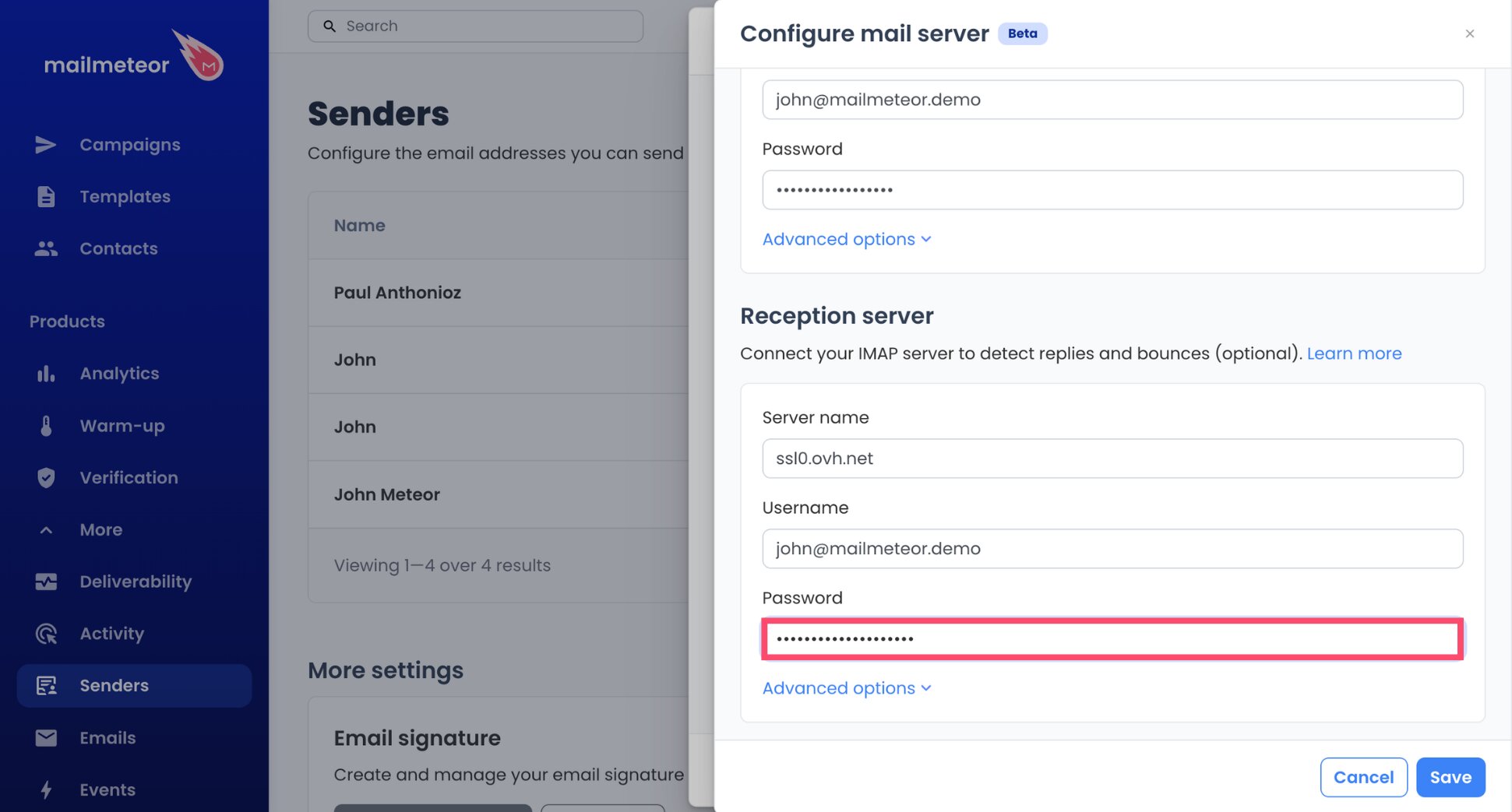
- Click Save, then Done.
And voilà. Mailmeteor fills in port 993 automatically, which is the IMAP port for every OVH offer. Your OVH mailbox is now connected to Mailmeteor.
- Open your sender in the Senders tab.
- In the Email services section, click the three-dot menu (⋮) next to your OVH mail server.
- Select Set as default.
Step 4: Create Your Campaign
- In the Mailmeteor Dashboard, click New campaign.
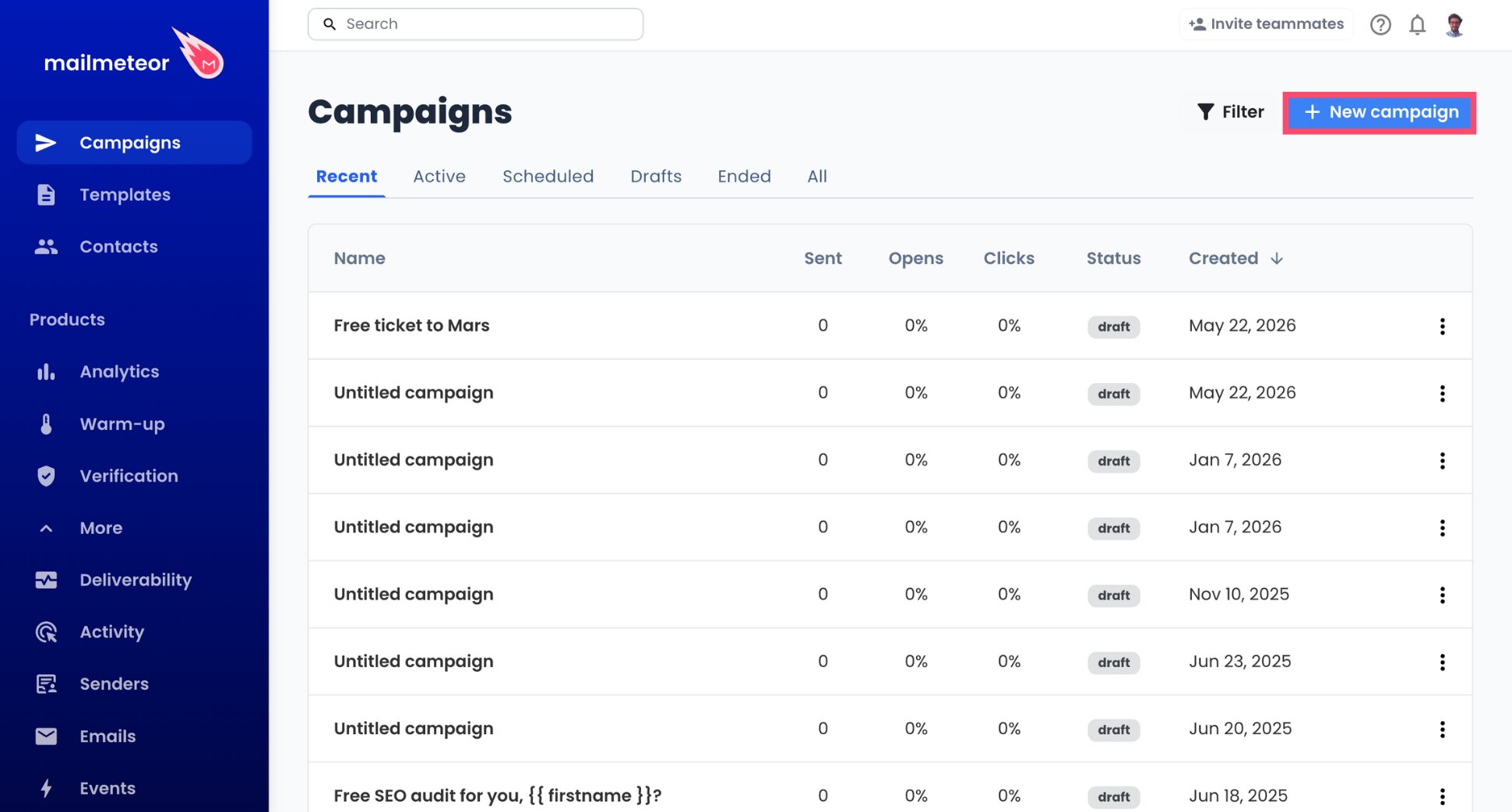
- In the From field, click the caret symbol (▼) and select your OVH sender.
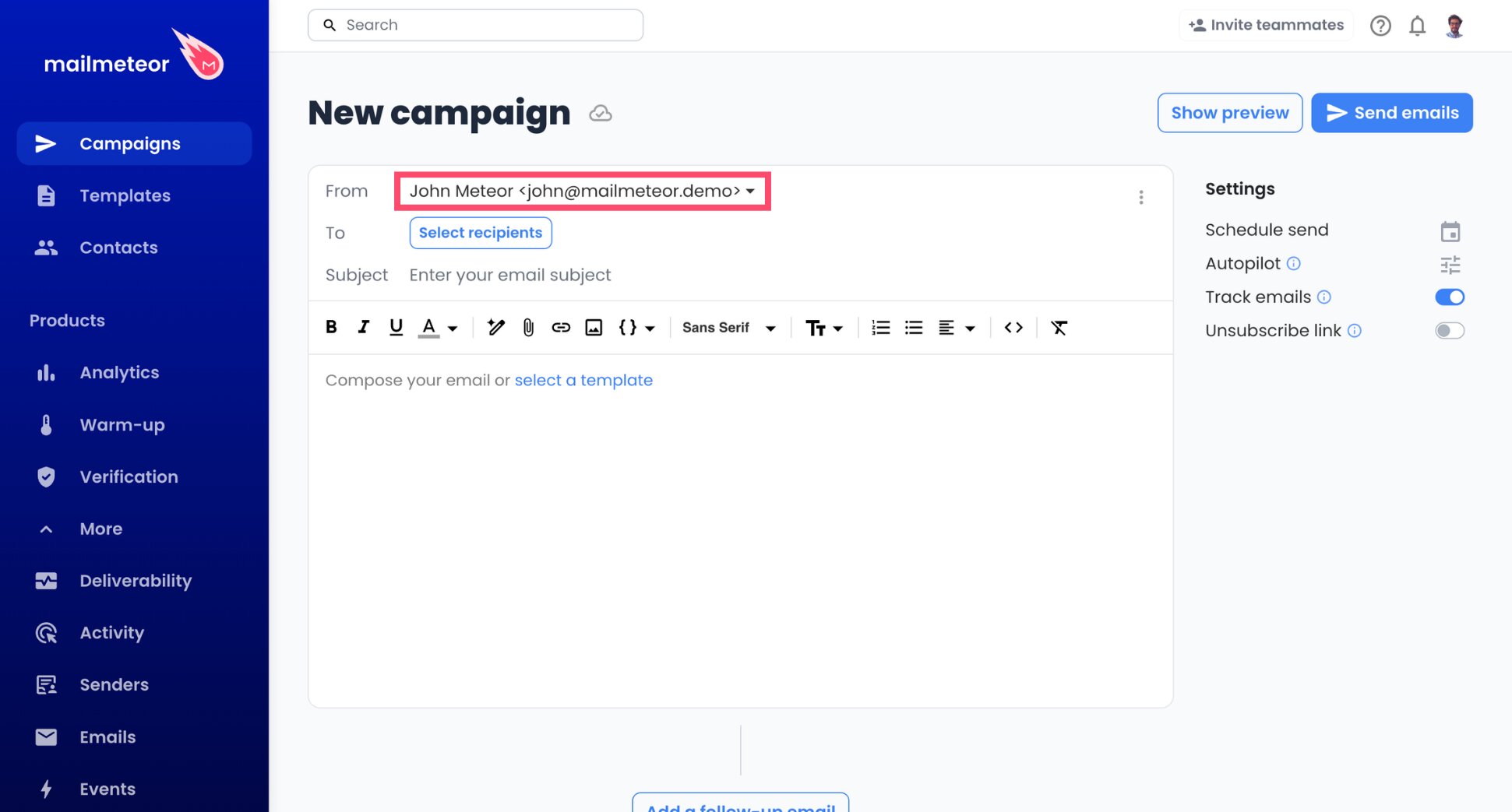
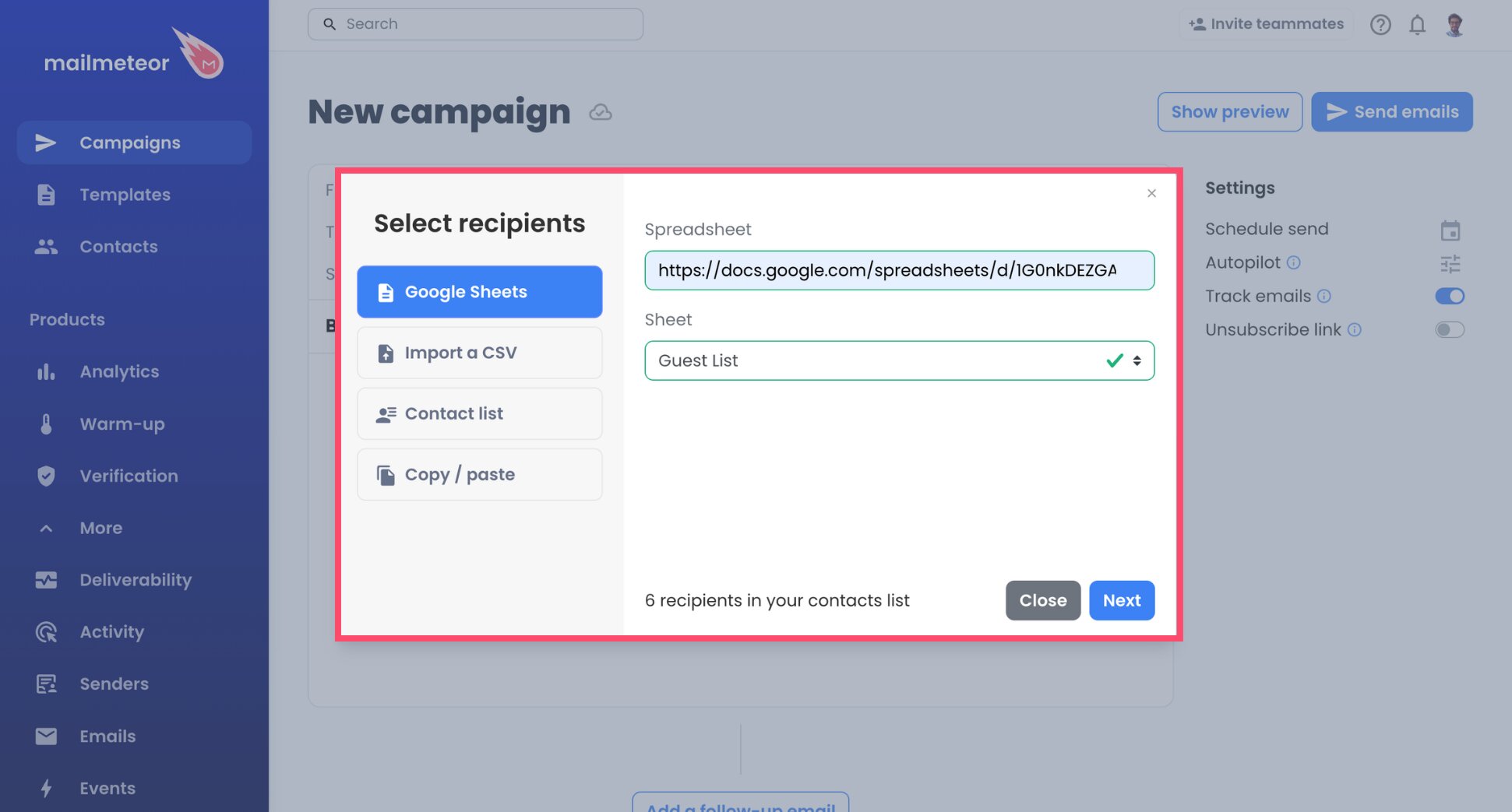
- Click Select recipients and import your contacts from a Google Sheet, a CSV file, a contact list, or by copy-pasting addresses.
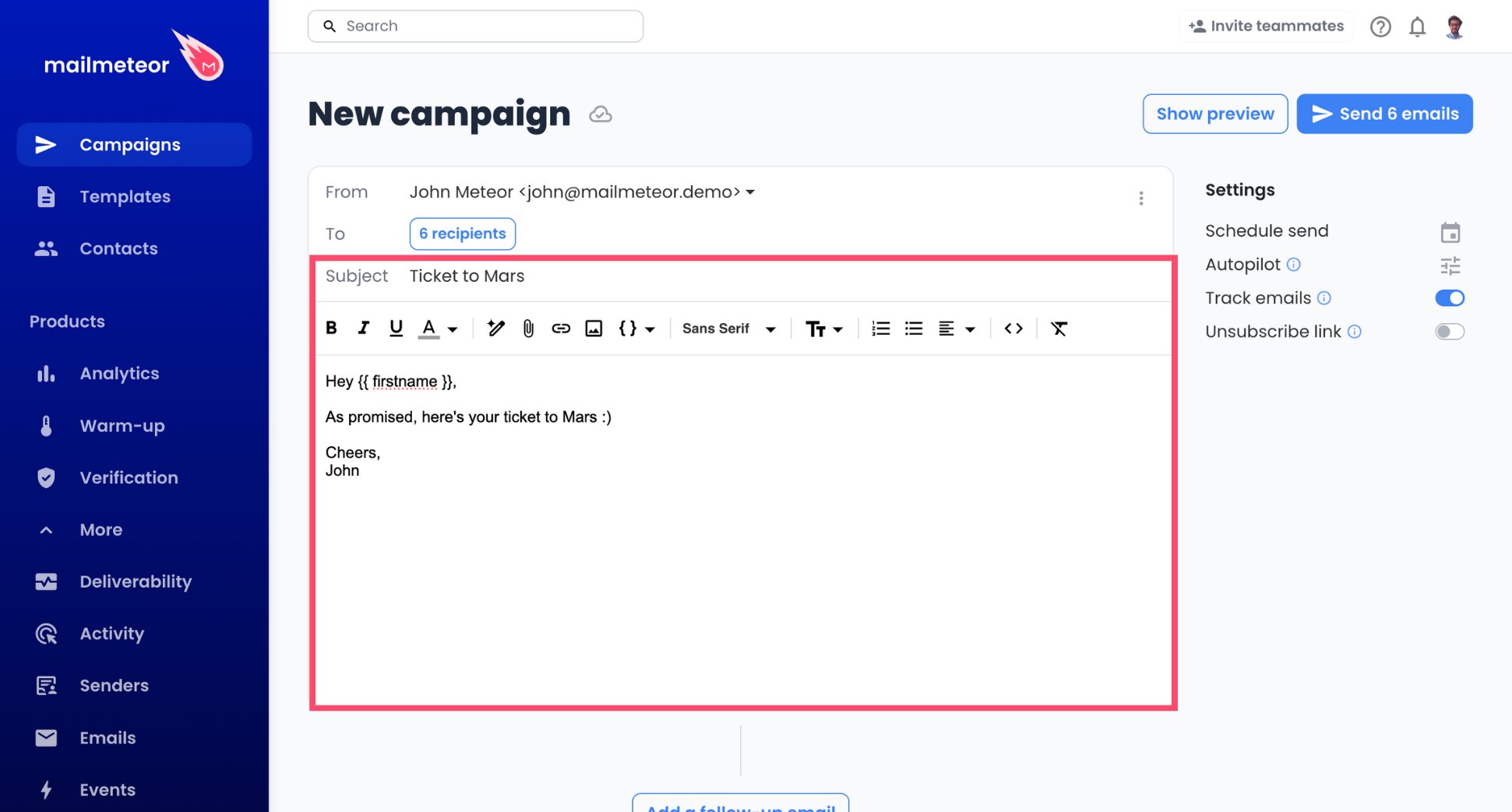
- Write your subject line and email.
- Add variables to personalize each email, such as
{{ firstname }}.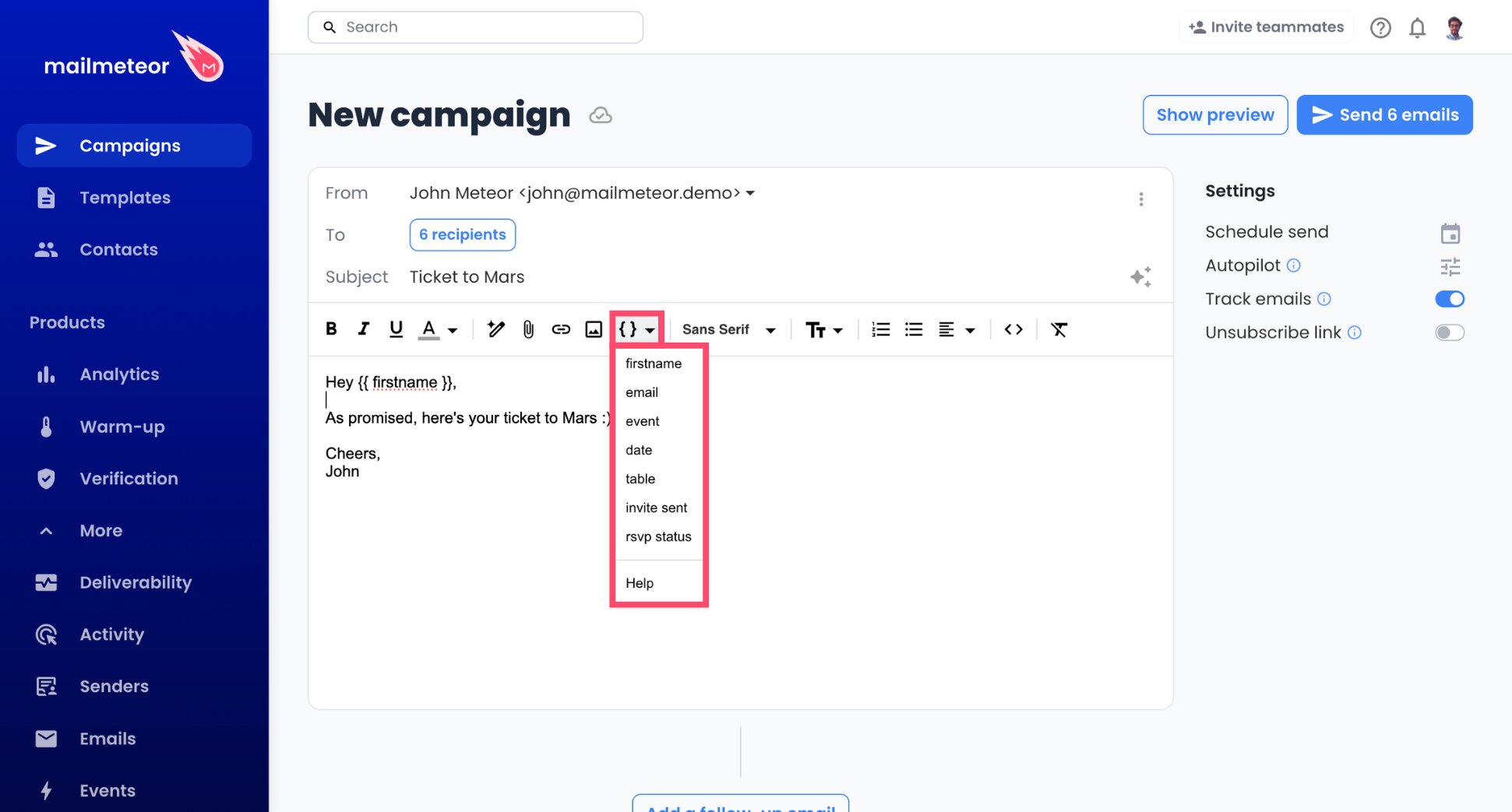
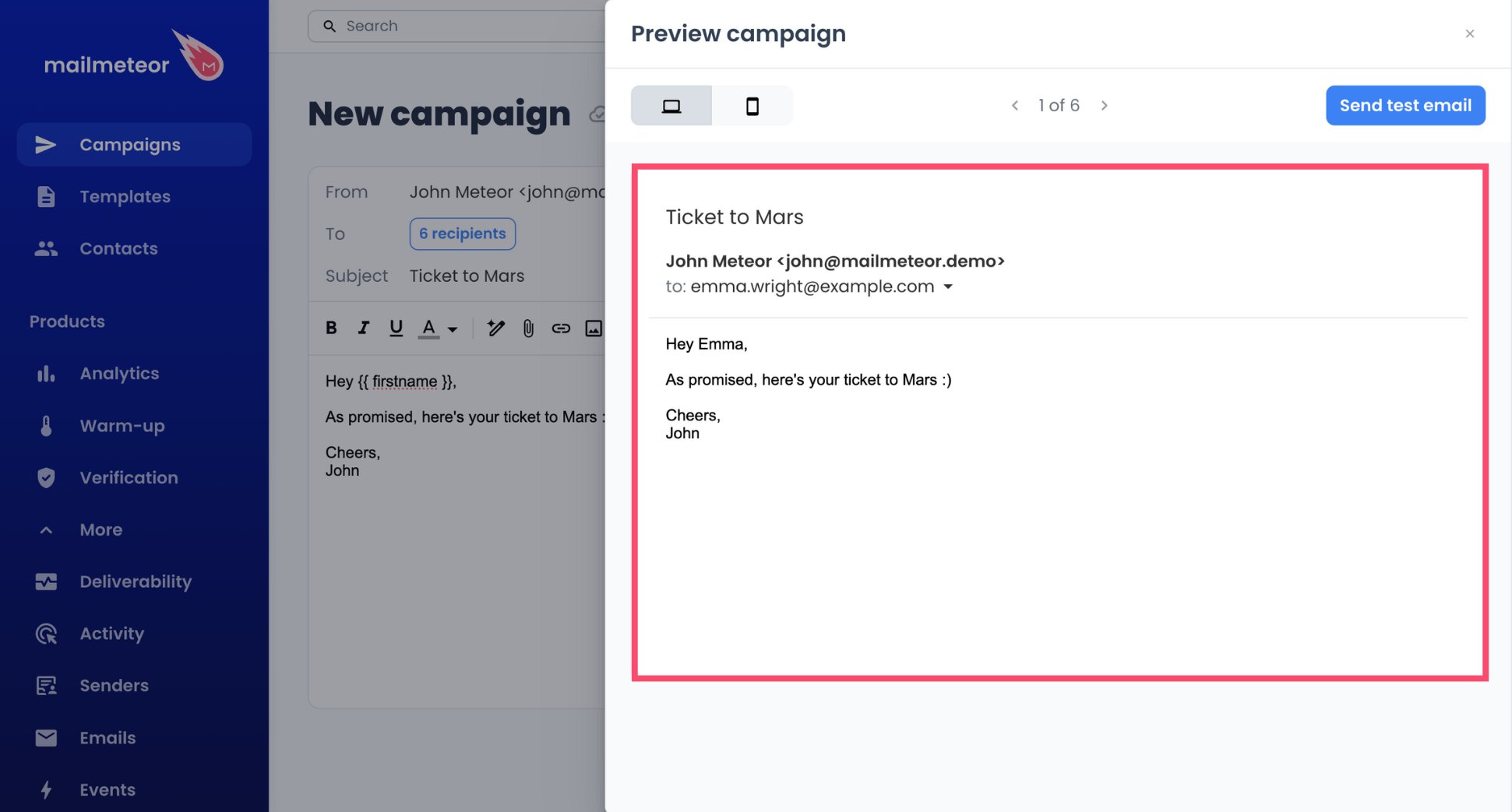
- Click Preview to check how the email looks for each recipient.
Prefer to work from a spreadsheet or a doc? Your OVH sender is also available in Mailmeteor for Google Sheets and Mailmeteor for Google Docs. Select it in the From field the same way.
Step 5: Pace Your Campaign With Autopilot
This is the step that keeps you under OVH’s hourly limit. Autopilot spaces out your emails instead of sending them all at once. Here’s how to set it up.
- In your campaign, click Autopilot.
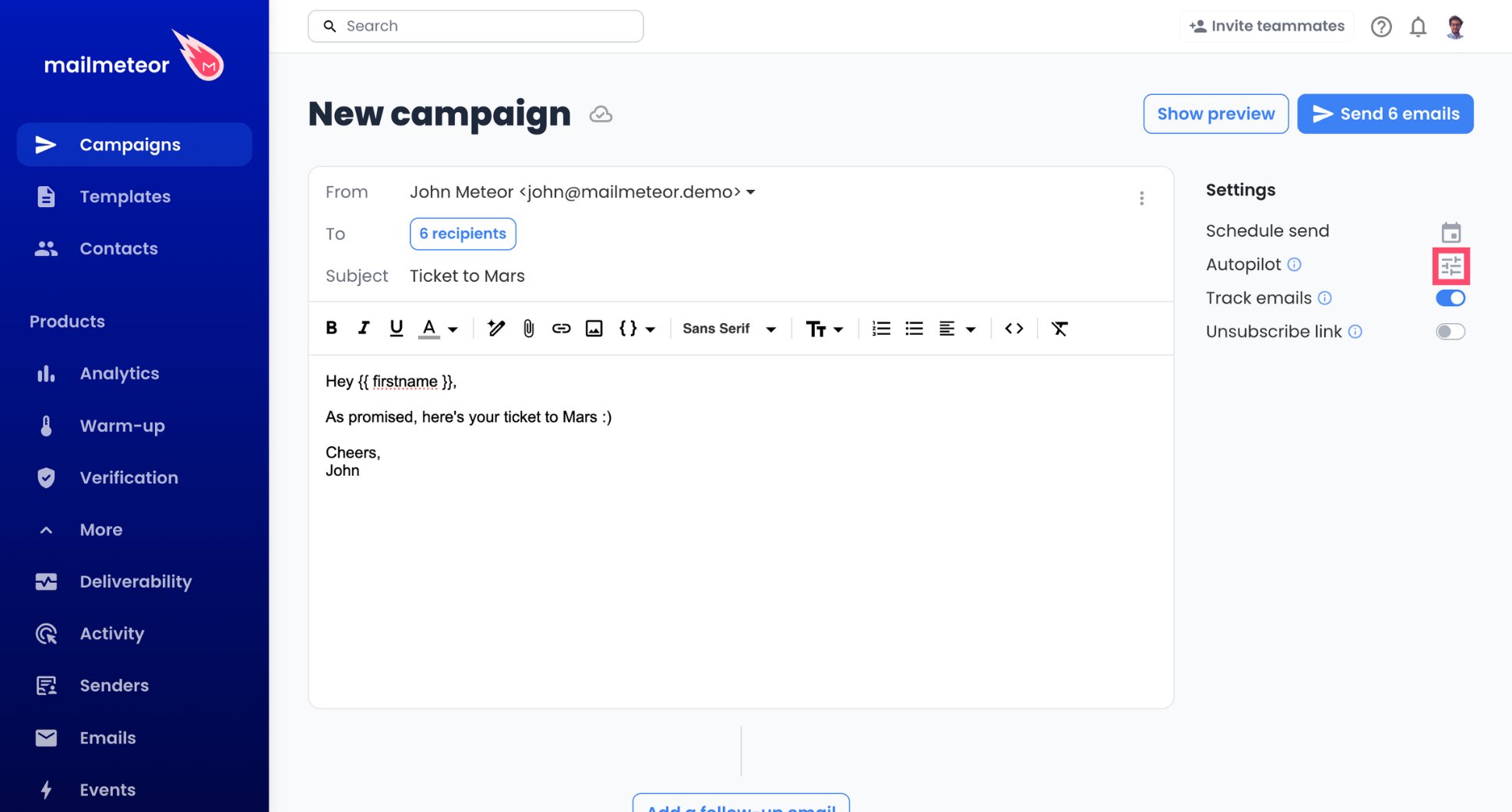
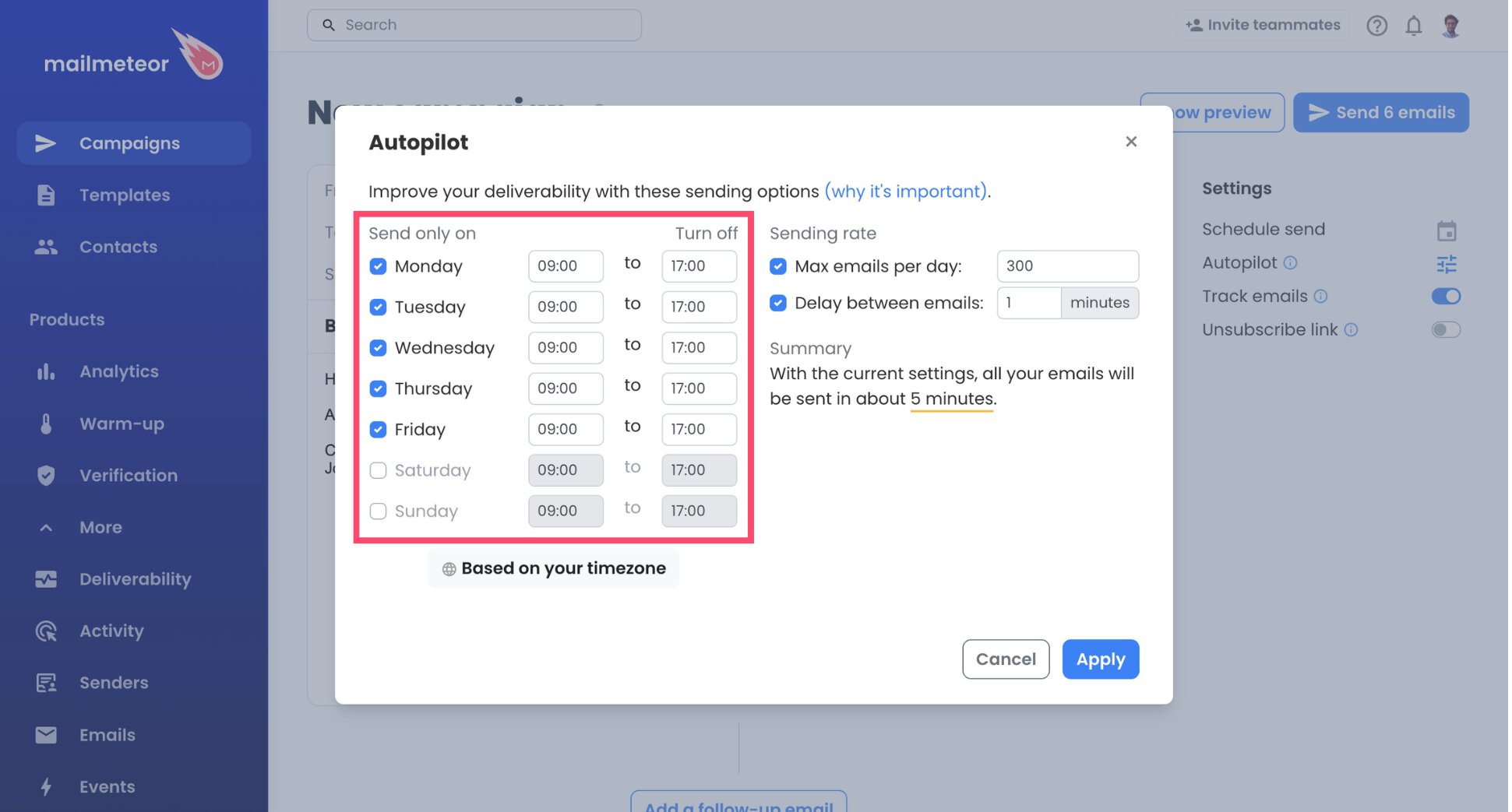
- Choose the days and hours you want to send (for example, Monday to Friday, 9 AM to 5 PM).
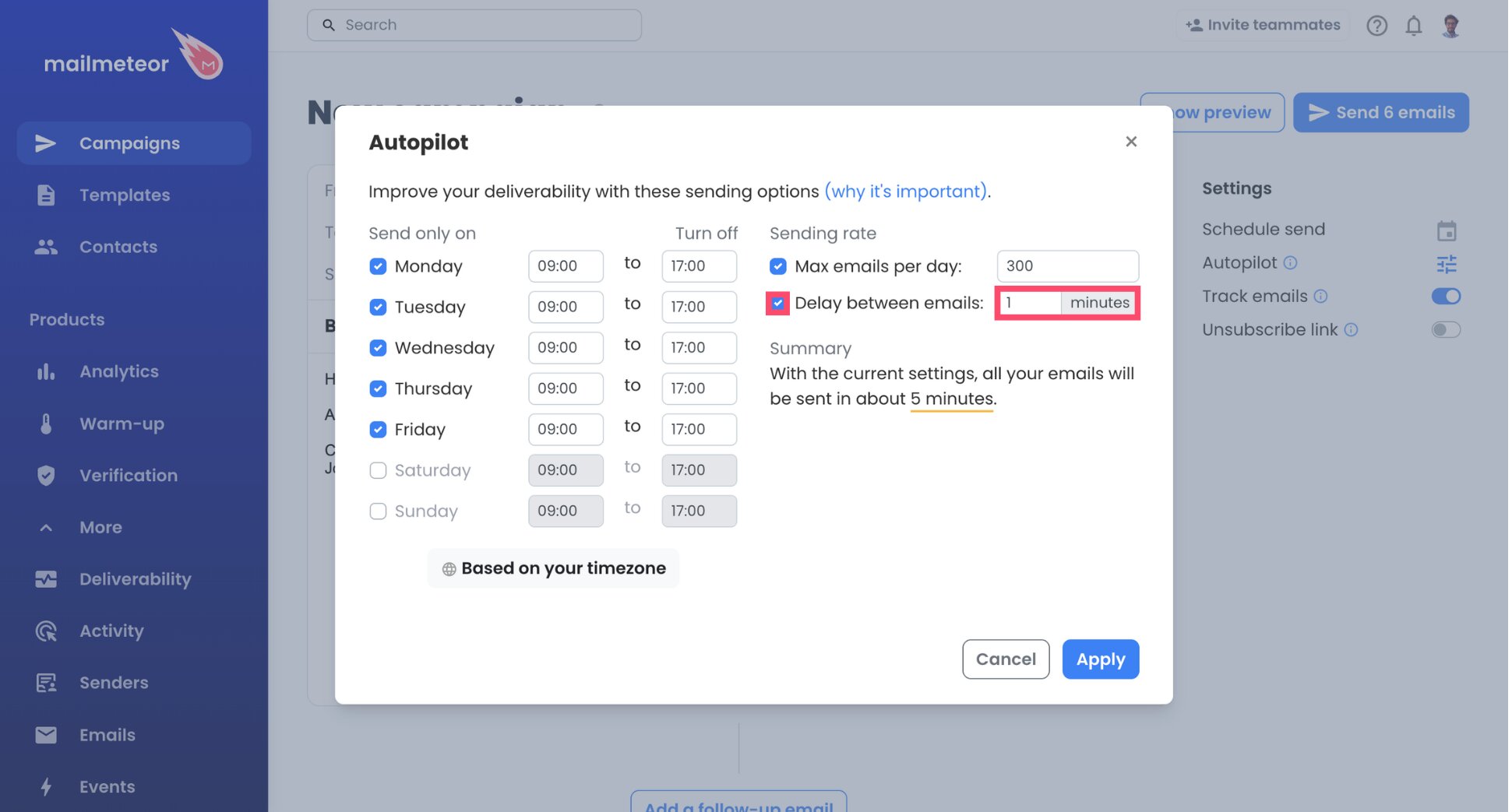
- Set the delay between emails to 1 minute.
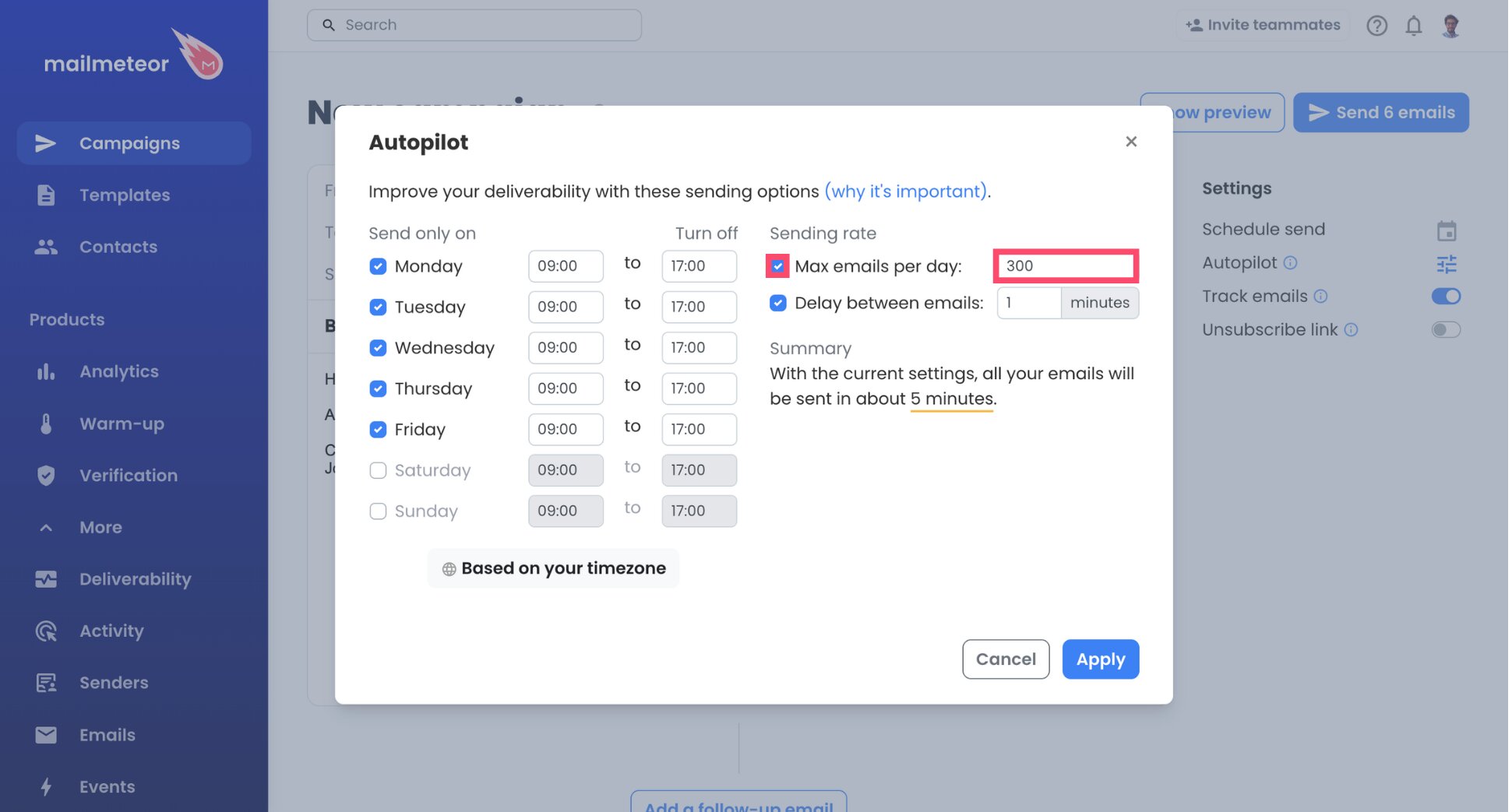
- Set a daily limit that fits your plan and your list size.
- Click Apply.
At one email per minute, your campaign sends at most 60 emails per hour, well below OVH’s limit of about 200 on MX Plan. A list of 150 contacts goes out in about two and a half hours. Mailmeteor also shows an estimate of how long your whole campaign will take.
Step 6: Send a Test, Then Launch
- Send a test email to yourself.
- Check the formatting, links, and personalization in your inbox.
- Click Send emails to launch your campaign.
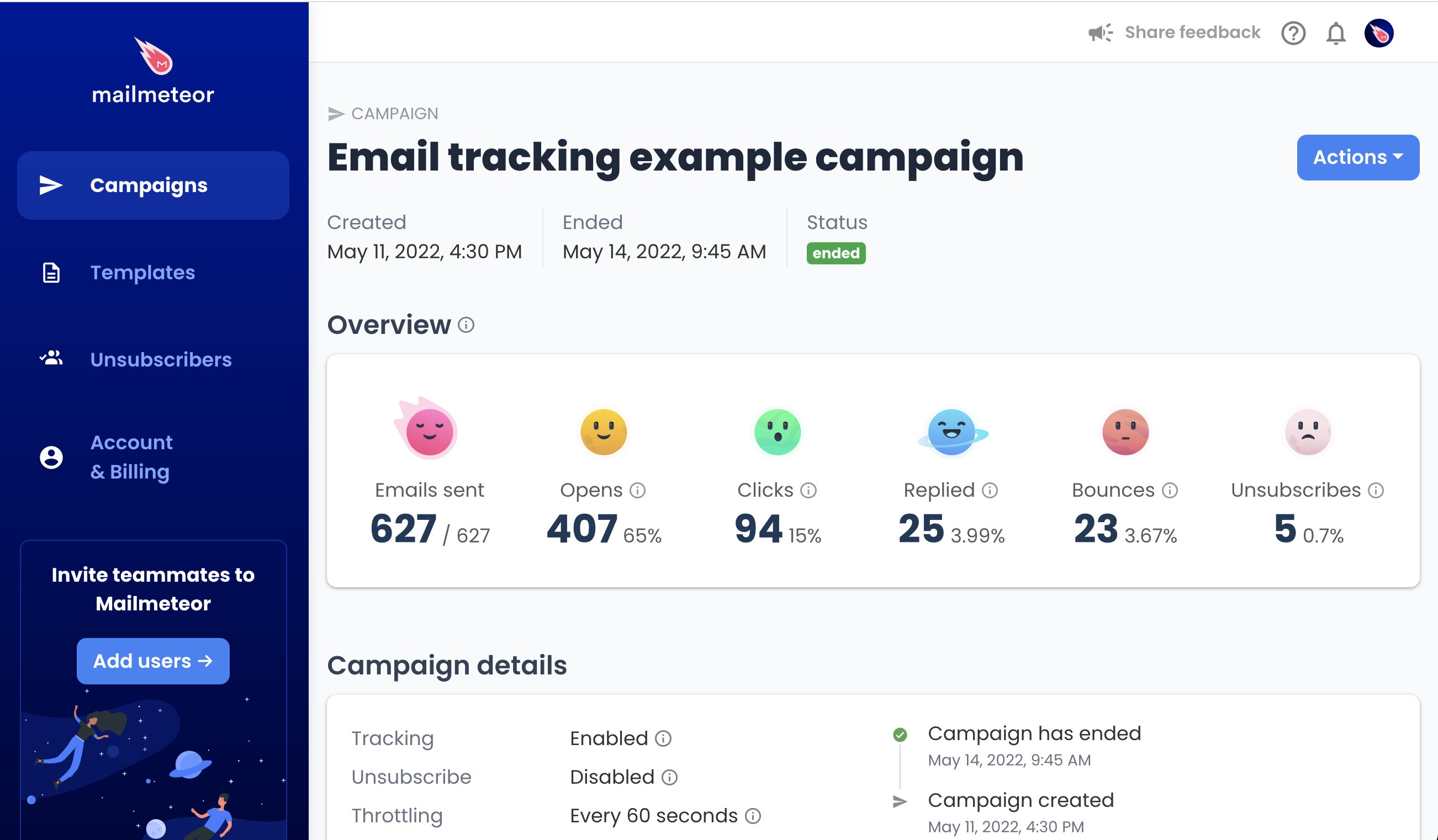
And that’s it. Your campaign now goes out from your OVH address, at a pace OVH is comfortable with. You can follow opens, clicks, and replies directly from your Mailmeteor Dashboard.
OVH SMTP and IMAP Settings
Mailmeteor needs two servers to work with your OVH mailbox:
- The sending server (SMTP) sends your emails.
- The reception server (IMAP) detects replies and bounces.
Here are the settings for each OVH offer:
| Setting | MX Plan (Europe) | Email Pro | Hosted Exchange |
|---|---|---|---|
| SMTP server | ssl0.ovh.net |
pro?.mail.ovh.net |
ex?.mail.ovh.net |
| SMTP port | 465 | 587 | 587 |
| IMAP server | ssl0.ovh.net |
pro?.mail.ovh.net |
ex?.mail.ovh.net |
| IMAP port | 993 | 993 | 993 |
For every offer, the username is your full email address, and the password is your mailbox password. Mailmeteor detects the security type for you. For reference, OVH lists port 465 as SSL/TLS and port 587 as STARTTLS.
For every offer, the username is your full email address, and the password is your mailbox password.
A few details matter here:
- For MX Plan,
smtp.mail.ovh.netandimap.mail.ovh.netpoint to the same server asssl0.ovh.net. Either works. - For MX Plan in the Americas and Asia-Pacific, use
smtp.mail.ovh.caandimap.mail.ovh.ca. The ports stay the same. - For Email Pro and Hosted Exchange, replace the
?with your server number. You’ll find the full server name in the Connection box of the General information tab of your service in the OVHcloud Control Panel (for example,pro3.mail.ovh.net). - If the connection fails, check the port. In Mailmeteor’s Advanced options, use 465 for MX Plan and 587 for Email Pro and Hosted Exchange. Keep Security on Auto.
OVH Sending Limits: What You Need to Know
OVH caps how many emails each mailbox can send. Go over the limit and your emails bounce back with an error. Keep going, and OVH may block your address for spam. In practice, 200 emails per hour is plenty for personal outreach, as long as you spread your campaign out
| OVH offer | Sending limit |
|---|---|
| MX Plan | About 200 emails per hour, per email account |
| Email Pro | Not published by OVH |
| Hosted Exchange | Not published by OVH |
Mailmeteor’s plan limits also apply on top of OVH’s. Connecting an SMTP server doesn’t unlock unlimited sending.
How to Keep Your OVH Emails Out of Spam
Connecting your OVH mailbox doesn’t guarantee that your emails reach the inbox. When OVH emails go to spam, the cause is usually missing authentication records for your domain (SPF, DKIM, and DMARC), a list with invalid addresses, or content that triggers spam filters. Here’s how to improve deliverability from OVH ⤵️
Check Your SPF and DKIM Records
SPF, DKIM, and DMARC are DNS records that help email providers check that your emails really come from your domain. Without them, providers like Gmail, Outlook, and Yahoo are more likely to send your messages to spam or reject them.
- SPF: Make sure your domain’s SPF record includes OVH’s servers (
include:mx.ovh.com). - DKIM: Enable DKIM signing for your domain in the OVHcloud Control Panel.
- DMARC: Add a DMARC record to tell receiving servers what to do with unauthenticated emails.
Clean Your List Before Sending
Bounces hurt your sender reputation, and OVH’s anti-spam system watches them. Run your list through our free Email Checker or turn on automatic email verification in Mailmeteor to skip invalid addresses.
Avoid OVH’s Spam Triggers
OVH scans your emails as they’re sent. It blocks an address when it finds suspicious elements in a message, or when the sending frequency and number of recipients look like spam. OVH’s anti-spam guidance for its server customers recommends:
- Avoid spammy words like “buy” or “last chance”, capital letters, exclamation marks, and percentage discounts.
- Write a specific subject line, not an impersonal one.
- Keep a healthy balance of text, images, and links, and don’t overload your email with links.
- Add an unsubscribe link.
To test your draft before sending, run it through our free Spam Checker or an external tool like Mail-Tester.
Start Small
If you’ve never sent more than a few emails a day from your OVH address, don’t jump to 500. Start with a small batch, check your results, and increase gradually. For more tips, see our guide on how to improve your email deliverability.
How to Fix OVH SMTP Connection Errors
If Mailmeteor can’t connect to your OVH mailbox, or your emails aren’t sending, the cause is usually the wrong password, the wrong port, or OVH’s limit of about 200 emails per hour on MX Plan. Here’s how to fix these issues ⤵️
| Problem | Likely cause | Fix |
|---|---|---|
| Authentication failed | Wrong password or username | Use your mailbox password (not your OVHcloud account password) and your full email address |
| Connection timeout | Wrong port | Open Advanced options and check the port: 465 for MX Plan, 587 for Email Pro and Hosted Exchange. Keep Security on Auto |
| “Mail quota exceeded” error | Too many emails per hour | Increase the Autopilot delay between emails |
| Emails send, but replies aren’t detected | IMAP isn’t configured | Add your IMAP settings under Reception server |
| Address blocked for spam | OVH flagged your sending activity | Check the Blocked for SPAM column in the Control Panel and open a support ticket with OVH |
Still stuck? Test your SMTP settings with our SMTP Test Tool, or check the full mail server documentation.
Send Better Campaigns From Your OVH Address
You don’t need a new provider to run proper campaigns. With the right settings and a sensible sending pace, your OVH mailbox becomes an outreach tool that your contacts already trust. OVH gives you the address and the inbox. Mailmeteor adds what webmail can’t do:
📬 Send personalized emails from your OVH address
⏰ Stay within OVH’s sending limits, with Autopilot spacing out your emails for you
🔁 Follow up automatically, and stop as soon as a contact replies
📊 See who opens, clicks, and replies, so you know who to contact next
✅ Protect your sender reputation by skipping invalid addresses before they bounce
Try Mailmeteor for OVH today (it’s free!) and turn your professional mailbox into an outreach tool.
Frequently asked questions
Can I send mass emails from an OVH email address?
Yes, within limits. An OVH mailbox works well for personalized campaigns of a few hundred emails per day. For newsletters to thousands of subscribers, OVH recommends a dedicated mailing list service, since its mailboxes aren’t designed for high-volume bulk sending.
What is the OVH SMTP server?
For MX Plan in Europe, the OVH SMTP server is ssl0.ovh.net (or smtp.mail.ovh.net), on port 465 with SSL/TLS or port 587 with STARTTLS. Email Pro uses pro?.mail.ovh.net and Hosted Exchange uses ex?.mail.ovh.net, both on port 587 with STARTTLS. Replace the ? with your server number from the OVHcloud Control Panel.
How many emails can I send per day with OVH?
OVH limits MX Plan accounts by the hour, not by the day. You can send about 200 emails per hour and per email account. Over a full working day, that leaves room for well over a thousand emails in theory. In practice, sending that much from a single mailbox is risky for your reputation, so stay well below it.
What is the difference between ssl0.ovh.net and smtp.mail.ovh.net?
There’s no difference. Both hostnames point to the same OVH mail server. OVH offers smtp.mail.ovh.net, imap.mail.ovh.net, and pop.mail.ovh.net to make each protocol easier to identify, but ssl0.ovh.net works for all of them.
Why was my OVH email address blocked for spam?
OVH blocks an address when its anti-spam system detects suspicious content or when the sending frequency and number of recipients look like spam. You’ll see “Yes” in the Blocked for SPAM column of your email service in the Control Panel. Fix the cause, then contact OVH support to request unblocking.
Do I need to change my MX records to use Mailmeteor with OVH?
No. Your MX records control where incoming emails are delivered, and they stay pointed at OVH. Connecting Mailmeteor doesn’t require any DNS change. You only enter your SMTP settings to send emails and, optionally, your IMAP settings to detect replies. You can keep using your OVH inbox as usual.
Can I use my OVH email address in Google Sheets for a mail merge?
Yes. Once your OVH address is set up as a sender in the Mailmeteor Dashboard, you can select it in the From field in Mailmeteor for Google Sheets or Google Docs. Your campaign then goes out through your OVH mailbox instead of Gmail.