You picked Proton Mail to keep your business email private, and your address runs on your own domain. Now you need to send 120 clients the same update, each with their name and a personal line. Proton Mail won’t do it. There’s no mail merge, and a single email can’t hold more than 100 recipients.
There’s a way around it that keeps both your address and your provider. Mailmeteor, a mail merge tool with 7 million users, connects to Proton Mail through SMTP, the protocol apps use to hand emails over to a mail server. Each client then receives a personalized email, sent through Proton’s own servers.
This guide explains the SMTP token Proton requires, the Proton Mail SMTP settings, Proton’s sending limits, and the full setup. In short: the SMTP server is smtp.protonmail.ch on port 587, and it only works on paid plans with a custom domain address.
- Check your plan and address – SMTP needs a paid Proton Mail plan and an address on your own domain.
- Create an SMTP token – It's the code apps use to send through Proton. Your Proton password won't work.
- Connect Mailmeteor to
smtp.protonmail.ch– On port 587, which you set in Advanced options. - Pace your sending – Proton sets limits on paid plans by account reputation, so start small.
- Watch your inbox for replies – Mailmeteor can't see them in Proton, so check before any follow-up.
Here’s what we’ll cover:
- Can you mail merge in Proton Mail?
- Why send mass emails from Proton Mail?
- What you need to send mass emails from Proton Mail
- How to generate a Proton Mail SMTP token
- How to send mass emails from Proton Mail with Mailmeteor
- Proton Mail SMTP settings
- Proton Mail sending limits
- How to keep your Proton emails out of spam
- How to fix Proton Mail SMTP errors
Sounds good? Then let’s dive in.
Can You Mail Merge in Proton Mail?
No. In the Proton Mail web app, the desktop app, and the mobile apps, every address you add to To, Cc, or Bcc gets the same message, and you can’t insert a name or a personal detail per recipient.
Proton does offer a door for outside tools, though. On paid plans, its SMTP service lets business applications send emails from your custom domain address. That’s how Mailmeteor sends a personalized email to each contact, through Proton’s servers.
Why Send Mass Emails From Proton Mail?
If your business email already lives at Proton, adding a second provider just for campaigns means more accounts, more DNS records, and a new sender for your contacts to trust. Here’s why sending from Proton directly makes sense ⤵️
Keep Sending From Your Domain
Your clients see the same address they already know, like [email protected]. The emails go out through Proton, which applies the SPF, DKIM, and DMARC records set up for your domain, and replies come back to your Proton inbox.
Stay With a Privacy-First Provider
Proton is based in Switzerland, and the emails you send through its SMTP service are stored in your mailbox with zero-access encryption, like the rest of your mail. Every email Mailmeteor sends also lands in your Proton Sent folder, so your campaign stays on record alongside your usual correspondence.
Add the Campaign Tools Proton Doesn’t Have
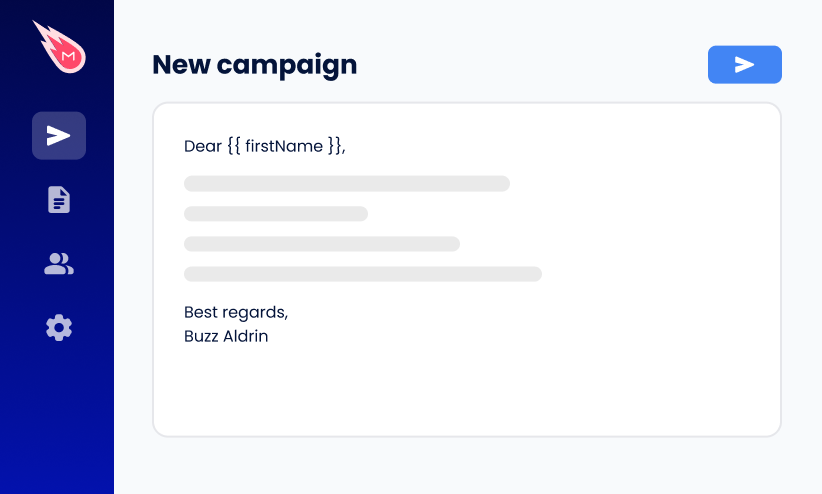
Proton Mail is built for private, one-to-one email. Connect Mailmeteor, and your Proton address can also:
- Adapt each email to its recipient, with their name, company, or any detail from your list.
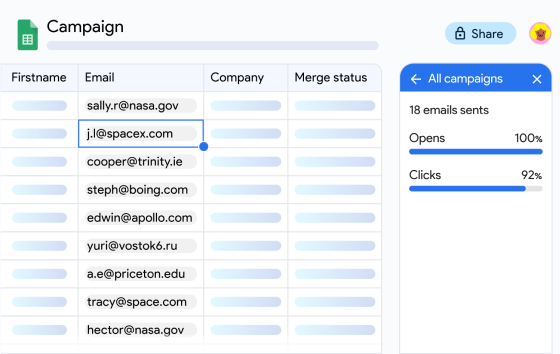
- Load contacts from a Google Sheet or a CSV file.
- Filter out invalid addresses before they bounce.
- Add an unsubscribe link, and automatically skip anyone who opts out.
- Track opens and clicks for each campaign.
Understand Proton’s Limits
Three constraints come with Proton’s SMTP service:
- No reply detection. Proton doesn’t give online apps access to your inbox, so you’ll handle replies in Proton yourself.
- No end-to-end encryption. Emails sent through SMTP aren’t end-to-end encrypted, even though they’re stored with zero-access encryption.
- Not built for bulk. Proton states that its service isn’t designed for bulk mailing, and sending spam can get your account suspended.
| Option | What each recipient gets | Tracking | Best for |
|---|---|---|---|
| Proton Mail | The same message as everyone else, with 100 recipients at most | None | Short notes to a few people |
| Mailmeteor + Proton Mail | A separate email, from your custom domain, with their details merged in | Opens, clicks, and bounces | Personal outreach to people who know you |
| Newsletter platform | A designed email sent from the platform’s servers | Opens, clicks, and bounces | Newsletters to large subscriber lists |
What You Need to Send Mass Emails From Proton Mail
To send mass emails from Proton Mail with Mailmeteor, you need:
- A paid Proton Mail plan, such as Mail Plus, Proton Unlimited, or a Proton for Business plan. The free plan doesn’t include SMTP.
- An address on your own domain, set up in Proton Mail. Addresses ending in @proton.me, @protonmail.com, or @pm.me can’t use SMTP.
- A Mailmeteor Premium plan or above, which lets you add custom senders.
How to Generate a Proton Mail SMTP Token
Proton doesn’t let outside apps use your account password. Instead, it gives each app an SMTP token. A password that only works for sending, from one specific address. Here’s how to create yours ⤵️
- Sign in to Proton Mail in your browser.
- Go to Settings > All settings > IMAP/SMTP, then open SMTP tokens.
- Click Generate token.
- Name the token “Mailmeteor”, so you’ll know later what it’s for.
- Pick the custom domain address you’ll send campaigns from.
- Click Generate, then enter your Proton account password when asked.
- Copy the SMTP username and the SMTP token.
Proton won’t show the token again once you close the window, so keep it handy for the next steps.
How to Send Mass Emails From Proton Mail With Mailmeteor
Token copied? The setup takes about 5 minutes, and there’s no IMAP step for Proton, so it’s shorter than with most providers.
Step 1: Add Your Proton Address to Mailmeteor
- Open the Mailmeteor Dashboard with the Gmail or Outlook account you signed up with.
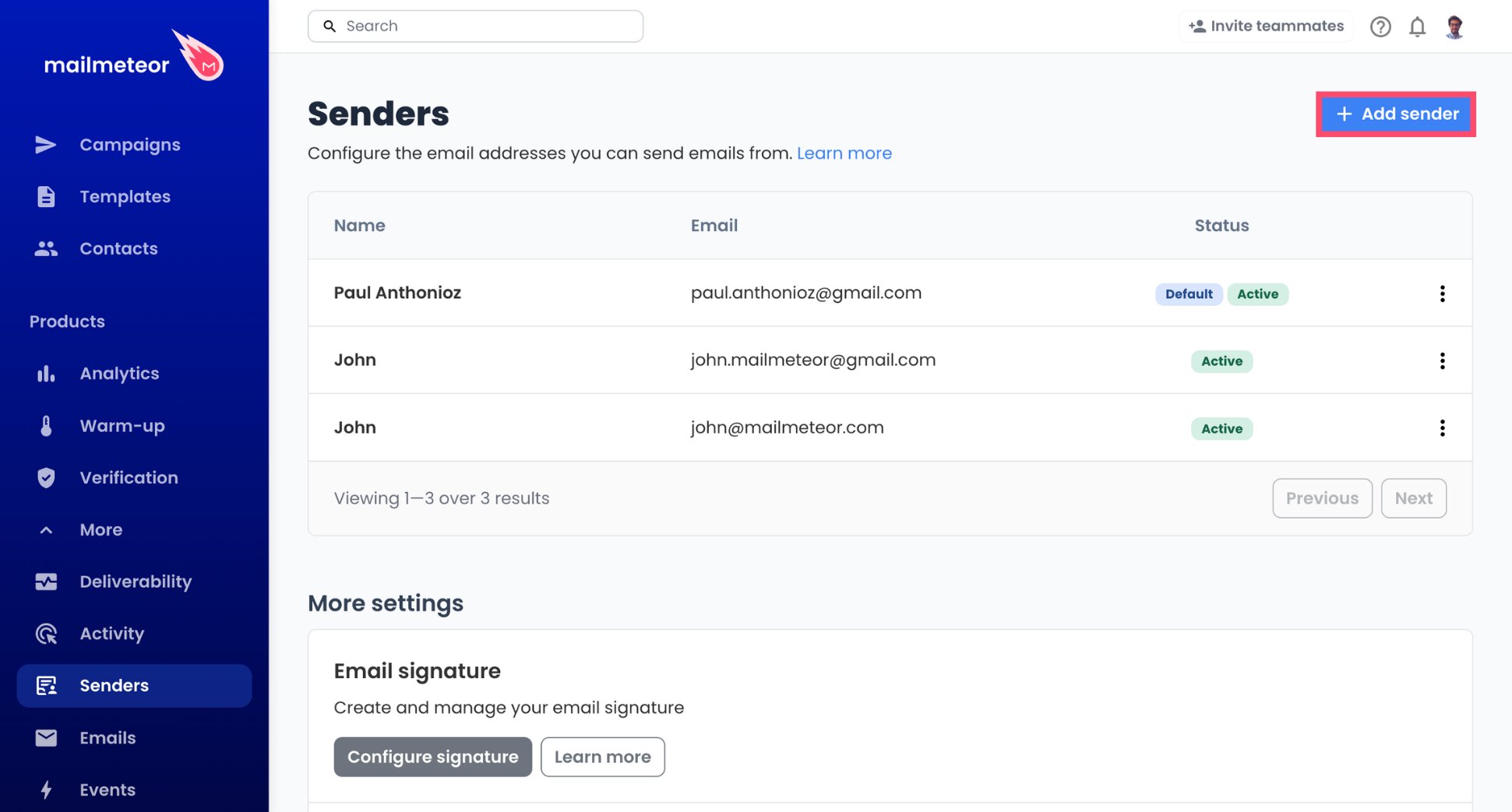
- Navigate to Senders, found under Products > More.
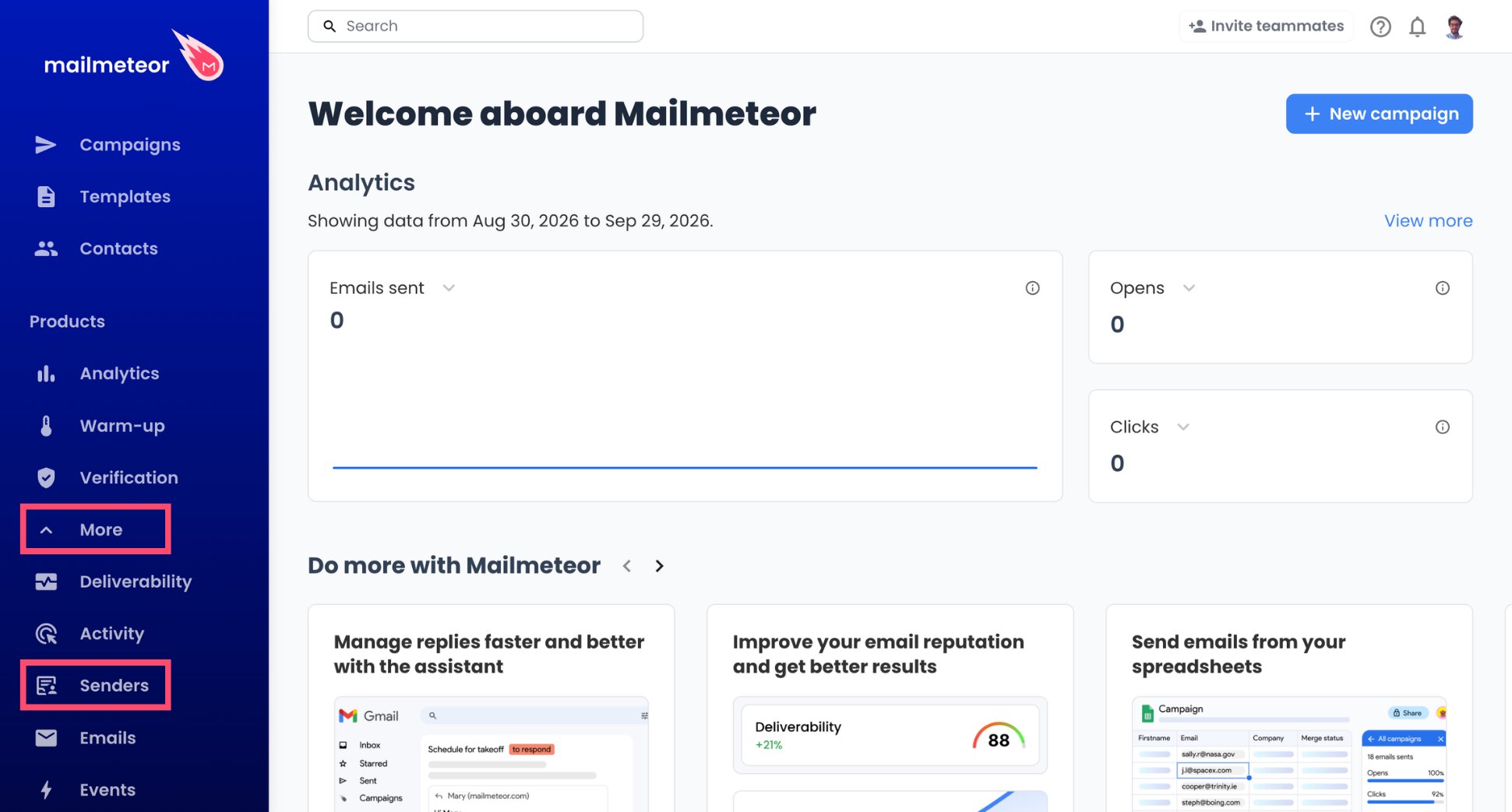
- Press Add sender.
- Give the sender a display name, and enter the custom domain address you paired with your SMTP token, exactly as it appears in Proton.
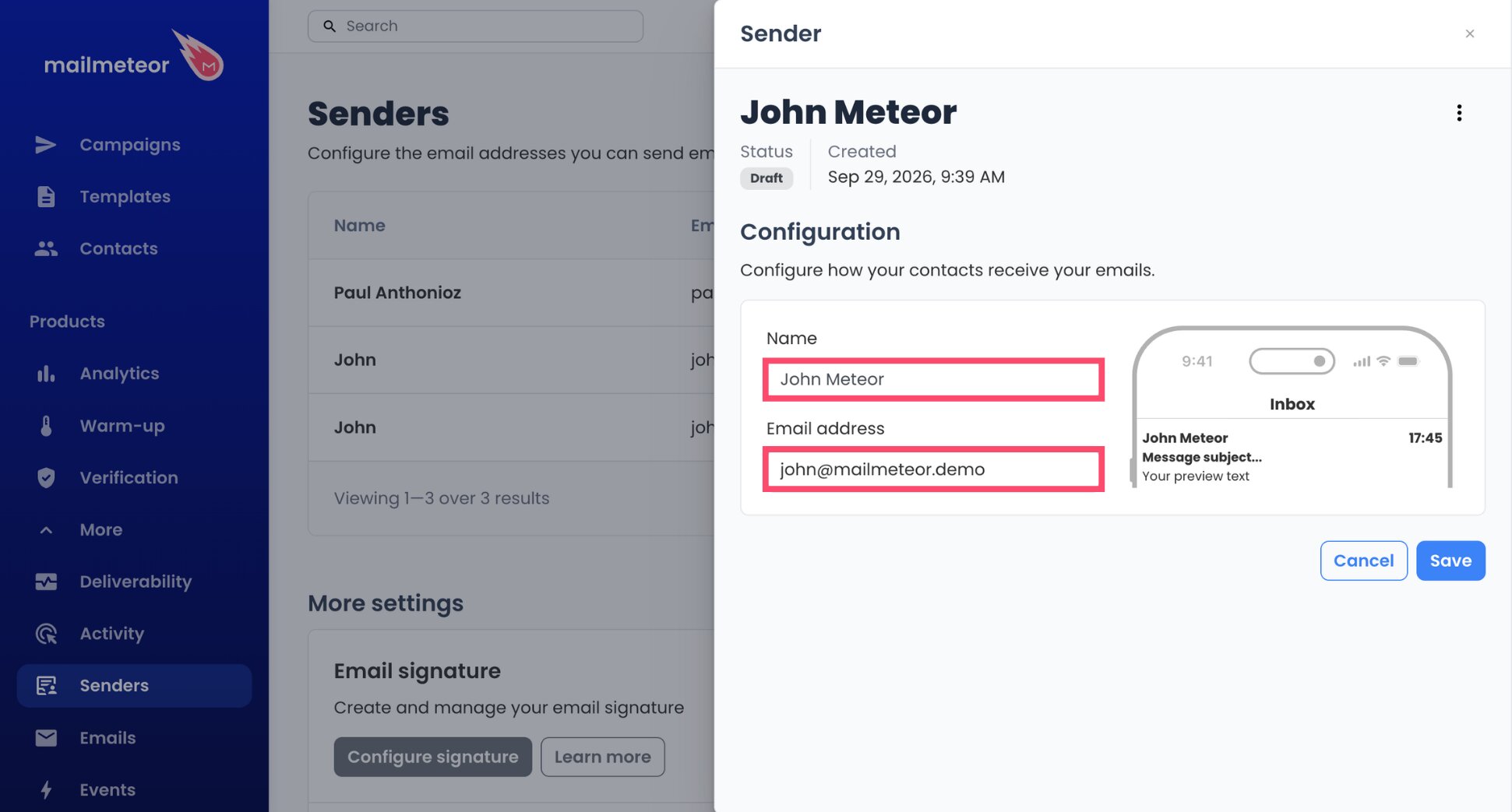
- Click Save.
Step 2: Connect Proton’s SMTP Server
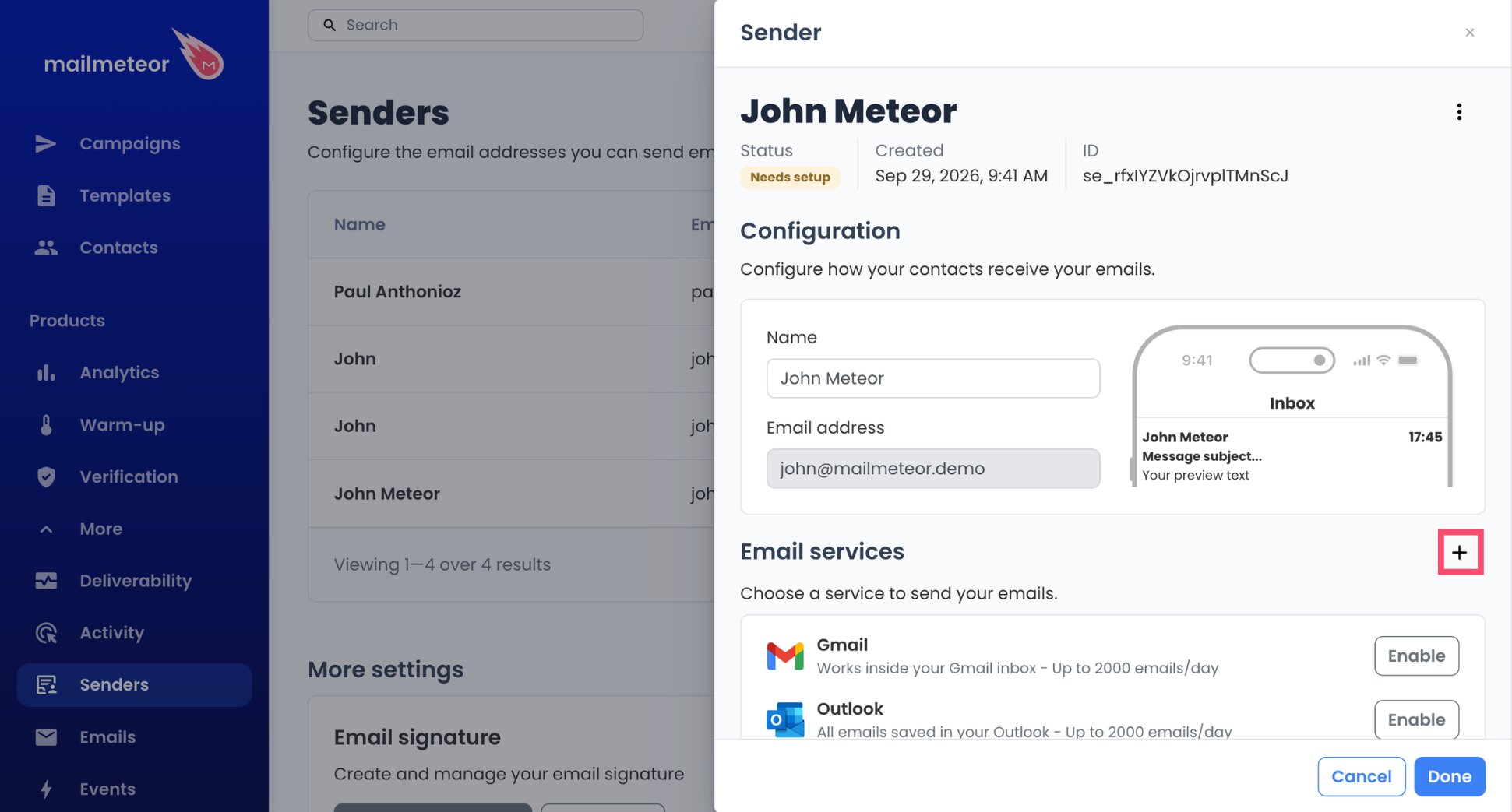
- In Email services, hit the + icon.
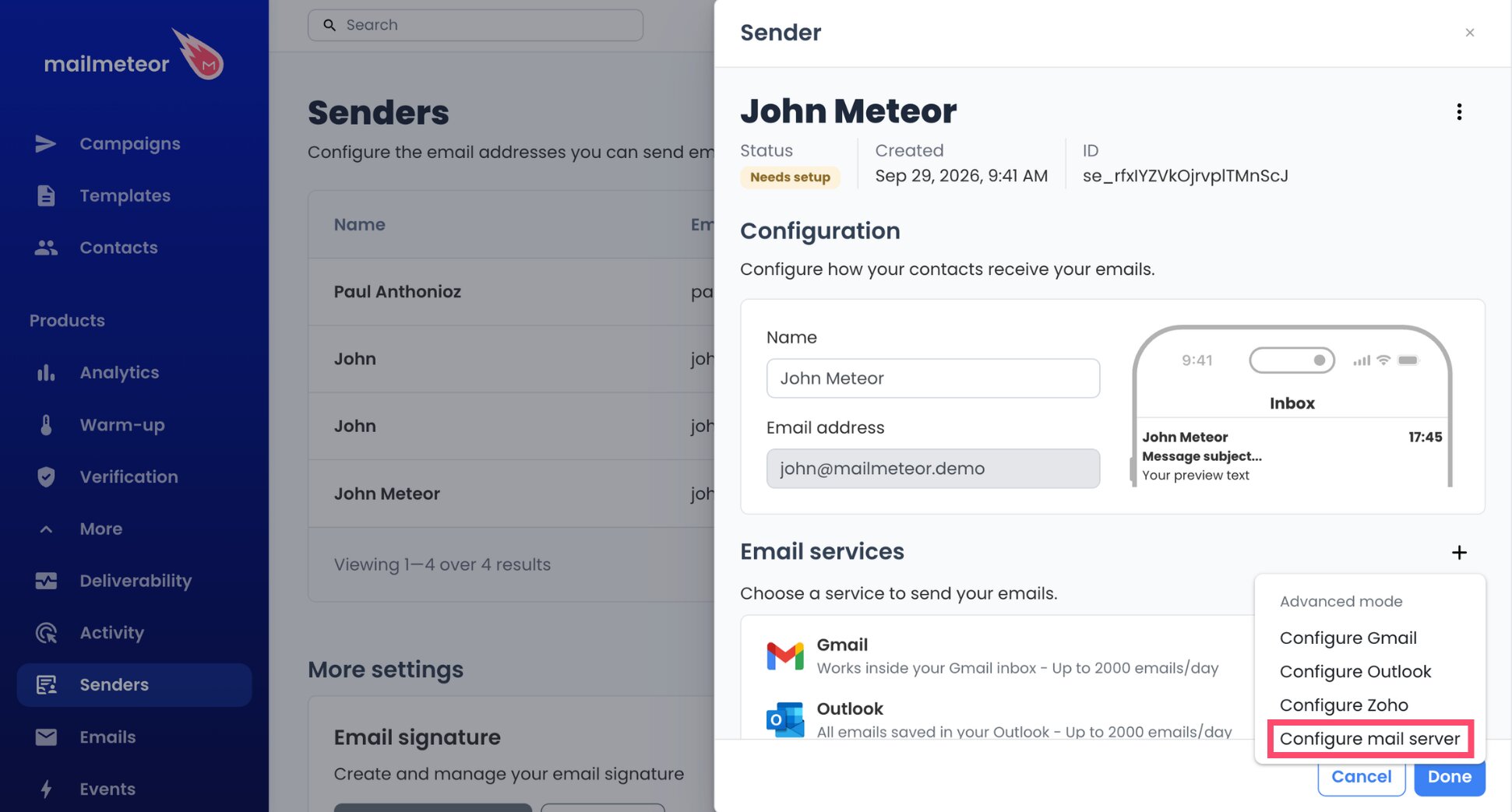
- Click Configure mail server among the options.
- Set the Sending server’s Server name to
smtp.protonmail.ch.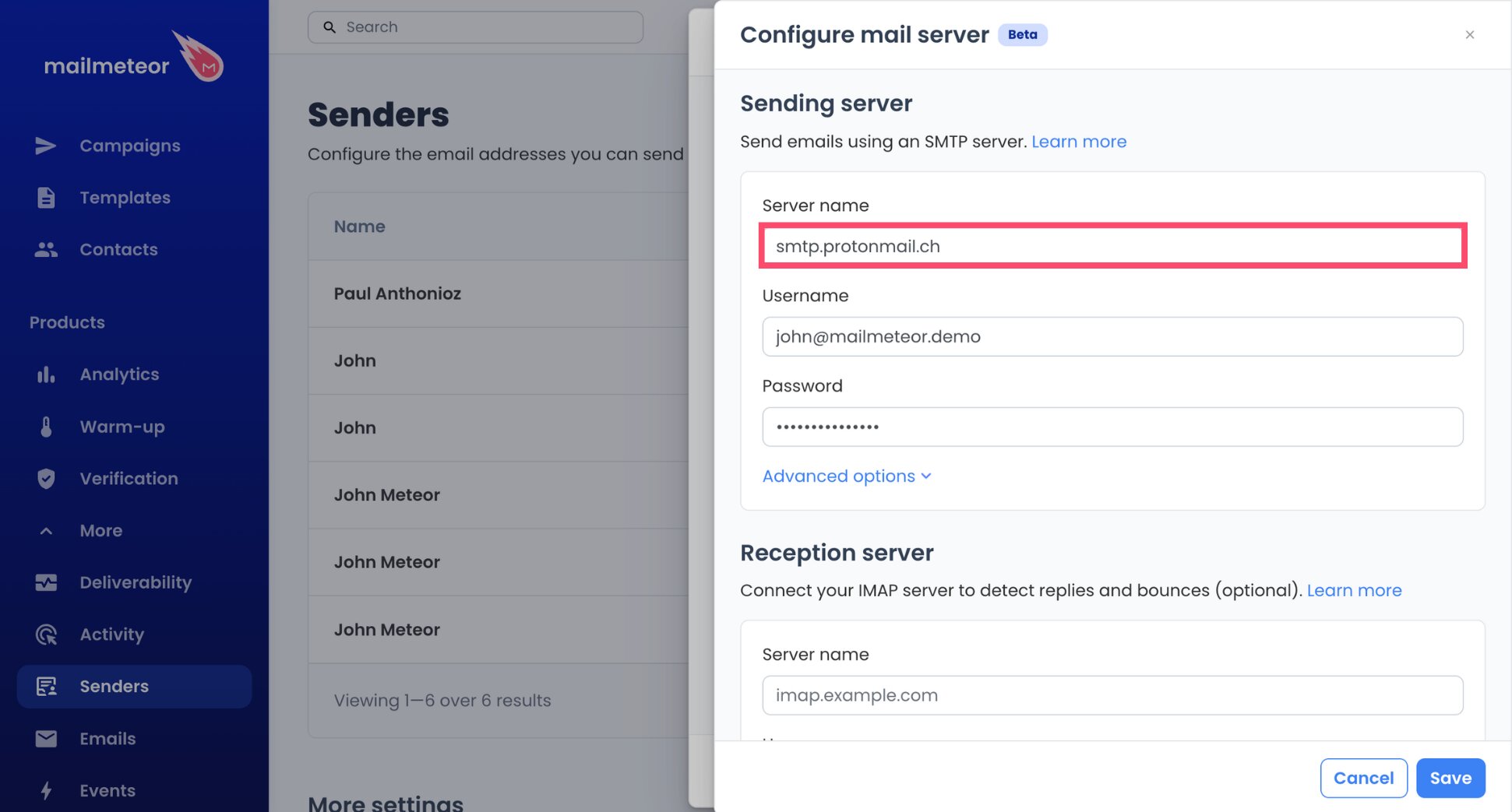
- Paste the SMTP username Proton gave you, which is your custom domain address, into Username.
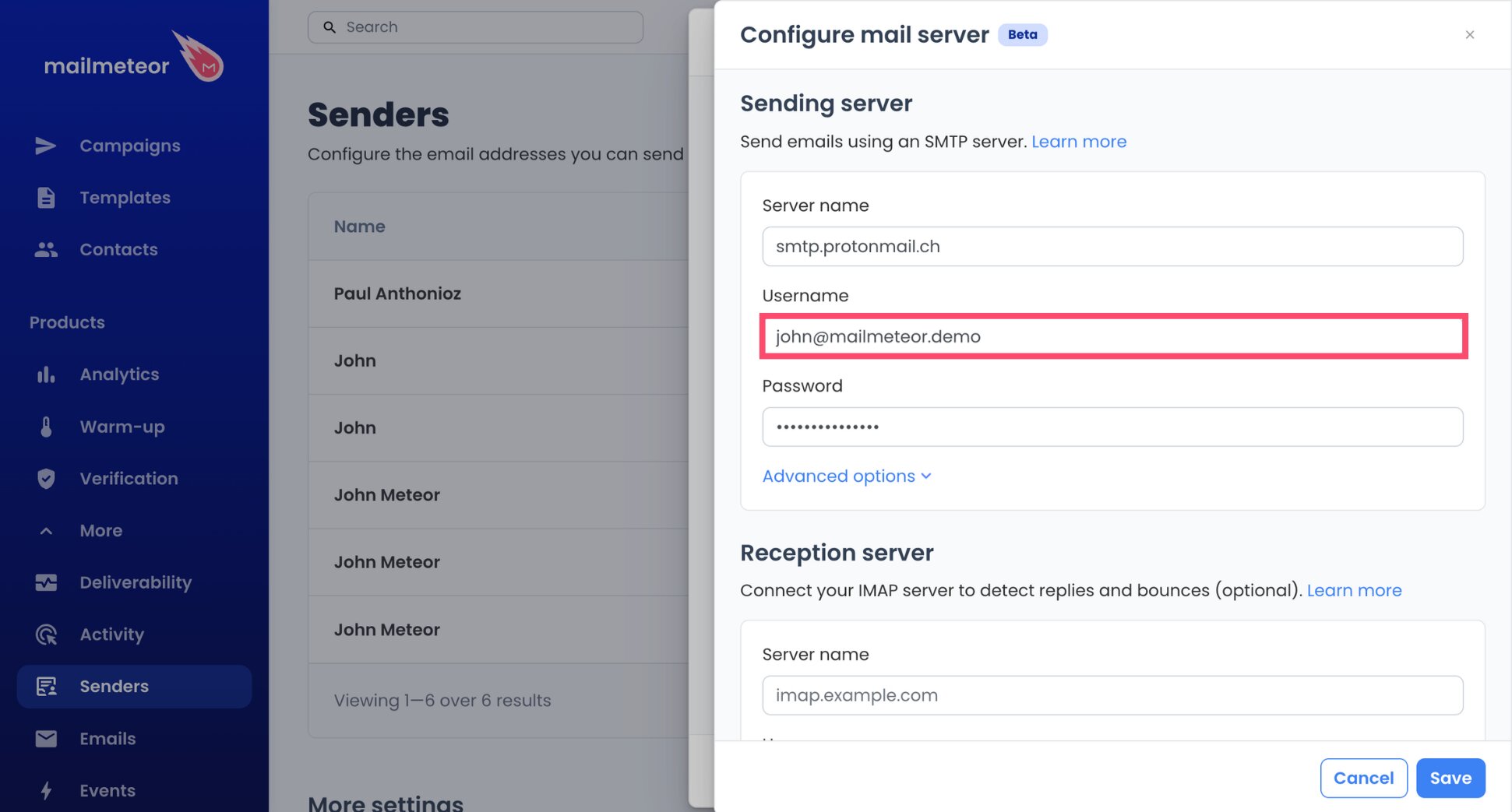
- Paste the SMTP token into Password.
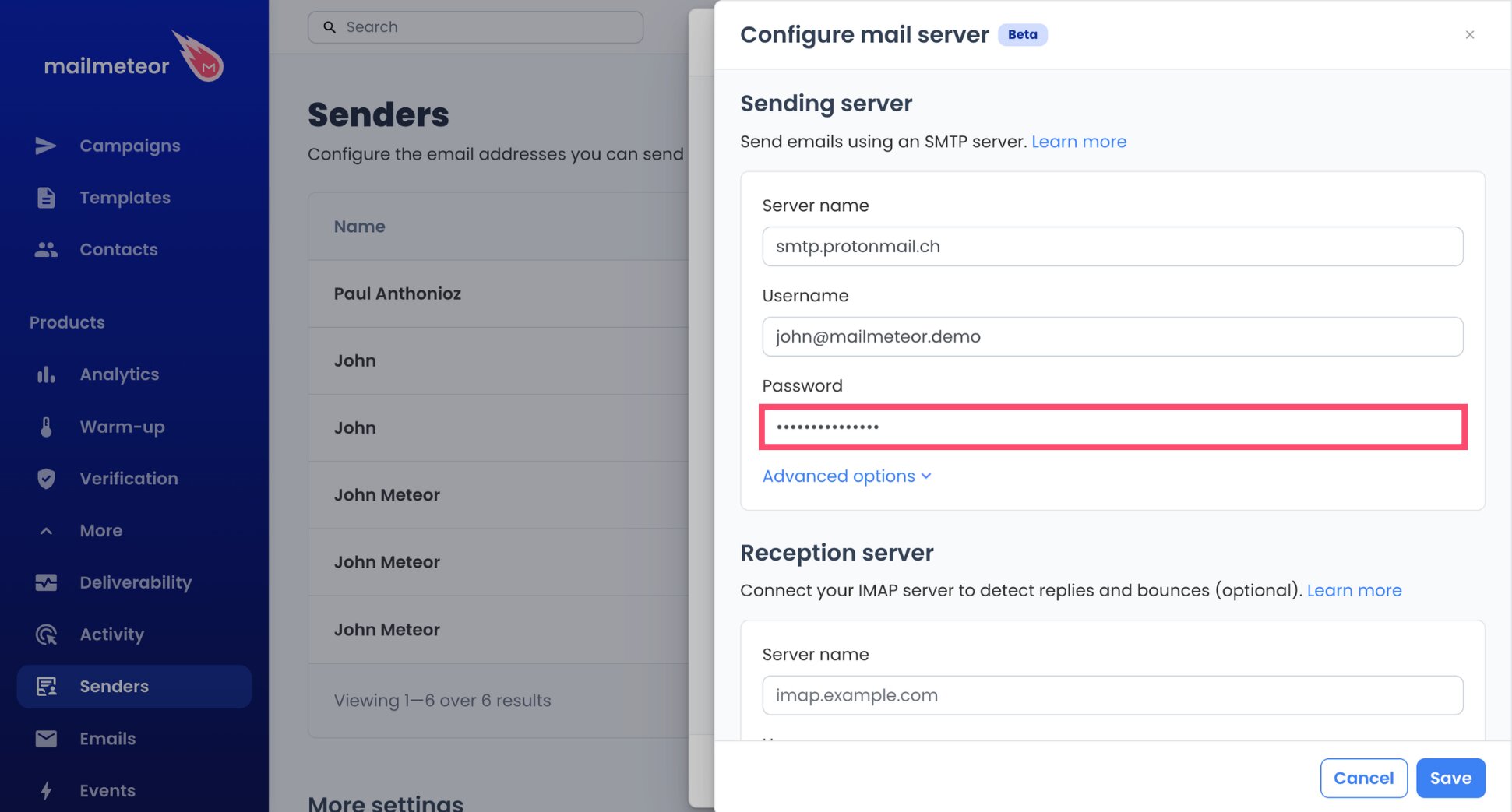
- Open Advanced options, change the port to
587, and leave Security on Auto.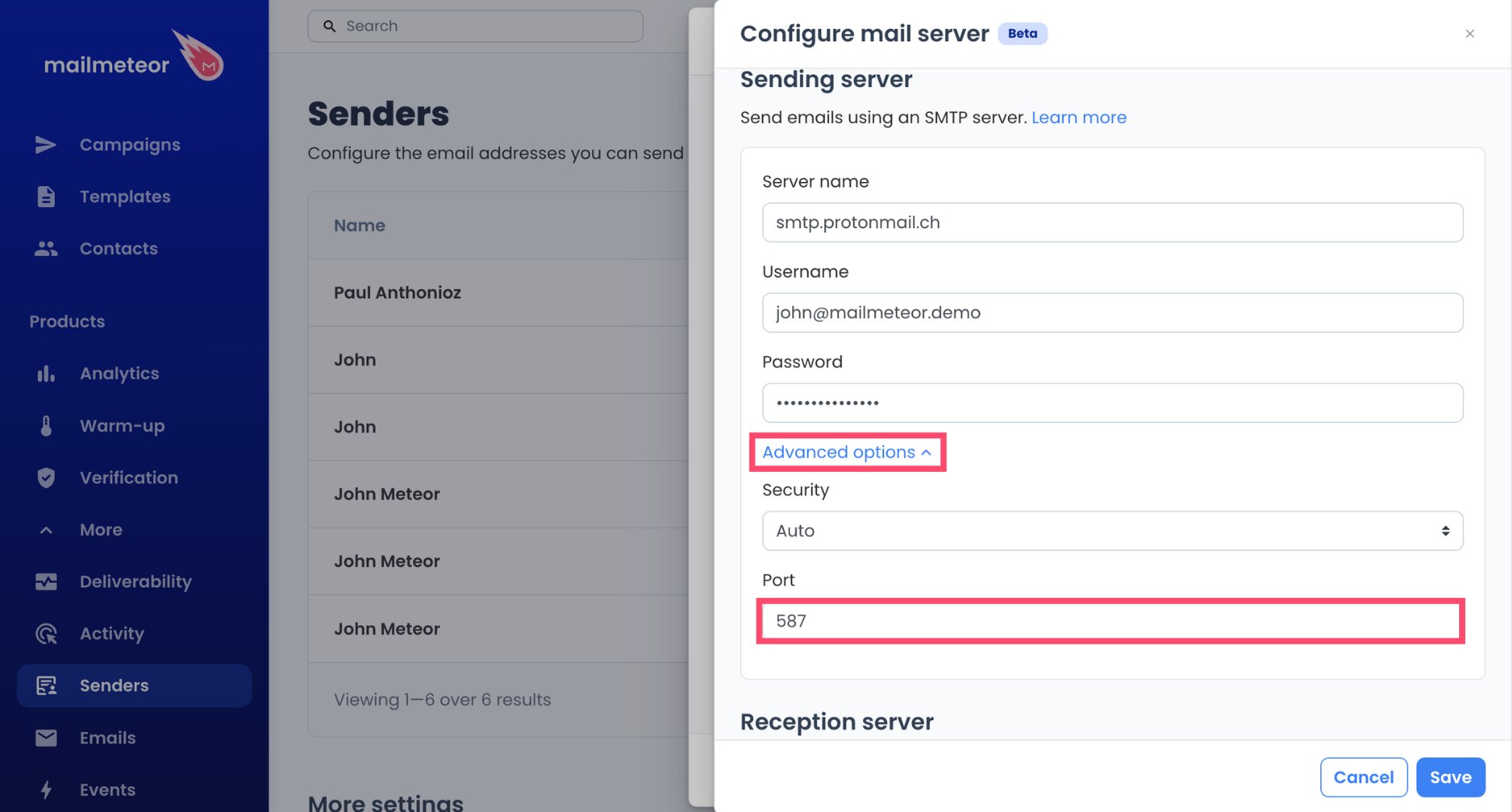
- Leave Reception server empty, then click Save and Done.
And voilà. Mailmeteor can now send through Proton. If the connection fails with Auto, switch Security to TLS, which Proton names as the next best option when STARTTLS isn’t available.
Step 3: Build Your Proton Campaign
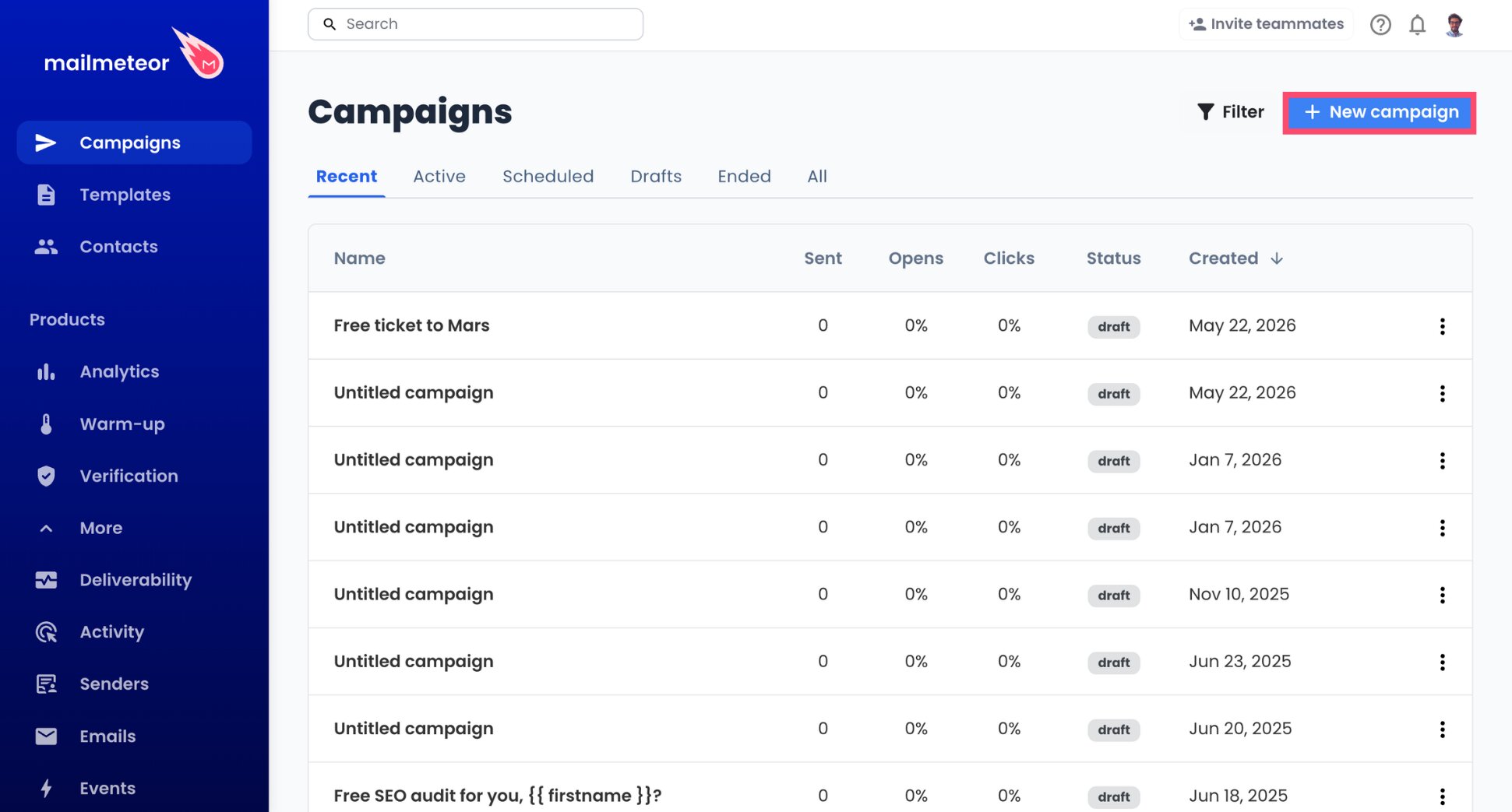
- Create a campaign with the New campaign button.
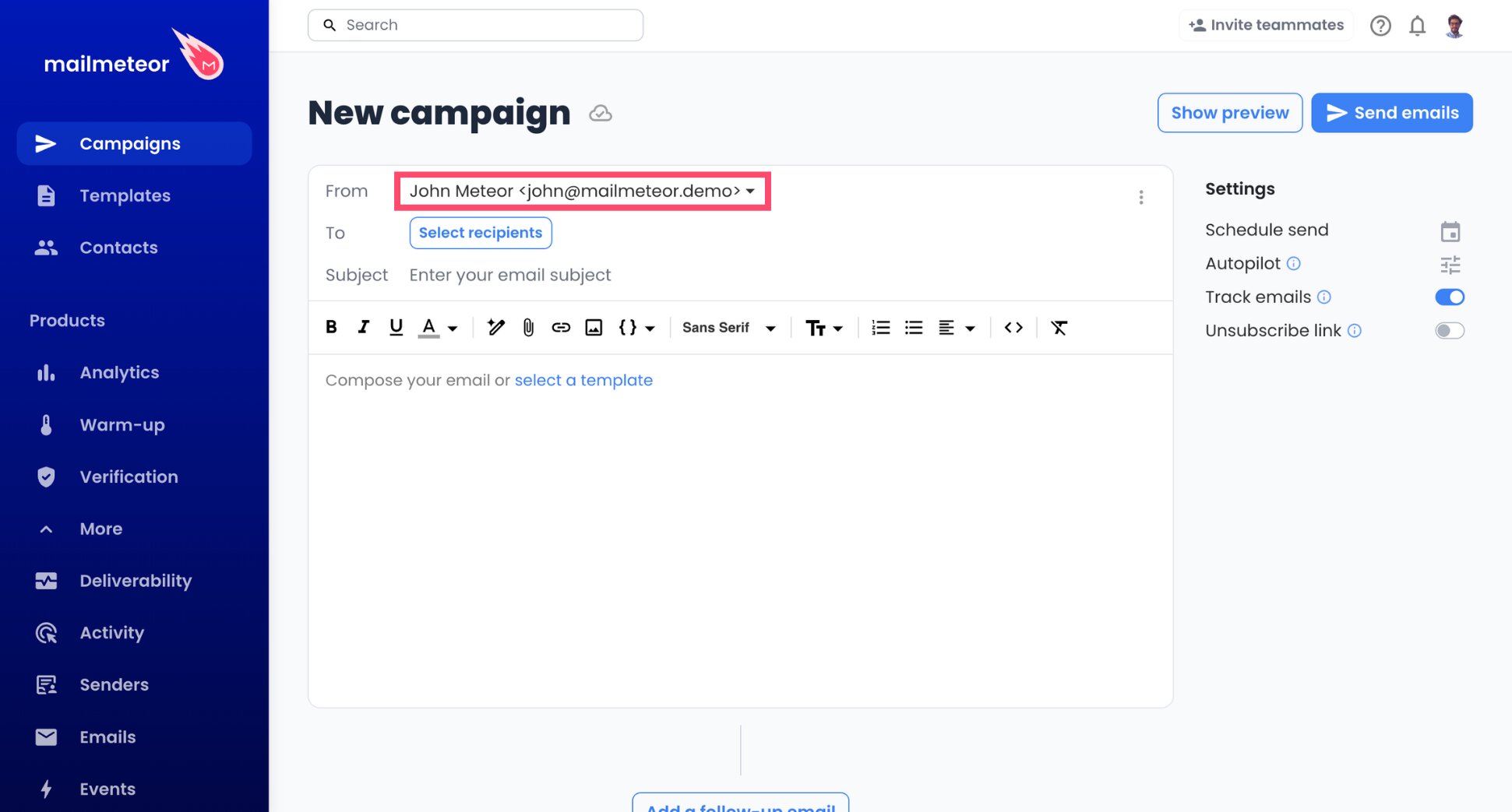
- Pick your Proton address from the From dropdown (▼).
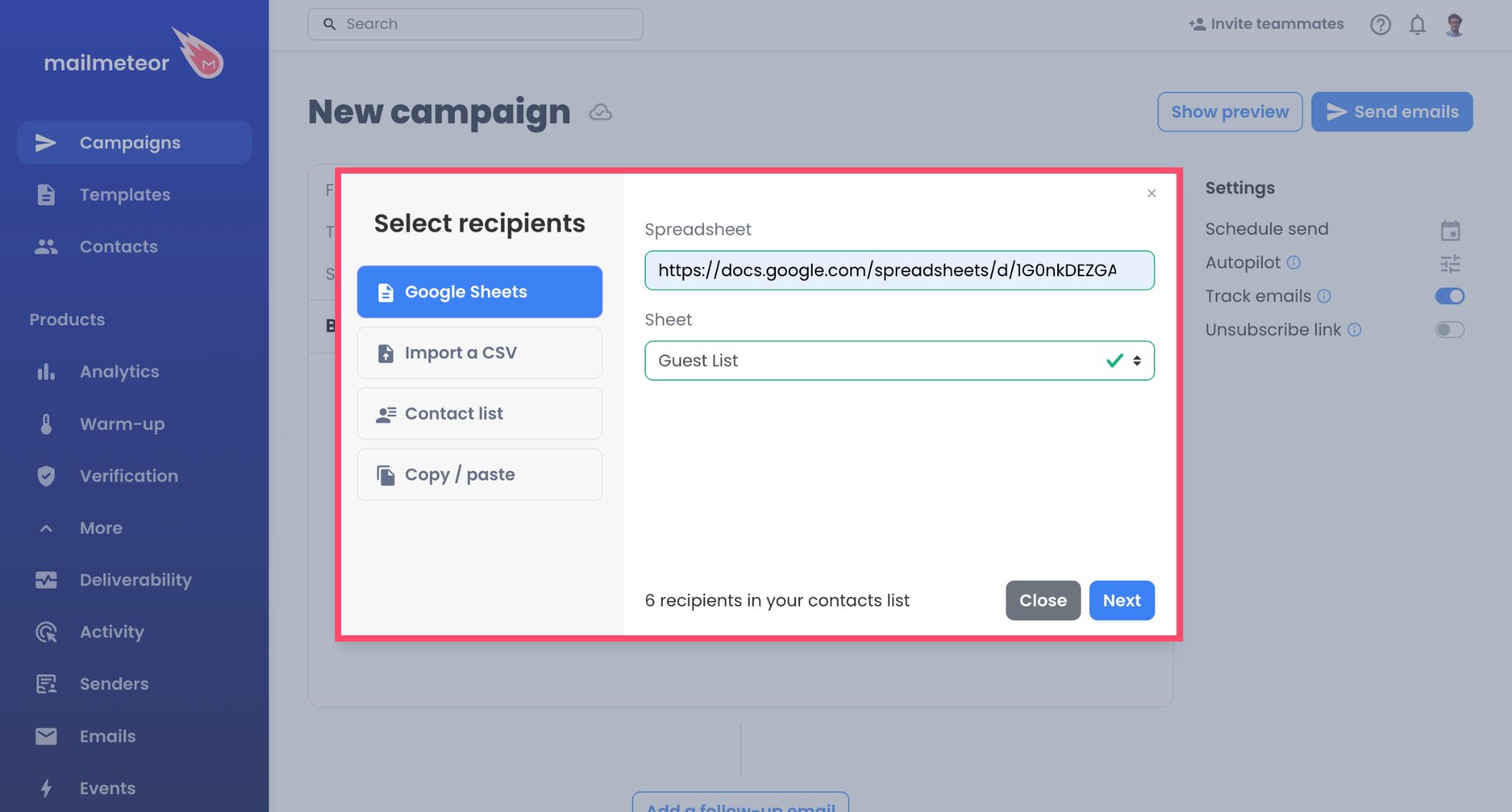
- Import your contacts under Select recipients, whether they’re in a Google Sheet, a CSV file, a saved contact list, or a quick copy-paste.
- Type a subject line, then your email.
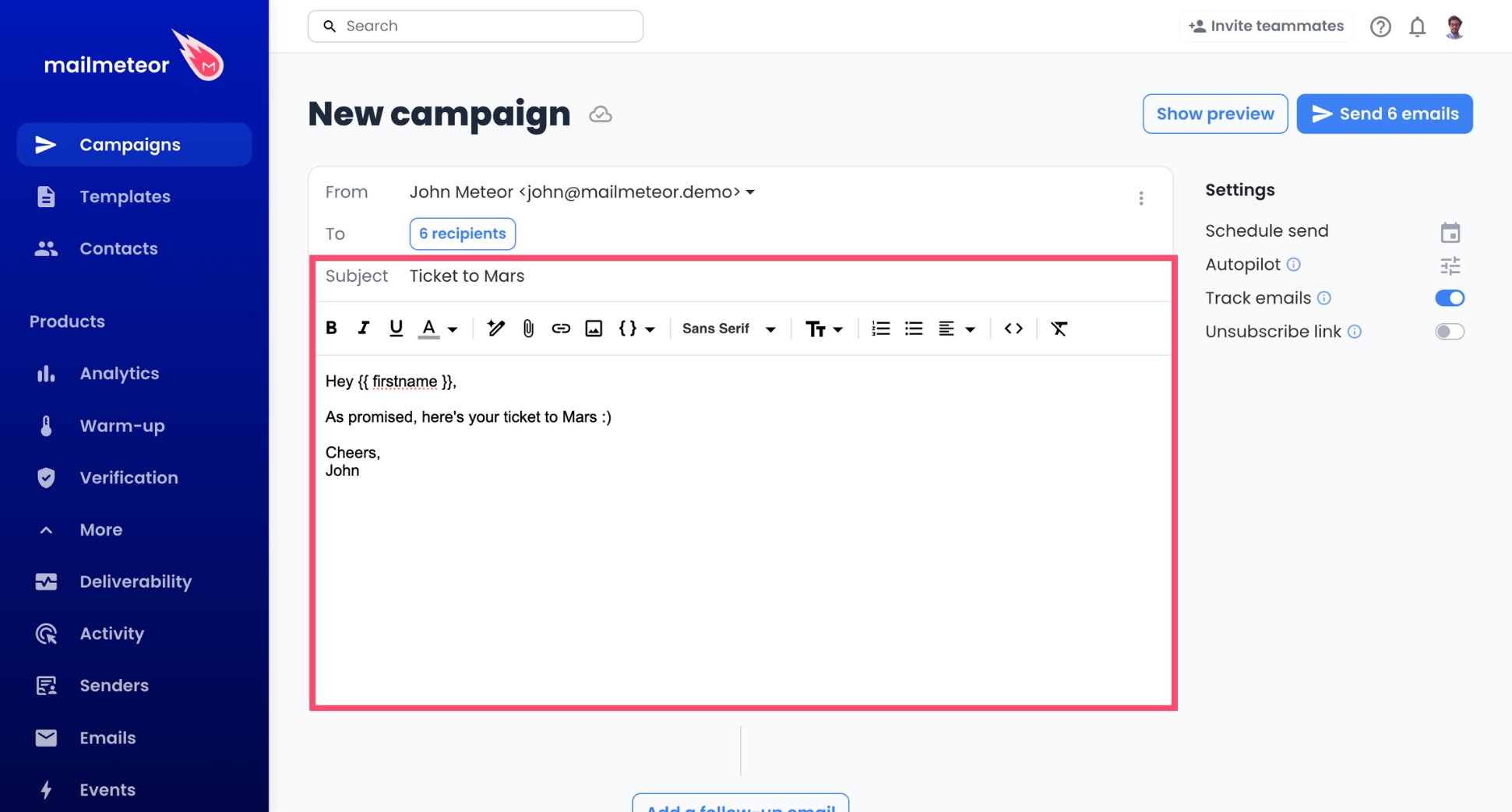
- Personalize the text with variables like
{{ firstname }}, which Mailmeteor replaces with each contact’s details.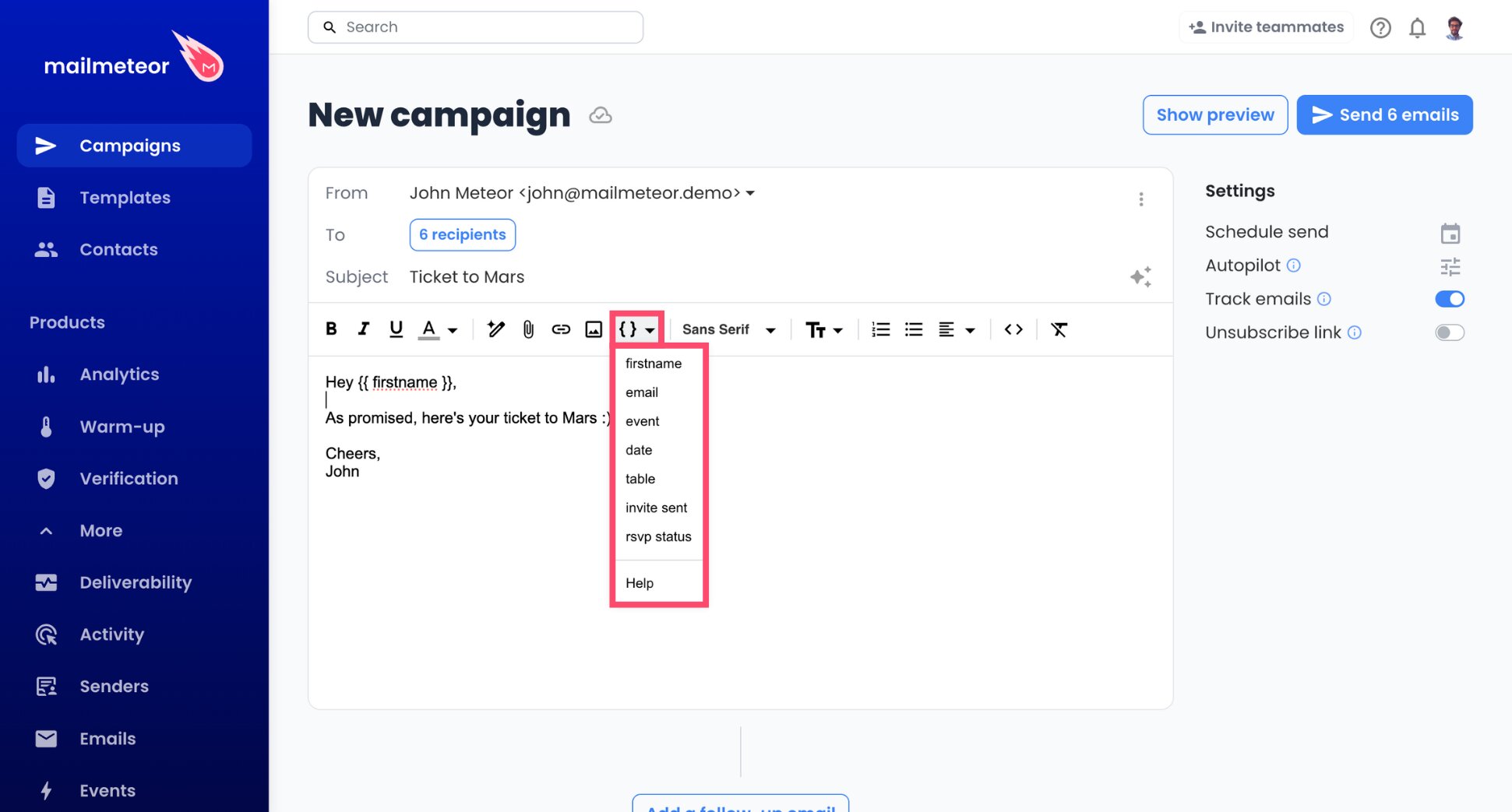
- Check a handful of recipients in Preview before moving on.
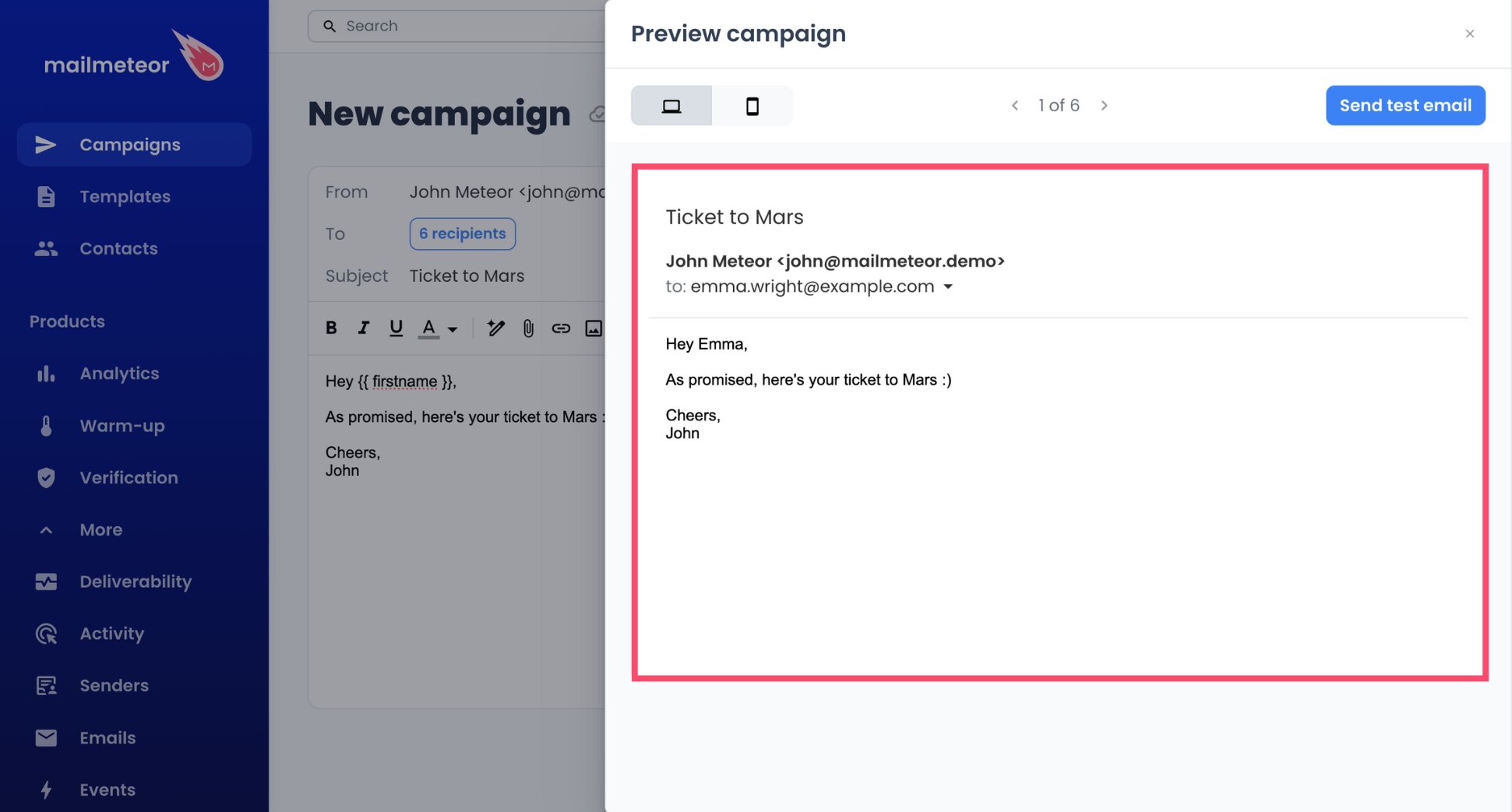
Proton caps a single email at 100 recipients, but that doesn’t matter here because each contact receives their own message. What does count is the total, since Proton adds every recipient to your sending tally.
Step 4: Let Autopilot Set the Pace
Proton adjusts each paid account’s sending limit to its reputation, and a slow, steady campaign is the safest way to build one. Autopilot takes care of the pacing.
- Switch to your campaign’s Autopilot settings.
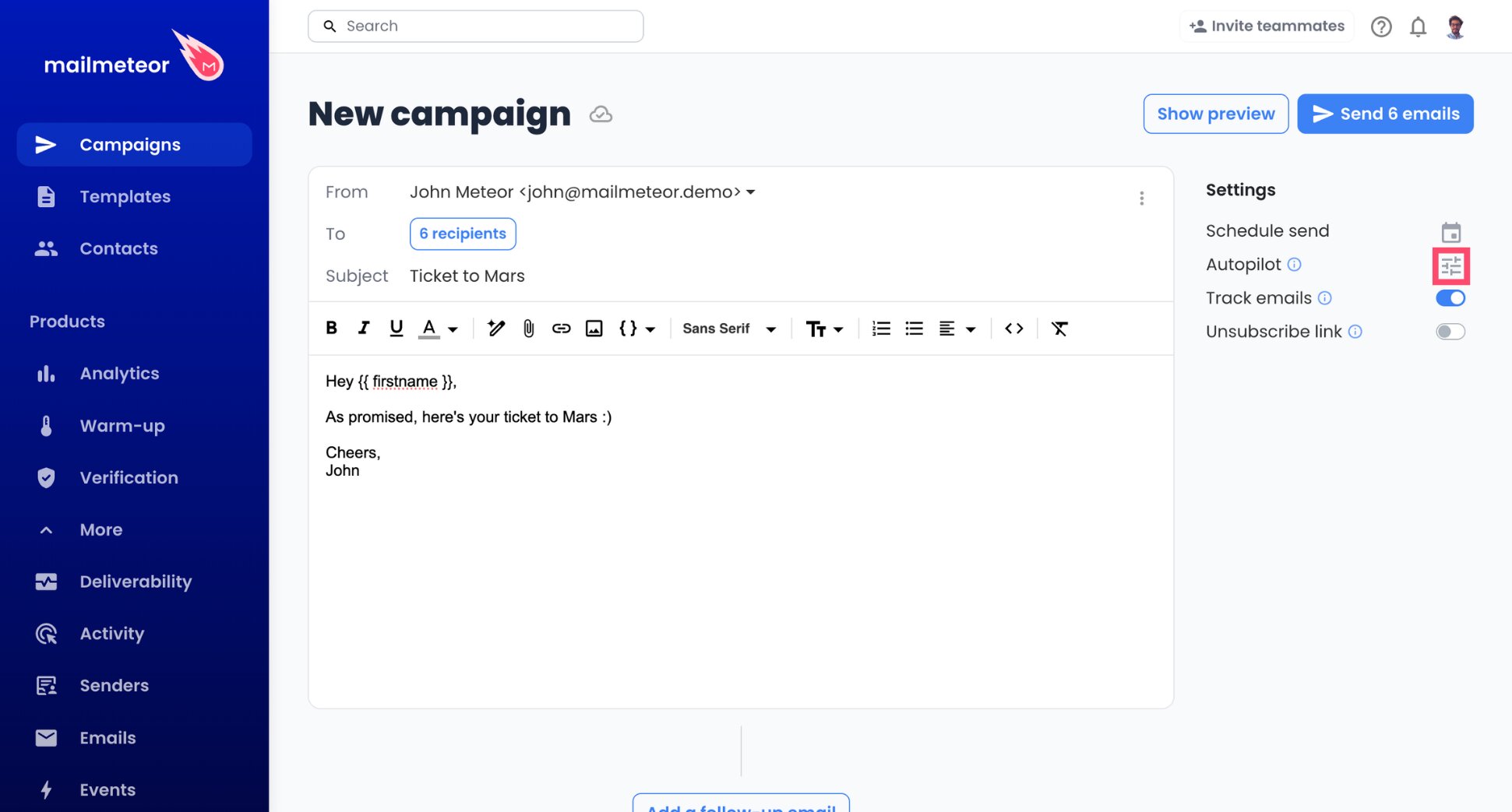
- Define when emails may go out, such as Tuesday to Thursday, from 10 AM to 4 PM.
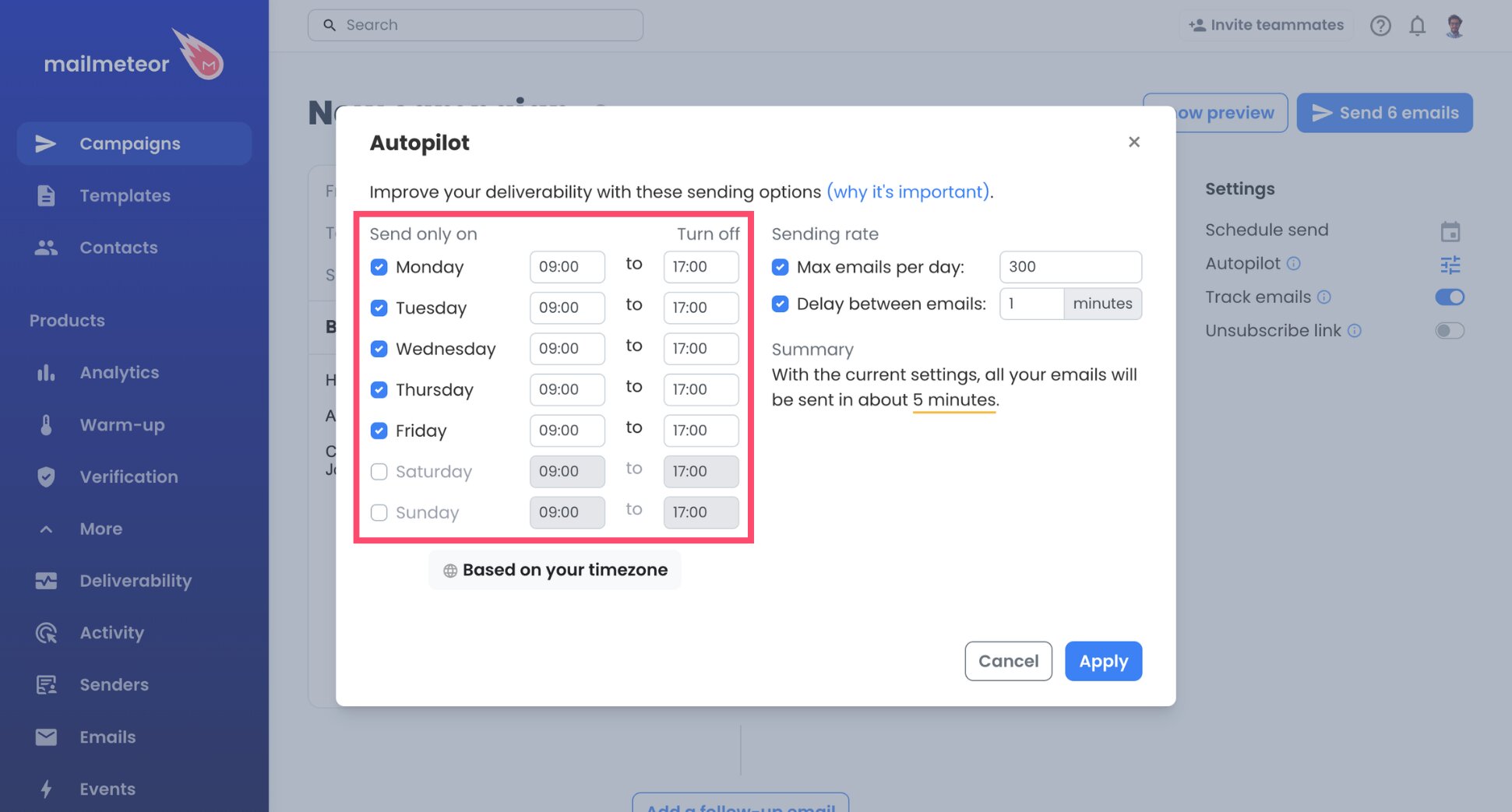
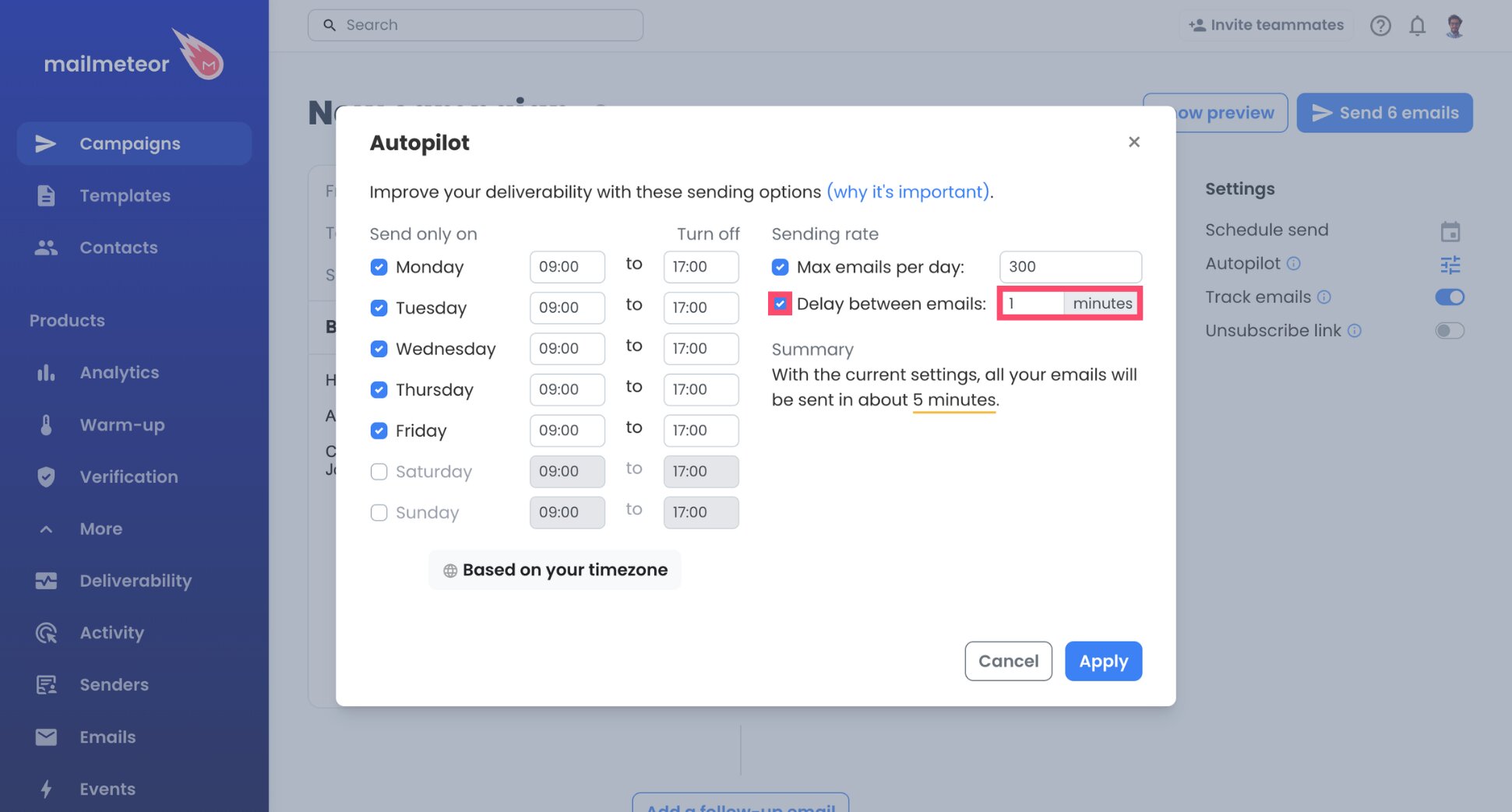
- Space the emails at least one minute apart. Longer gaps help: a steady trickle builds reputation better than a burst.
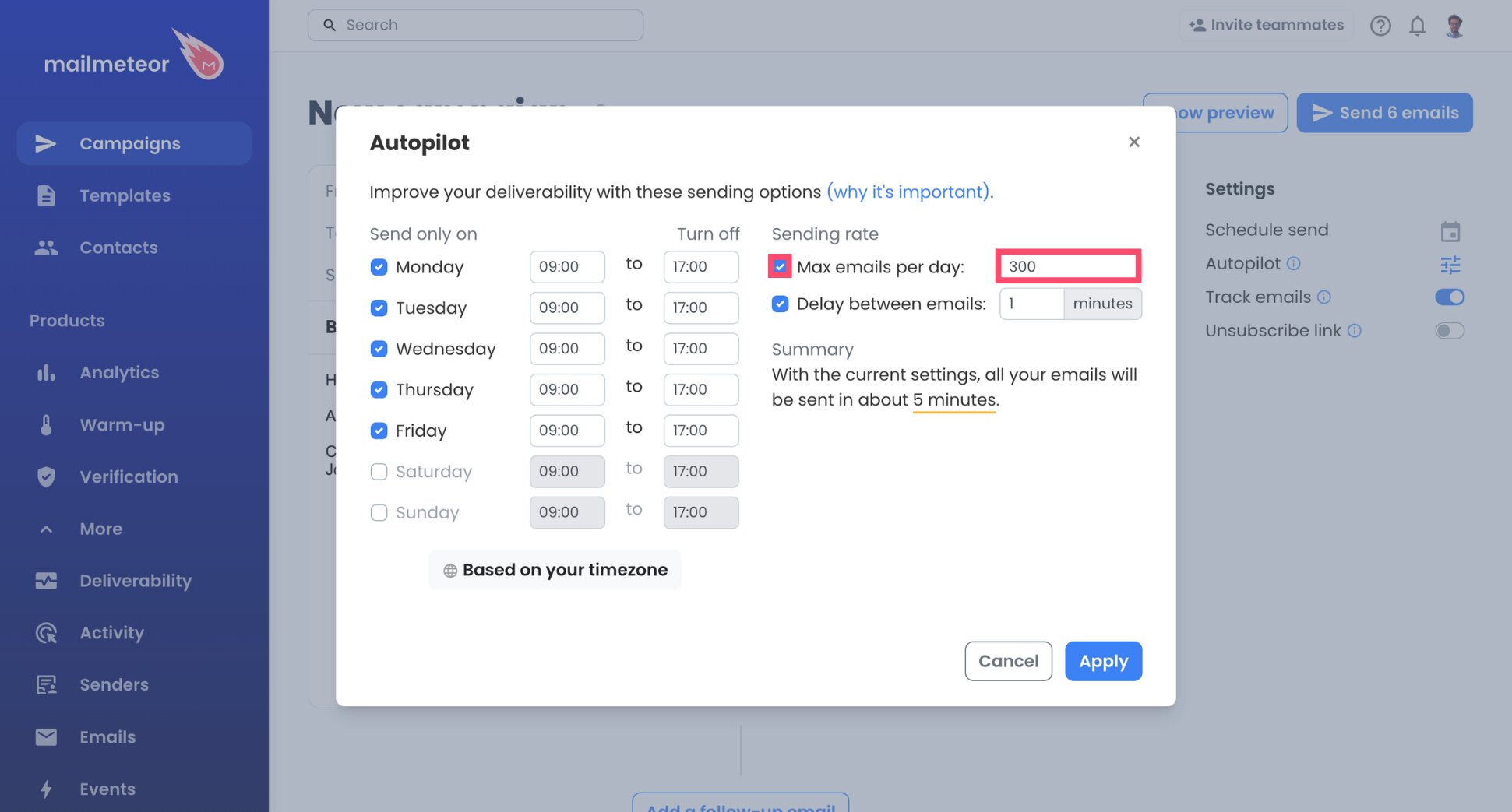
- Start with a modest daily limit, around 30 to 50, and raise it only after a few campaigns have gone out without bounces or warnings.
- Save your settings with Apply.
Every email your Proton account sends counts toward its limit, whether it leaves from Mailmeteor or from the Proton app.
Step 5: Test, Then Launch
- Send a test email to your own inbox.
- Check the layout, the links, and the merged fields.
- Open your Proton Sent folder. Seeing the test there confirms Mailmeteor is sending through Proton.
- Click Send emails to start the campaign.
All done. Every email your campaign sends lands in your Proton Sent folder, and opens and clicks show up in the Mailmeteor Dashboard.
Proton Mail SMTP Settings
Here’s the configuration Proton publishes for its SMTP service:
| Setting | Value |
|---|---|
| SMTP server | smtp.protonmail.ch |
| Port | 587 |
| Encryption | STARTTLS |
| Username | Your SMTP username (your custom domain address) |
| Password | Your SMTP token |
| IMAP server | Not available to online apps (Proton Mail Bridge only) |
In Mailmeteor, the port is the one setting you need to change by hand. Keep Security on Auto, and try TLS only if the connection fails.
Proton Mail Sending Limits
Proton sets its limits to protect its IP reputation. Here’s what its sending limits page says:
| Plan | Sending limit | Recipients per email |
|---|---|---|
| Proton Free | 50 emails per hour, 150 per day | 100 |
| Paid plans | Varies with your account’s reputation | 100 |
Proton counts each recipient as one email, so an email to 10 people uses 10 from your limit. SMTP requires a paid plan, so the reputation-based limit is the one that applies. Proton doesn’t publish a number for it, and a new or rarely used account should expect a lower ceiling than an established one.
When you hit a limit, Proton shows “Hourly external limit reached” or “Daily external limit reached”, and you’ll need to wait before sending again. Separately, Proton’s spam detection can stop an account from sending for up to 48 hours if it sends spammy or undeliverable emails, and repeated warnings lead to an account review.
Your Mailmeteor plan limits work on top of Proton’s, and the stricter of the two sets your pace.
How to Keep Your Proton Emails Out of Spam
Proton’s servers have a solid reputation, but your domain, your list, and your writing still decide where your emails land ⤵️
Keep Bounces Near Zero
On Proton, bounces carry an extra risk. Undeliverable emails are one of the triggers for its temporary sending ban. Check your contacts with our free Email Checker before each campaign, or let Mailmeteor’s email verification remove invalid addresses for you.
Write for One Reader at a Time
Emails that look written for a single person get past spam filters more easily than ones that look like a newsletter:
- Mention something specific to each contact, beyond their first name.
- Avoid spam words like “free”, “guaranteed”, or “act now”, especially in the subject line.
- Keep the layout plain: short paragraphs, one or two links, and few or no images.
- Add an unsubscribe link to promotional emails, so people can opt out instead of reporting you.
Before launching, paste your draft into our free Spam Checker to catch risky wording. Mail-Tester also gives you a temporary address to send your test to, then reports what could hurt its delivery.
Build Your Sending Reputation Gradually
Proton raises or lowers paid limits based on how your account behaves, so volume should grow slowly. Begin with small daily batches, watch for bounces and Proton warnings, and increase over several weeks. Mailmeteor’s email warm-up can help establish your reputation before a bigger send.
How to Fix Proton Mail SMTP Errors
With Proton, most problems come from the plan, the address, the token, or the port. Match what you see to the table below ⤵️
| Problem | Likely cause | Fix |
|---|---|---|
| No SMTP tokens section in your settings | You’re on the free plan | Upgrade to a paid Proton Mail plan |
| Your address isn’t available when you generate a token | It’s a @proton.me, @protonmail.com, or @pm.me address | Add a custom domain to Proton, and use an address on it |
| Mailmeteor says authentication failed | You used your Proton password, or the token was deleted | Paste your SMTP token, or generate a new one in SMTP tokens |
| Emails are rejected after connecting | The sender address doesn’t match the token’s address | Use exactly the address paired with the token in your Mailmeteor sender |
| The connection times out | The port is still set to 465 | Open Advanced options, set the port to 587, and keep Security on Auto, or switch to TLS if it still fails |
| “Hourly external limit reached” | Too many emails in an hour | Wait an hour, then lengthen the gap between emails in Autopilot |
| “Daily external limit reached” | Your daily allowance is used up | Lower your Autopilot daily limit, and resume the next day |
| Sending is blocked for up to 48 hours | Proton flagged spammy or undeliverable emails | Wait for the block to lift, then clean your list and slow down |
| Replies don’t show up in Mailmeteor | Proton doesn’t offer IMAP to online apps | Read and manage replies in your Proton inbox |
Still stuck? Test your settings with our SMTP Test Tool, or read Mailmeteor’s mail server documentation.
Send Bulk Emails From Proton Mail Without Switching Providers
You chose Proton to keep your email private, and you don’t have to give that up to reach all your clients at once. With a paid plan, a custom domain, and an SMTP token, your Proton address can carry real campaigns. Proton takes care of your mailbox, and Mailmeteor brings the tools to send at scale:
📬 Send every client a personalized message, from your own domain
⏰ Let Autopilot pace each campaign while your Proton reputation grows
📊 Track opens and clicks to see which contacts are interested
✅ Verify your list before sending, so bounces don’t trigger Proton’s spam alarms
🗓️ Schedule campaigns for the days and hours that suit your contacts
Try Mailmeteor for Proton Mail today (it’s free!) and send personalized campaigns without leaving your privacy-first provider.
Frequently asked questions
Can you do a mail merge in Proton Mail?
Not with Proton Mail alone, since its apps send the same message to every recipient. On a paid plan with a custom domain, you can connect a mail merge tool like Mailmeteor through Proton’s SMTP service. Each contact then receives a separate, personalized email from your address.
Does Proton Mail support SMTP?
Yes, on all paid Proton Mail plans, for custom domain addresses only. You generate an SMTP token in your Proton settings and use it as the password in the other app. Free accounts can’t use SMTP. And @proton.me addresses can only use SMTP through Proton Mail Bridge, which runs locally on a computer.
What is the Proton Mail SMTP server?
The Proton Mail SMTP server is smtp.protonmail.ch, on port 587 with STARTTLS. The username is the SMTP username Proton shows with your token, which is your custom domain address. The password is the SMTP token itself.
How many emails can I send per day with Proton Mail?
On the free plan, Proton allows 50 emails per hour and 150 per day. On paid plans, the limit depends on your account’s reputation, and Proton doesn’t publish a fixed number. Every recipient counts as one email, and one email can include up to 100 recipients.
Can I send mass emails from a @proton.me address?
Not through SMTP. Proton reserves SMTP tokens for addresses on your own domain, so @proton.me, @protonmail.com, and @pm.me addresses can’t connect to online tools this way. To send email campaigns from Proton, add a custom domain to your paid Proton plan first.
Why can’t Mailmeteor detect replies from Proton Mail?
Proton only provides IMAP access through Proton Mail Bridge, a desktop app that decrypts your mail on your own computer and serves it to programs on that same computer. Online tools like Mailmeteor can’t connect to it. Replies still reach your Proton inbox, and you can read them there as usual.
Are emails sent through Proton’s SMTP end-to-end encrypted?
No. Emails sent through Proton’s SMTP service aren’t end-to-end encrypted. Proton still stores them in your mailbox with zero-access encryption, like your other emails, and they appear in your Sent folder.