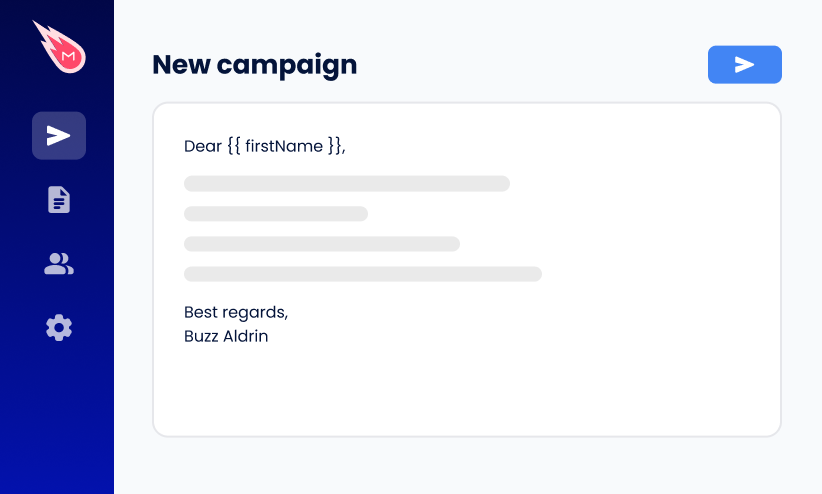
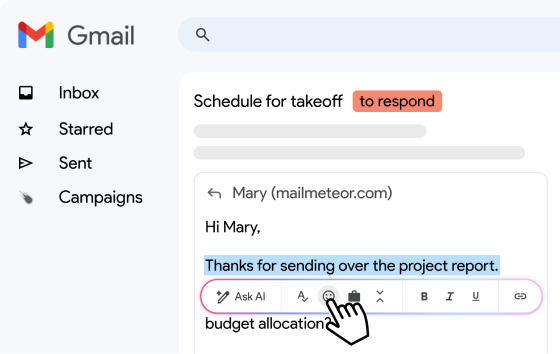
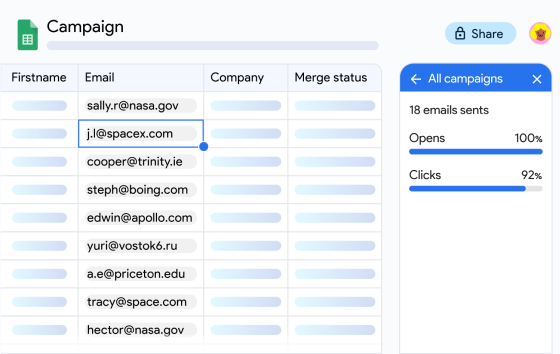
Need to send the same email to 100 clients, club members, or prospects from your Yahoo address, with each message personalized with their name and a custom line? Yahoo Mail doesn’t support mail merge, and sending an email to a large number of recipients in BCC is one of the behaviors Yahoo lists as a reason to temporarily block your account from sending.
The easiest fix is to connect your Yahoo account to Mailmeteor through SMTP, the protocol email apps use to send messages. Mailmeteor is a mail merge tool used by 7 million people and rated 4.9 stars out of 10K+ reviews. Once it’s connected, every contact receives their own personalized email from your Yahoo address, rather than one shared BCC message.
This guide shows you how to create the app password Yahoo requires, walks you through the SMTP settings, explains Yahoo’s sending limits, and shows you how to send your first email campaign.
- Generate an app password – Yahoo requires one to connect third-party tools like Mailmeteor.
- Add your Yahoo address as a sender – You only do this once, in the Mailmeteor Dashboard.
- Connect SMTP and IMAP – Enter
smtp.mail.yahoo.com(SMTP) andimap.mail.yahoo.com(IMAP) with your app password. - Pace your sending – Unlike other email providers, Yahoo doesn't publish its sending limits, so space out your emails and start small.
- Check before you launch – Preview your campaign and send yourself a test email first.
Here’s what we’ll cover:
- Why send mass emails from Yahoo Mail?
- What you need to send mass emails from Yahoo Mail
- How to create a Yahoo app password
- How to send mass emails from Yahoo Mail with Mailmeteor
- Yahoo Mail SMTP and IMAP settings
- Yahoo Mail sending limits
- How to keep your Yahoo emails out of spam
- How to fix Yahoo SMTP connection errors
Sounds good? Then let’s dive in.
Why Send Mass Emails From Yahoo Mail?
Plenty of freelancers, small business owners, associations, and clubs have used the same Yahoo address for years, and their contacts trust it. But Yahoo Mail wasn’t built to send campaigns. Here’s why pairing it with Mailmeteor makes sense ⤵️
Keep the Address Your Contacts Know
Your emails arrive from the address your contacts already have in their address book, like [email protected]. When they answer, the reply shows up in your Yahoo inbox, on the web or in the Yahoo Mail app.
Sending through Yahoo’s servers is the only way to keep that address. Yahoo tells email providers to reject @yahoo.com emails that weren’t sent through its servers, so newsletter platforms have to replace your address with one on their own domain.
Mailchimp, for example, turns [email protected] into something like [email protected]. With Mailmeteor, your emails go through Yahoo’s SMTP server, so your recipients see your real address.
Add What Yahoo Mail Lacks
Yahoo Mail can send one email to many people, but it can’t tailor that email to each of them. With Mailmeteor on top, you can:
- Greet each contact by name and add details like their company or their last order.
- Pull your contact list straight from Google Sheets or a CSV file.
- Catch invalid addresses before you send, so fewer emails bounce.
- Add an unsubscribe link, so people can opt out without reporting you as spam, and Mailmeteor stops emailing anyone who does.
- See who opened your email, clicked your link, or replied.
- Plan your sends ahead and let follow-ups go out on their own.
Know the Trade-Off
Yahoo itself points people who regularly send large volumes to a third-party service, and its anti-spam system blocks accounts that send too much, too fast.
| Option | What each recipient gets | Tracking | Best for |
|---|---|---|---|
| Yahoo Mail (BCC) | One identical message, sent to everyone at once | None | Sending to a few people at once |
| Mailmeteor + Yahoo Mail | A personalized email sent from your Yahoo address, with their name and details filled in | Opens and clicks, plus replies and bounces once IMAP is connected | Personal outreach to a few dozen to about a hundred contacts per day |
| Newsletter platform | A personalized email sent from the platform’s servers, with your Yahoo address replaced by one on the platform’s domain | Opens, clicks, and bounces | Regular newsletters to large subscriber lists |
Your Yahoo address works well for personal outreach, such as client updates, event invitations, or messages to club members. For newsletters or more than about a hundred emails a day, a newsletter platform is safer for your account.
What You Need to Send Mass Emails From Yahoo Mail
To send mass emails from Yahoo Mail with Mailmeteor, you’ll need:
- A Yahoo Mail account (@yahoo.com, @ymail.com, or @rocketmail.com).
- A Yahoo app password. Your regular Yahoo password won’t work.
- A Mailmeteor Premium plan or above, which is required to add custom senders like your Yahoo address.
smtp.bizmail.yahoo.com, and you generate the app password from your Yahoo Small Business account. Check Yahoo Small Business help for the matching IMAP settings.
How to Create a Yahoo App Password
Yahoo doesn’t let third-party tools sign in with your regular password. Instead, you generate an app password. A random code that gives one app access to your account. You enter it once in Mailmeteor, and your main password is never shared.
- Sign in to your Yahoo Account Security page.
- Under External connections, click Create app password.
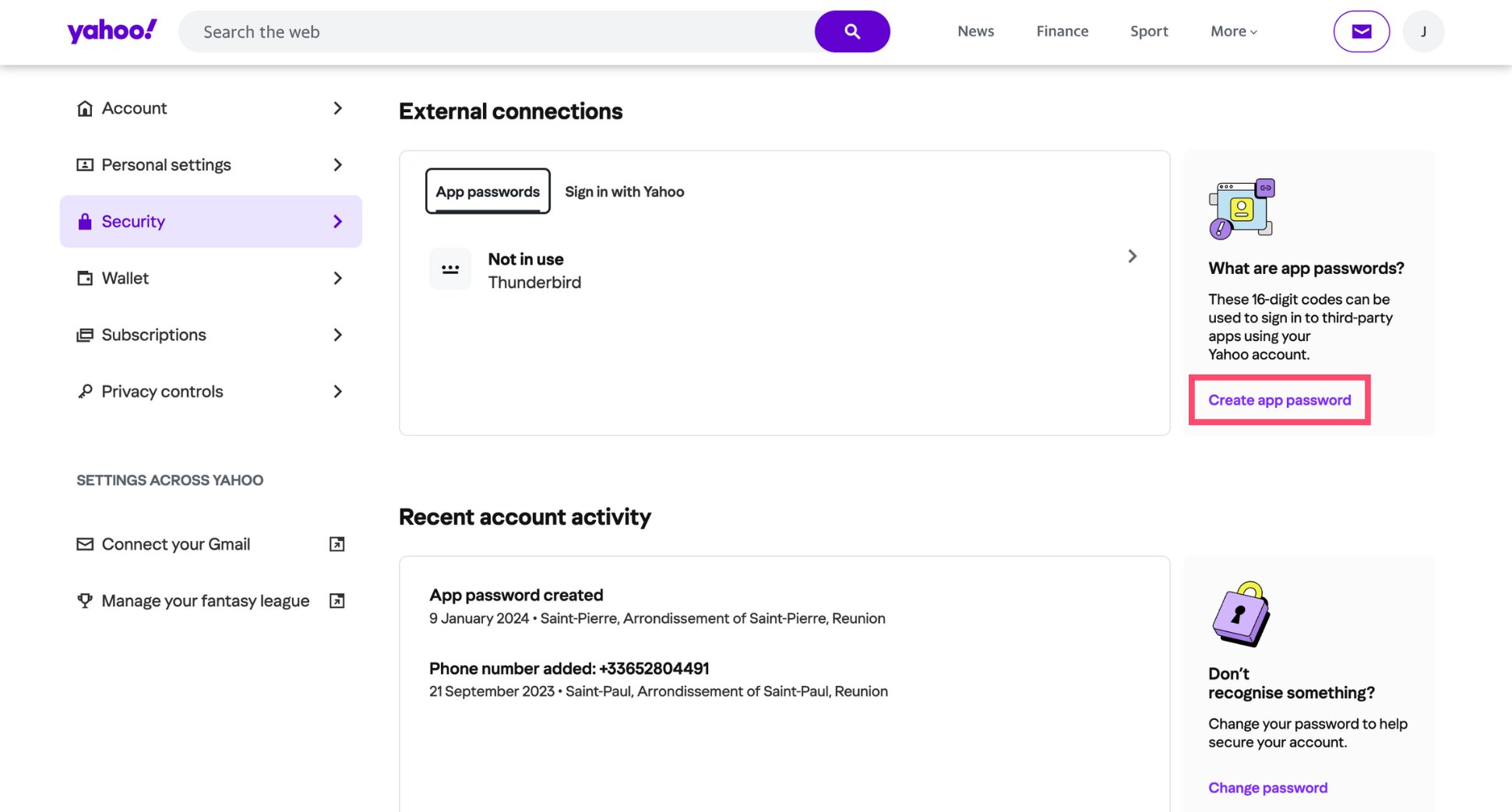
- Enter a name for the app, such as Mailmeteor.
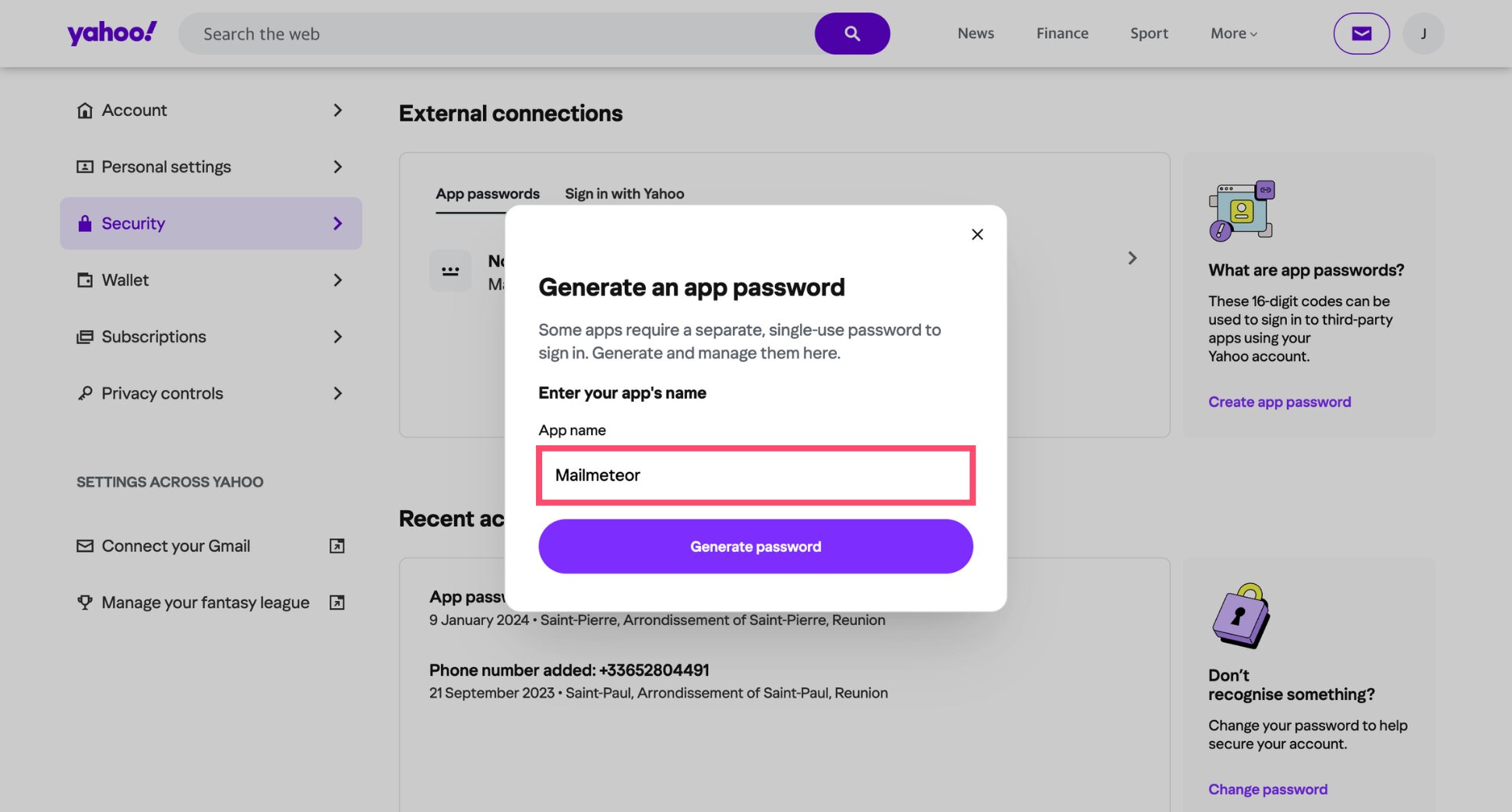
- Click Generate password.
- Copy the password.
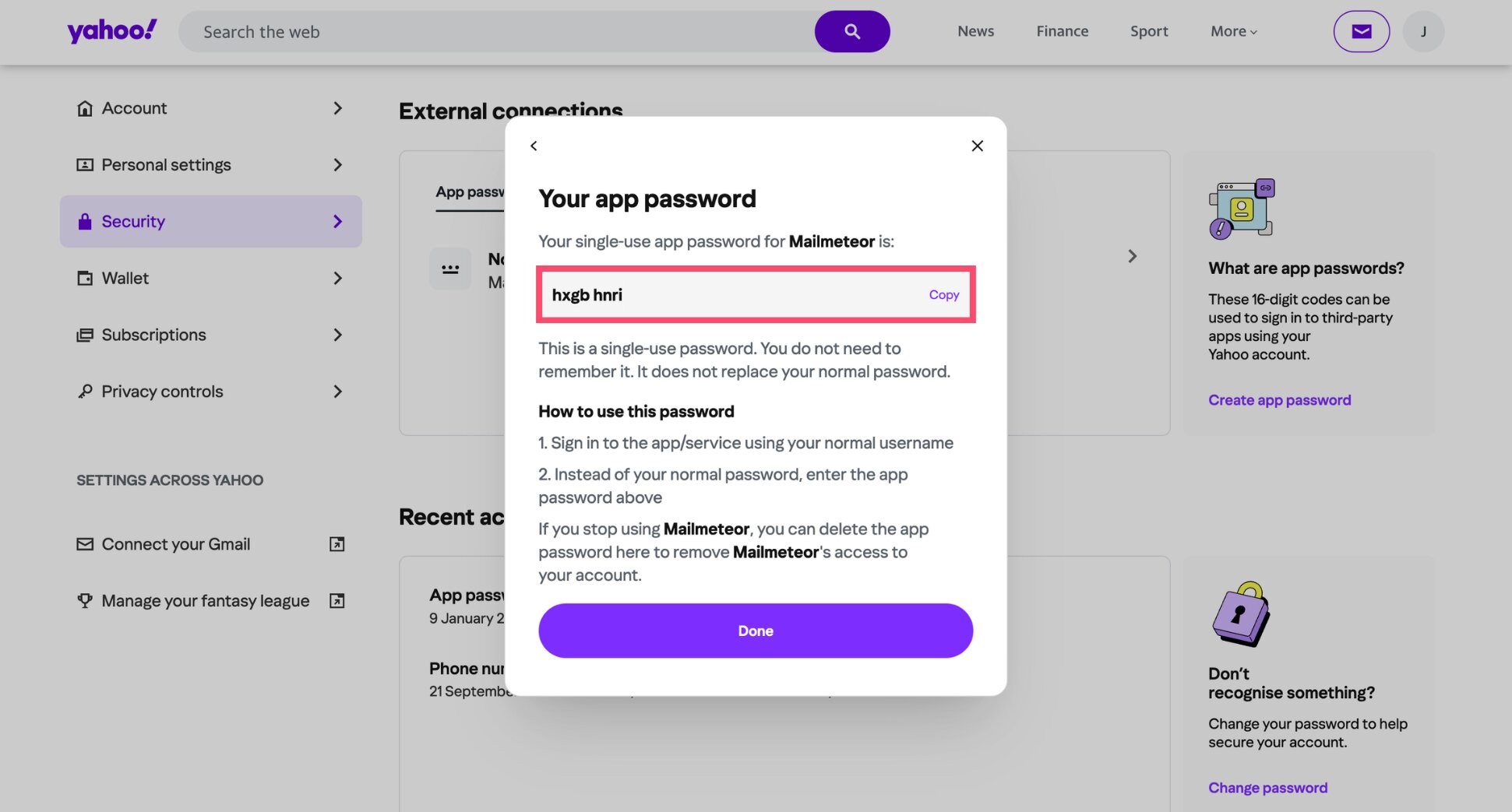
- Click Done.
And that’s it. Keep the password handy for the next steps.
A few things to know:
- Use a browser you sign in with regularly. Yahoo recommends a browser you’ve used to sign in to Yahoo for several days in a row, and not Incognito mode. Otherwise, Yahoo may not let you create an app password.
- Changing your main password doesn’t cancel it. App passwords stay active until you delete them. To disconnect Mailmeteor, delete the app password from the same External connections section.
How to Send Mass Emails From Yahoo Mail With Mailmeteor
With your app password copied, you’re about 5 minutes away from your first email campaign. Your Yahoo address only needs to be set up once. After that, it’s available in every mail merge you create.
Step 1: Add Your Yahoo Address as a Sender
- Open the Mailmeteor Dashboard and sign in.
- Go to Products, then More > Senders.
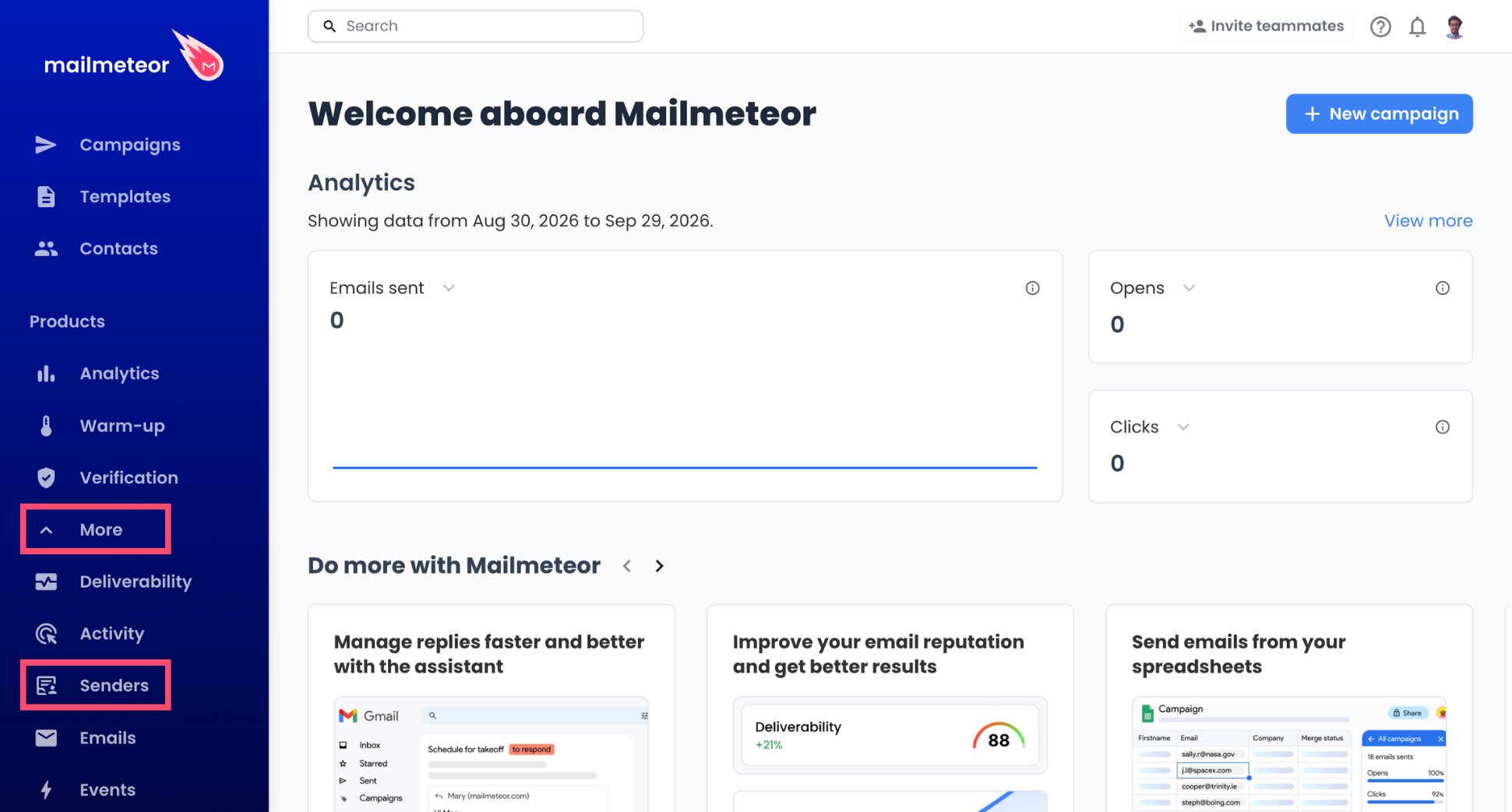
- Hit Add sender to create a new one.
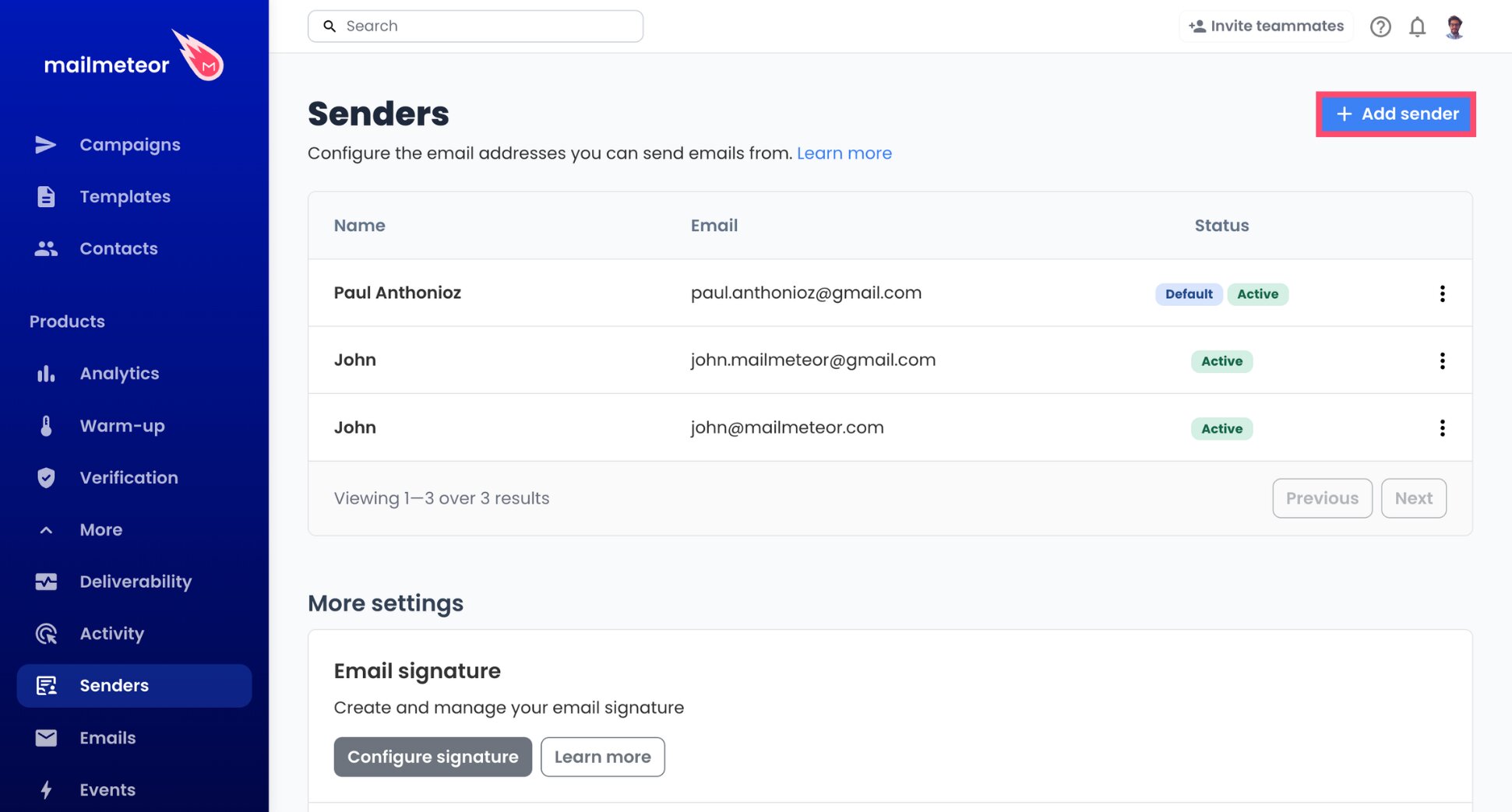
- Type the name your contacts should see, followed by your Yahoo address (@yahoo.com, @ymail.com, or @rocketmail.com).
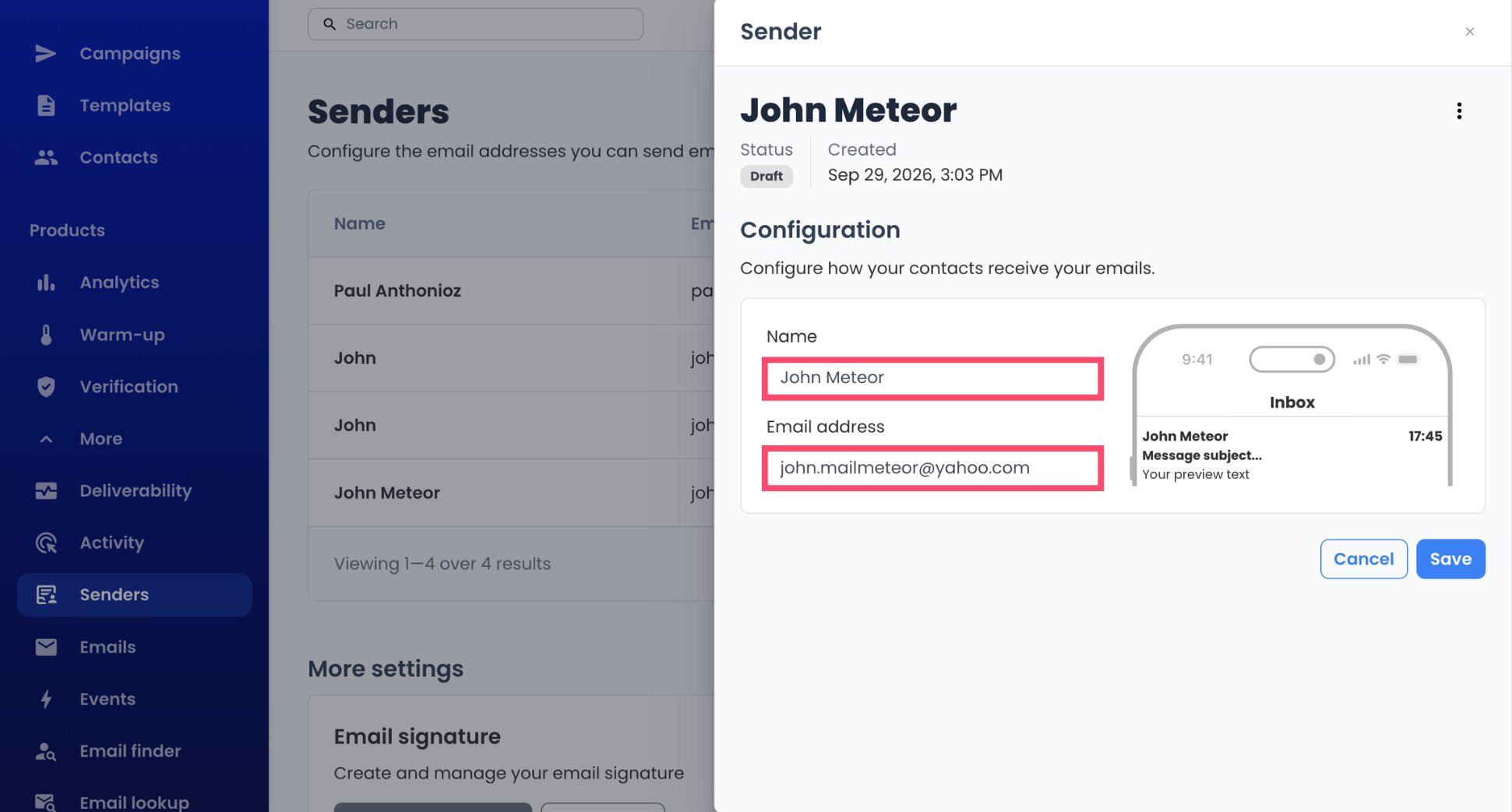
- Click Save to create your sender.
Step 2: Connect Yahoo’s Sending Server (SMTP)
- Click the + icon beside Email services.
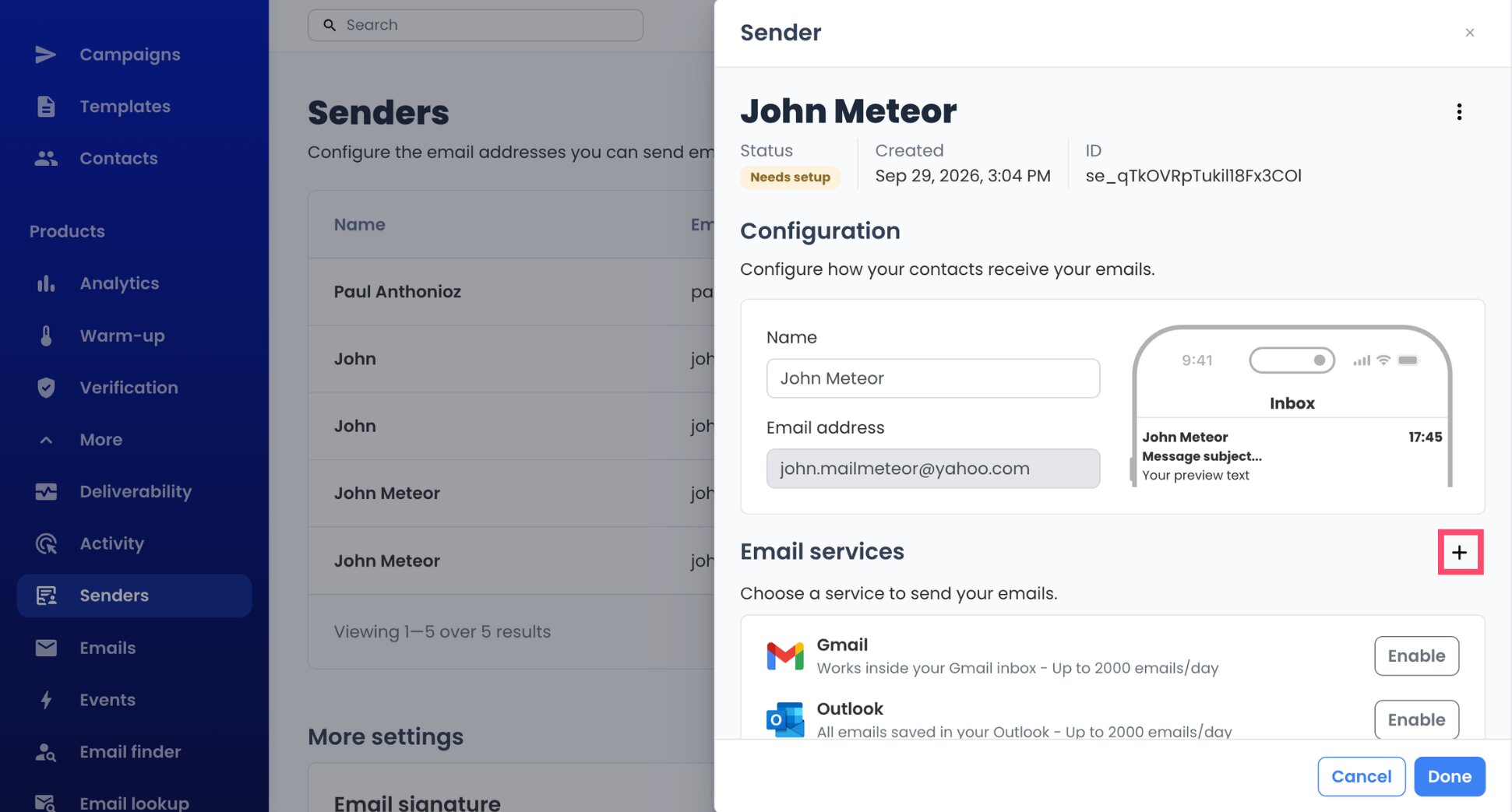
- Choose Configure mail server from the menu.
- In the Sending server section, type
smtp.mail.yahoo.comas the Server name.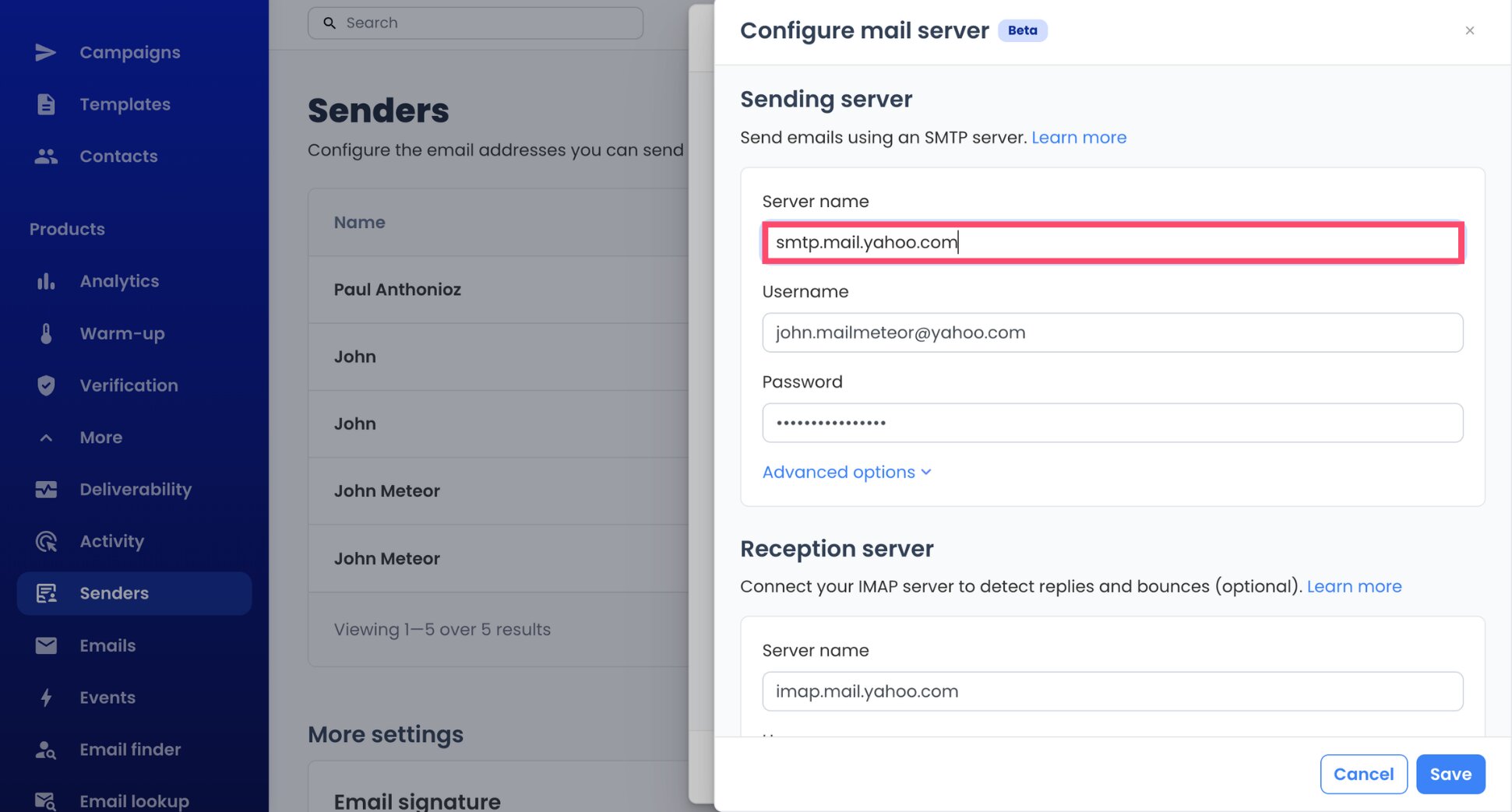
- Use your complete Yahoo address as the Username.
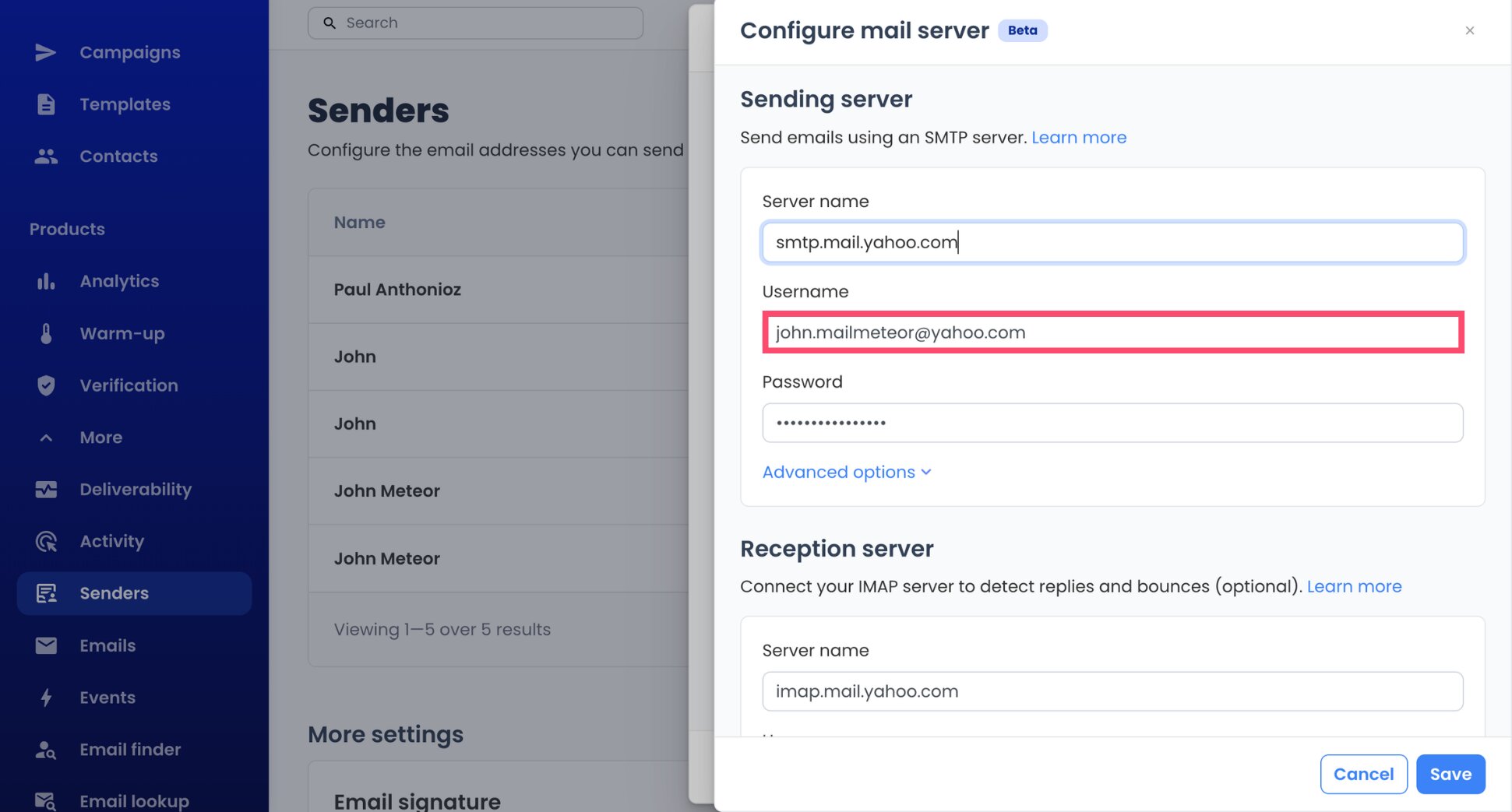
- Paste the app password you generated into Password. Your usual Yahoo password won’t work here.
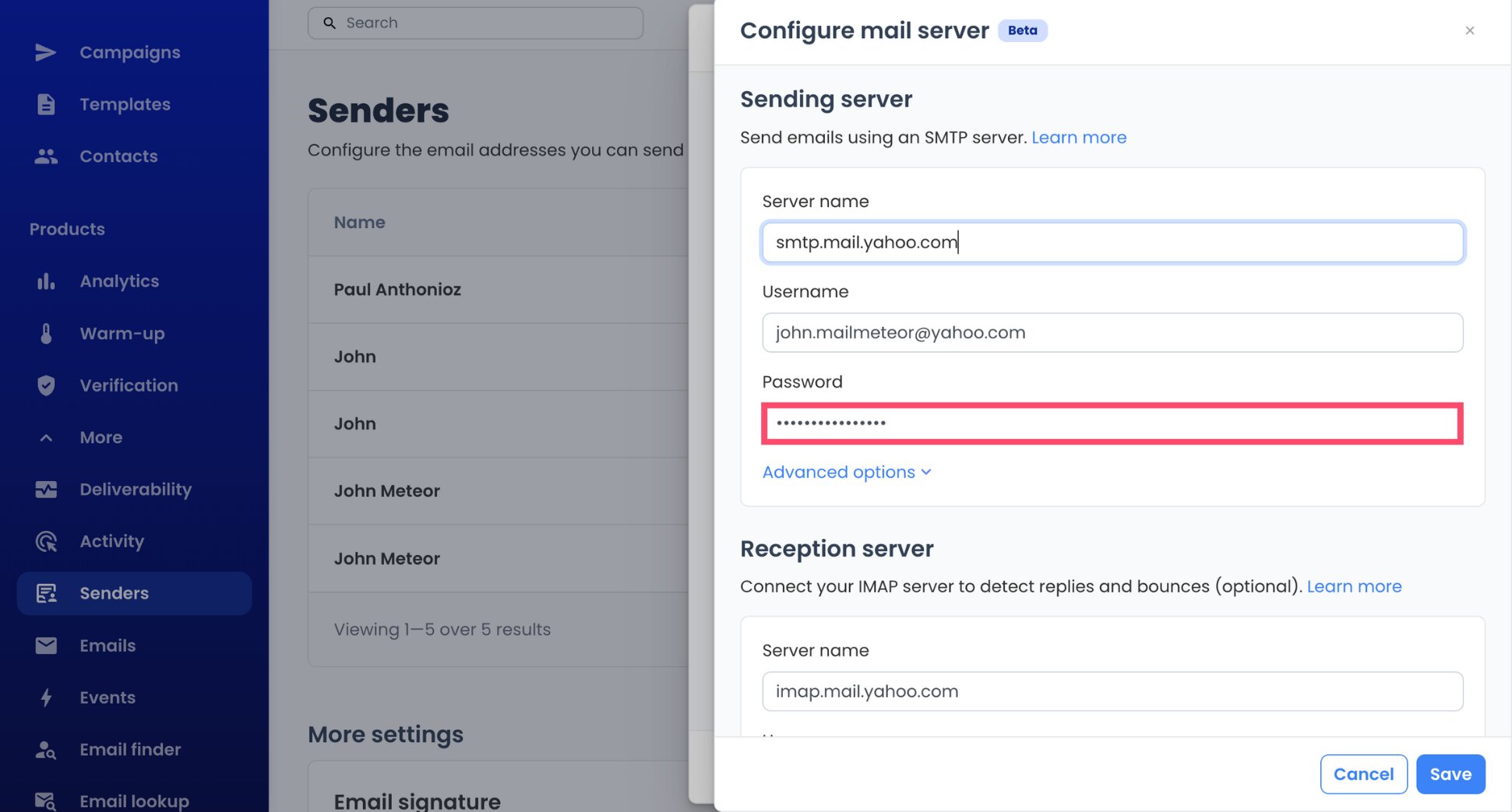
That’s the sending side done. The port and security settings are handled automatically, so you can leave them as they are.
Step 3: Connect Yahoo’s Reception Server (IMAP)
You can send without this step, but IMAP is what lets Mailmeteor spot replies in your Yahoo inbox. Without it, a contact who already answered could still receive your follow-up.
- In the Reception server section, type
imap.mail.yahoo.comas the Server name.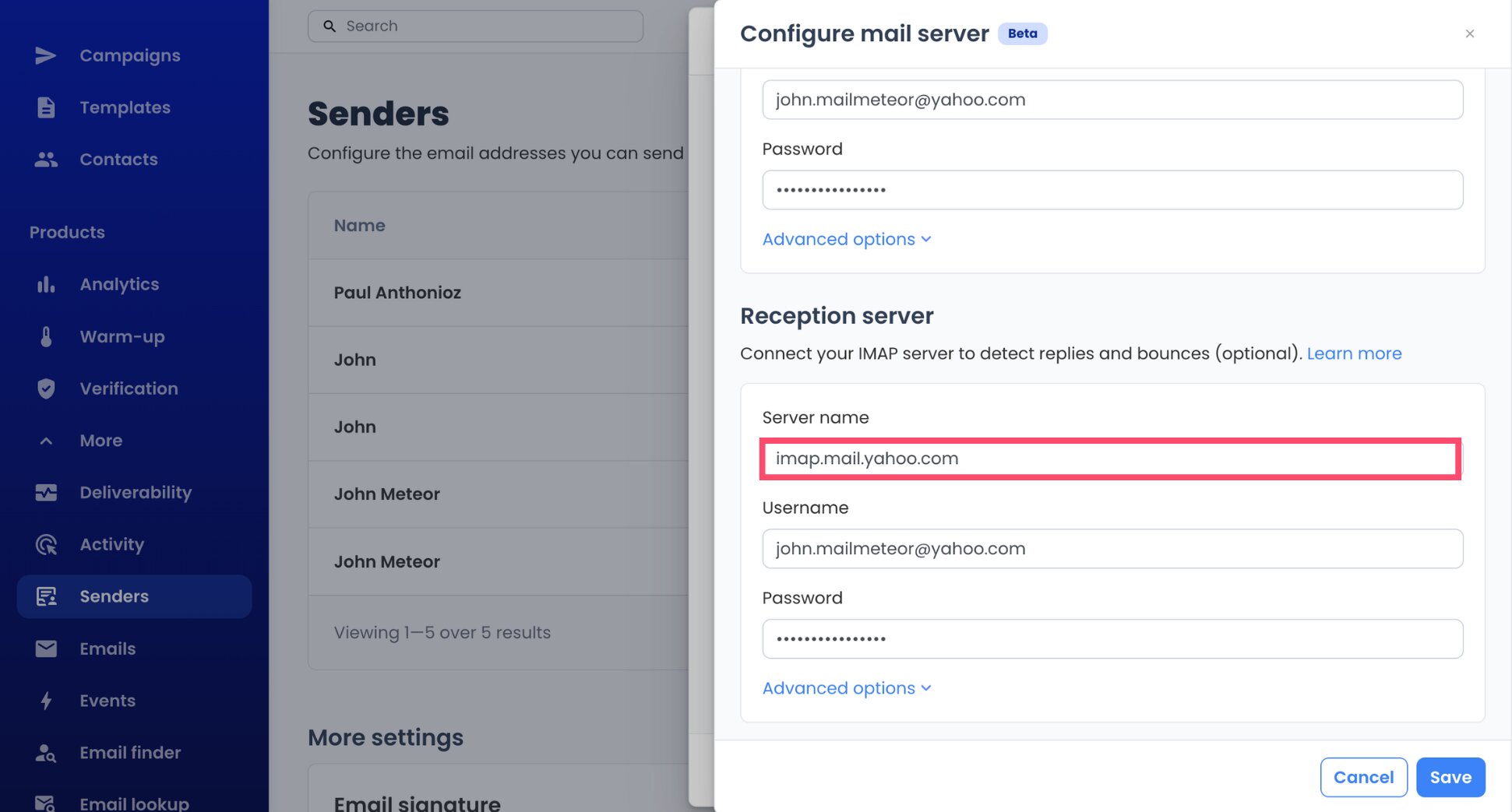
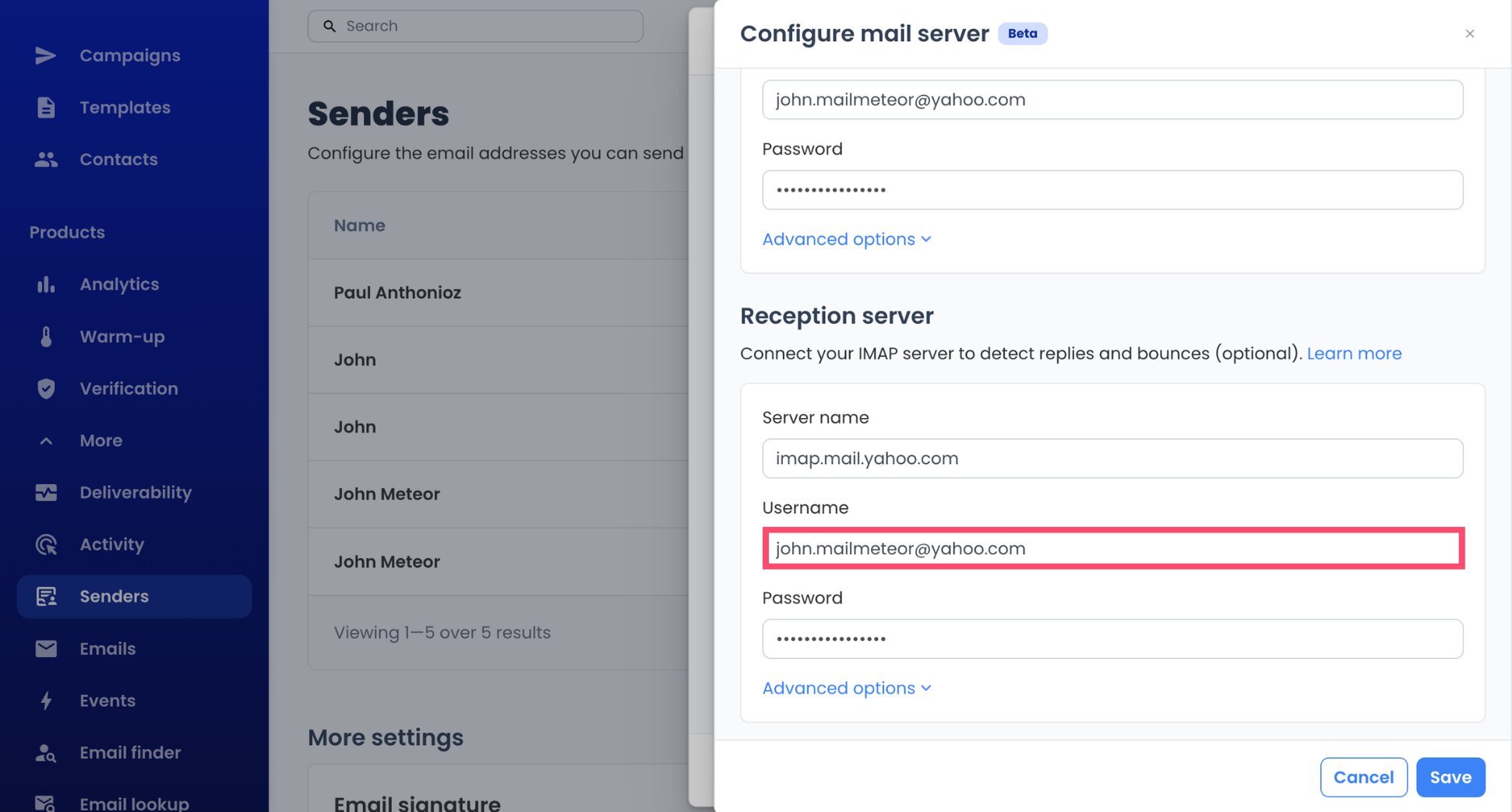
- Use your complete Yahoo address again as the Username.
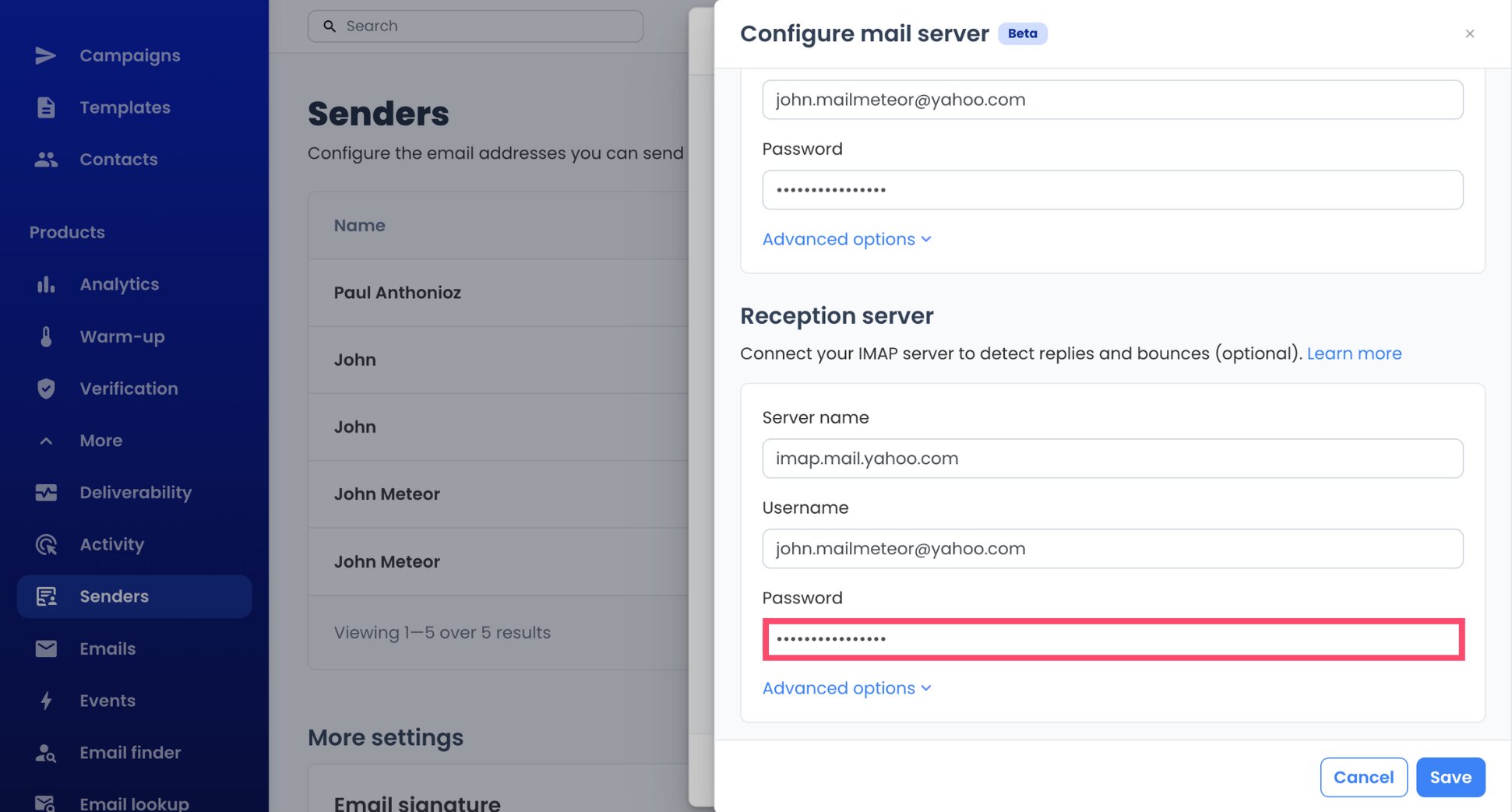
- Paste the same app password into Password. One app password covers both servers.
- Click Save, then Done to close the sender settings.
And voilà. Your Yahoo account is connected, and Mailmeteor has already set the IMAP port to 993, the one Yahoo uses.
- Go to the Senders tab and open your Yahoo sender.
- Under Email services, open the three-dot menu (⋮) beside your Yahoo mail server.
- Choose Set as default.
Step 4: Build Your Yahoo Email Campaign
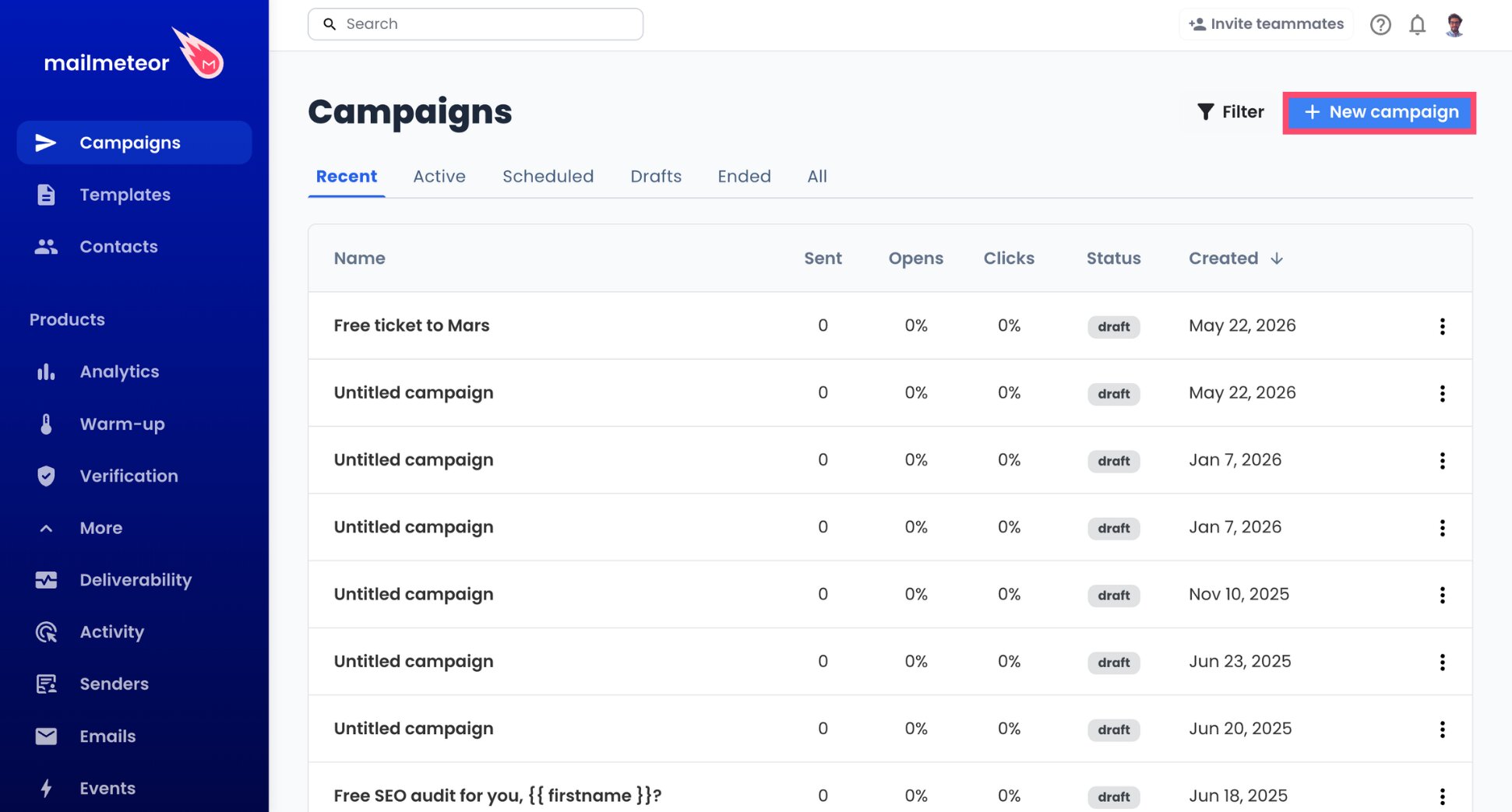
- From the Dashboard, start a New campaign.
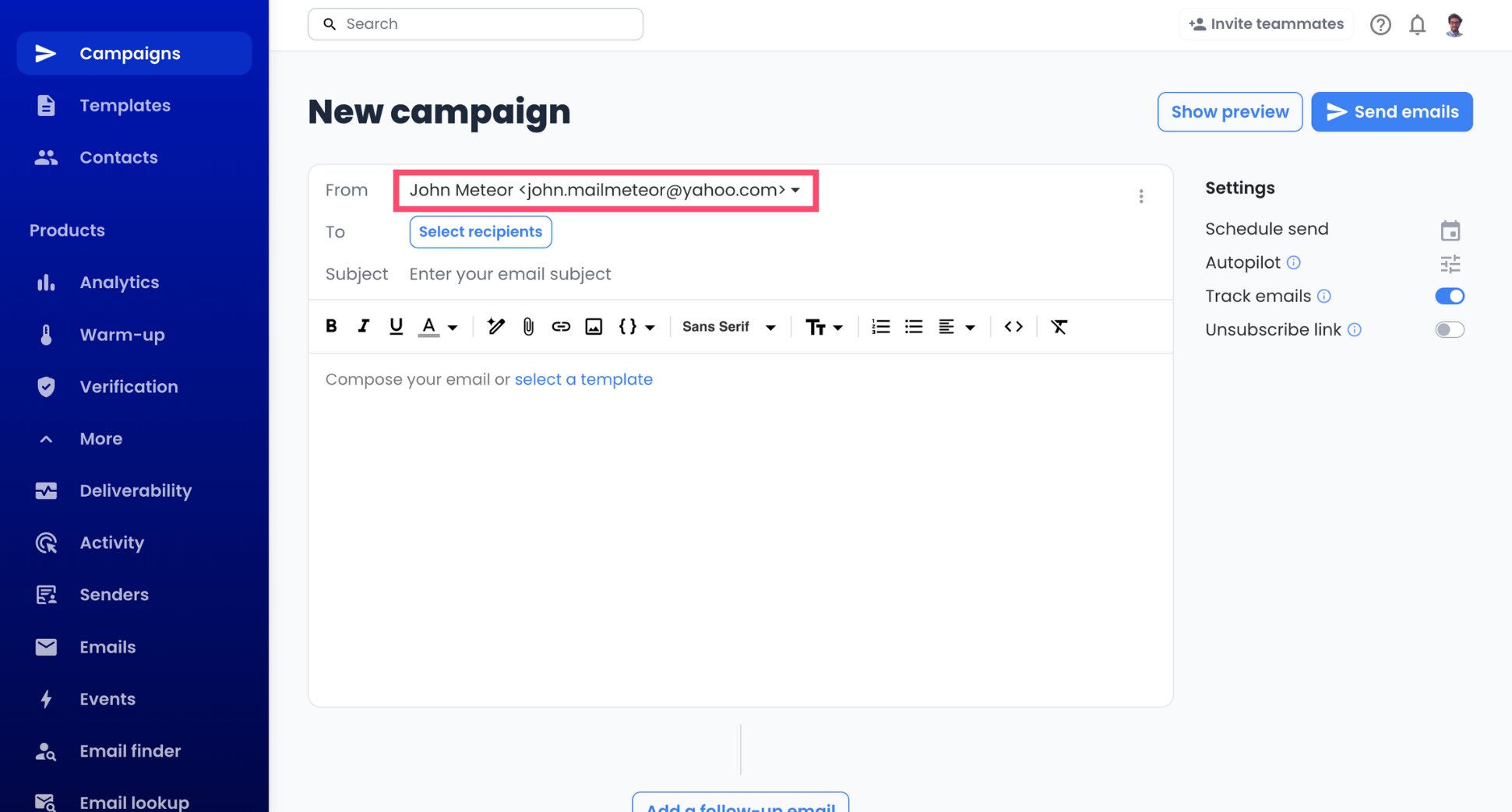
- Open the From menu with the caret symbol (▼) and pick your Yahoo sender.
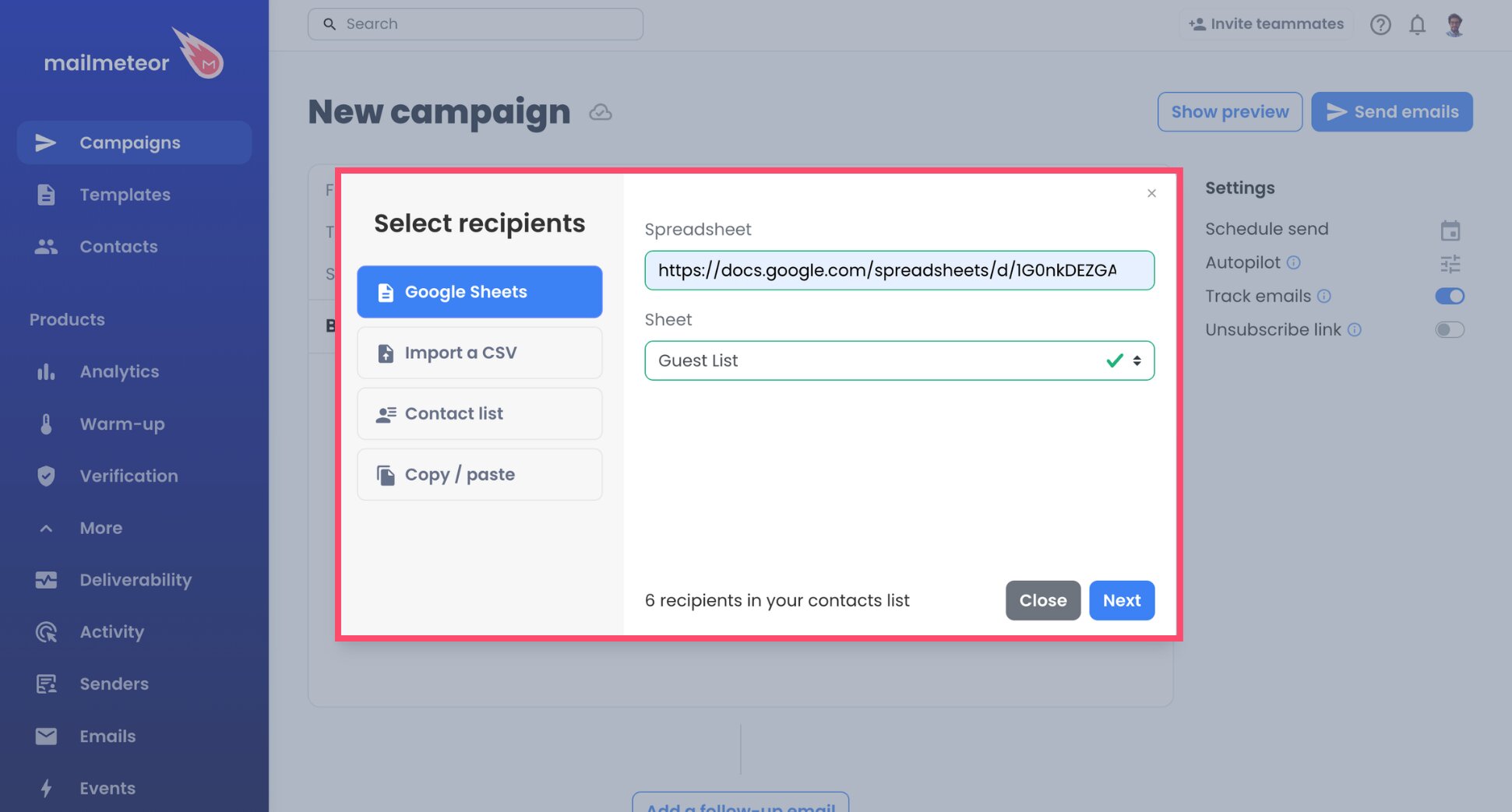
- Use Select recipients to add your contacts. You can import a Google Sheet or a CSV file, pick a contact list, or paste addresses directly.
- Type your subject line, then draft your message.
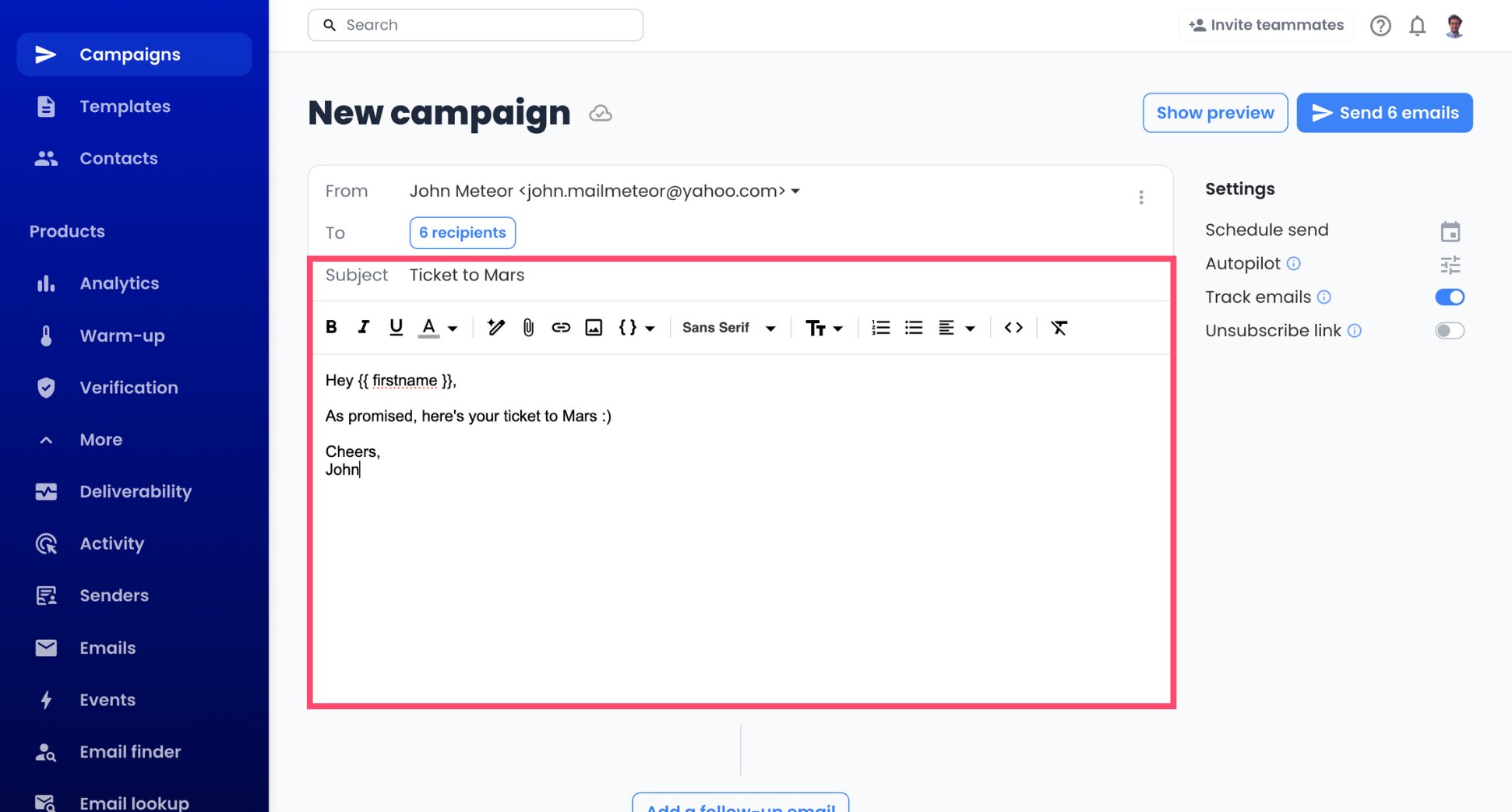
- Insert variables such as
{{ firstname }}wherever you want each email to change. Personalized emails also avoid a Yahoo red flag: the same content sent over and over.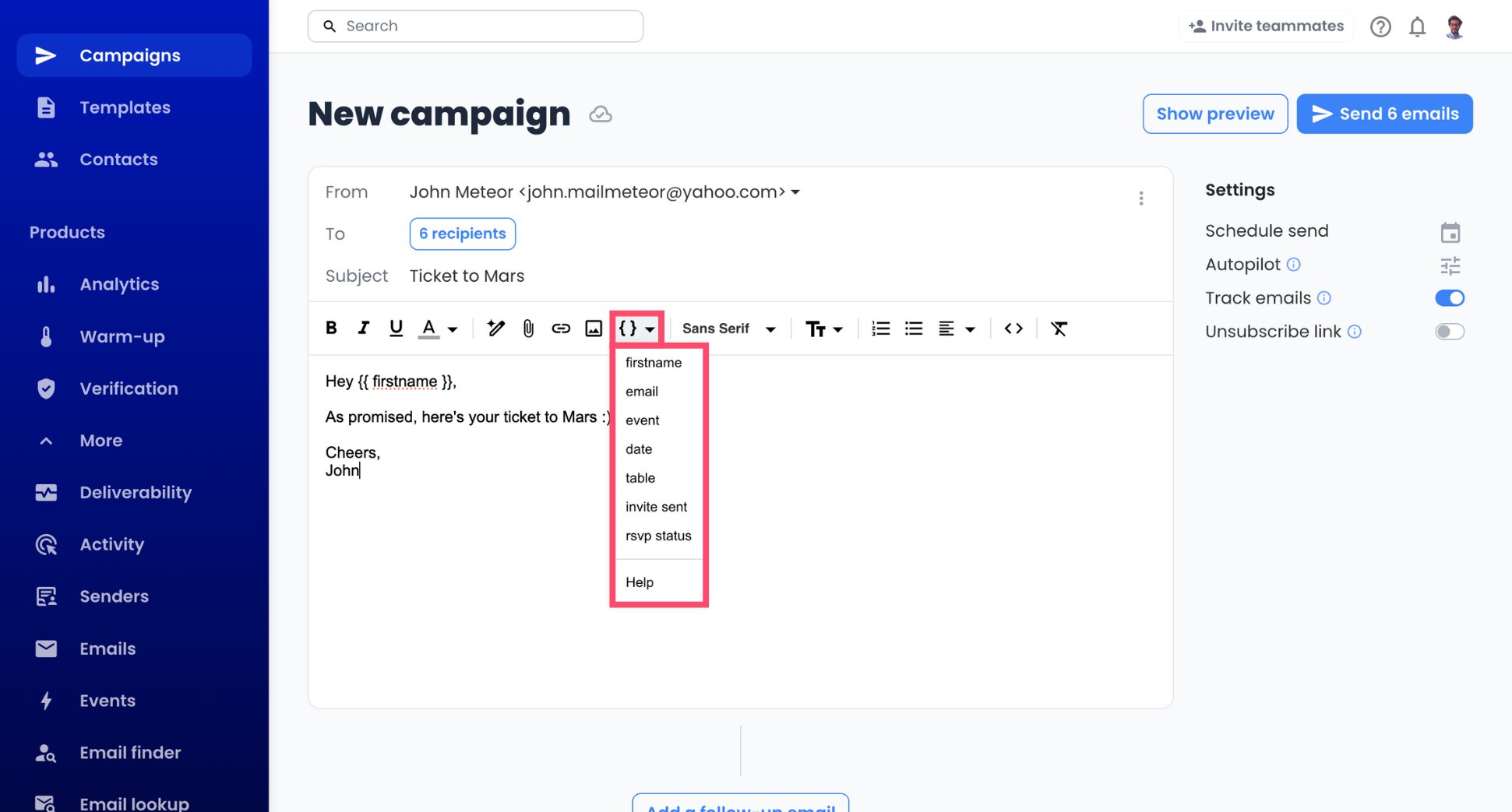
- Use Preview to see the email exactly as each contact will receive it.
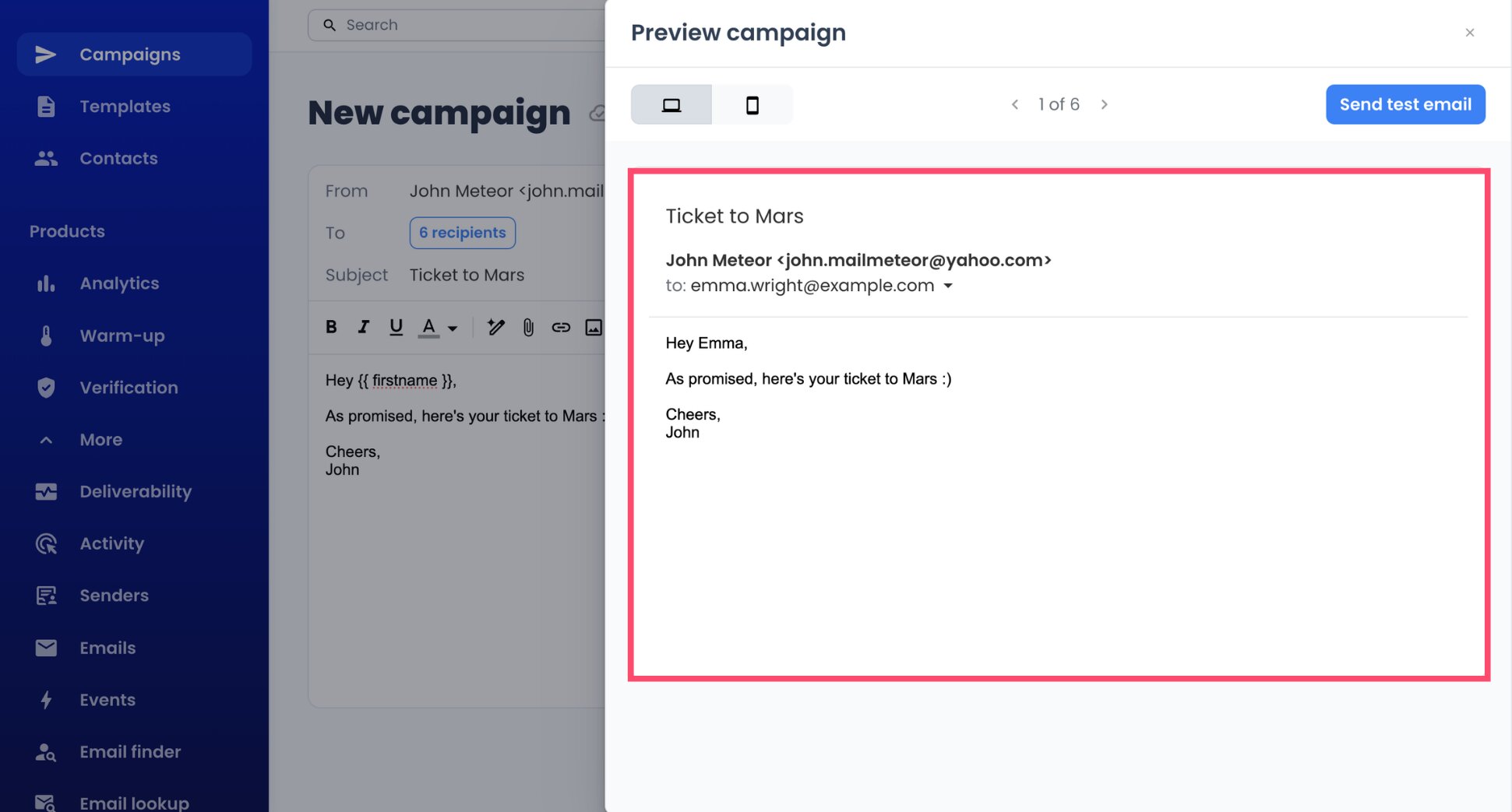
Because Mailmeteor sends a separate email to each contact, Yahoo’s limit of 100 recipients per email never comes into play.
Already keep your contacts in a spreadsheet? Then you can send without leaving it. With Mailmeteor for Google Sheets, each column header becomes a variable, and each contact’s send status appears in the sheet next to their row. Choose your Yahoo sender in the From menu, and the campaign goes out from your Yahoo address. Mailmeteor for Google Docs works the same way if you’d rather design your email in a doc.
Step 5: Space Out Your Emails With Autopilot
Yahoo watches how fast you send, so this step matters most. Autopilot is a Mailmeteor feature that lets you release your emails one by one, at a pace you choose. Here’s how it works ⤵️
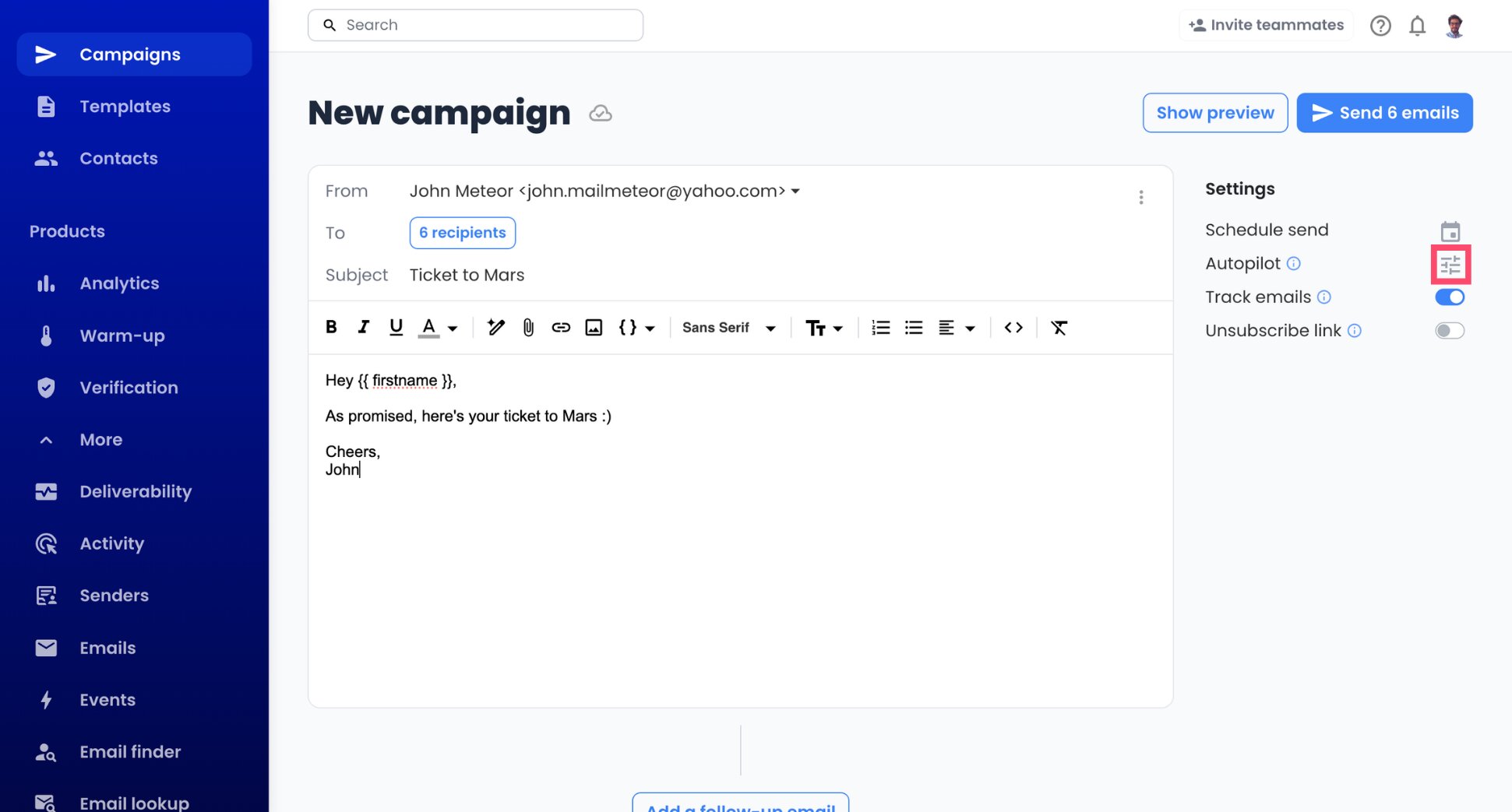
- Open the Autopilot settings from your campaign.
- Pick your sending window, such as weekdays between 9 AM and 5 PM.
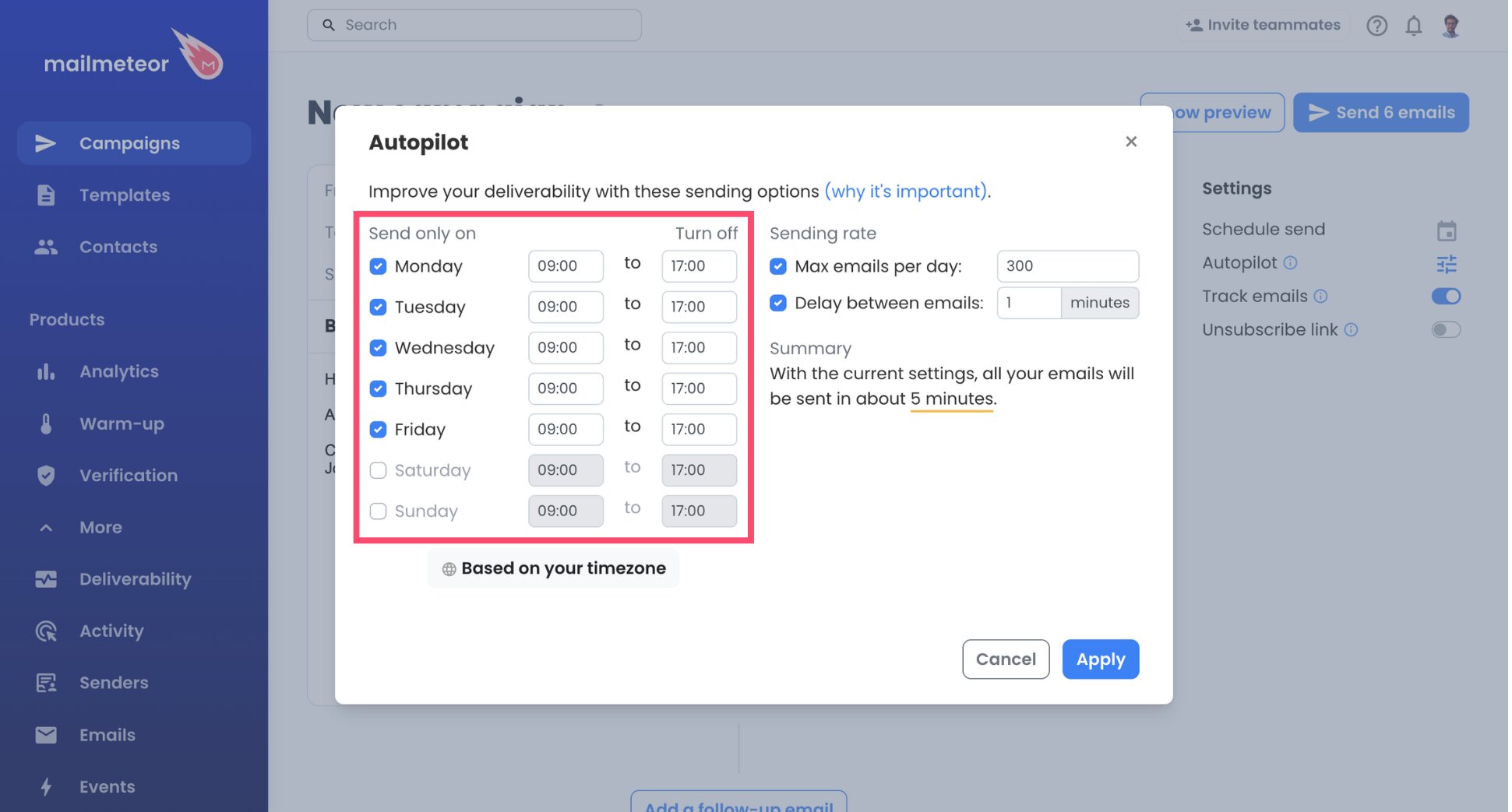
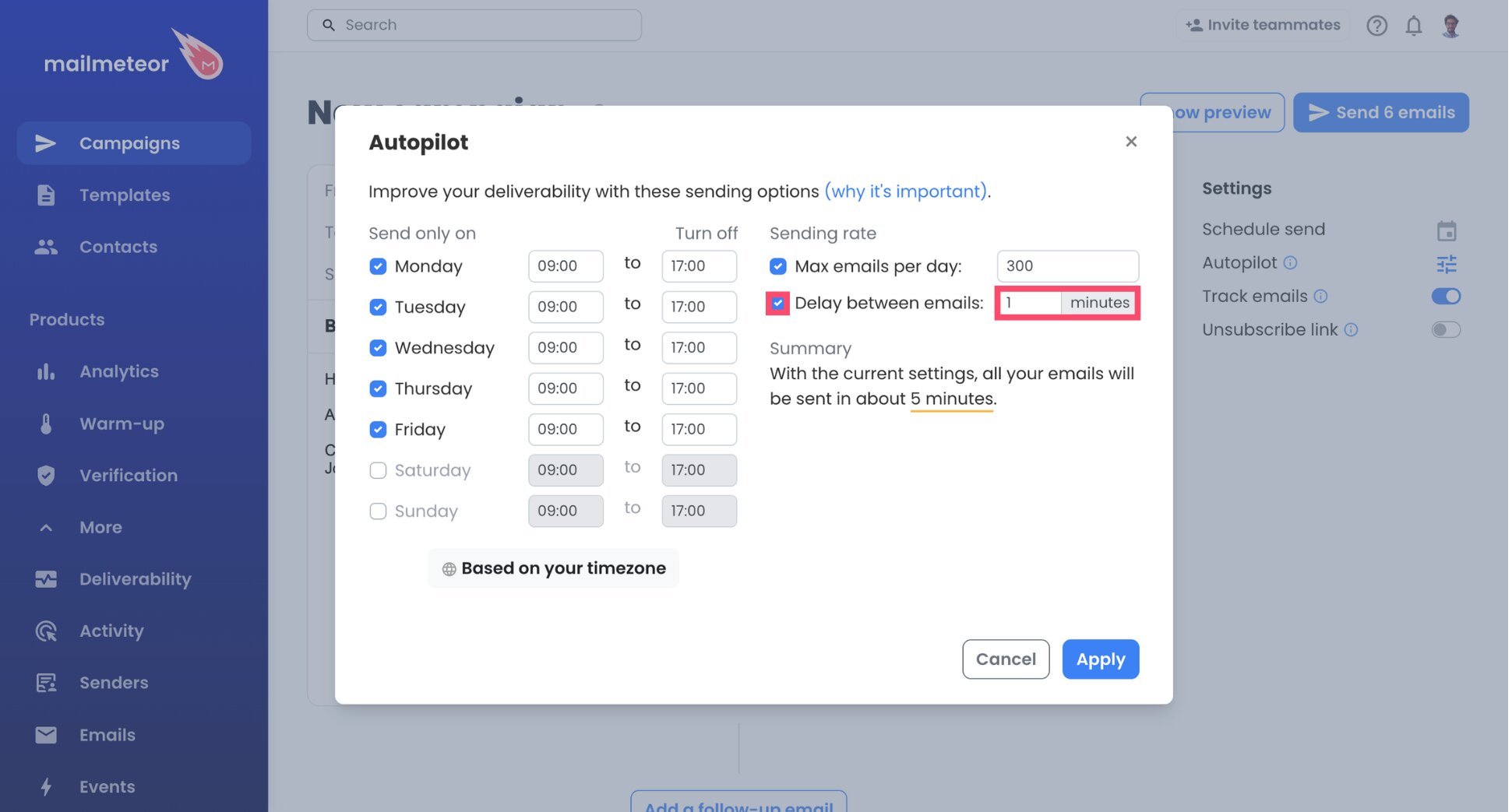
- Choose how far apart your emails go out. One minute is the shortest interval Autopilot offers, and a good fit for Yahoo. A longer gap, such as 2 or 3 minutes, is even gentler if you’re sending from this account for the first time.
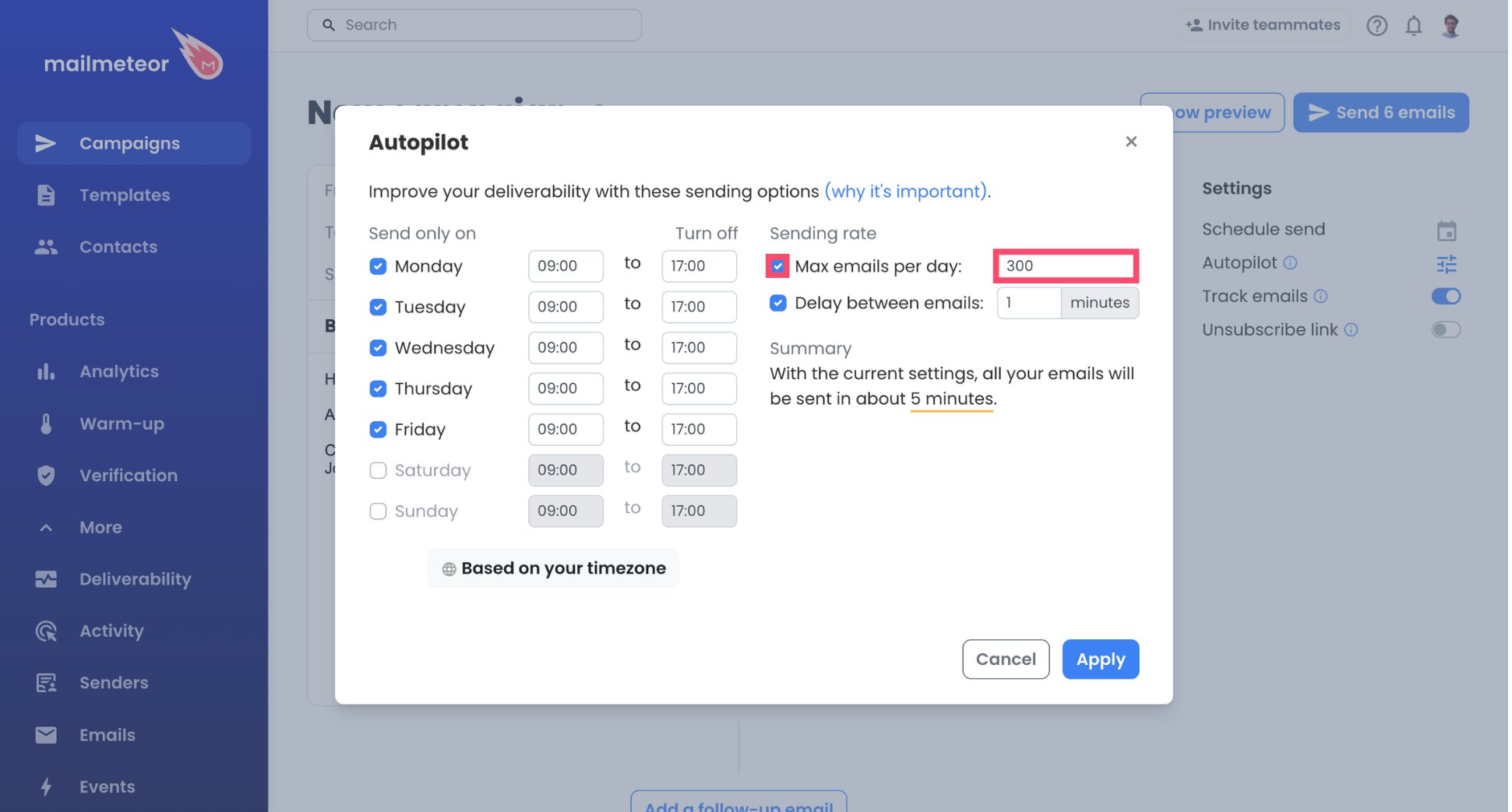
- Cap your daily volume well below Yahoo’s reported 500. If your account rarely sends more than a few emails a day, start with 30 to 50 and raise the cap gradually.
- Confirm with Apply.
One email a minute means 60 emails an hour at most, comfortably under the 100 per hour people report for Yahoo. At that pace, 100 contacts take about 1 hour and 40 minutes. Autopilot always shows how long the full campaign will run.
Step 6: Test and Launch Your Campaign
- Email yourself a test first.
- Open it in your inbox and review the layout, the links, and the personalized fields.
- When everything looks right, launch the campaign with Send emails.
And that’s it. Your emails now leave from your Yahoo address, spaced out to keep Yahoo’s spam filters happy. Opens, clicks, and replies automatically appear in your Mailmeteor Dashboard as they come in.
Yahoo Mail SMTP and IMAP Settings
Connecting Yahoo to Mailmeteor uses two servers:
- SMTP, the sending server, delivers your emails through Yahoo.
- IMAP, the reception server, lets Mailmeteor spot replies and bounces.
Here are Yahoo’s values for both:
| Setting | Sending server (SMTP) | Reception server (IMAP) |
|---|---|---|
| Server name | smtp.mail.yahoo.com |
imap.mail.yahoo.com |
| Port | 465 (or 587) | 993 |
| Username | Your full Yahoo email address | Your full Yahoo email address |
| Password | Your app password | Your app password |
Mailmeteor automatically detects the security type for you. For reference, Yahoo requires SSL on both servers.
Three things to keep in mind when you enter these settings:
- Use your app password, not your regular password. Yahoo rejects your usual password in third-party tools.
- For Yahoo Small Business, the SMTP server is
smtp.bizmail.yahoo.com. - Only touch the port if the connection fails. Mailmeteor sets it for you. If needed, open Advanced options, use 465 or 587, and keep Security on Auto.
Yahoo Mail Sending Limits: What You Need to Know
Yahoo doesn’t publish its daily and hourly sending limits. Its help center says the numbers stay undisclosed to better enforce its anti-spam policies. Here’s what email professionals commonly report:
| Limit | Commonly reported figure |
|---|---|
| Emails per day | About 500 |
| Emails per hour | About 100 |
| Recipients per email | About 100 |
Treat these figures as a ceiling, not a target. Yahoo looks at how you send as much as how much you send. According to Yahoo, these behaviors can trigger a temporary sending block:
- Sending many emails in a short time.
- Sending the same content over and over.
- Sending one or more emails to a large number of recipients.
If you hit a limit, you can still read and receive emails, but you’ll have to wait before sending again. Your Mailmeteor plan limits stack on top of Yahoo’s, so connecting SMTP never means unlimited sending.
How to Keep Your Yahoo Emails Out of Spam
A working connection is only half the job. Yahoo emails that end up in spam, or get your account blocked, usually come down to sending too fast, bouncing on bad addresses, or looking automated. Here’s how to avoid this ⤵️
Let Yahoo Handle Authentication
With a custom domain, you’d have to set up SPF, DKIM, and DMARC records yourself. With an @yahoo.com address, Yahoo takes care of authentication, as long as your emails go through its servers. Connecting Mailmeteor through Yahoo’s SMTP server does exactly that, so there’s nothing to configure.
Remove Invalid Addresses First
Every bounce tells Yahoo, and your recipients’ providers, that your list may not be trustworthy. Check your contacts with our free Email Checker first, or let Mailmeteor’s email verification tool automatically filter out invalid addresses as you send.
Avoid Yahoo’s Spam Triggers
Yahoo temporarily blocks accounts that show spam-like sending habits. To stay clear of them:
- Personalize every email. Yahoo lists sending the same content over and over as a red flag, and mail merge makes each message different.
- Go easy on links and formatting. Yahoo recommends sending emails that contain links as plain text.
- Add an unsubscribe link to outreach and promotional emails. People who can opt out easily are less likely to report you as spam.
Before launching, paste your draft into our free Spam Checker to catch spam words. You can also use Mail-Tester, a tool that gives you a temporary email address. Send your test email to it, and it shows how likely your message is to land in spam and what to fix.
Ramp Up Gradually
A Yahoo account that usually sends a handful of emails a day shouldn’t suddenly send 200. Begin with a small batch, watch your opens and bounces, then raise your daily limit step by step. To build your sender reputation before a bigger send, you can also use Mailmeteor’s email warm-up, which simulates real conversations with a network of trusted inboxes.
How to Fix Yahoo SMTP Connection Errors
If Mailmeteor can’t connect to your Yahoo account or your emails stop going out, the app password or Yahoo’s sending limits are almost always to blame. Find your Yahoo SMTP problem below and how to fix it ⤵️
| Problem | Likely cause | Fix |
|---|---|---|
| Authentication failed | You used your regular Yahoo password | Generate an app password and use it instead |
| Authentication failed with an app password | Typo, or the app password was deleted | Generate a new app password and paste it again |
| Can’t create an app password | Yahoo doesn’t recognize your browser | Use a browser you’ve signed in with for several days, outside Incognito mode |
| Connection timeout | The port was changed | In Advanced options, set the SMTP port back to 465 (587 also works) and leave Security on Auto |
| “Account temporarily blocked from sending” | You sent too many emails too fast | Wait for the block to expire, then lower your Autopilot daily limit or increase the delay |
| Replies don’t show up in Mailmeteor | The reception server is missing | Fill in imap.mail.yahoo.com under Reception server, with your app password |
Still can’t connect Mailmeteor to your Yahoo inbox? Try your settings in our SMTP Test Tool, or read Mailmeteor’s mail server documentation.
Send Personalized Mass Emails From Yahoo Mail
Your contacts already know and trust your Yahoo address, so there’s no need to start over with a new one. With an app password and a steady sending pace, it becomes a real outreach tool. Yahoo still handles your inbox, and Mailmeteor adds the campaign features Yahoo Mail doesn’t have:
📬 Reach every contact with an email written for them, from your own Yahoo address
⏰ Keep your account safe from sending blocks, with Autopilot pacing every campaign
🔁 Send follow-ups on autopilot, and skip anyone who already replied
📊 Know who opened, clicked, or answered, and focus on the warmest contacts
✅ Keep bounces low by filtering out invalid addresses before you send
Try Mailmeteor for Yahoo Mail today (it’s free!) and send personalized campaigns from the address your contacts already know.
Frequently asked questions
Can you do a mail merge in Yahoo Mail?
Not with Yahoo Mail alone, since it has no mail merge feature. To send personalized emails in bulk, connect your Yahoo account to a mail merge tool like Mailmeteor through SMTP. Each recipient then gets an individual email from your Yahoo address, personalized with their own details.
What is the Yahoo Mail SMTP server?
The Yahoo Mail SMTP server is smtp.mail.yahoo.com, on port 465 or 587 with SSL. Use your full Yahoo email address as the username and an app password as the password. For Yahoo Small Business email, the SMTP server is smtp.bizmail.yahoo.com.
How many emails can I send per day from Yahoo Mail?
Yahoo doesn’t disclose its sending limits. Email professionals commonly report around 500 emails per day and 100 per hour. How you send matters as much as how much you send: many emails in a short time can trigger a temporary block even below those numbers.
How many recipients can I add to one Yahoo email?
On a free account, Yahoo Mail allows a maximum of 100 recipients in a single email, counting the To, Cc, and Bcc fields together. Sending one email to a large number of recipients is also on Yahoo’s list of suspicious behaviors. With a mail merge, each person gets a separate email, so that limit doesn’t come into play.
Why do I need an app password for Yahoo Mail?
Yahoo requires an app password for any third-party app that doesn’t use Yahoo’s own sign-in page. It’s a randomly generated code that gives one app access to your account without sharing your main password. You can revoke it at any time by deleting it from your Yahoo Account Security page.
Why is my Yahoo account temporarily blocked from sending?
Yahoo temporarily blocks sending when it detects spam-like activity, such as many emails in a short time or repeated identical content. You can still read and receive emails during the block. Once it expires, send more slowly. If none of these behaviors apply to you, secure your account, as someone else may be using it.
Can I send mass emails from a Yahoo address with a newsletter platform?
Not with your real address. Yahoo tells other providers to reject @yahoo.com emails that weren’t sent through Yahoo’s servers. Newsletter platforms send from their own servers, so they have to replace your From address with one on their own domain. To keep your real Yahoo address, send through Yahoo’s SMTP server.